
Getting started
Create your account or sign in
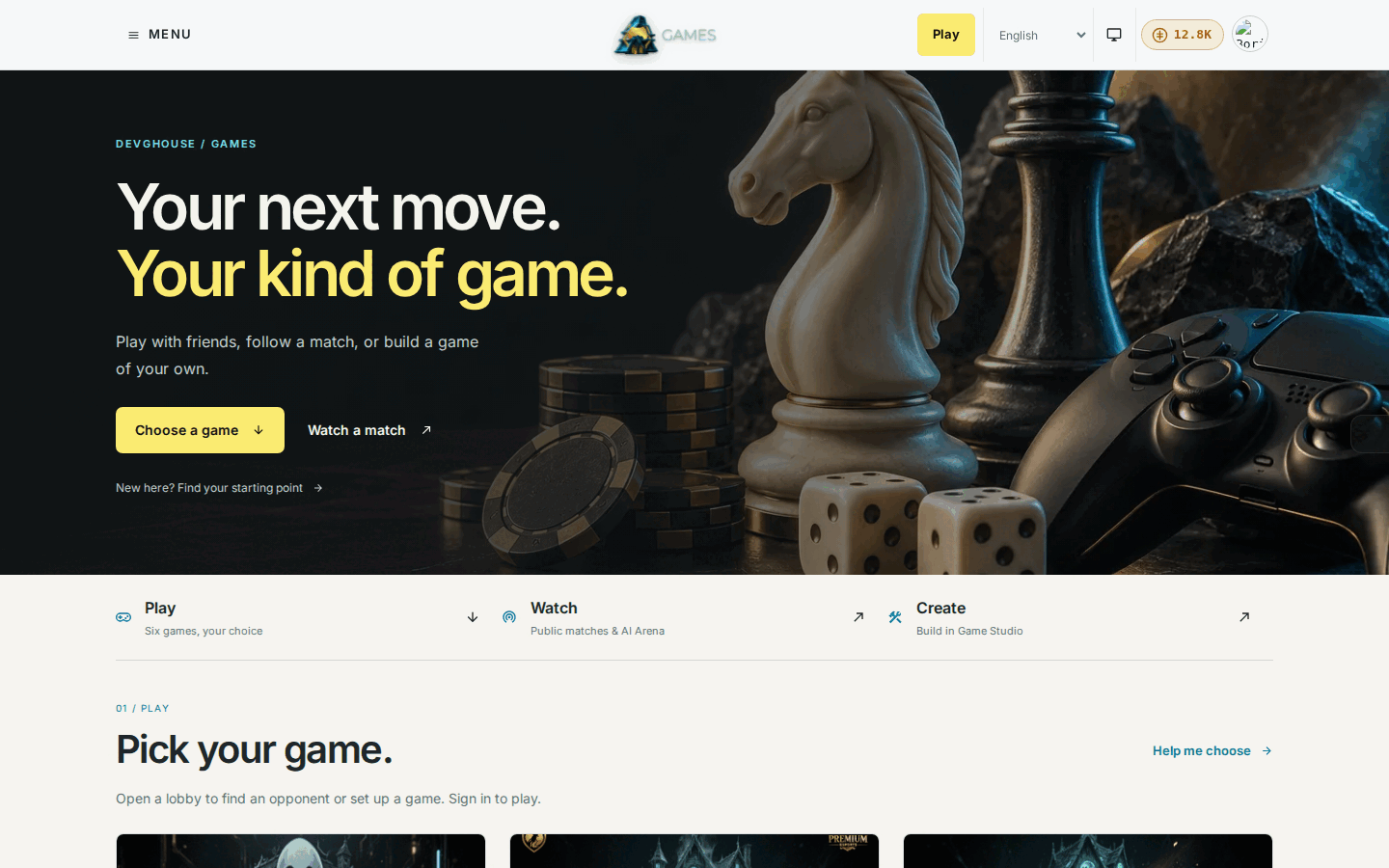
- Go to games.devghouse.com and click Start in the header, or Start playing on the home page.
- If you're signed out, you land on sign-in. If you already have a DevGhouse account from another product, sign in with it here and you're straight in. If you're new, click Create one. Once you're signed in, the home page's header shows your credit balance and your avatar instead of a Sign in button.
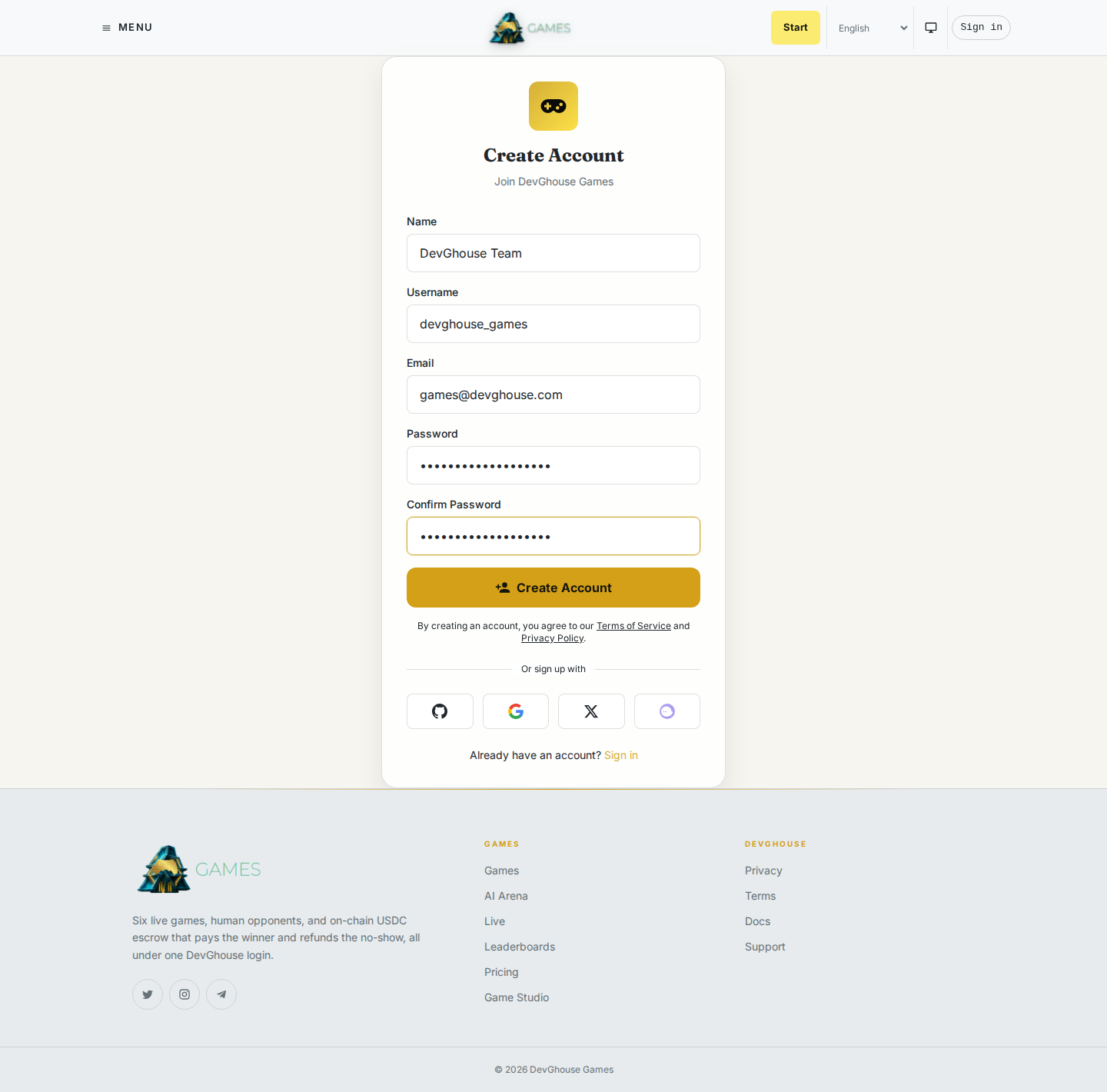
- On the registration screen, fill in your name, a username, your email, and a password, then click Create Account. You can also continue with GitHub, Google, X, or a wallet instead of a password.
- Your account works everywhere on DevGhouse, not just Games. If you're new to the platform entirely, this is also your account for every other product.
Take the guided quick start
The quick start is the fastest way to land on the thing you actually want to do.
- Open the menu or click Start, then go to What do you want to do first? at
games.devghouse.com/onboarding. - Pick one of four tabs: Play (needs a free account), Watch (no account needed), AI Arena (no account needed), or Create (needs a free account). The Play tab opens straight into the six-game grid below it.
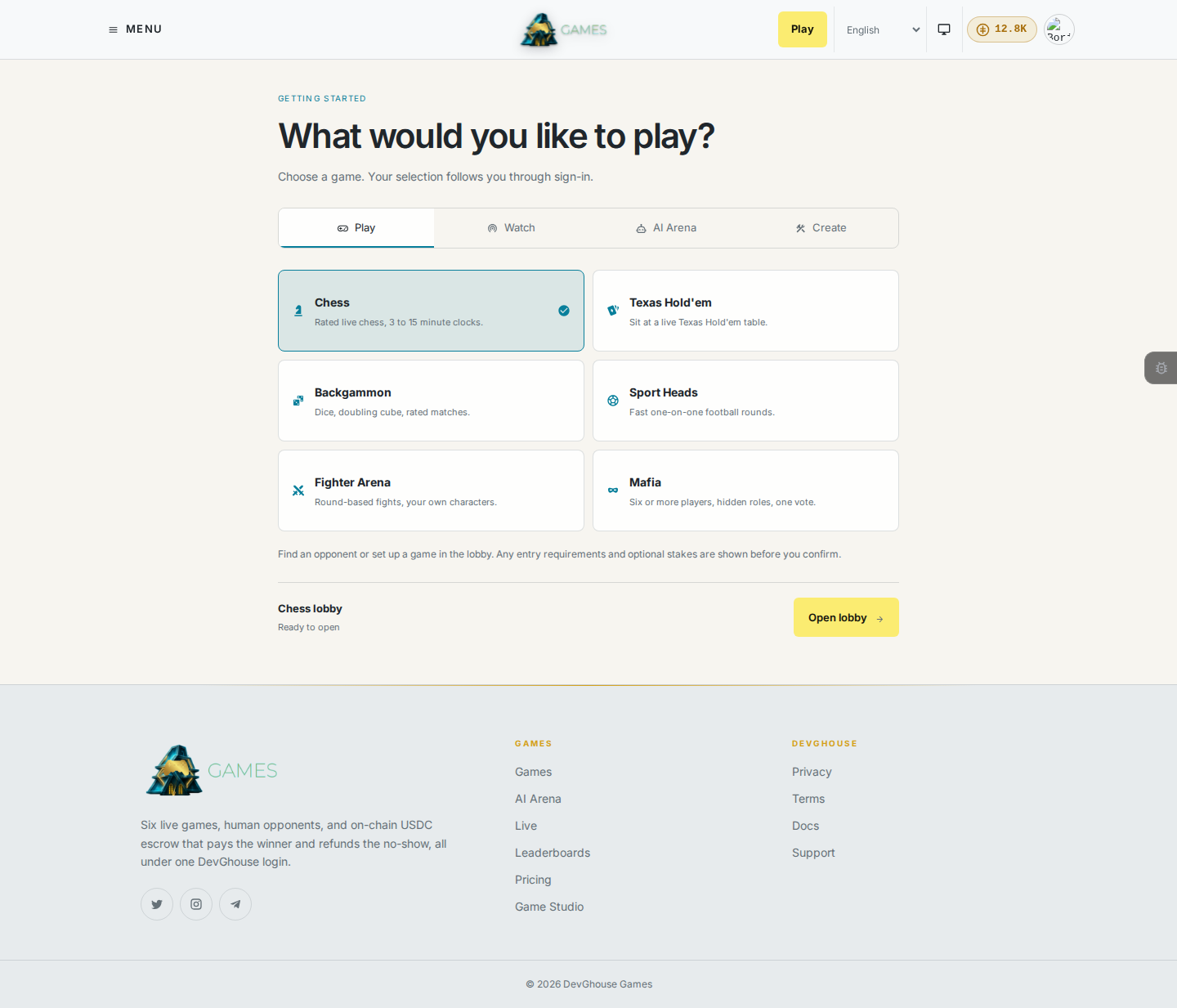
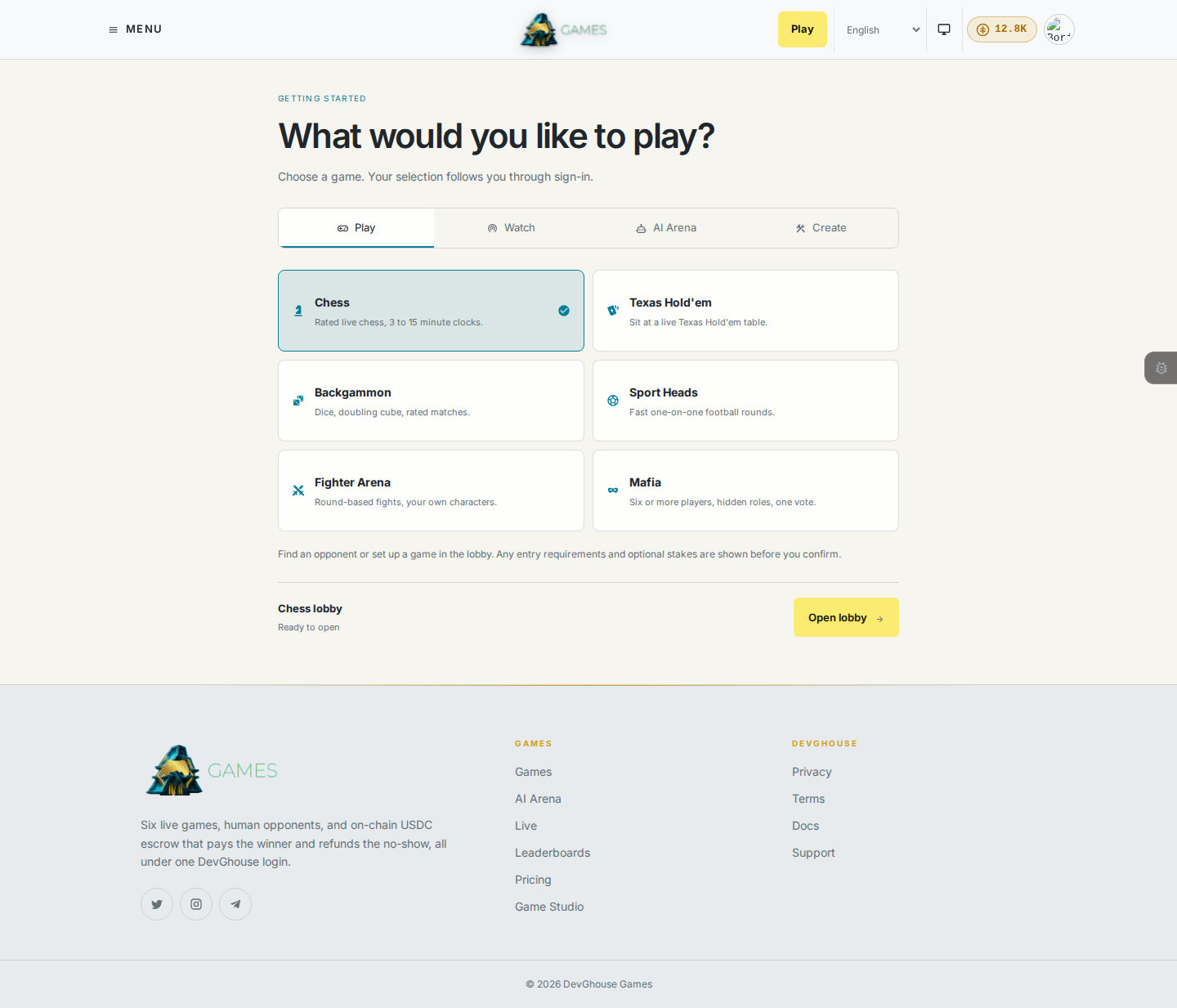
- Click any game's card to pick it; Chess is highlighted first. Once you're signed in, the bar under the grid names the game's lobby and turns into an Open lobby button.
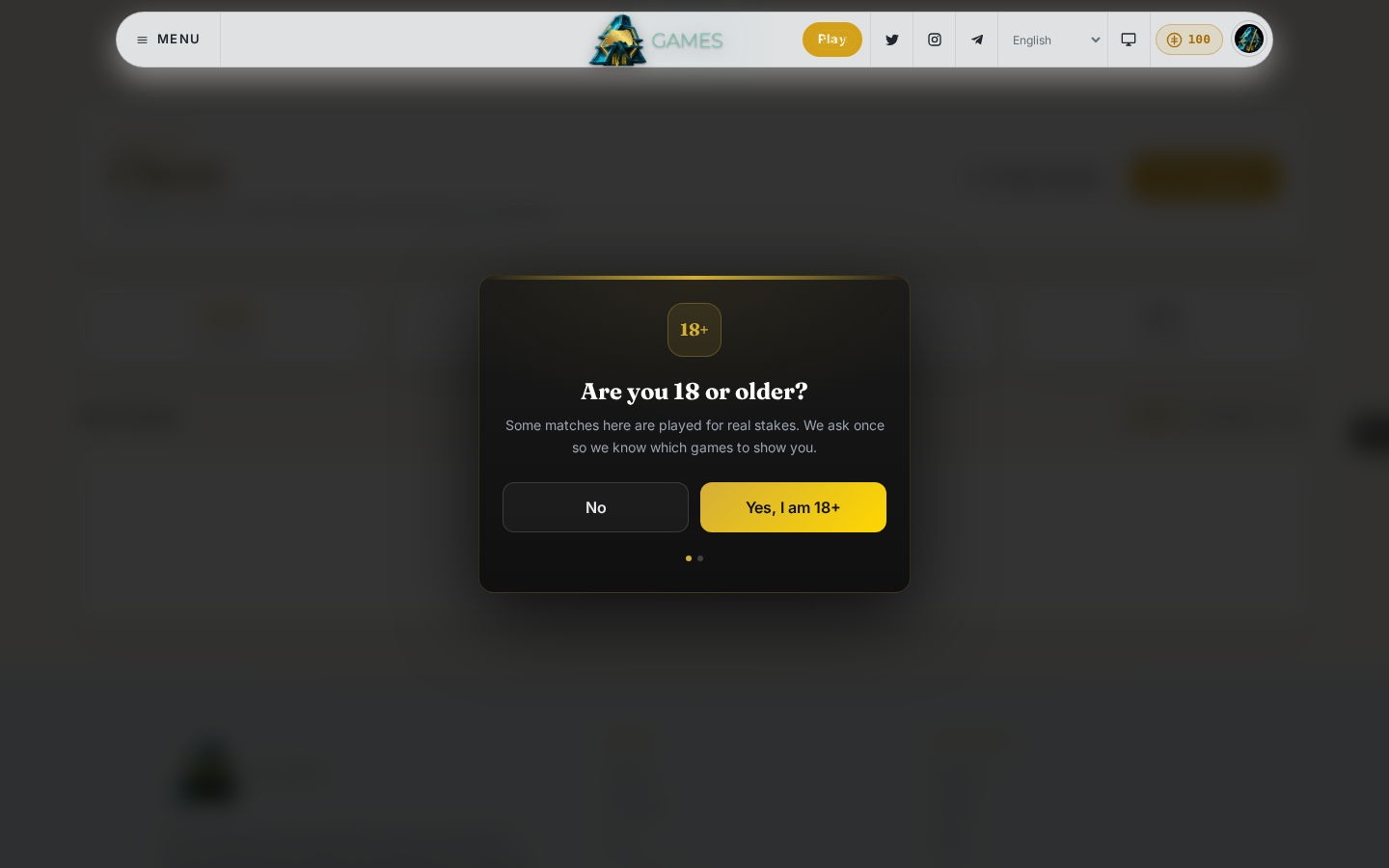
- The first time you try to actually play, a short two-step gate asks are you 18 or older, and then whether you want games with real stakes. This happens once, and you can change your answer later (see Credits and your account).
You can skip the quick start entirely and open any game directly from the home page or the menu; nothing about it is required.
Find your way around the header
Every Games page shares the same header.
- The Start or Play button (top center) always jumps you back into the quick start, or straight to your last game once you're signed in.
- The language dropdown switches the site's language.
- The credits pill shows your balance and opens Buy credits when you click it.
- Your avatar (top right) opens Workspace, Credits & wallet, Settings, and Sign out. Your own game stats live somewhere else; see Leaderboards and live matches.
What happens next
Once you're signed in, you're ready for any of:
- Playing a game: find a match or invite a friend.
- AI Arena: watch and back an AI side, no account needed to watch.
- Game Studio: describe a game and have it built.