
Settings, notifications and credits
Your account settings cover both your personal details (email, password) and preferences that apply per workspace, like notifications. Credits are the currency every DevGhouse feature spends: image generation, AI chats, automations, and more.
What you can do
| Feature | What it does |
|---|---|
| Account | Update your email address or password. |
| Notifications | Choose which channels reach you, and when. |
| Wallets | Connect a crypto wallet for payments where that applies. |
| Credits usage | See your current balance and exactly what recent activity spent it. |
| Buy credits | Top up your balance. |
1. Notifications
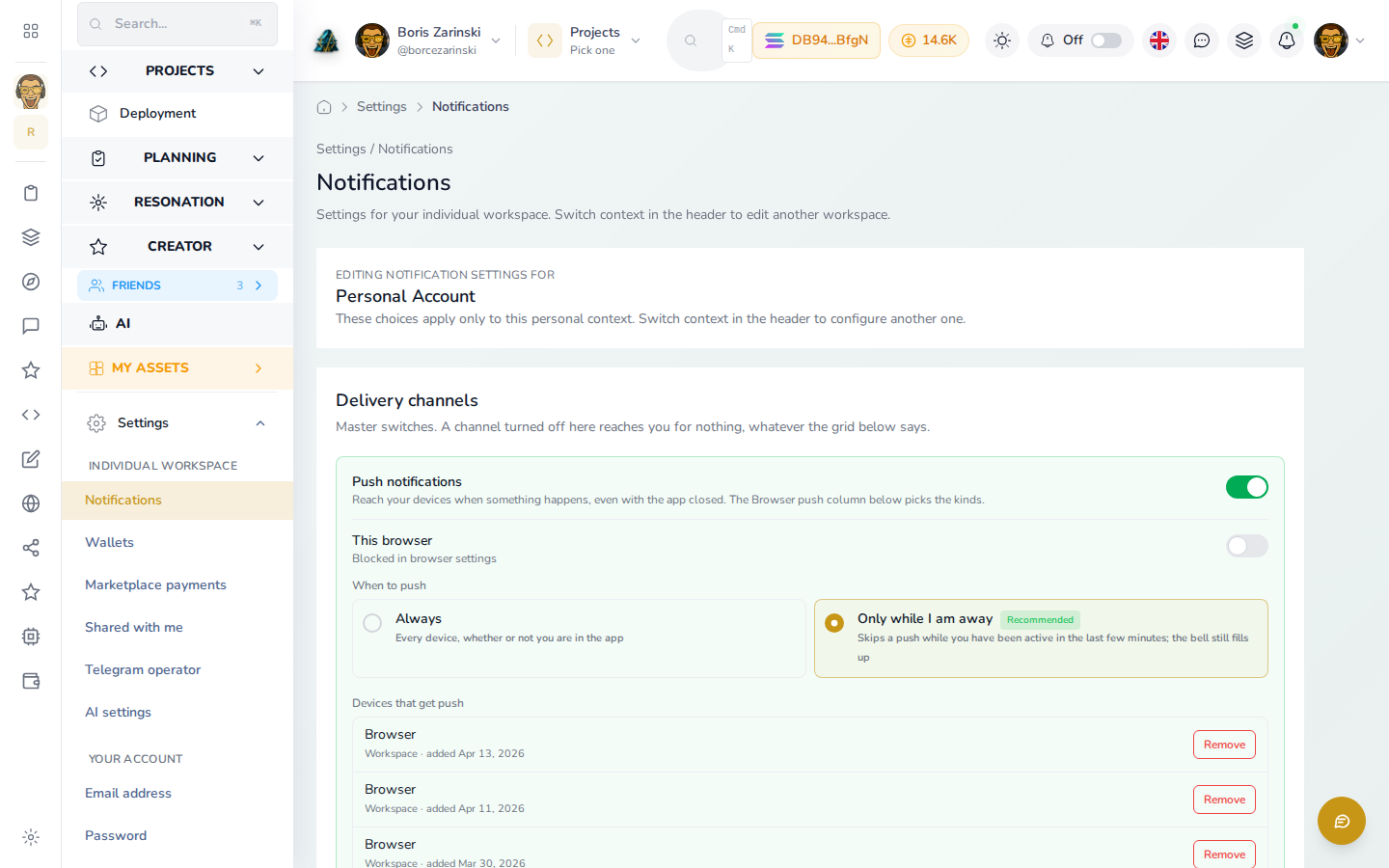
- Click Settings in the left menu, then Notifications.
- Delivery channels are master switches: turning one off means it reaches you nowhere, whatever the settings below it say.
- Choose when push notifications reach you: Always, or Only while I am away (recommended, it skips a push if you were recently active in the app).
- These settings apply to whichever workspace is currently selected. Switch workspace first if you want to change another one's notifications.
2. Your account
Click Settings, then Email address or Password under Your account to update your login details. These apply across every workspace you belong to, not just the one you are currently in.
3. Connect a wallet
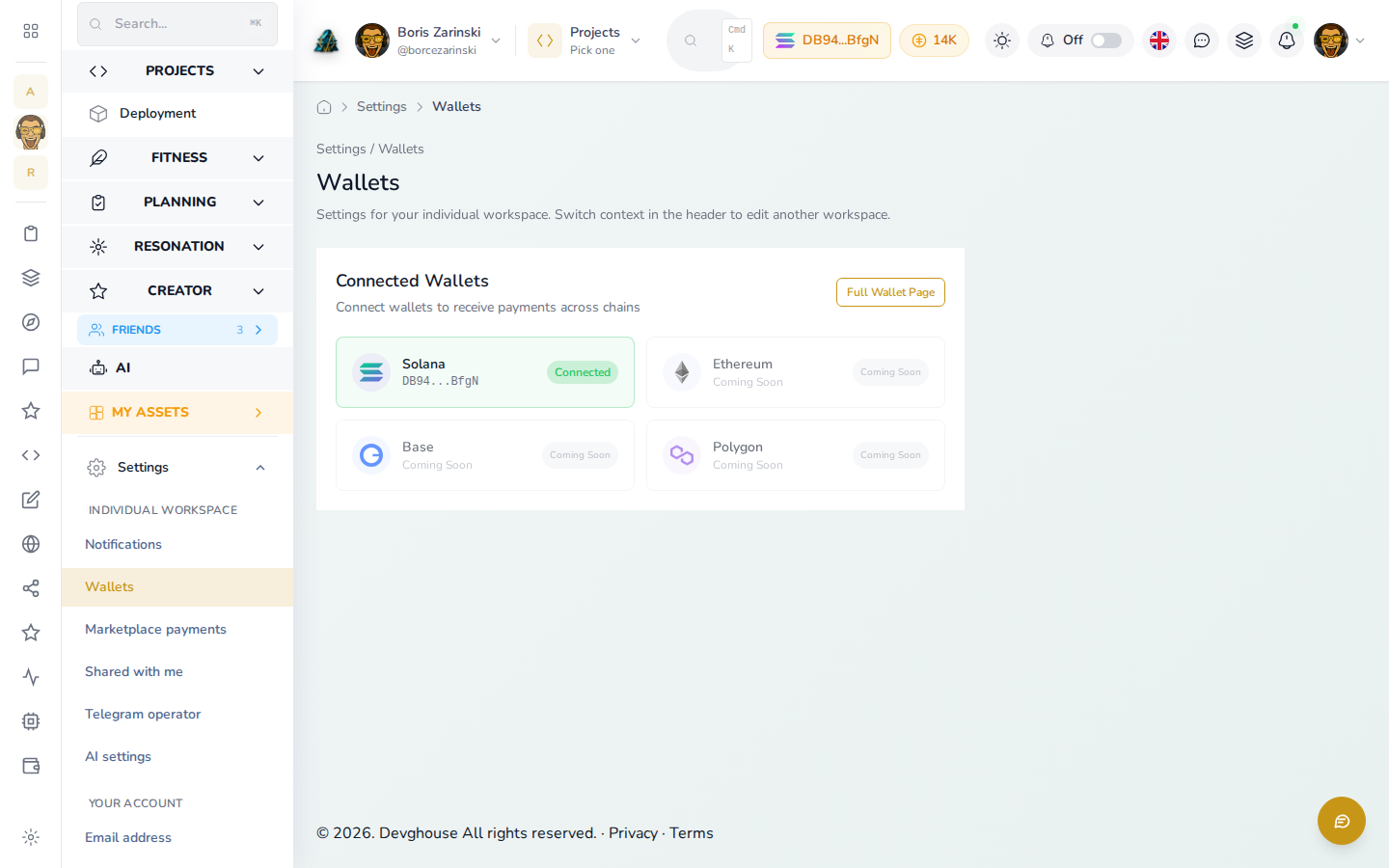
- Click Settings, then Wallets.
- Find Solana in the list and click Connect.
- Approve the connection in your wallet extension (such as Phantom) when it pops up.
- Once connected, the card shows a green Connected badge and your wallet's short address. Use this wallet wherever DevGhouse asks for a payout or an on-chain payment, such as a crypto coin launch.
- Other chains (Ethereum, Base, Polygon) are listed but marked Coming Soon, you cannot connect them yet.
4. Track your credits
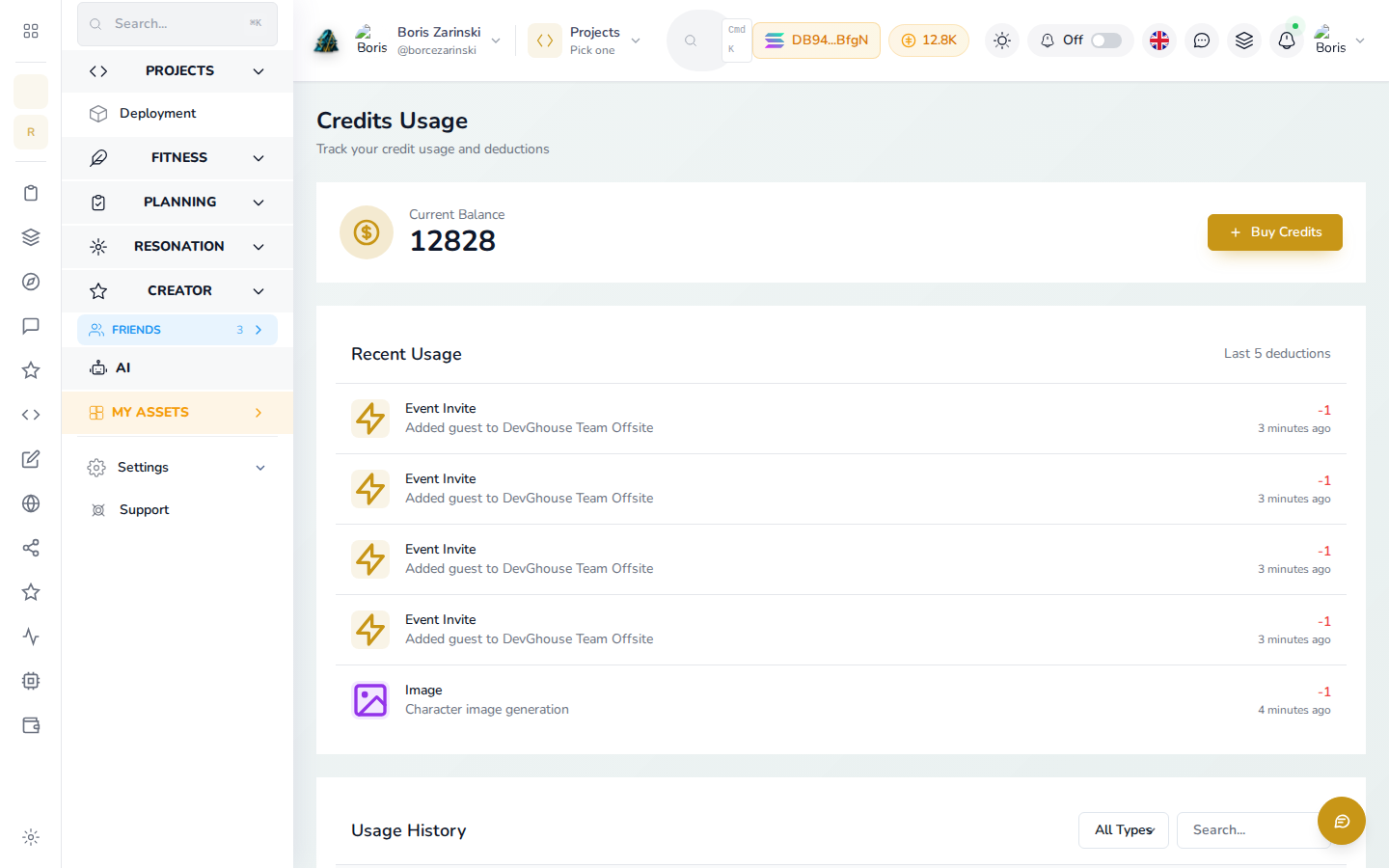
- Click your credit balance in the top bar from anywhere in the app, then View usage history, or reach the same page from Settings.
- Current Balance shows what you have left to spend right now, in whichever workspace is selected.
- Recent Usage lists exactly what spent your credits and when, the screen above shows an event invite and a character image generation. Usage History below it goes further back, filterable by type and searchable.
- Click Buy Credits to top up. That opens a confirm screen too, an amount, a wallet, and a currency to pay with, so you always see the exact cost before anything is charged.
5. What costs credits
Most things that call an AI model or a generation tool cost credits: images, video, audio, 3D models, automations that use DevGhouse's built-in engine, and AI chat replies. Browsing, editing text by hand, and connecting your own AI subscription (see AI assistant) do not spend credits the same way, since a connected subscription bills you directly instead.
Run this with an AI assistant
get_credits_balance()checks the current balance for whichever context (personal or workspace) the call is made inget_usage_stats(period)returns actual spend over a period, for example"month"get_payment_settings()reads which payment methods are enabled and the credit-to-currency rate
A connected assistant always spends from the context it is running in. Before turning on an automation inside a shared workspace, it is worth checking whose credit pool it will draw from, so a client's or teammate's balance never drains by mistake.