
Browsing and buying
Browsing is open to everyone, signed in or not. Buying and saving need an account, but not the seller entry fee.
Browse digital products
- Click Browse products in the top navigation, or go to marketplace.devghouse.com/products.
- Narrow the list with the category chips (All Categories, Web Template, Code, and more) or the type filter row underneath (Code / Software, Video Content, Image Collection, 3D Models & Assets, and others).
- Sort with the Sort dropdown in the top right, for example Best First.
- Click the heart icon on any card to save it. Your saved products show up later under My Hearts in your account.
- Click a card to open its full page.
Buy a product
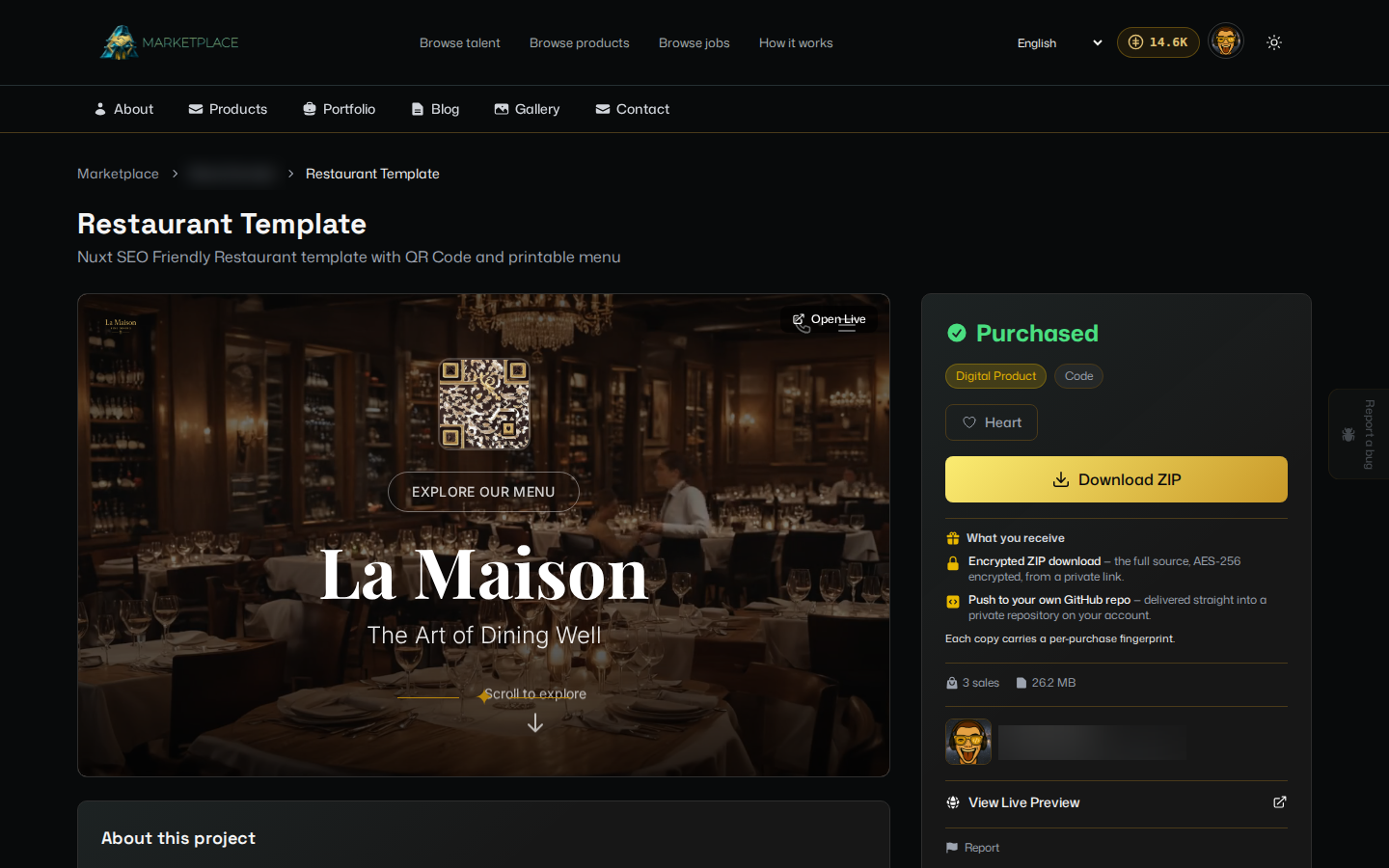
- On a product's page, read What you receive, usually an encrypted ZIP download and, for code, a push straight to your own GitHub repository.
- Pick how you want to pay: credits, or crypto (USDC, SOL, or DGH on Solana, with a discount for paying in DGH).
- Click Connect Phantom & Pay if paying with crypto, or the credits option if you have enough balance, and confirm.
- Once paid, the page shows Purchased, and a Download ZIP button appears in its place.
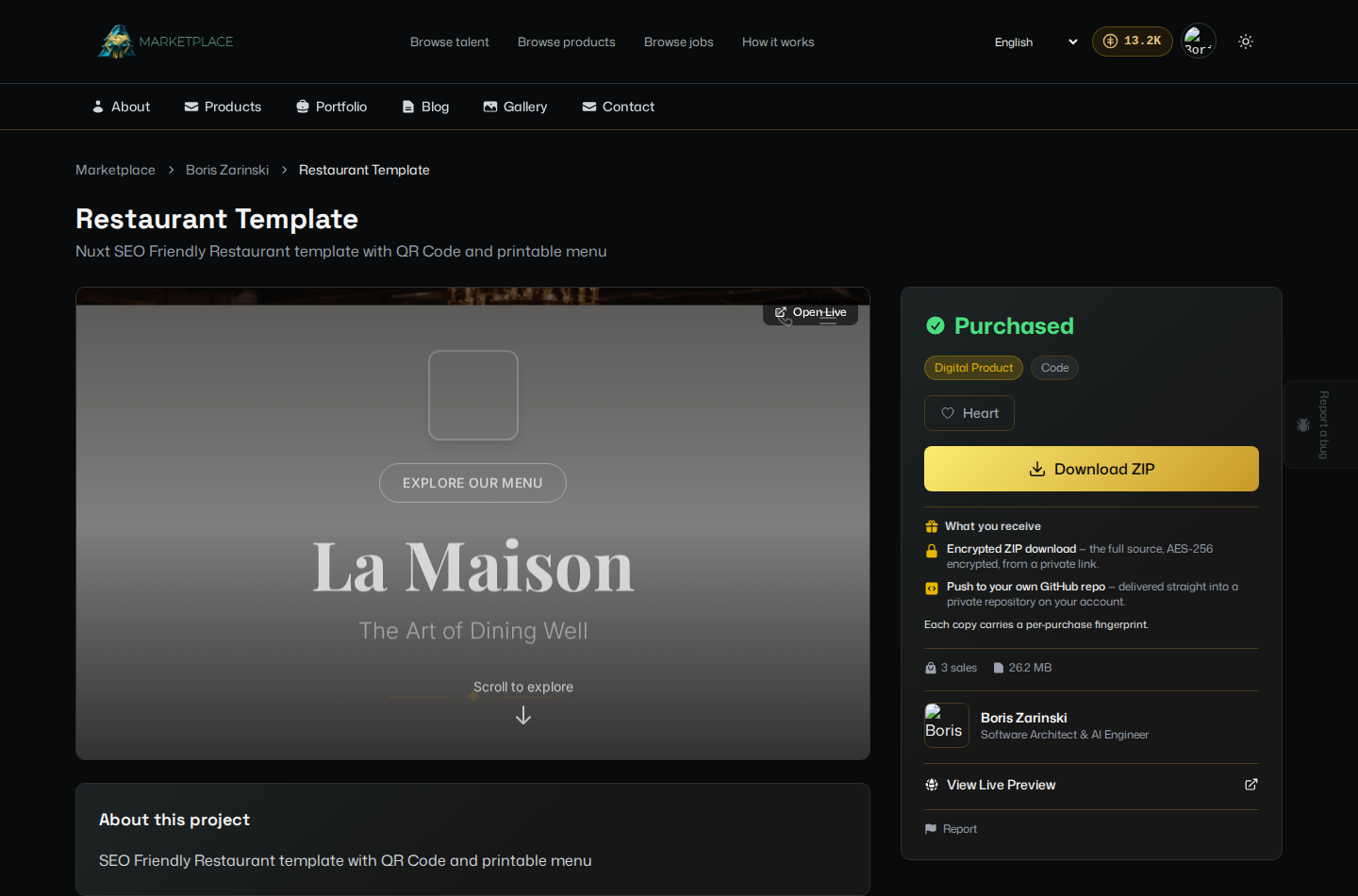
- Find everything you have bought again later from My Purchases in your account menu.
Browse talent
- Click Browse talent in the top navigation, or go to marketplace.devghouse.com/talent.
- Search by name, skill, or profession in the search box, or click a category chip: Developers, Designers, 3D, Marketing, Influencers.
- Filter to Individuals or Realms (a whole team's page) with the toggle, or turn on Accepts Crypto to only see people who take crypto payment.
- Click a card to open that person's or team's public profile, then click Get in Touch to message them.
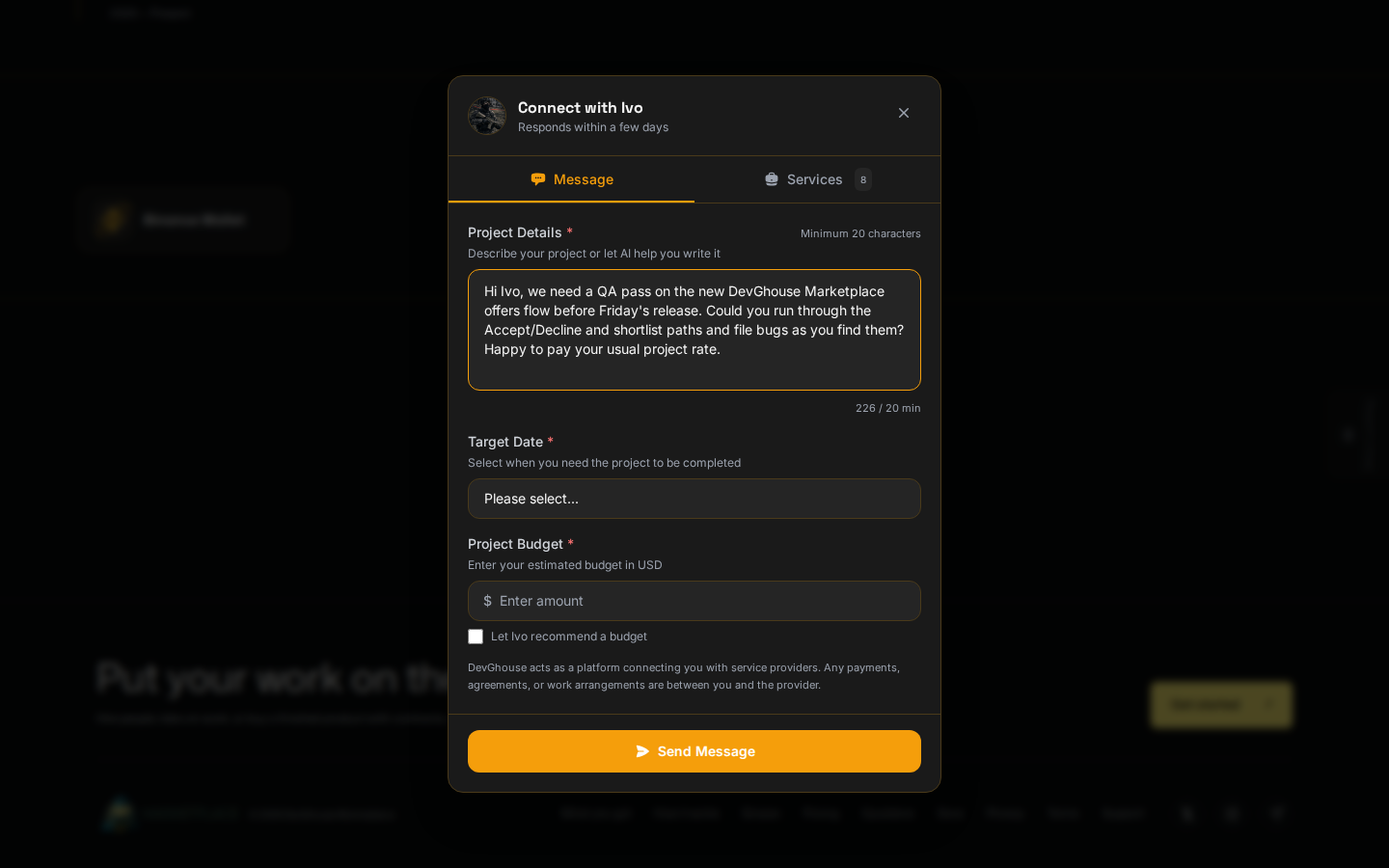
- Describe what you need, add a target date and budget if you have one, and send. The seller replies from their own inbox.
A talent profile
A profile shows what someone does, their accepted payment tokens, and, further down, their Portfolio, Products, and Contact tabs. From here you can:
- Get in Touch to send a message (see above).
- Send Offer to propose a paid contract directly, without going through a job post.
- See Contract if you already have one together.
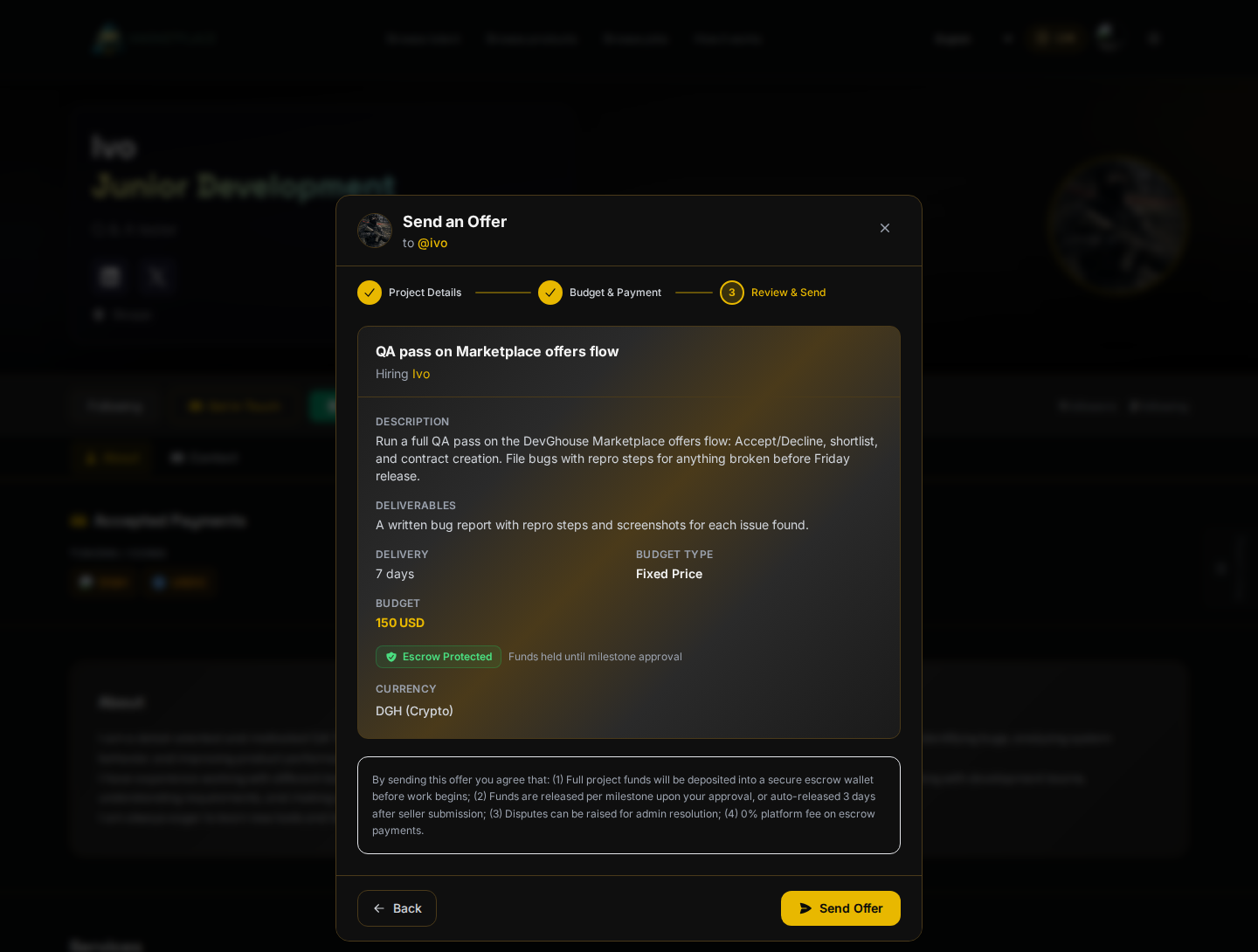
Send Offer walks through three steps: Project Details (title, description, deliverables), Budget & Payment (fixed price or hourly, the budget, and a token: DGH, SOL, or USDC), then Review & Send, shown above. Funds are escrow-protected and only move once the seller accepts and a milestone is funded. See Hiring and jobs for what happens after an offer is sent.
Search across everything
Use the search box in the header, or go to marketplace.devghouse.com/search, to search jobs, talent, and products at once. Results are grouped into tabs (Jobs, Talent, Products) with a count on each, so you can see at a glance which one actually has what you are looking for.