
Hiring and jobs
Browse jobs
- Click Browse jobs in the top navigation, or go to marketplace.devghouse.com/jobs.
- Filter by Location, Pay Type, Fiat or Crypto, Source, Level, or Price Range, and sort with Newest or another order.
- Jobs posted directly on DevGhouse show an Apply flow you can complete right here. Jobs pulled in from outside job boards (marked, for example, via Himalayas) show External instead.
- Open a job you posted yourself to act on the proposals it has received.
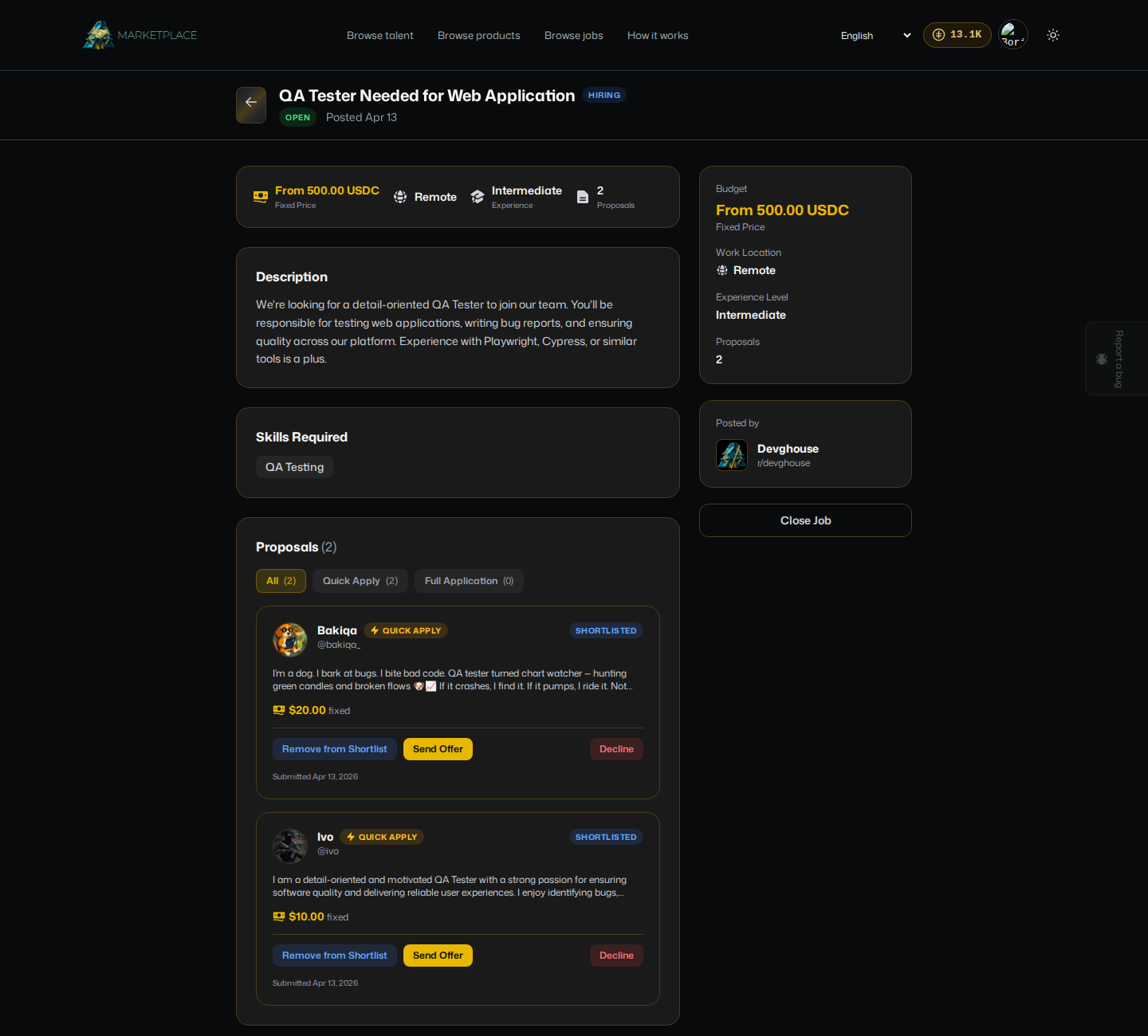
- Click Shortlist to flag a pitch worth pursuing, Send Offer to turn it straight into a contract, or Decline to pass.
Open a job
- For a DevGhouse job, open it and apply directly with Quick Apply (a short pitch) or a Full Application.
- For an external job, the real apply link is hidden until you spend 1 credit to reveal it, shown as Reveal Apply Link - 1 Credit. This keeps the listing free to browse while covering the cost of sourcing it.
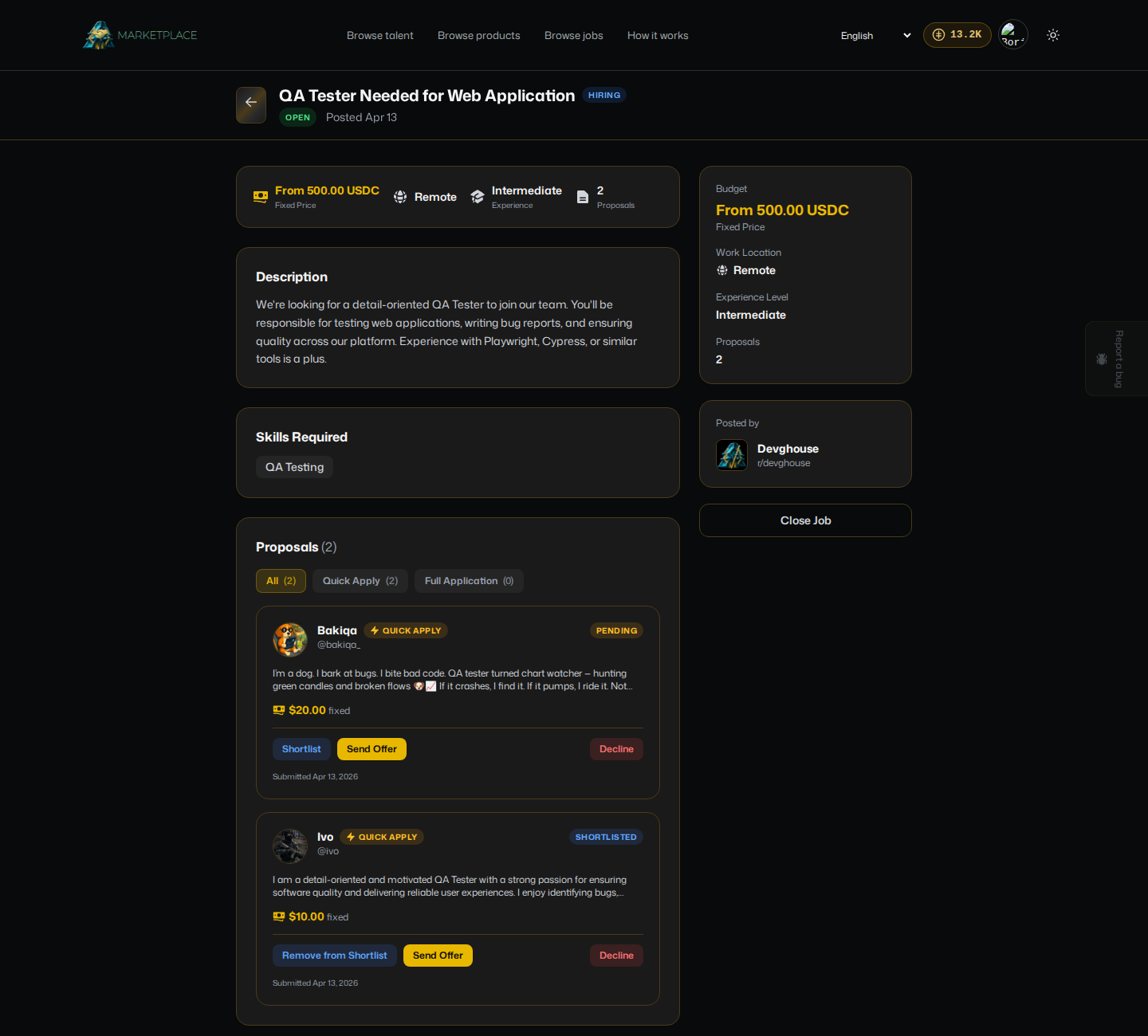
Posted from My Feeds, a job you own shows its budget, work location, and experience level at a glance, and every proposal it has received underneath, each with the applicant's pitch and asking price.
Post a job
- Click Post Job from the Jobs page, or Post a Job from the navigation.
- Basics: choose Remote or On-Site, write a title and description (use Improve next to either field to have AI tighten your wording), pick an experience level, and add skills.
- Compensation: set a fixed price or an hourly rate, and the currency or token you want to pay in.
- Application: choose whether applicants use Quick Apply, a Full Application, or both.
- Review: check the assembled job and its posting cost, then publish.
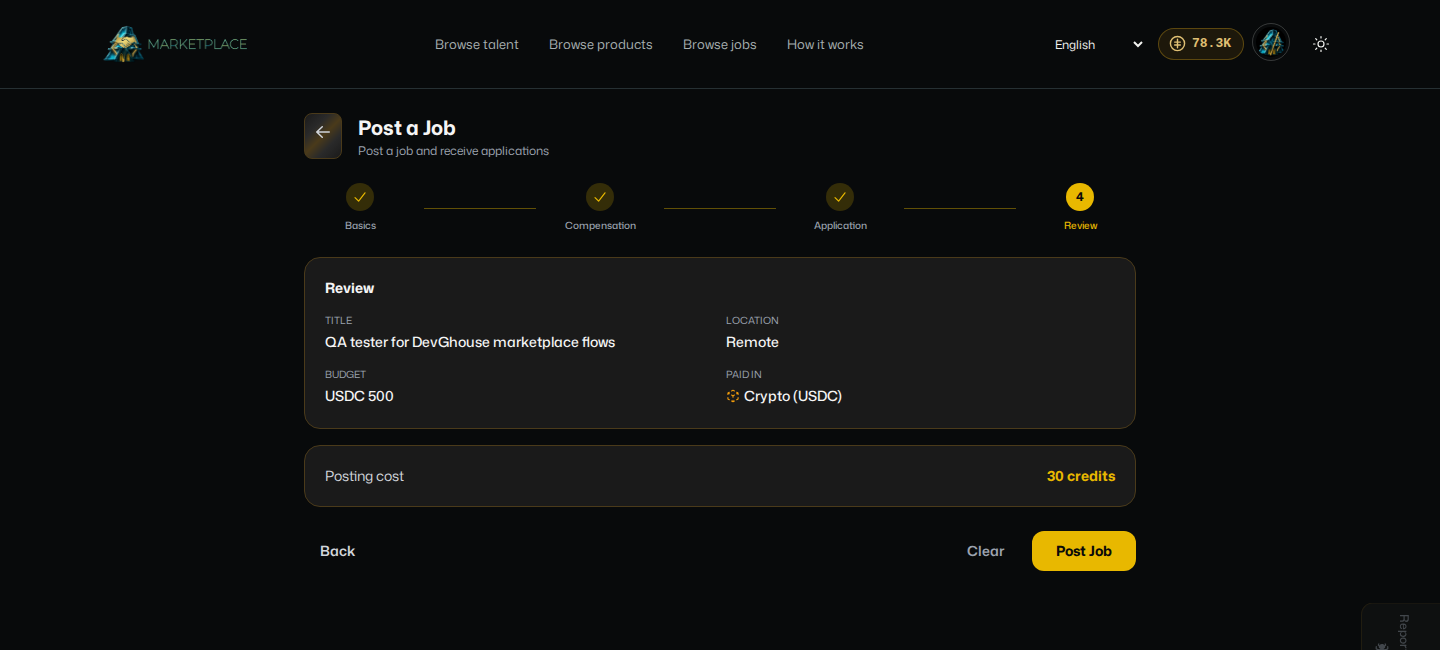
Posting a job switches your account into buyer mode for that action; you do not need the seller entry fee to hire someone. Posting itself costs a small number of credits, shown on this last screen before you publish.
Manage your job posts
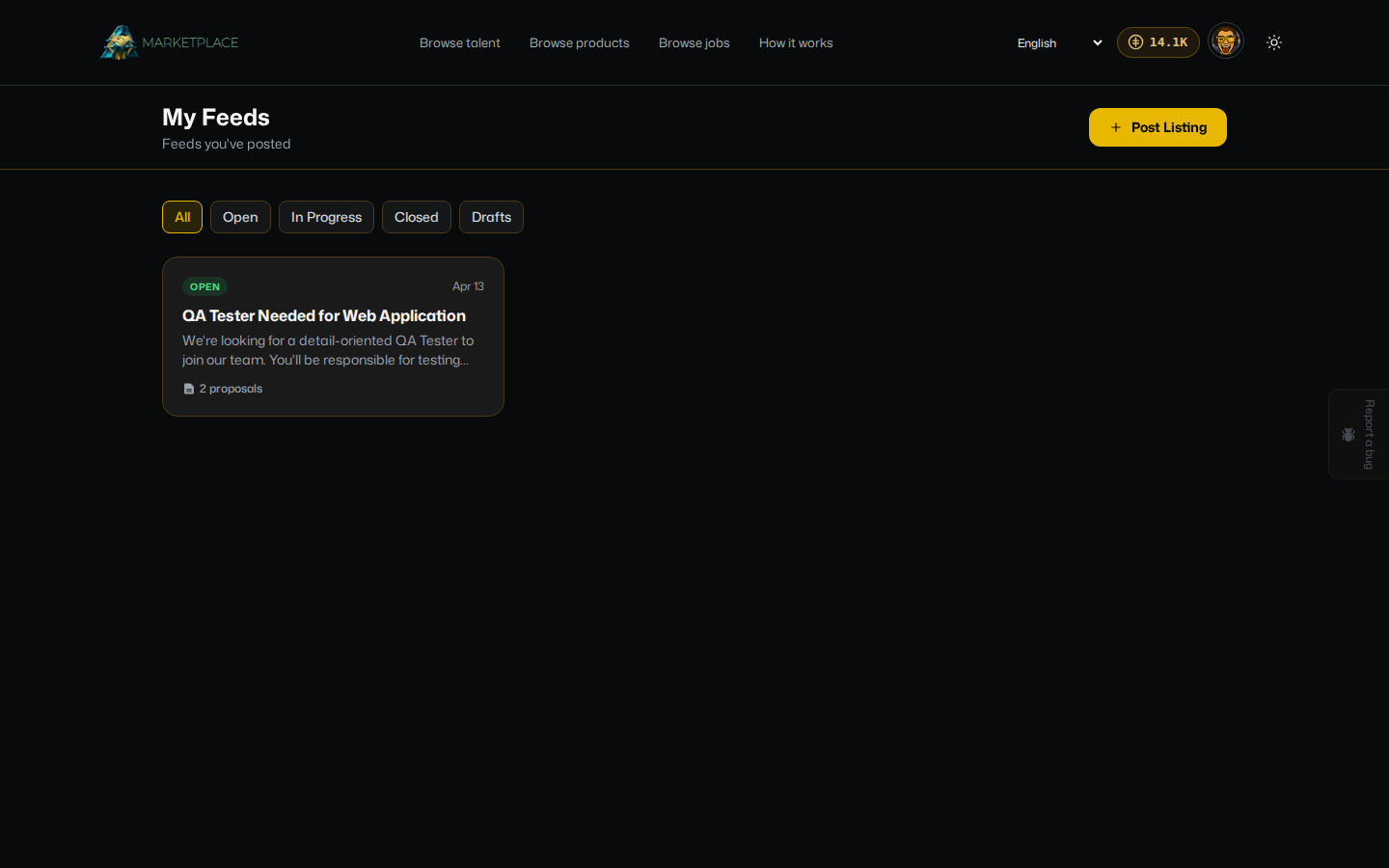
- Open My Feeds from the Jobs page or the navigation to see everything you have posted, filterable by Open, In Progress, Closed, or Drafts.
- Click a listing to see its proposals.
Review applications and proposals
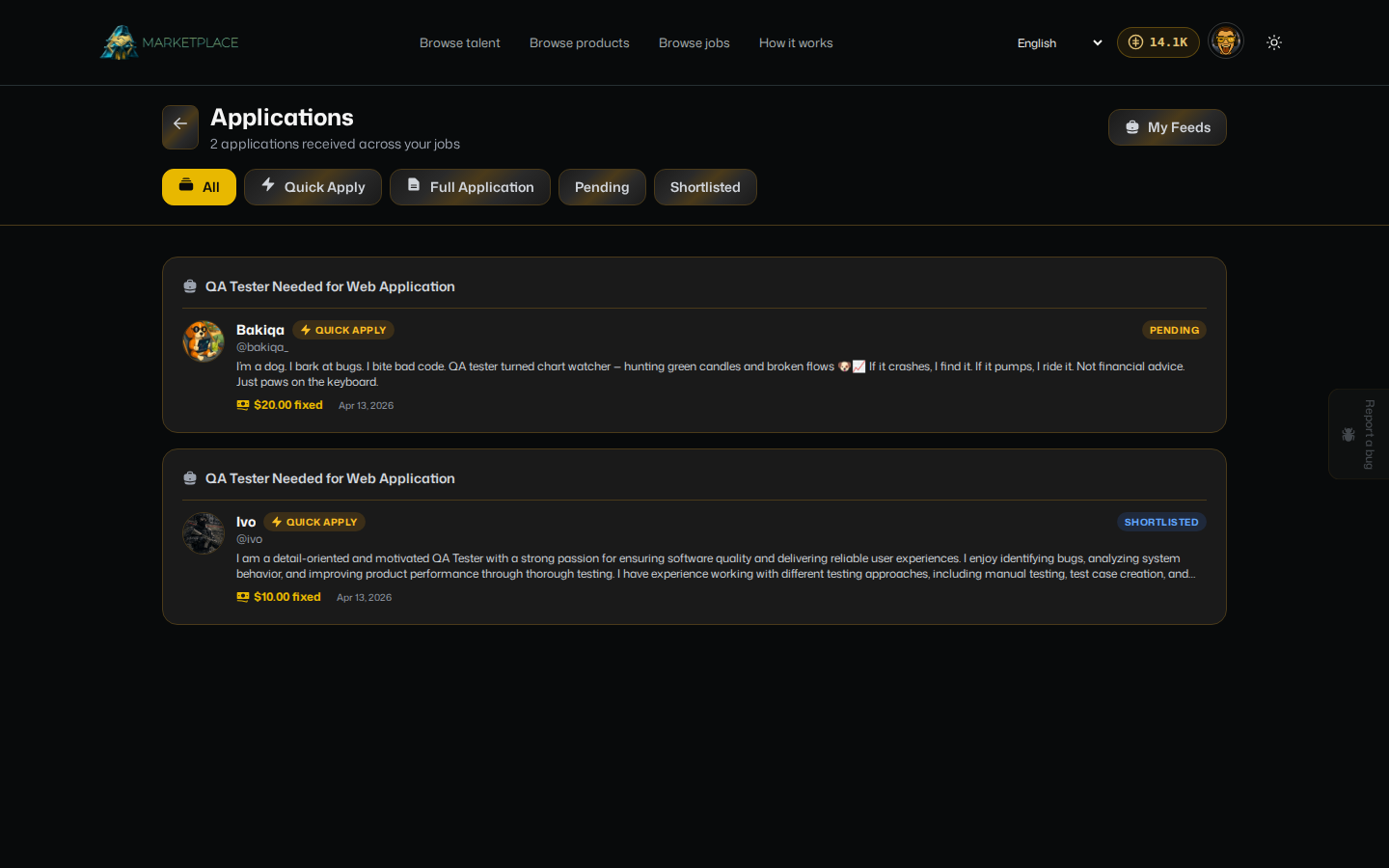
- Open Applications to see everyone who applied to any of your jobs, filterable by Quick Apply, Full Application, Pending, or Shortlisted.
- Read a candidate's pitch and asking price, then Shortlist the ones you like or move straight to hiring.
- Shortlisting or hiring a proposal turns it into a contract; see Contracts and payments for what happens from there.
Send and manage offers
You do not have to wait for someone to apply. From any talent profile, click Send Offer to propose a scope, a price, and a payment token directly.
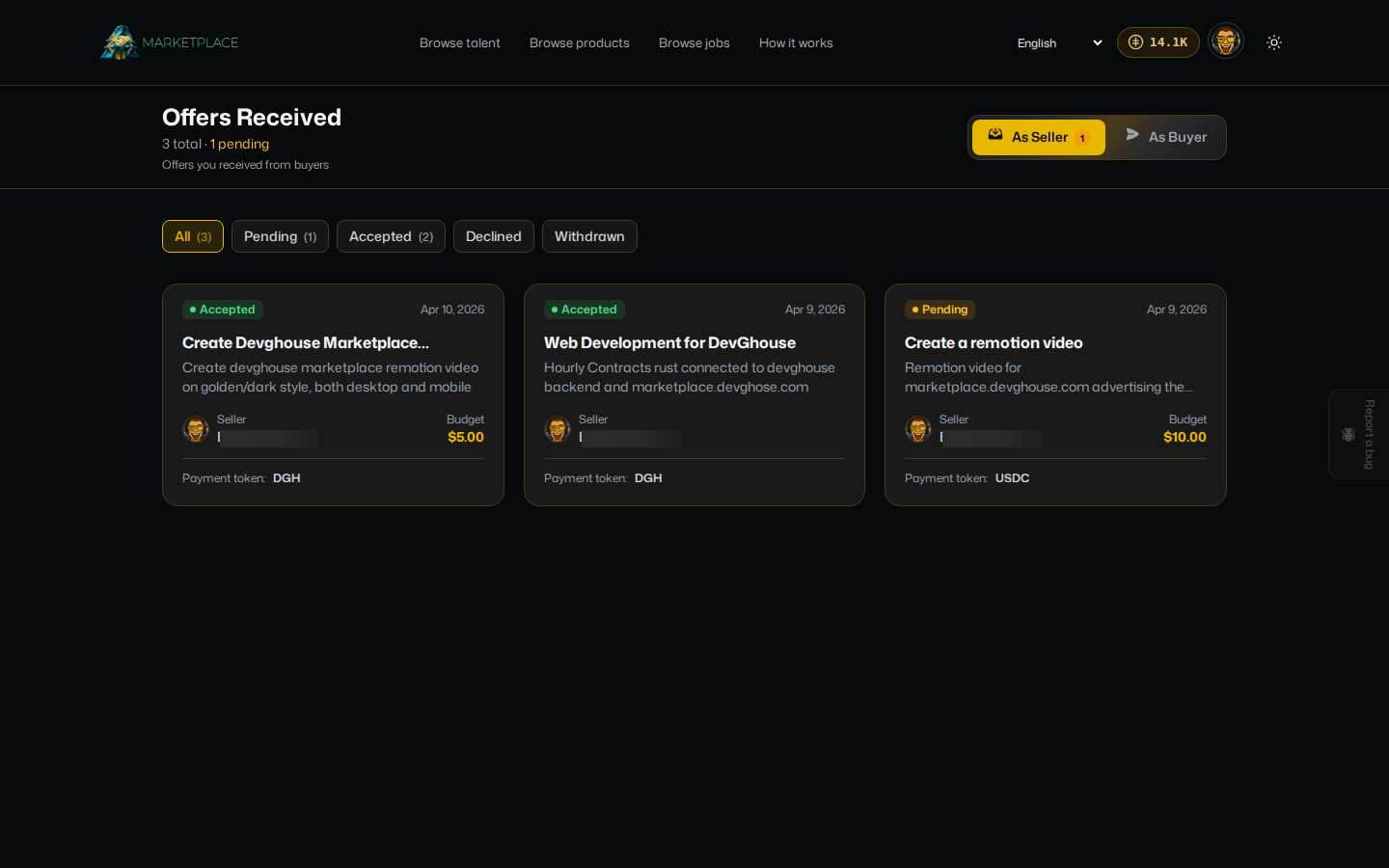
Open Offers from your account to see every offer, with a toggle between As Buyer (offers you sent) and As Seller (offers you received). Once someone accepts an offer, it becomes a contract.