
Getting started
1. Sign in or create an account
One account runs every DevGhouse app, so if you already have one, sign in directly. Once you're in, the header carries your avatar and credit balance on every page, like the Characters library below.
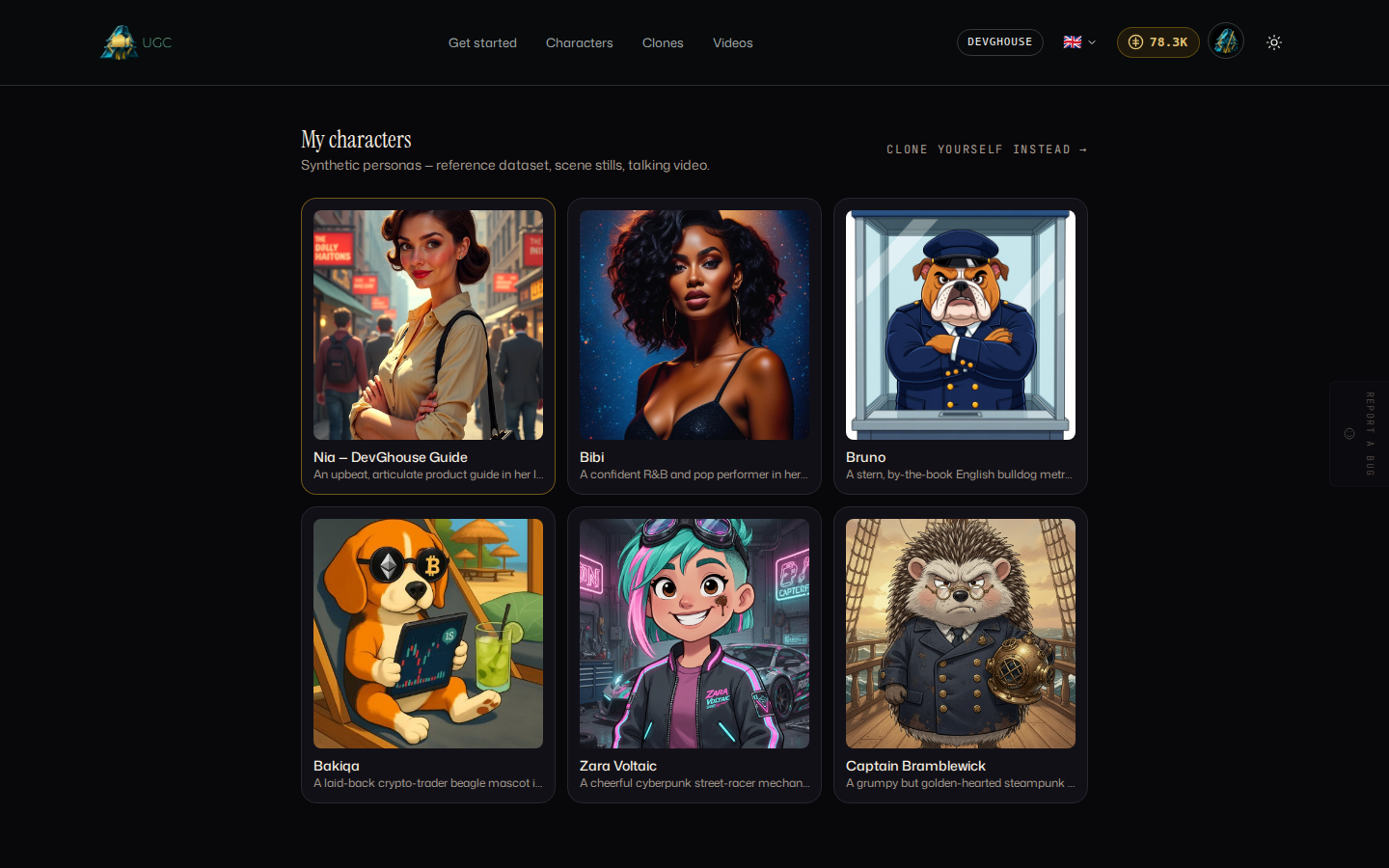
- Go to ugc.devghouse.com/login.
- If you already have a DevGhouse account, enter your username or email and your password, then select Sign in.
- If you are new, select Create an account. You are sent to the shared registration form; once you finish it you land right back on UGC Studio.
- New accounts start with a starter credit balance, shown next to the coin icon in the header the moment you sign in, the same place it appears above.
2. Take the quick start (optional)
The quick start at ugc.devghouse.com/onboarding is a three-step wizard that drops you at the right builder. Answer all three and the last step looks like this, ready to go:
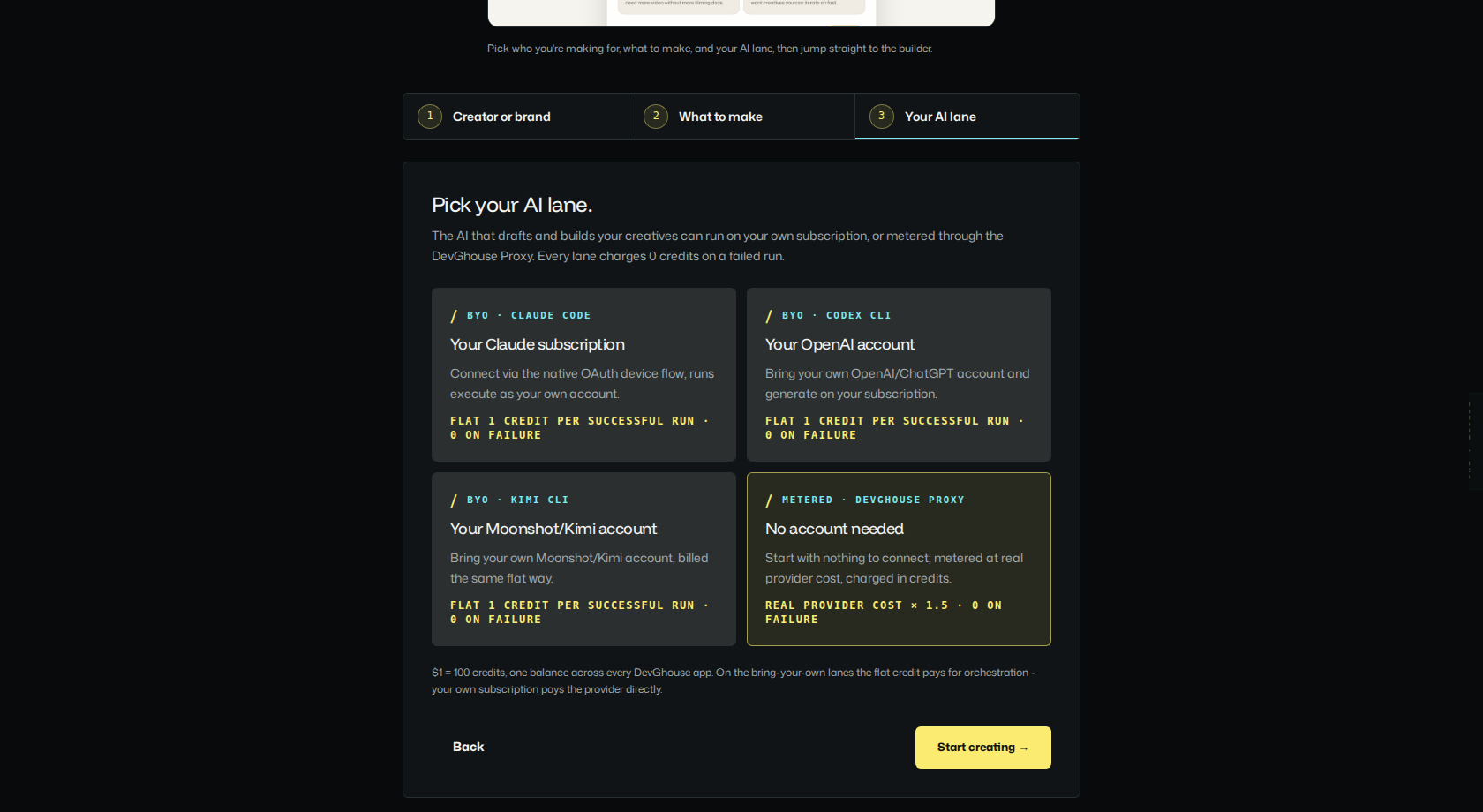
- Who are you making video for? Choose A creator or A brand.
- What do you want to make? Choose a talking video in a real voice, a silent motion clip, or a synthetic character to reuse.
- Pick your AI lane. If you plan to use UGC Studio through an assistant (Claude, Codex or Kimi), choose your own subscription or the metered DevGhouse Proxy. This step only matters for assistant-driven work; skip it if you are working by hand in the browser.
Select Start creating to go straight to the matching builder. You can skip this entirely and use the door picker below instead.
3. Pick a door
Signing in past the quick start lands you on ugc.devghouse.com/app, with three doors:
- AI UGC characters: build a fully synthetic persona from a text description. Never a real person's likeness.
- Clone yourself: confirm the photos and voice are your own, then save a reusable talking avatar. This only works in your personal context; if you are in a workspace, the door tells you to switch first.
- UGC videos: the multi-lane video studio, for turning a saved character's archive stills into a finished multi-shot video.
Continue to Build an AI character or Clone yourself depending on which path fits what you're making.