
UGC videos
UGC Videos is the multi-lane video studio: pick a character, add one lane per shot from its archive, direct each shot with its own prompt and dialogue, generate the clips, then finalize. It works the same way in your personal account and inside a workspace.
Start a new video
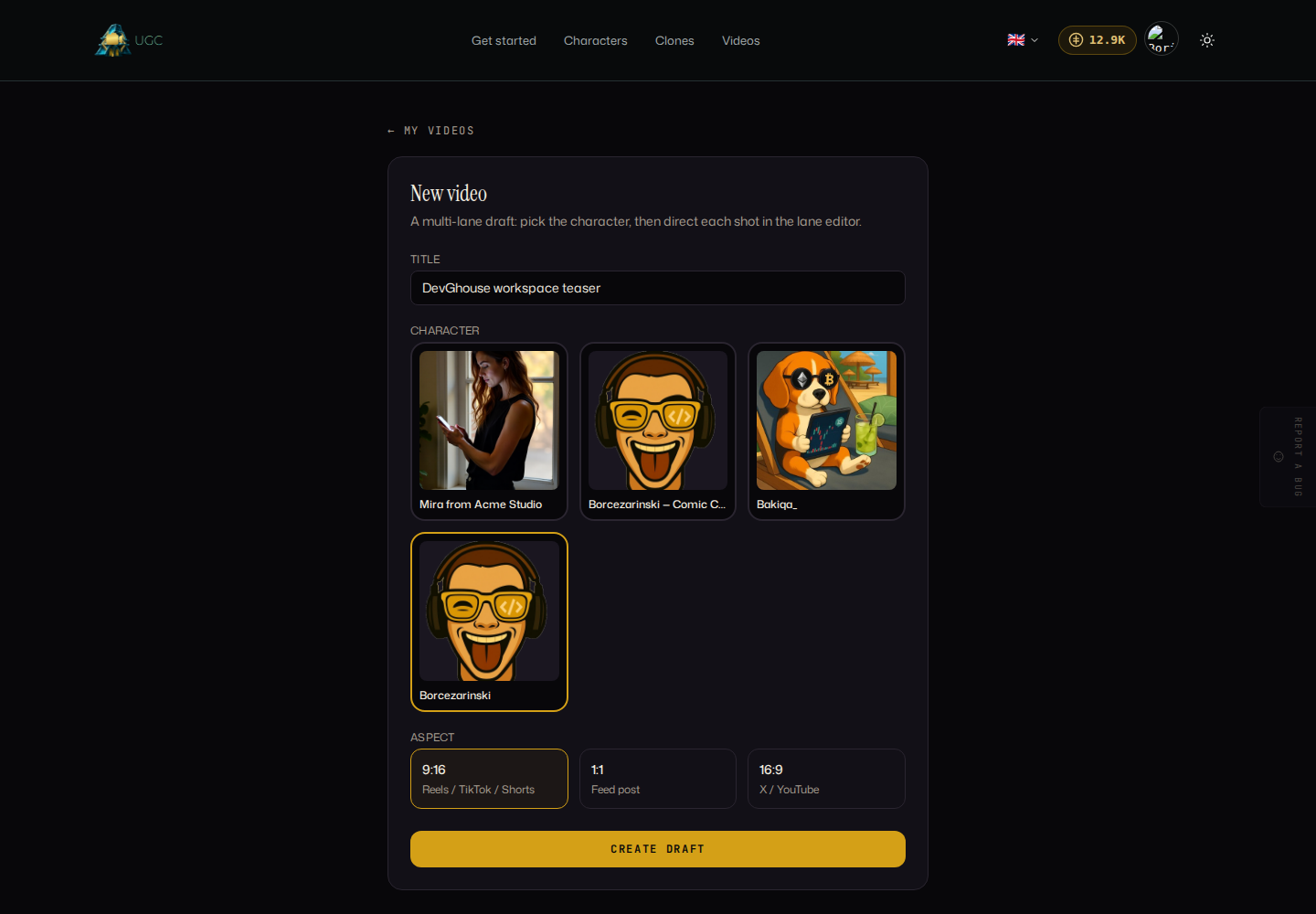
At ugc.devghouse.com/app/videos/new:
- Give the video a title.
- Choose the character that will star in it. You need at least one saved character first; if you don't have one yet, follow Build an AI character.
- Choose the aspect ratio: 9:16 for Reels, TikTok and Shorts, 1:1 for a feed post, or 16:9 for X and YouTube.
- Select Create draft.
Direct each lane
A new draft starts with no lanes. Select + Add lane from archive to open a picker over every still the character's archive holds, pick one, then fill in its motion prompt and dialogue and select Save lanes:
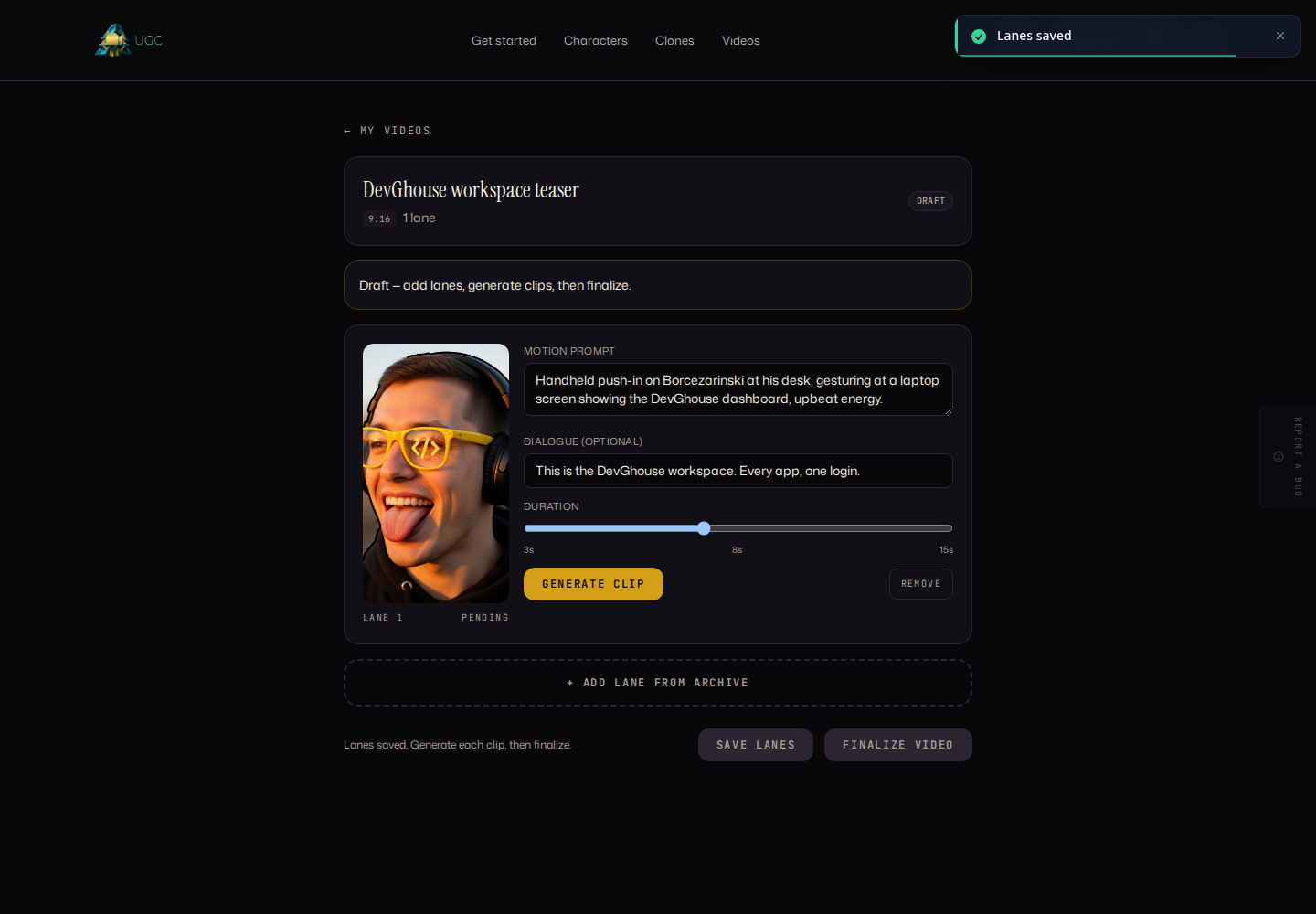
- Select + Add lane from archive. A picker opens over every still the character's archive holds:
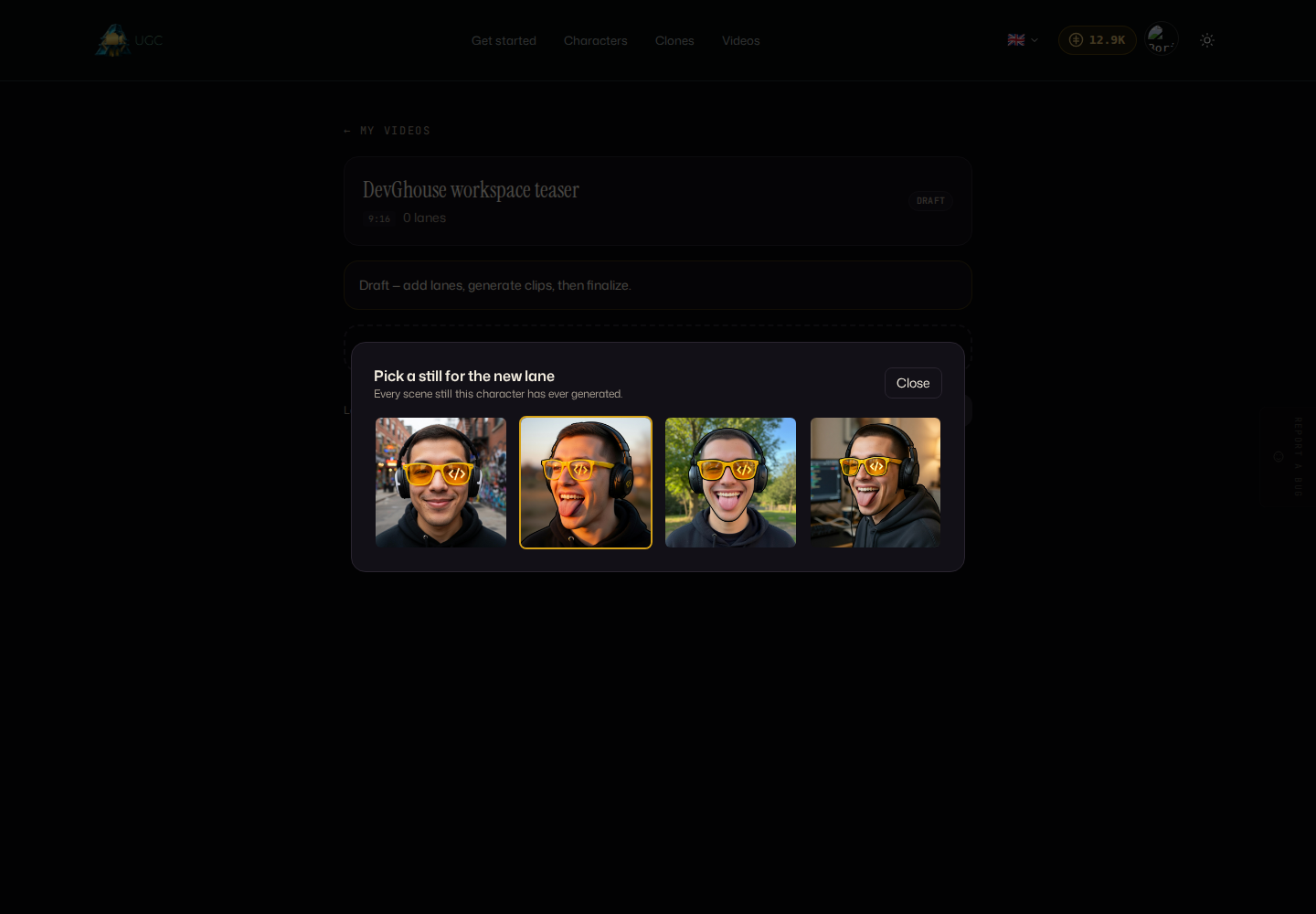
Select one to add it as a new lane. You can add up to 10 lanes. - For each lane, write a motion prompt describing the camera move and action, and optionally a line of dialogue.
- Set the duration with the slider (3 to 15 seconds). Duration is ignored once you add dialogue; the clip follows how long the line takes to say.
- Select Save lanes whenever you change a lane. Saving replaces every lane on the draft and clears any clips already generated, so save before generating, not after.
- Select Generate clip on a lane once it's saved. Each lane shows its own status (pending, generating, ready or failed) and the credits it spent.
- Once every lane reads ready, select Finalize video. A finalized video can no longer be edited.
Managing your videos
Your drafts and finished videos live at ugc.devghouse.com/app/videos, each showing its status, aspect ratio, and how many of its clips are ready. Select the small × on a card to delete a draft you no longer want; this cannot be undone.
Continue to Credits and billing to understand what each generation costs.