
AI assistant
Workspace comes with a built-in AI assistant. You can chat with it directly, save your own named helpers for repeated jobs, and choose which AI engine answers you, DevGhouse's own built-in one, or a subscription you connect yourself.
What you can do
| Feature | What it does |
|---|---|
| New chat | Ask anything, right away, no setup needed. |
| Agent library | Save a helper with its own instructions and a name, so it always answers the same way. |
| Templates | Start a new helper from a ready-made template for a common job, like an SEO check or a social post drafter. |
| Conversations | Every chat you have had is saved and searchable, grouped by project. |
| AI settings | Pick your default AI engine, and connect a Claude, Codex, or Kimi subscription so runs use your own plan. |
1. Start a chat
- Click AI in the left menu on your dashboard, then New chat, or click the chat bubble in the bottom right corner from almost anywhere in Workspace.
- Type your question or request and press enter.
- The assistant answers using the tools your workspace has turned on, for example it can look up a project, check your credit balance, or draft a blog post if the Blog module is on.
2. Save a helper in the Agent library
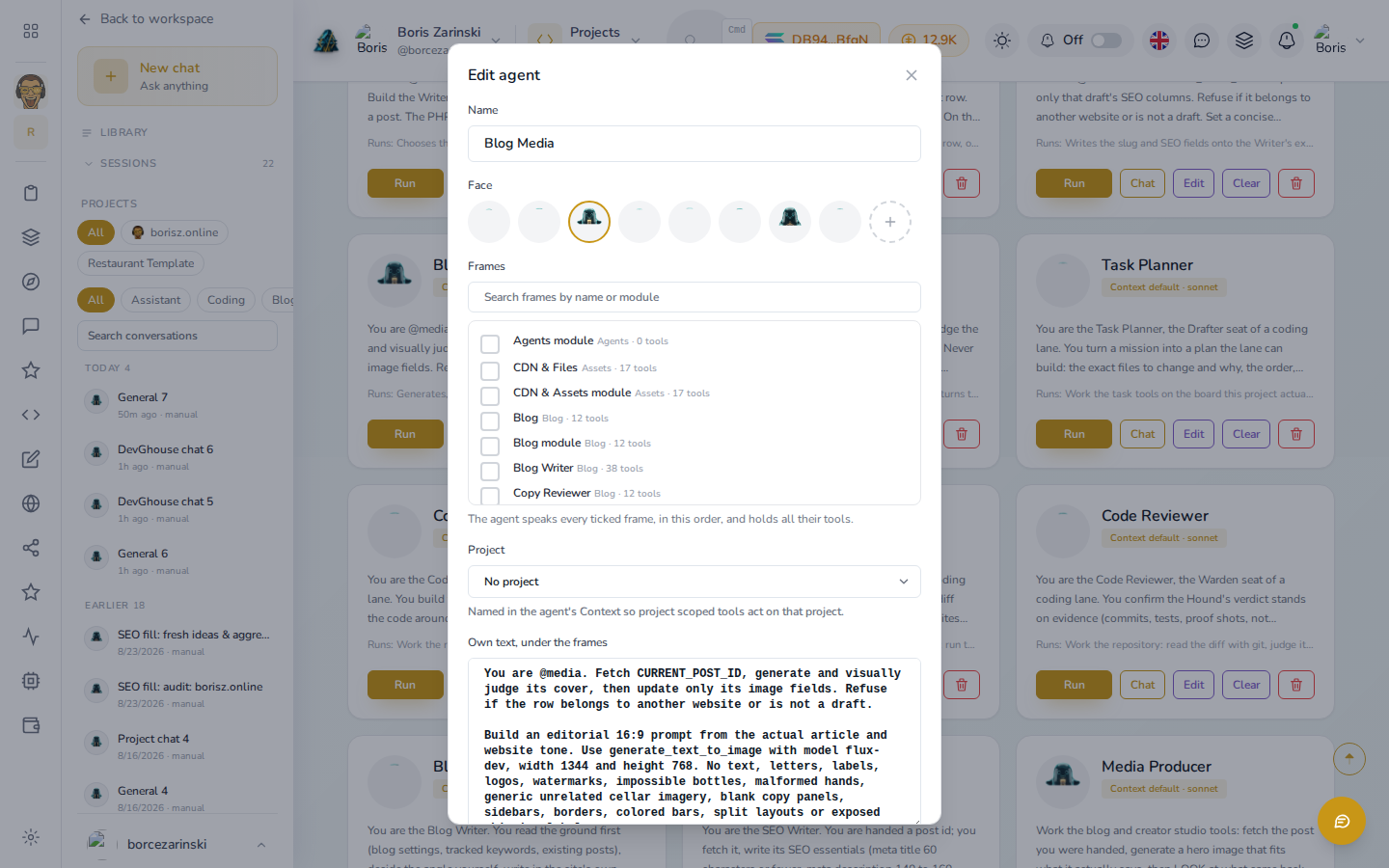
- Click AI in the left menu, then Runtime setup area shows Agents, or open Agent library directly.
- Click New agent, or open START FROM A TEMPLATE and pick one close to what you need (Creator, Blog, Communication, Planning, Social, and more).
- Give it a name, pick a face, and tick the Frames it should speak, each frame is a bundle of tools for one job (the screen above is an existing agent, "Blog Media", ticked to the Blog frame). Optionally scope it to one Project.
- Write its Own text, under the frames, the system prompt describing how it should behave, for example "Always writes in a friendly, upbeat tone and keeps replies under 100 words."
- Save it. It now appears in your library with its own face, ready to Run, Chat with, or Edit any time.
3. Your conversations
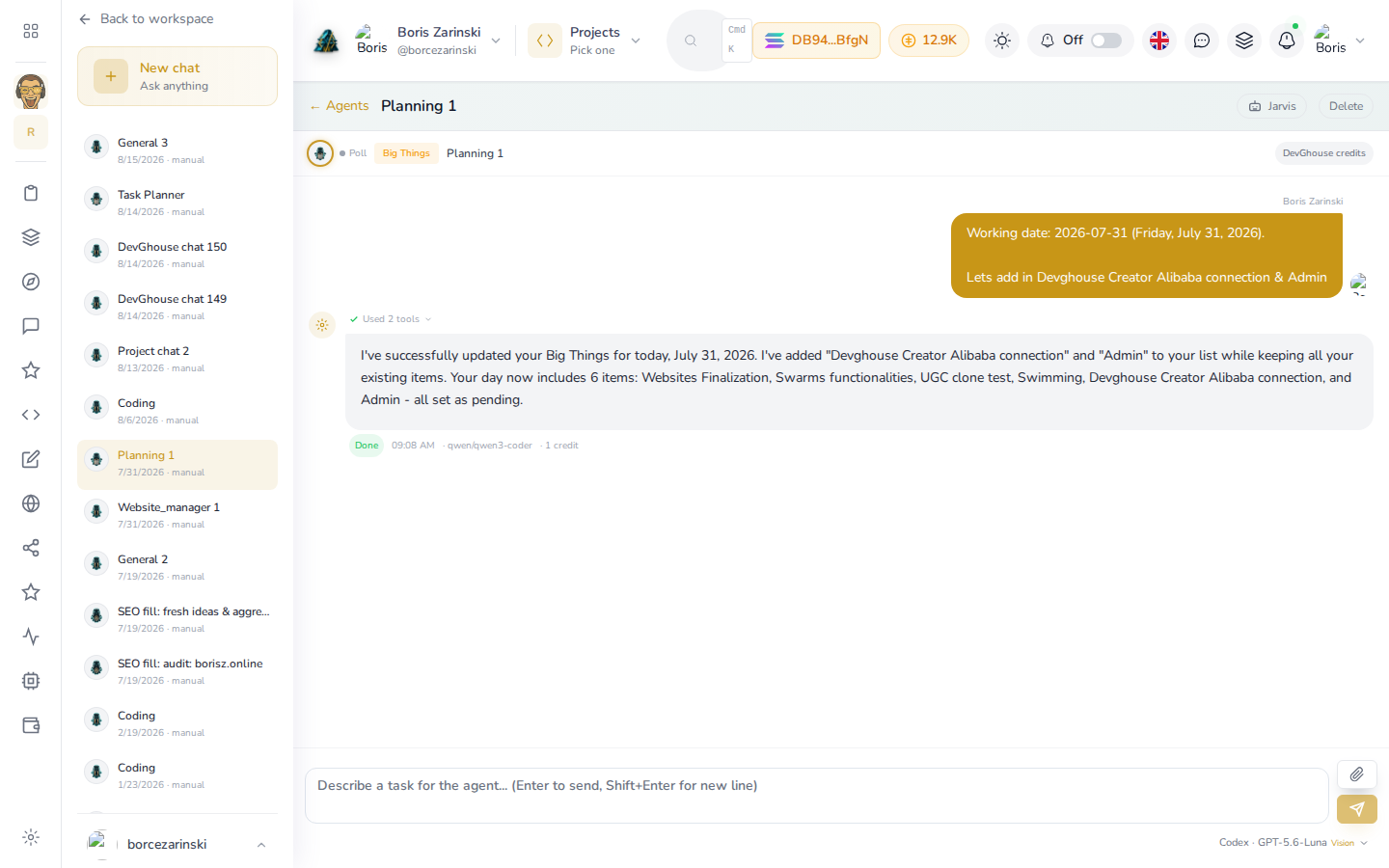
- Click AI in the left menu, then Conversations (or the chat bubble). The left side lists every conversation you have had, newest first, filterable by project or by which saved agent you used.
- Click any conversation to reopen it exactly where you left off, or click New chat to start a fresh one.
- Inside a conversation, each of your messages sits on the right and each reply from the assistant sits on the left. A reply that used tools shows Used N tools, click it to see what it did; the model that answered, whether the run is Done, and its credit cost sit under the reply.
4. Choose your AI engine
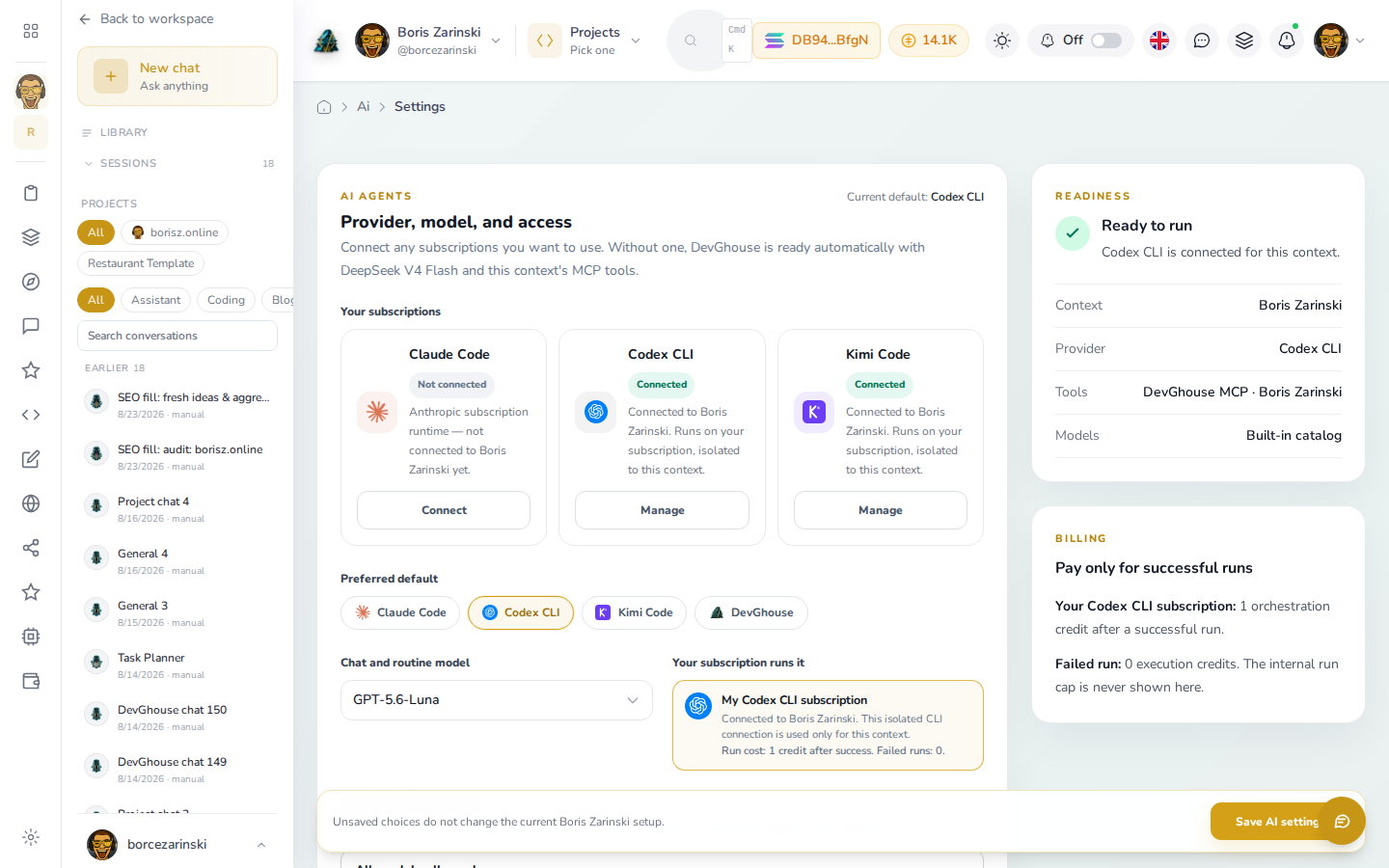
- Click Settings, then AI settings, or go there directly from the AI section.
- Without connecting anything, DevGhouse runs your chats on its own built-in engine, included in your credits.
- To use your own Claude, Codex, or Kimi subscription instead, click Connect or Manage on that card and follow the prompt. Once connected, runs use your plan instead of spending platform credits.
- Pick your Preferred default engine and the model used for chat and automations, then click Save AI settings.
Run this with an AI assistant
If you are the one connecting an outside assistant (Claude Code, Codex, or another MCP-compatible tool) to your account, generate a connection token from your account settings and use it as the assistant's MCP credential. Once connected, it can:
- Read your past chats with
agent_session_get_conversation, and delete one withagent_session_delete - Start a background coding run in a specific project with
agent_spawn_detached - Check on a run it started with
agent_detached_status, or stop one withagent_detached_stop
A saved agent, a chat, and a scheduled automation (covered next, in Automations) are three different things: a saved agent is a reusable identity, a chat is one conversation with it, and an automation is a schedule that fires a chat on its own.