
Creator studio and assets
The Creator studio is DevGhouse's AI generation tool: images, video, audio, and 3D models, from a text prompt or an existing file. Everything you generate, plus anything you upload by hand, lands in your asset library.
What you can do
| Feature | What it does |
|---|---|
| Text to image / image to image | Generate an image from a written description, or transform an existing one. |
| Image to video, text to video | Turn an image or a prompt into a short video clip. |
| Lip sync | Match a video's mouth movement to an audio track. |
| Audio tools | Generate speech, music, or sound effects. |
| 3D models | Generate a 3D model from text or an image. |
| My Assets | Every file you have generated or uploaded, searchable and filterable by type. |
1. Generate something
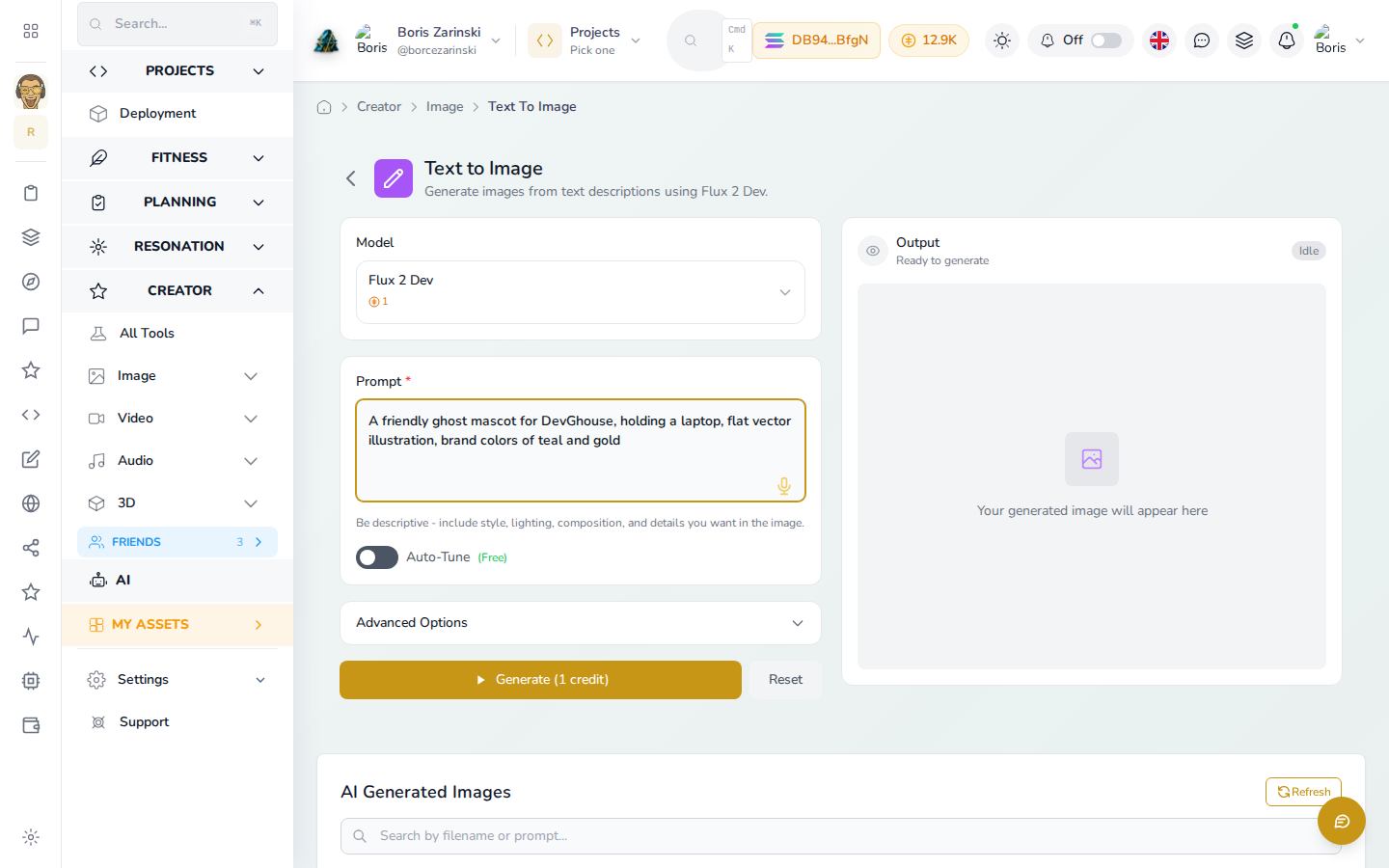
- Click Creator in the left menu on your dashboard, then pick a tool from Quick Create, or browse the full list under Image, Video, Audio, or 3D in the left menu, here that is Text to Image.
- Pick a Model, its per-generation cost shows right under the dropdown.
- Write your prompt (or upload a starting image or clip, for tools that need one). The screen above is filled in and ready: the Generate button lights up and states its exact cost in credits before you commit to anything.
- Click Generate. Your result renders in Output on the right and is saved automatically to My Assets, alongside your past generations further down the page.
2. Find your files
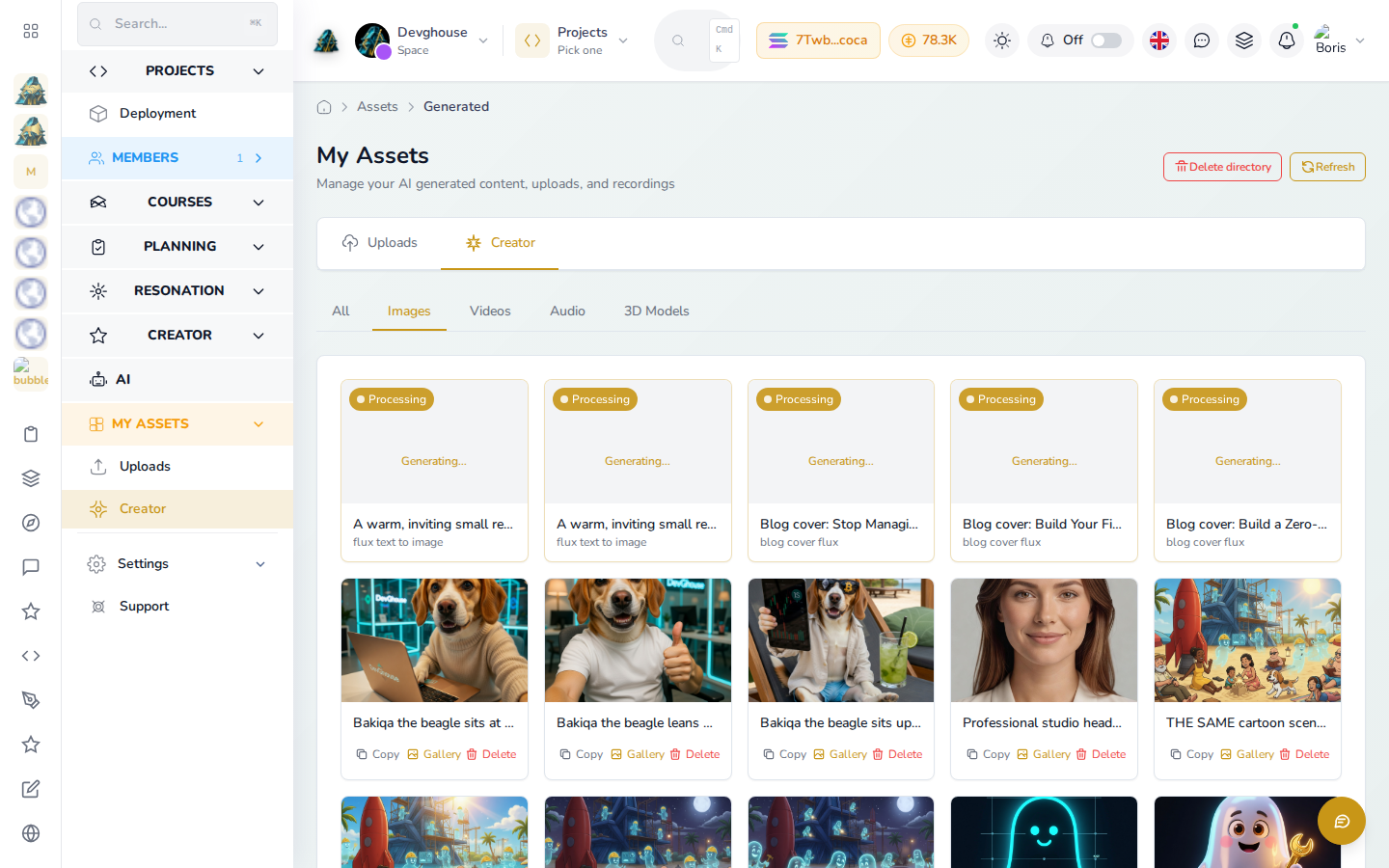
- Click My Assets in the left menu, then its Uploads or Creator sub-item, or the source tab at the top of the page.
- Filter by type along the second row: All, Images, Videos, Audio, 3D Models. A generation still in progress shows a Processing badge in place of its thumbnail until it finishes.
- Each file shows Copy, Gallery, and Delete underneath, click the thumbnail itself to open it.
3. Upload your own files
Click Uploads under My Assets in the left menu to add a file from your device. Uploaded files sit alongside AI-generated ones and can be used the same way, for example as a starting image for image-to-image generation.
Run this with an AI assistant
Generation and asset tools are part of the Creator module, always available in every workspace, billed to whichever workspace's credits are active. A connected assistant can generate images, video, audio, or 3D models the same way you would by hand, and every asset it creates lands in the same library described above.
This is the creator mode in DevGhouse's AI system, grouping the Creator, Assets, and Creative (comics, cartoons, character series) tools together. A routine or chat working inside a project with this mode active is briefed on that project's own asset library before it generates anything new.