
Getting started
1. Open City and sign in
Anyone can open city.devghouse.com and look around without an account, but you need to be signed in to place anything. Click Sign in in the top right, or Sign in to place an idea inside any spot's panel; either takes you to the DevGhouse sign-in screen, and you land straight back in City once you're done.
Once you're signed in, this is what City looks like: your credit balance in the header, and the Directory ready to open on every real spot and its price.
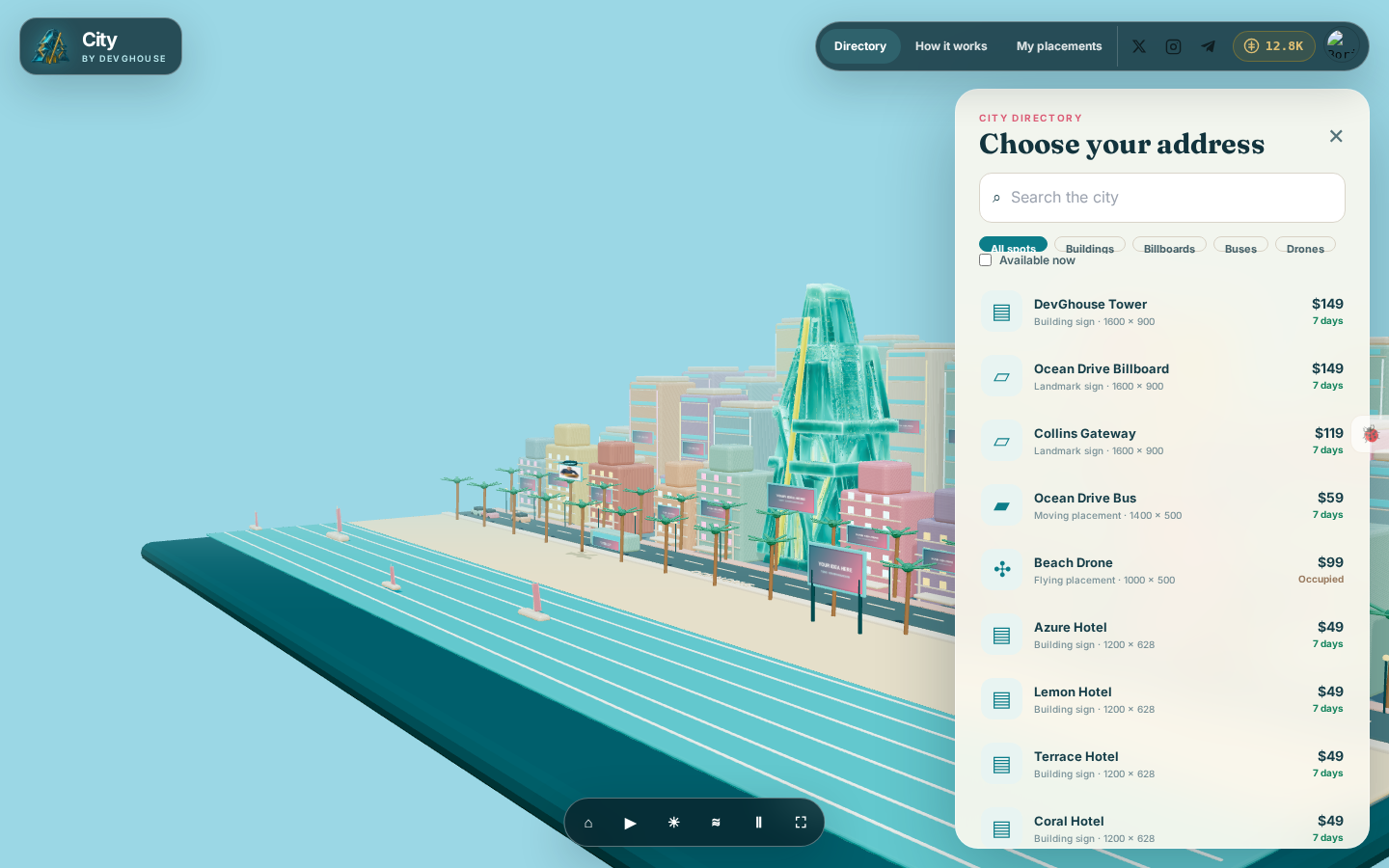
If you are new to DevGhouse, your account starts with a small number of free credits, shared with every other DevGhouse product. See Credits and topping up if you plan to place something that costs more than your starting balance.
2. You're signed in
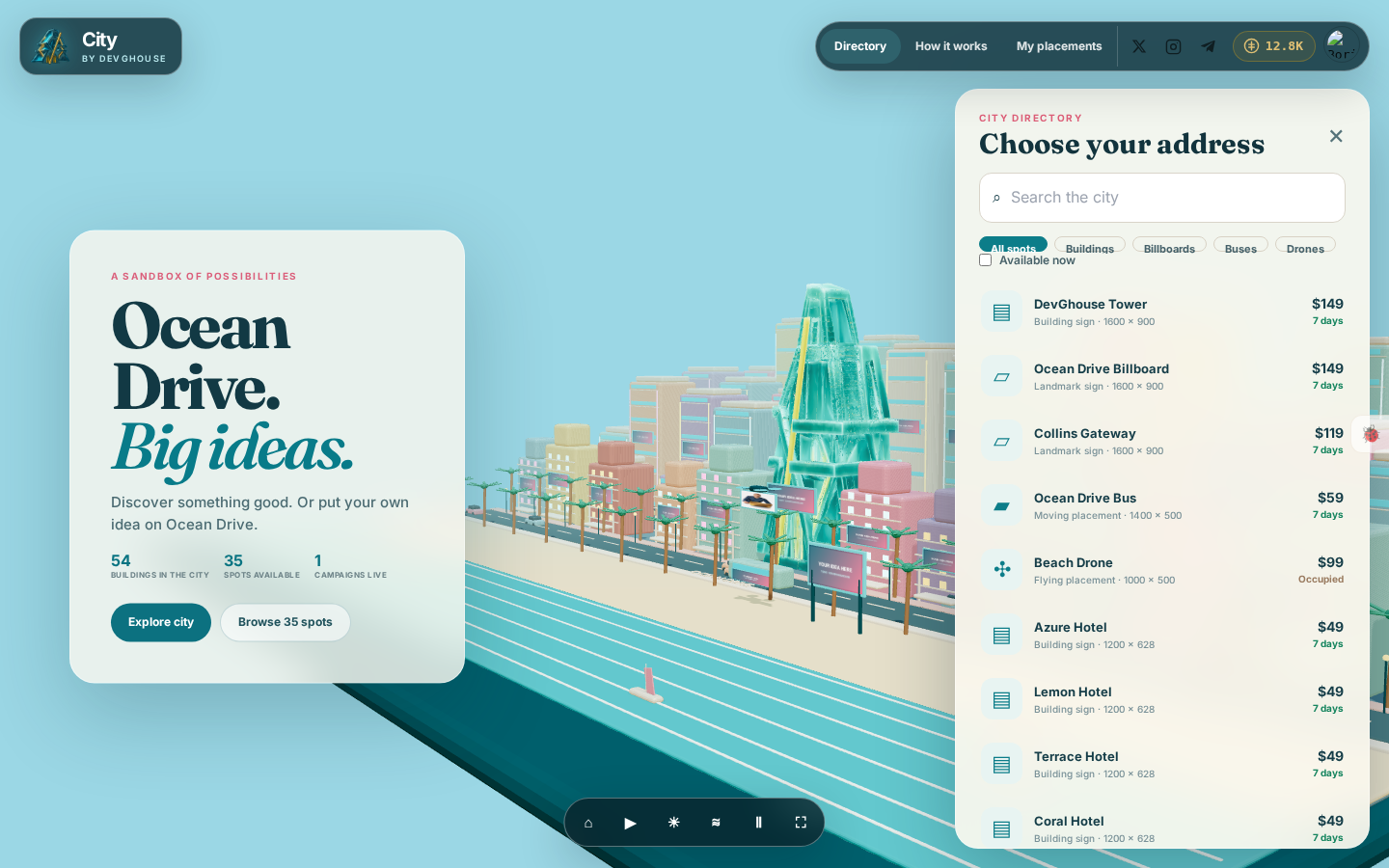
Sign in with an existing account, or click Sign up to create one. Either way, you are brought straight back to City when you are done, already signed in, with the same Directory panel open on real spots.
3. Learn the view controls
Once you are in the scene, a row of controls sits at the bottom center, whether or not a spot's panel is open:
- ⌂ Reset view puts the camera back to the starting position.
- ▶ Auto tour slowly pans the camera around the city on its own.
- ☀ / ☾ Day or night switches the lighting.
- ≋ Weather turns on a light rain overlay, for atmosphere.
- Ⅱ / ▶ Pause movement stops the bus and drone from moving, useful if you want a still shot of the scene.
- ⛶ Fullscreen expands City to fill your whole screen.
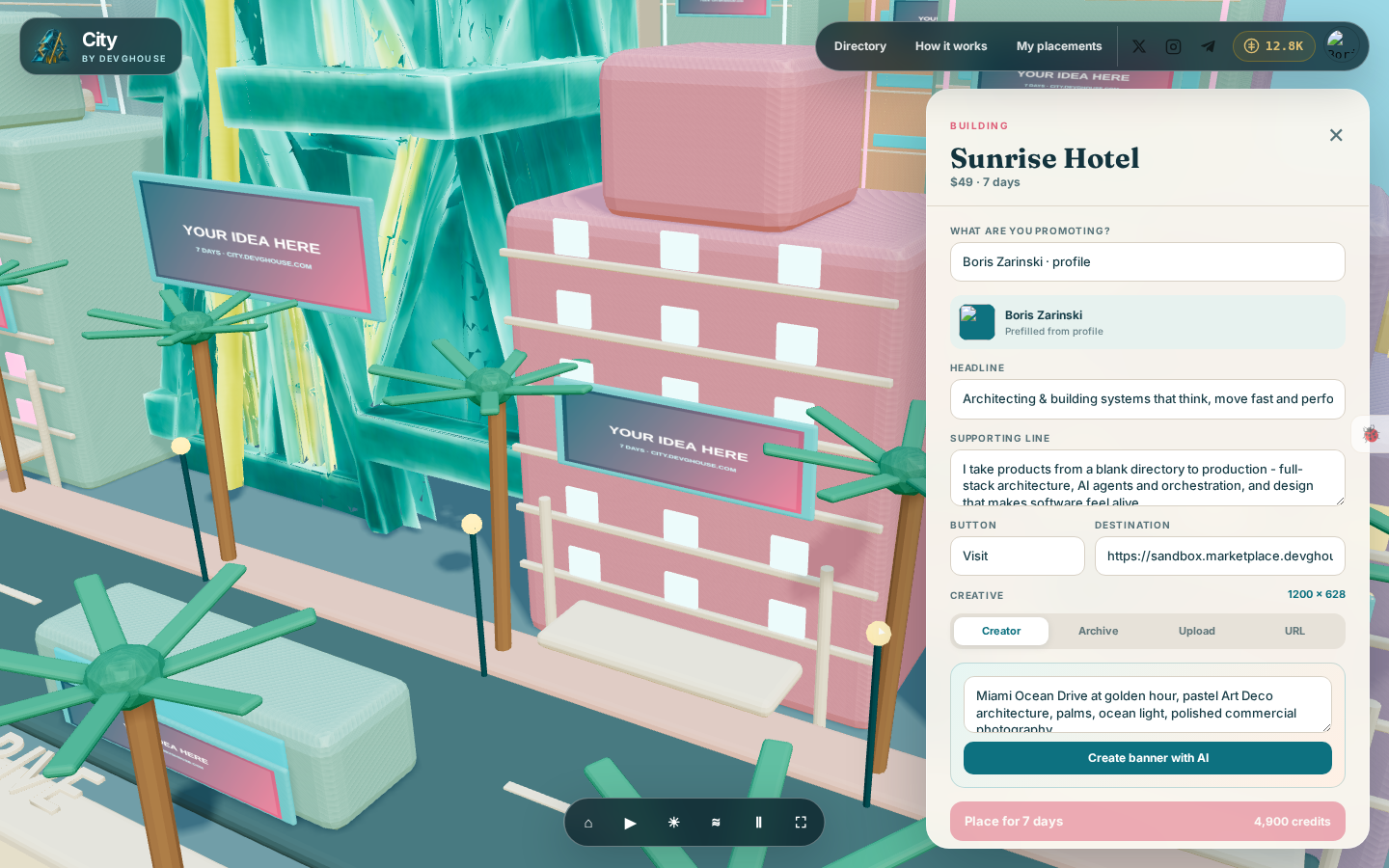
None of these affect anyone else's view or cost anything; they are just how you look at the city. Here they are along the bottom while a spot's placement panel is open, mid-way through filling it in from a real DevGhouse profile:
4. See the first step in action
Click How it works in the header any time for a short reminder of the four steps: explore, bring your idea, make the sign, and take the address. In practice, the first step looks like this: open the Directory, pick a free spot, and City opens its placement form already prefilled from something you own.
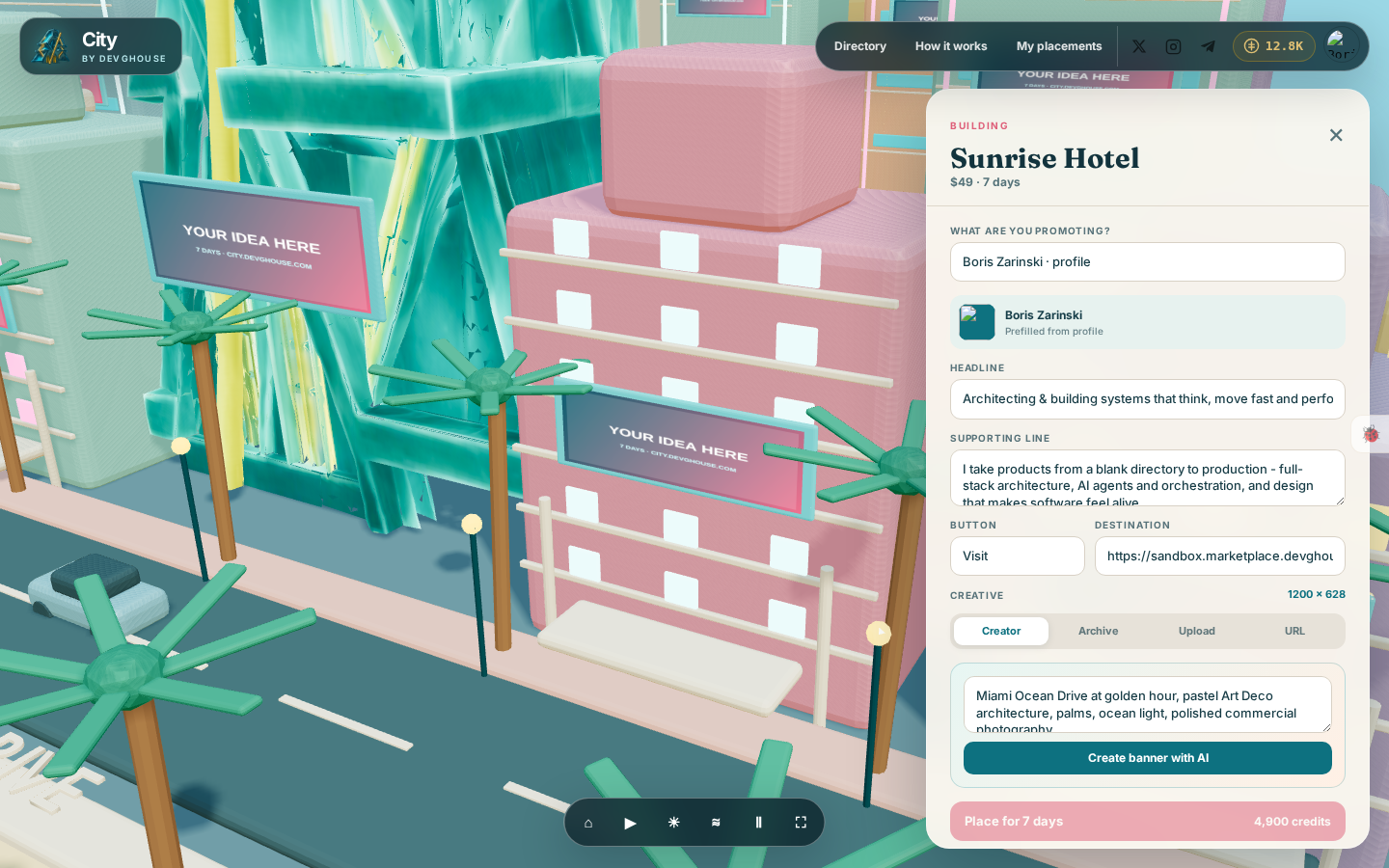
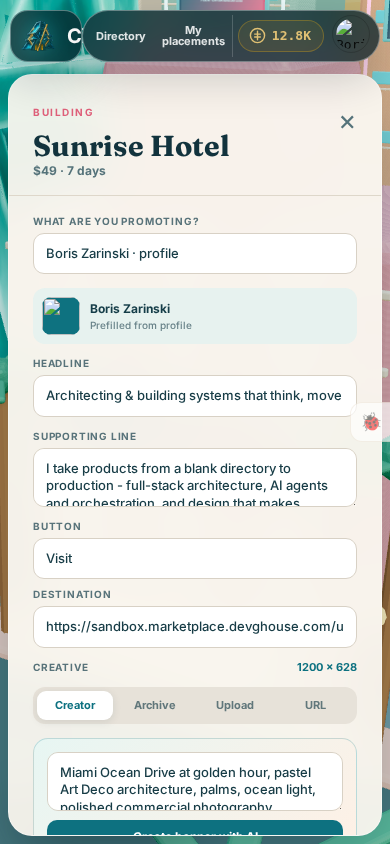
City works the same way on your phone: the same scene, the same directory, and the same form, just laid out for a smaller screen. Here is that same Sunrise Hotel form, filled in and ready, on a phone-sized screen:
5. Where to go next
- Browsing the directory to see every spot, its price and whether it is free.
- Placing your idea once you know which spot you want.