
Getting started
If you don't have a DevGhouse account yet, start with Workspace: Getting started to sign up and land on your dashboard. Come back here once you're signed in.
Turn on Social
- From your workspace dashboard, click Manage modules.
- Find Social in the list and turn it on. If it's already on, you'll see it as a tile on your dashboard, or in the left sidebar.
- Click into Social. You land on the overview page.
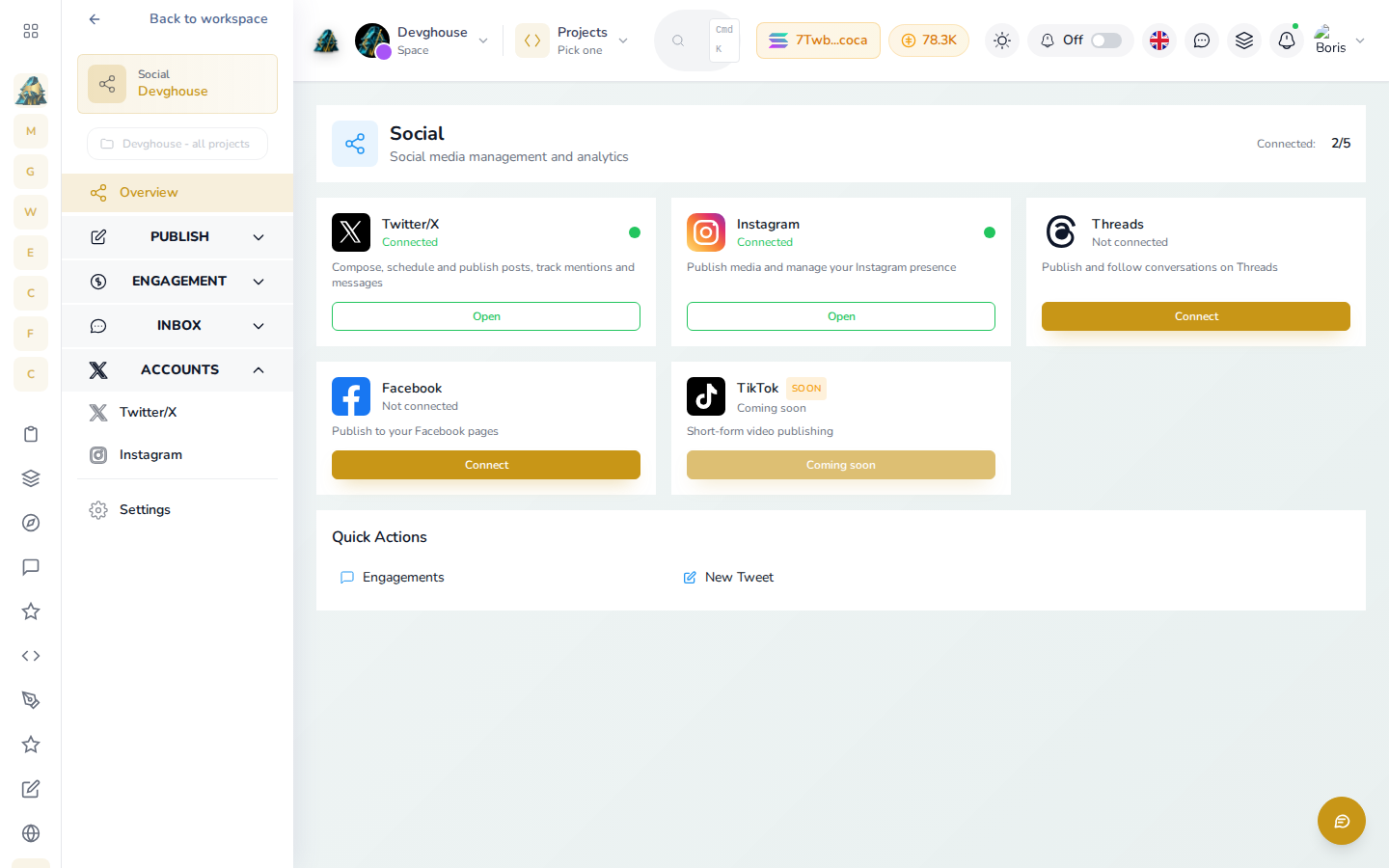
Each card shows one network, whether it's connected, and a short line about what connecting it lets you do. Connected: 2/5 at the top counts how many of the five networks you've connected so far. Here Twitter/X and Instagram are already live, so their cards show a green Connected dot and an Open button instead of Connect.
Connect your first account
The steps are the same shape for every network. Here's what it looks like connecting Instagram:
- On the network's card, click Connect.
- You're taken to a connect screen for that network, with its own connect button (Connect Instagram, Connect Threads, Connect Facebook Page, or for X, Connect). This opens that network's own sign-in window.
- Sign in with the account you want to use and approve the permissions it asks for.
- You're back on Social, and the card now shows Connected with a green dot.
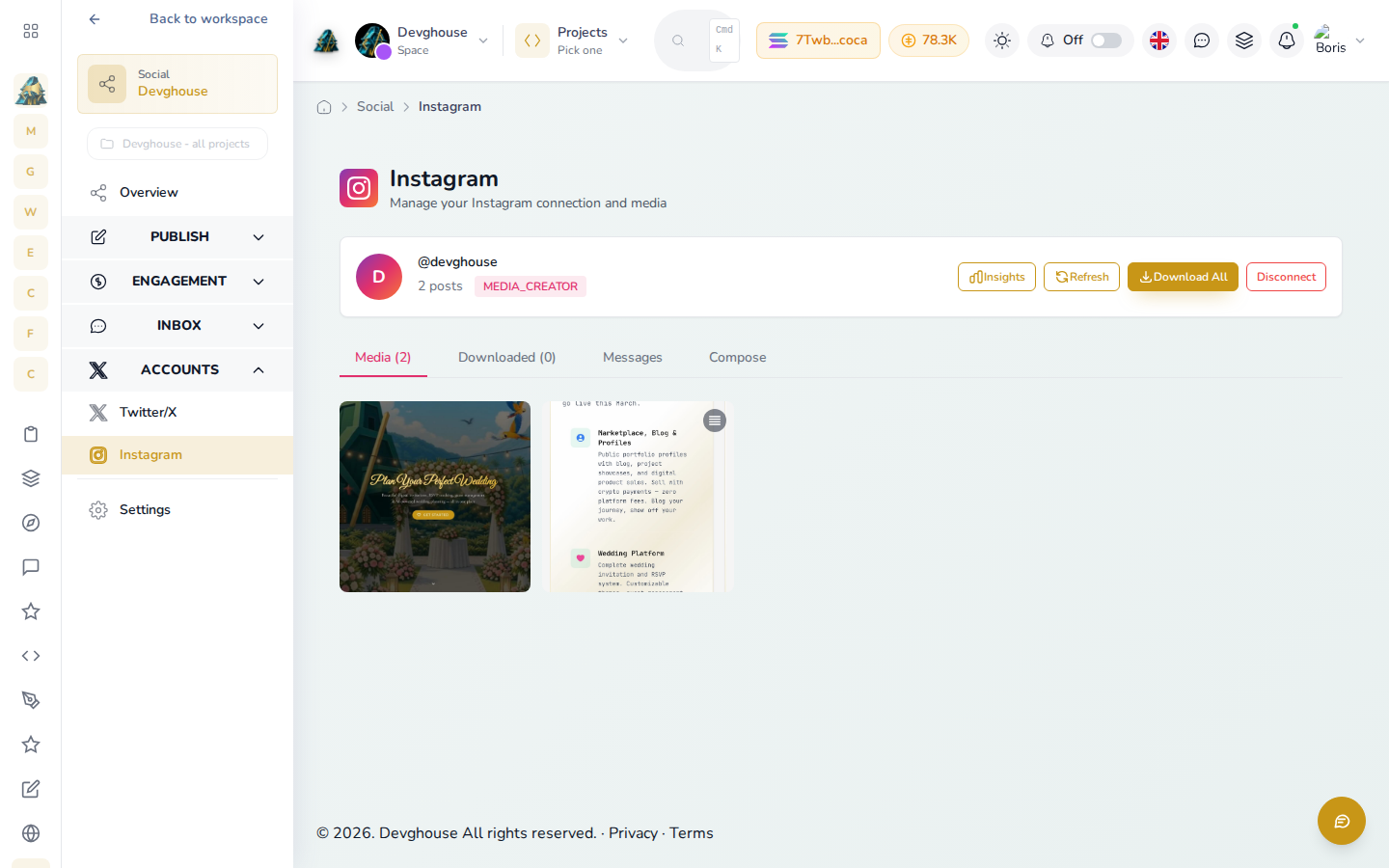
Once Instagram is connected, its own page shows the linked handle and avatar in the header plus a media grid of your actual posts, ready to browse, download or reply from:
X (Twitter) works the same way, except the default connection doesn't include direct message access. If you plan to send or read DMs from inside DevGhouse, use Connect with DM access instead of the plain connect button, or reconnect later from the account's own Messages page. See Posting on X for where that shows up.
TikTok shows as Coming soon and can't be connected yet.
What happens next
Once at least one account is connected:
- Each network's own page (Twitter/X, Instagram, Threads, Facebook in the sidebar under Accounts) has posting and management tools specific to that network. See Posting on X and Instagram, Threads and Facebook.
- Engagement and leads can start watching for mentions and keywords once you tell it what to watch for.
Nothing posts or scans on its own the moment you connect an account. You choose when something goes out, and any automatic reply pipeline starts turned off until you set one up.