
Posting on X
Once your X (Twitter) account is connected, open Twitter/X under Accounts in the Social sidebar. Everything for that account, composing, drafts, media, your own tweets, mentions and messages, lives under this one page.
Write and post a tweet
- Click Composer (it's also where Compose in the overview's Quick Actions takes you).
- Type your post. The counter under the box tracks how close you are to the 280 character limit. Attach an image or video with the icon under the box if you want one; DevGhouse's own account is announcing its docs site here, with the DevGhouse logo attached as the post's image.
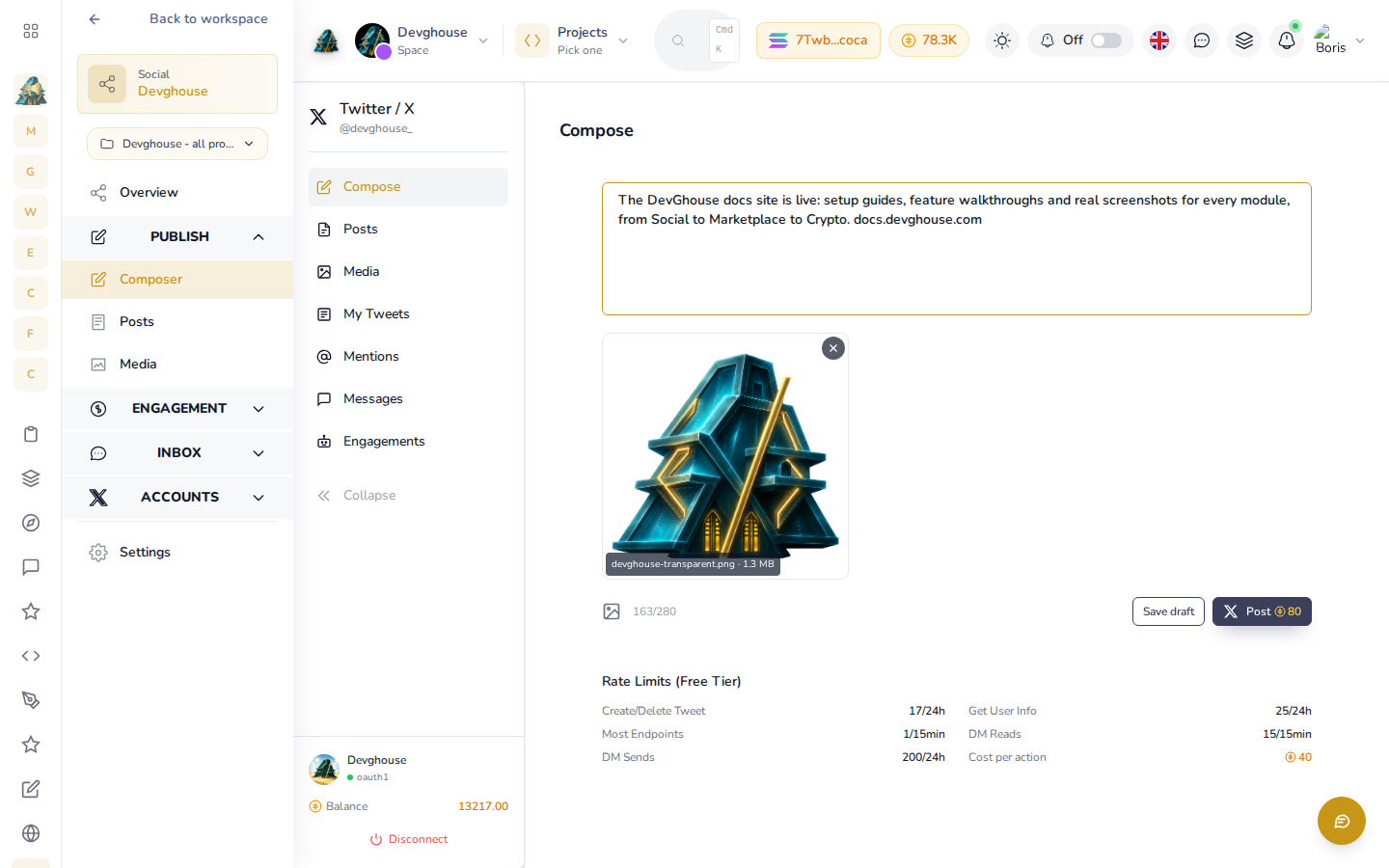
- Click Save draft to keep it for later without sending anything, or click Post to send it right now. The Post button always shows the exact credit cost before you click it, and attaching media adds a second charge on top, shown in the same total.
- If you paste in a link that runs long, or you're announcing something in detail, X splits naturally at 280 characters; for something you know needs more room, write it as a thread instead of one long post.
Review your drafts and posts
Click Posts to see everything filed under this account.
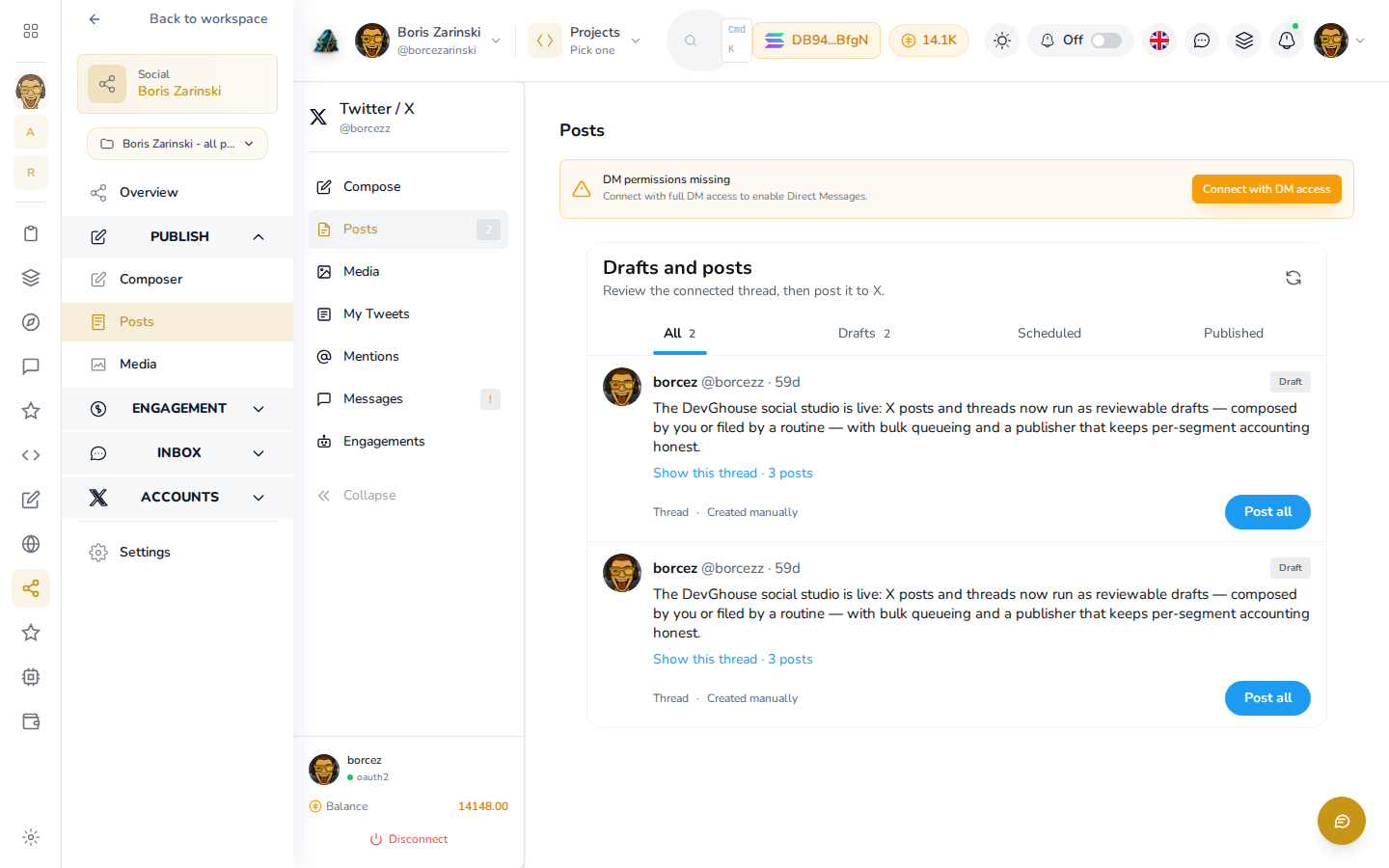
- All / Drafts / Scheduled / Published at the top filters the list. A draft made by you or by a connected assistant sits in Drafts until someone sends it; anything a routine has queued for a future time shows under Scheduled.
- Show this thread opens every segment of a multi-post thread in order.
- Post all sends a draft (or every remaining segment of a thread) right away.
- Nothing in this list goes out on its own. Filing a draft, including one an assistant creates, never posts anything until a Post button is clicked.
Media
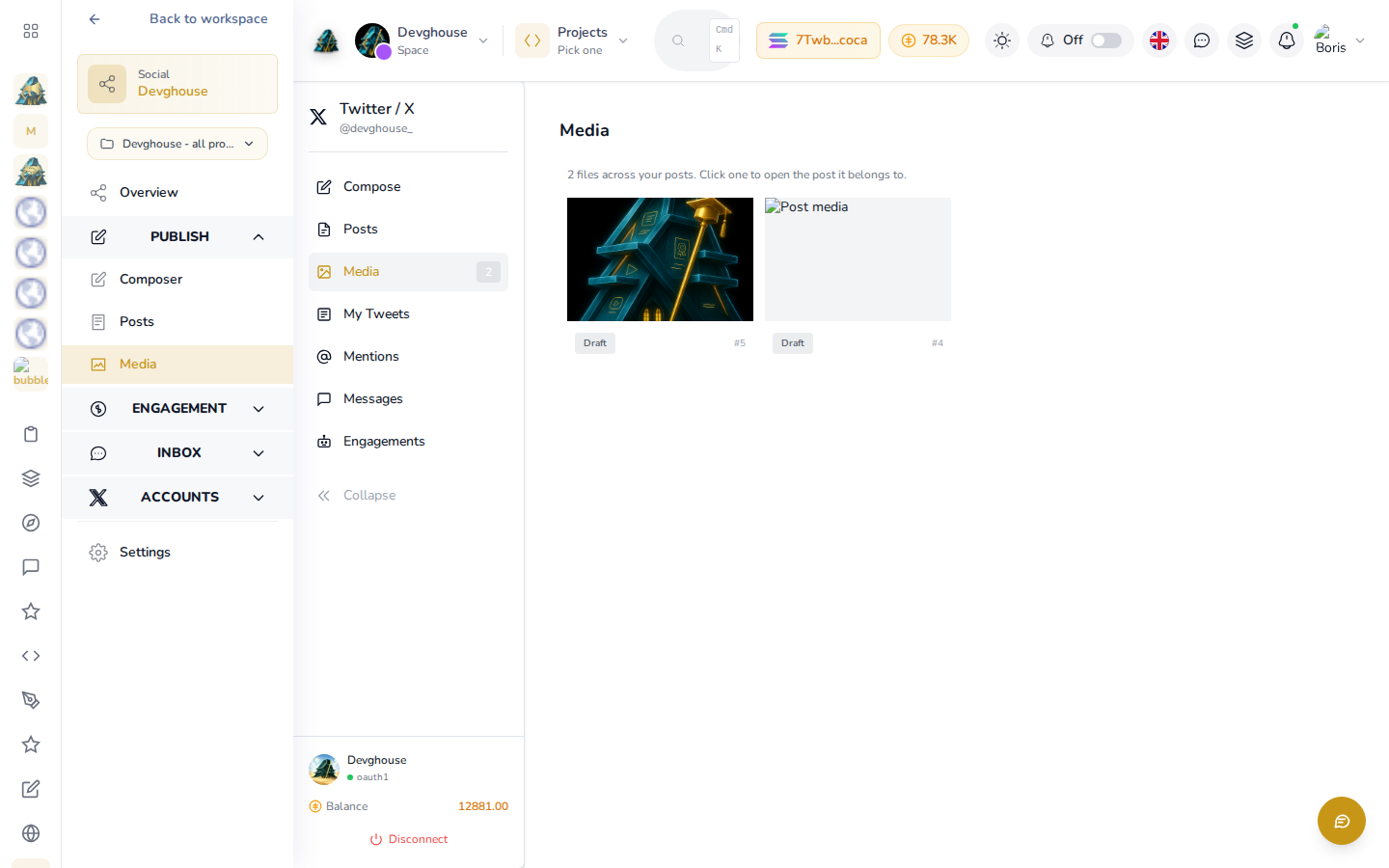
Media lists every image and video attached to your posts on this account, in one place, so you can find something you used before without hunting back through old drafts. Each thumbnail is clickable and opens the draft or post it belongs to.
Your tweets and mentions
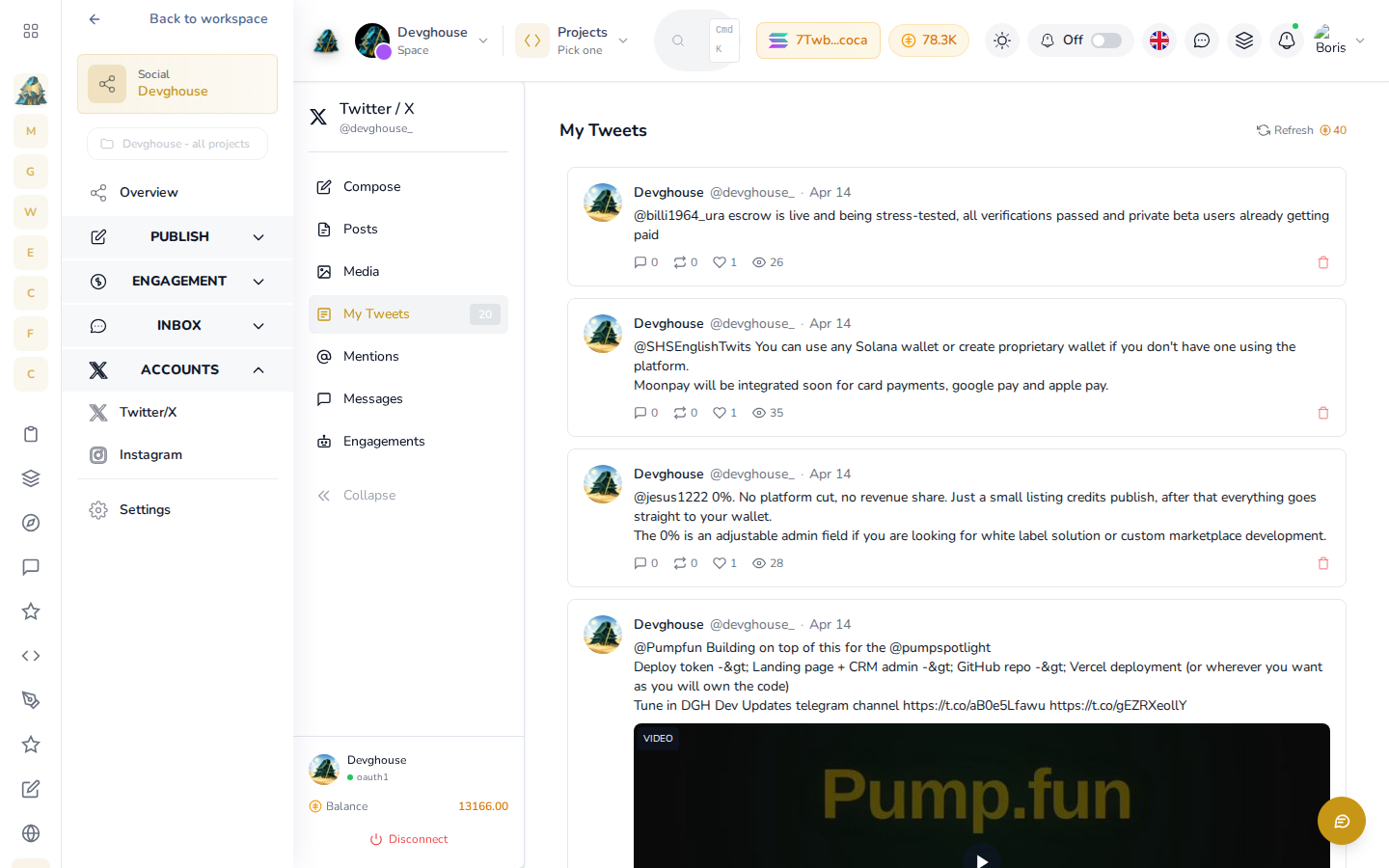
My Tweets shows your own posting history pulled from X. The first time you open it, the list is empty until you click Fetch from X, which costs credits since it's a real call to X's API. Once fetched, it stays cached here, replies included, with the like, reply and view counts X reported at fetch time; click Refresh any time you want a newer count.
Mentions works the same way: it shows tweets that mention your account, refreshed on request rather than automatically.
Direct messages
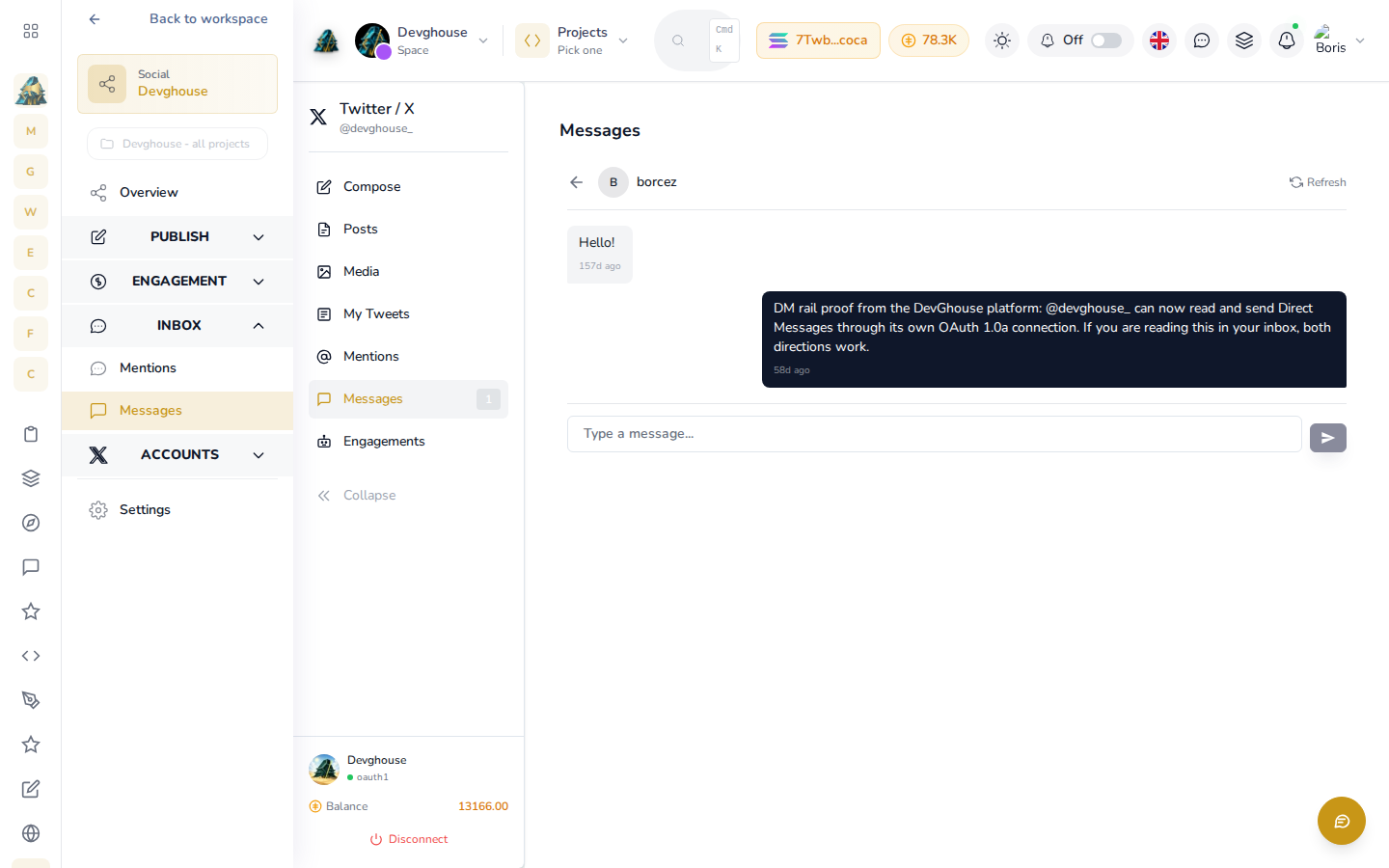
Messages needs a connection with direct message permission, which is separate from the basic connection you make when you first connect the account. If you see a banner reading DM permissions missing, click Connect with DM access (on this page or on the banner shown across every Twitter/X screen) and approve the extra permission.
Once that's done, Messages lists your conversations on the left; click one to open it and read or reply from inside DevGhouse, right where the DevGhouse account's own connection has DM access already:
Managing the connection
At the bottom of the sidebar, the account's own card shows the connected handle, its connection type, and your remaining credit balance. Click Disconnect here if you ever need to remove the account; nothing else on this page deletes the connection.
Run it with an AI assistant
A connected assistant can do everything this page describes through tools: twitter_post_tweet and twitter_post_thread to post directly, social_post_create and social_post_queue to file a draft (optionally with a future scheduled_at) and then hand it off, twitter_get_tweets and twitter_get_mentions to read your history without you clicking Fetch yourself, and twitter_send_dm plus twitter_get_dm_conversations for messages once DM access is connected. It can also search X and read any public account's timeline with twitter_search_tweets and twitter_get_user_timeline, and pull public research without spending your account's own quota through the separate twitterio_* tools.