
Instagram, Threads and Facebook
Instagram, Threads and Facebook each have their own page under Accounts in the Social sidebar. Unlike X, these don't have a separate drafts list yet: what you publish here goes out as soon as you click Publish, so double check it before sending.
- Click Connect Instagram and sign in with your Instagram Business or Creator account. A personal Instagram account can't be connected; Instagram requires a Business or Creator account for this kind of access.
- Once connected, choose Feed post or Story, then tick Video if what you're uploading is a video clip (a video posted to the feed goes out as a Reel automatically). Paste in a public media URL and write your caption (up to 2200 characters).
- Click Publish. The page shows your remaining publishing quota (Instagram allows about 50 posts per rolling 24 hours) and a link to the live post once it's up.
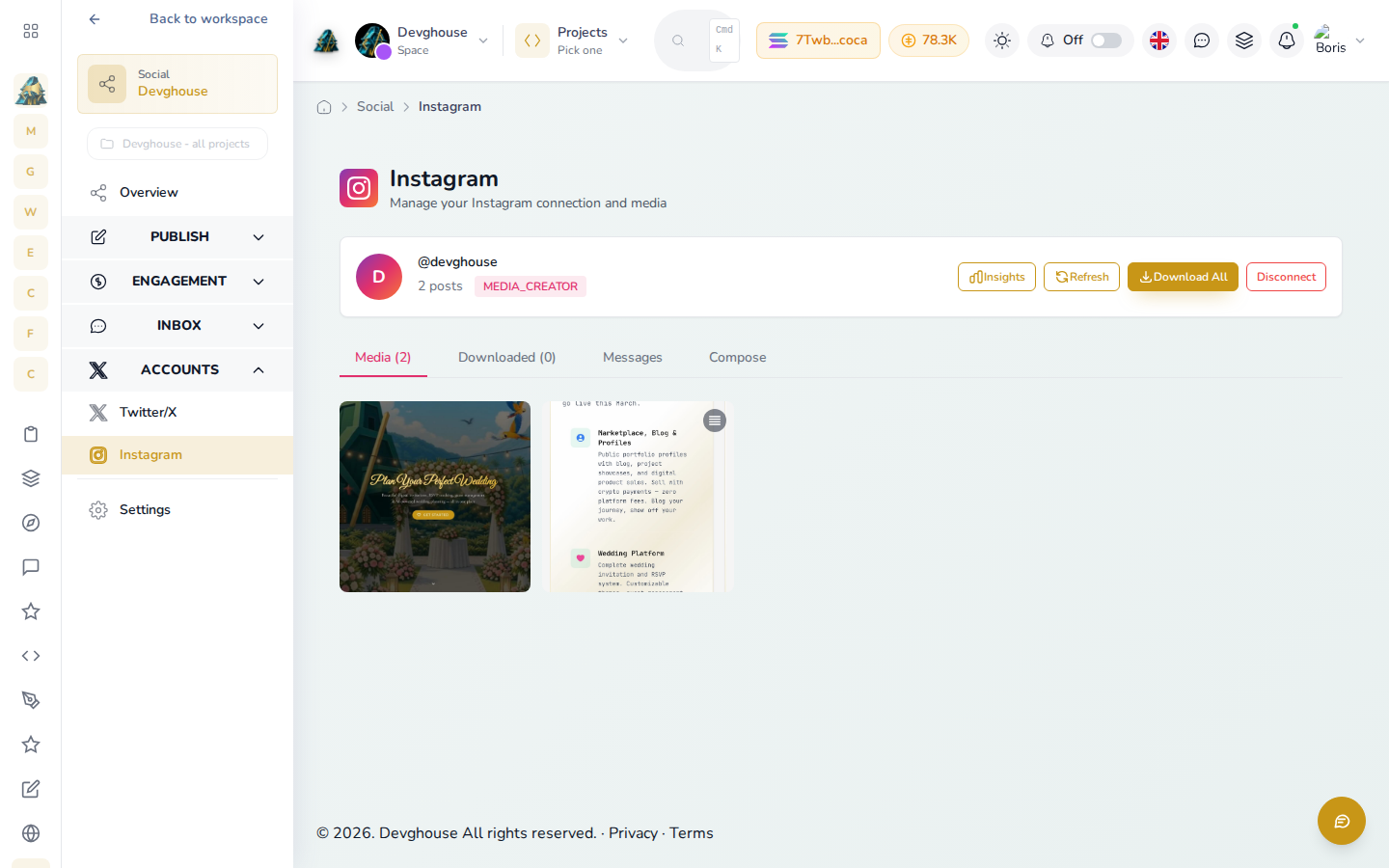
- The same page also shows your recent media in a grid, and lets you read and reply to direct messages, though replying only works within 24 hours of that person's last message to you, which is a limit Instagram itself sets.
Here is the DevGhouse account after connecting: the linked handle and avatar in the header, and the media grid populated with its real posts.
Threads
- Click Connect Threads and sign in with your Threads account.
- Choose what to post: text, a single image, a single video, or a carousel of two or more items, then click Publish.
- Click Insights to open a read-only log of replies an automation has sent on your behalf, plus basic numbers on how your recent posts are doing.
- Click Connect Facebook Page and sign in with the Facebook account that manages the Page you want to post from.
- If you manage more than one Page, you're asked to pick which one to connect.
- Choose what to post: a plain text update, a link, a photo, or a video, then click Publish.
- To switch to a different Page later, disconnect and reconnect; picking a different Page than the one already active is a sign-in flow through Facebook, not a simple dropdown.
TikTok
TikTok shows on the Social overview marked Coming soon. Connecting an account and posting through the DevGhouse interface isn't available yet.
Run it with an AI assistant
A connected assistant can publish to any of these networks directly: instagram_publish_post (feed or Reel) and instagram_publish_story, threads_publish_post (text, single media, or a carousel by passing two or more carousel_urls), and facebook_publish_post (pass exactly one of a link, a photo or a video, or just a message for plain text). For Instagram it can also read and reply to DMs with instagram_list_threads and instagram_send_dm, and for Threads it can search with threads_search and moderate replies with threads_moderate_reply. A draft made for Instagram or Threads through the cross-network studio (social_post_create) has to be published with these direct tools; it can't be sent through the same queue that posts to X.