
Chatting with an agent
What you can do
| Feature | What it does |
|---|---|
| New chat | Type a task or a question and get an answer, using whatever tools your workspace has turned on. |
| Conversations | Every chat you've had is saved, searchable, and reopenable exactly where you left off. |
| Jarvis | A voice assistant: tap the microphone, talk, and get a spoken answer back. |
| Stage | See every agent actively working in your context right now, useful when you have several automations or a workflow running at once. |
1. Start a chat
- From Agents, select New chat.
- Type your request in plain language, for example "Draft three headline ideas for our spring sale" or "Check whether my website's contact form is working." Press Enter to send.
- The agent answers using the tools your workspace has turned on. It can look up a project, check a website's content, or draft a post if the right feature is enabled.
2. Reopen a conversation
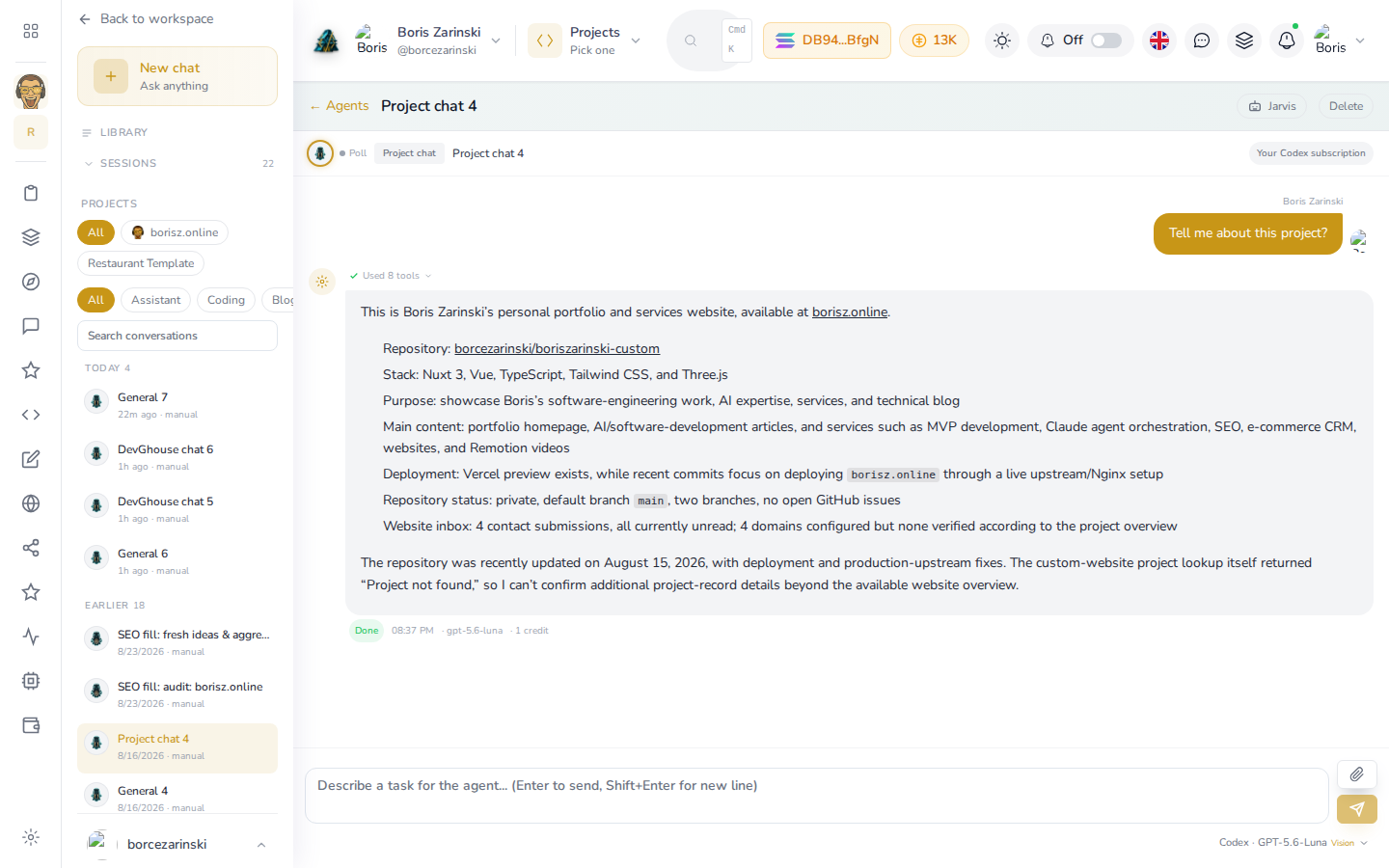
- Select any conversation from the Sessions list on the left, such as a project chat scoped to one of your Projects.
- You'll see the full back and forth: what you asked, what the agent answered (here, a rundown of the connected repository, stack and open items for
borisz.online), which AI model handled it, and what the reply cost in credits. - Type a follow-up in the box at the bottom to keep the same conversation going, the agent remembers everything said in it so far.
- Select Delete at the top of a conversation to remove it for good. This does not undo anything the agent already did, only the transcript.
3. Talk to Jarvis
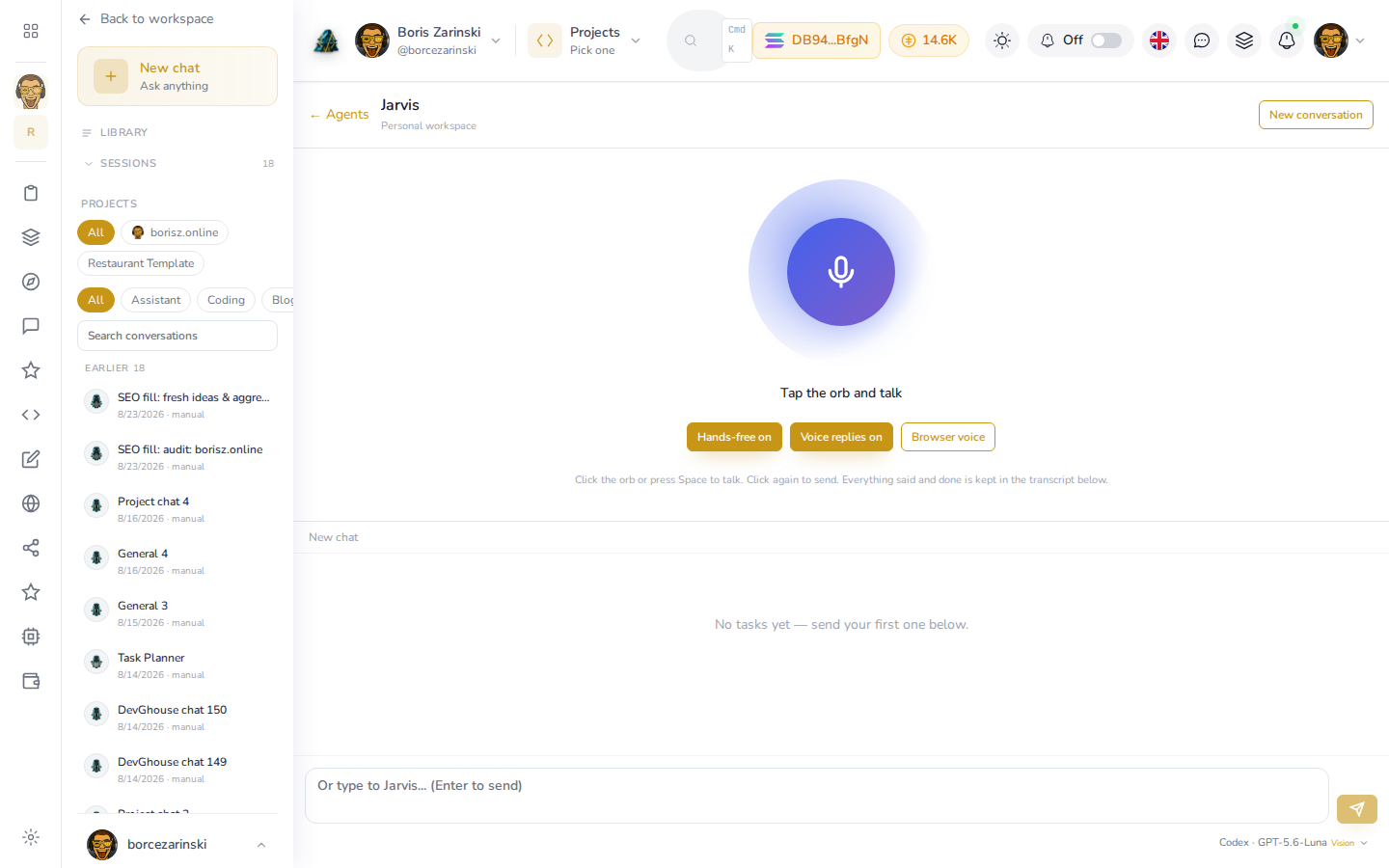
- Open Agents and select Jarvis, or go straight to
/agents/jarvis. - Select the orb (or press Space) and start talking. Select it again, or pause, to send what you said.
- Turn on Hands-free so the microphone reopens automatically after each answer, useful for a back-and-forth conversation without touching the keyboard each time.
- Turn on Voice replies to have answers read back to you. Browser voice is free and built into your browser; switching it to the platform's premium voice spends a credit per answer.
- No microphone, or on a browser that doesn't support it? Type in the box at the bottom instead, everything you say or type lands in the same transcript.
- Select New conversation at any point to start Jarvis fresh, leaving the previous conversation saved in your session list.
4. Watch everything working at once
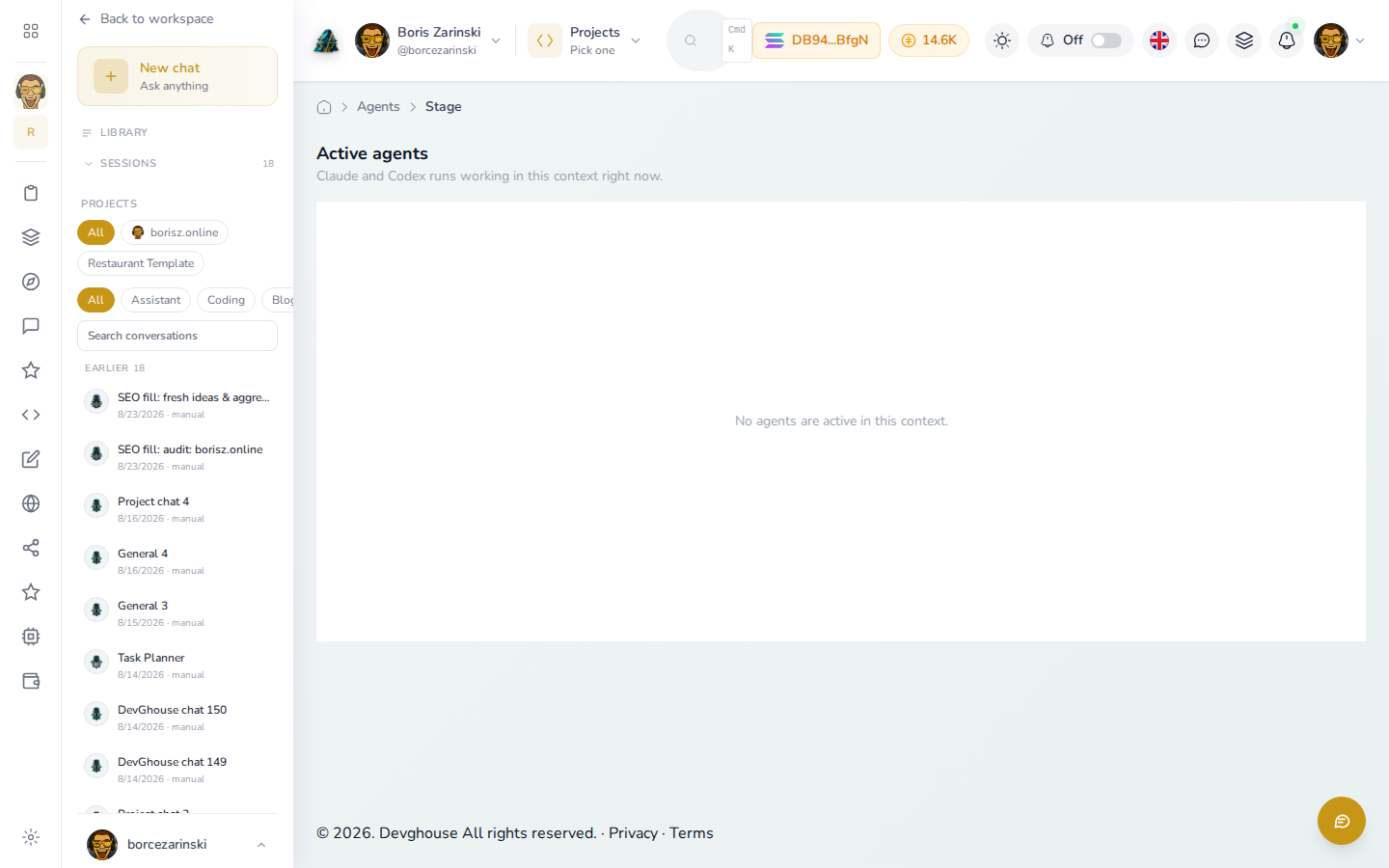
Open Stage (/agents/stage) to see every Claude or Codex run currently working in your context, whether it's a chat you started, an automation that just fired, or a workflow mid-run. It updates on its own every few seconds, so you can leave it open while you work on something else.