
Managing automations
Once an automation is saved, you can come back any time to change it, run it on demand, or check its history.
What you can do
| Feature | What it does |
|---|---|
| Edit | Change the name, instruction, schedule, or trigger of an existing automation. |
| Budget cap | Set a dollar limit per run, so a routine can never spend more than you're comfortable with in one go. |
| Run now | Fire the automation immediately, without waiting for its schedule. |
| Runs | A history of every past run, its status, and what it did. |
1. Open an automation's detail page
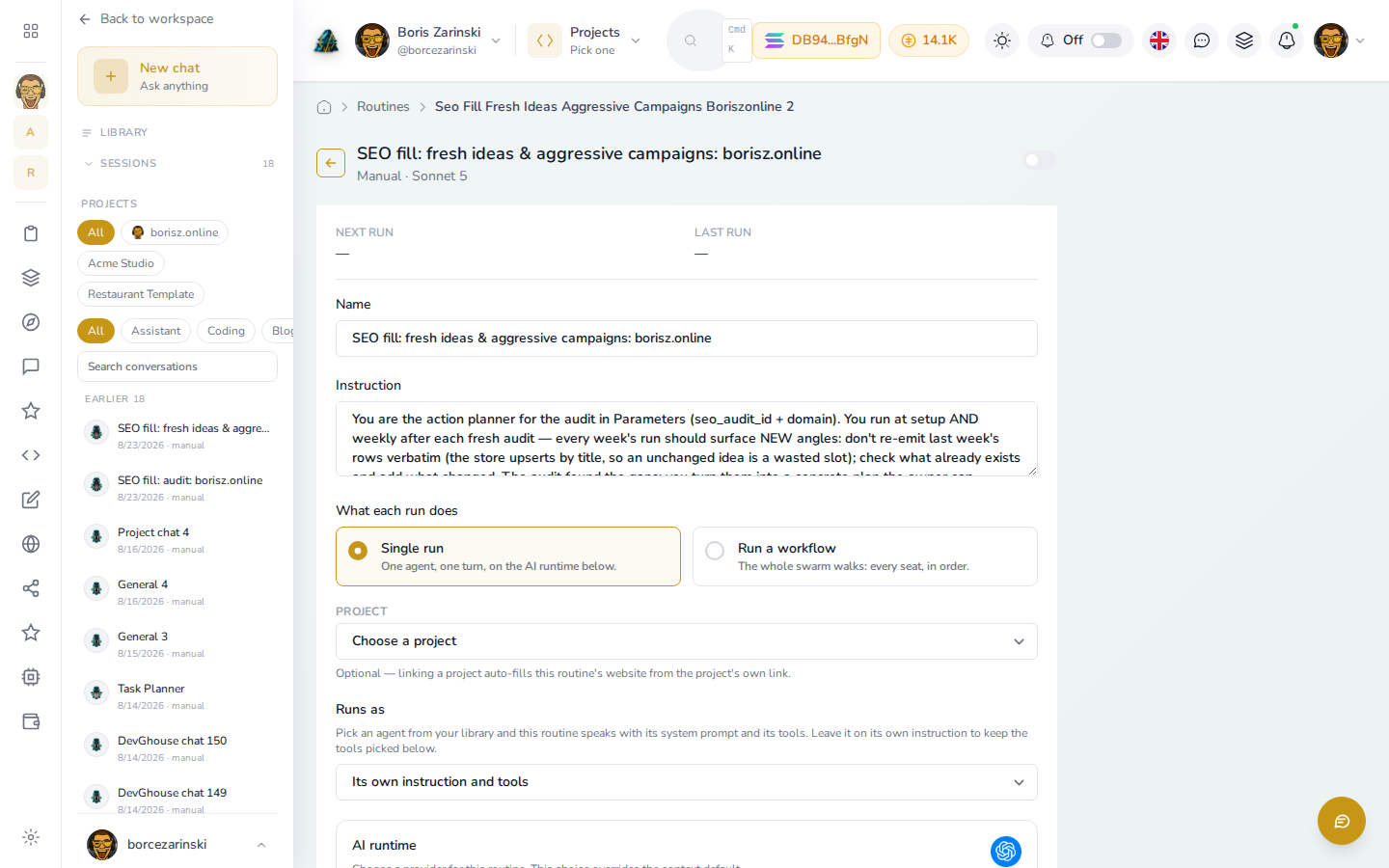
- From the Routines list, select any automation to open its detail page.
- Its name and instruction are editable right there, change either and select Save changes.
- Further down, you can change what each run does (single run or workflow), which project it's linked to, and which agent it runs as.
2. Set a schedule and a budget cap
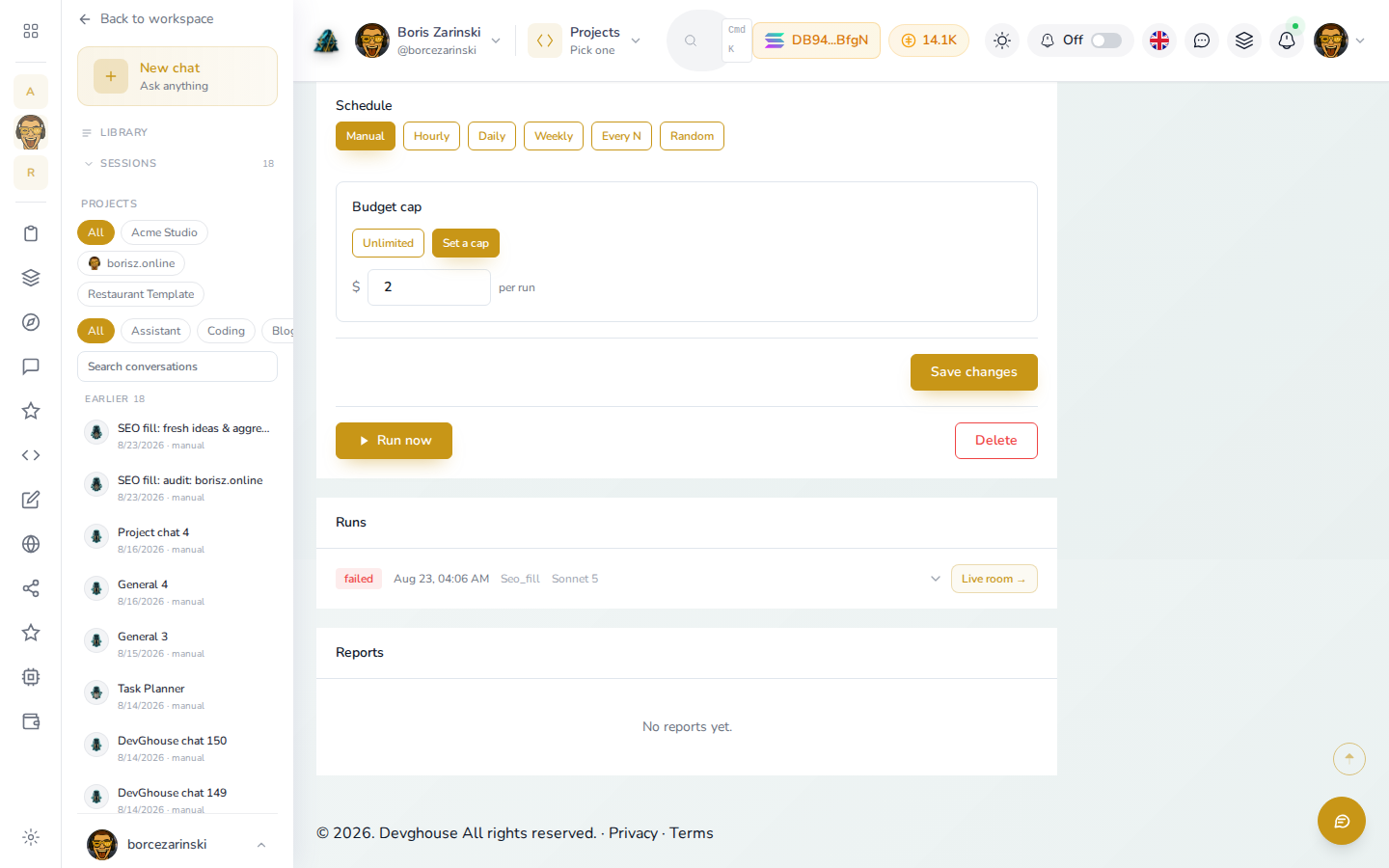
- Under Schedule, pick how often it fires: Manual, Hourly, Daily, Weekly, Every N, or Random, and the time it should run at.
- Under Budget cap, leave it Unlimited, or select Set a cap and type a dollar amount per run. This protects you from a single run running away with cost; it doesn't change what a run billed to your own connected subscription costs (that's a flat rate, see Connecting your own AI).
- Select Save changes once you're happy.
- Select Run now to fire it immediately, outside its normal schedule, useful for testing a new instruction before trusting it to run unattended.
- Select Delete to remove the automation for good. Its past runs and history stay visible on the account for reference until it's deleted.
3. Read a run's history
The Runs list at the bottom of an automation's page shows every time it has fired, newest first, each with a status: done, failed, or running. Select a run to open its Live room, the same conversation view you'd see for a regular chat, showing exactly what the agent did, step by step, and what it cost.
If a run fails, however it fired, you get an email about it from support@devghouse.com with the automation's name, the reason it failed, and a link straight to that run, so you don't have to go looking for it. That includes a run you fired by hand with Run now, not just a scheduled one.