
Getting started
1. Open Agents
- Sign in to your DevGhouse workspace.
- In the left sidebar, select the Agents icon. This takes you to app.devghouse.com/agents.
- Check the switcher at the top of the page. It shows whose workspace you're in, your personal account or a shared one. Agents and Automation always act inside whichever one is selected there.
2. What you see
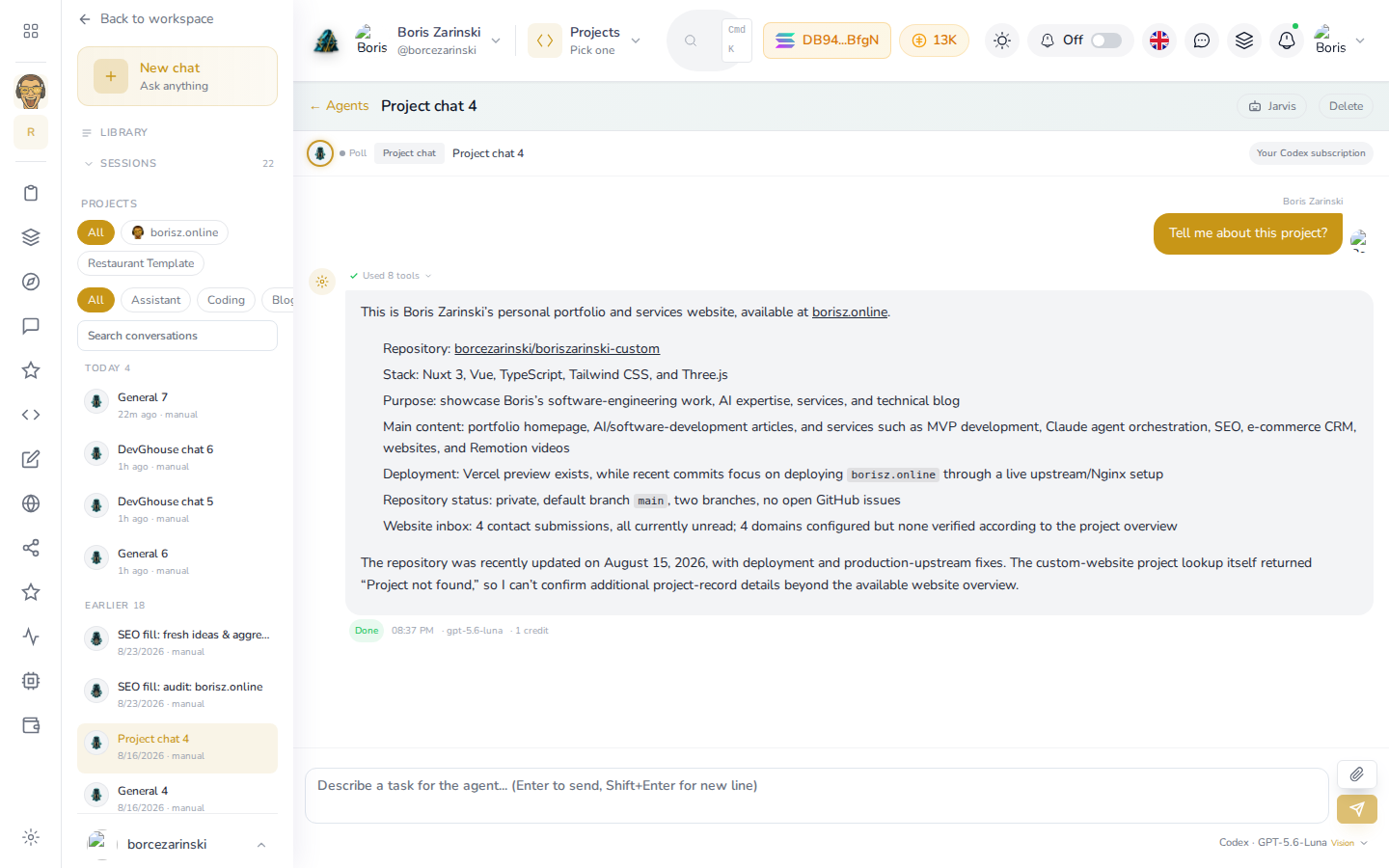
The left panel lists your past conversations under Sessions, with quick filters for the kind of helper (Assistant, Coding, Blog, and so on) and your Projects underneath (here, borisz.online and Restaurant Template). The main panel shows whichever conversation you've selected, asked and answered, with the AI model and its credit cost under the reply, or a prompt to start one if this is your very first visit and that list is still empty.
3. The three ways in
- New chat: a one-off conversation. Good for a question or a task you only need done once. Covered next, in Chatting with an agent.
- Agent Library: a saved helper with its own personality and toolset, for something you'll come back to again and again. See Agent Library.
- New automation: a task that runs itself on a schedule or a trigger, with nobody watching. See Setting up an automation.
You don't have to pick the right one up front. A one-off chat can be turned into a saved Library helper later, and a Library helper can be pointed to by an automation.