
Workflows
A workflow is a reusable chart of seats, each one its own role, brief, and AI model, that runs a job in stages instead of one helper trying to do everything in a single pass. Where an automation runs one instruction once, a workflow's chart can research, draft, and review, each stage handing off to the next.
What you can do
| Feature | What it does |
|---|---|
| Blog workflow | A ready-made chart that researches, writes, and reviews a blog post before it goes out, six seats working in order. |
| New workflow | Build your own chart for a repeatable job. |
| Workflow copilot | Describe changes to the chart in plain language ("change every seat to Sonnet, arm the webhook") instead of editing each seat by hand. |
| Webhook | Let an outside system fire the whole chart by posting a mission to a secured URL. |
1. See your workflows
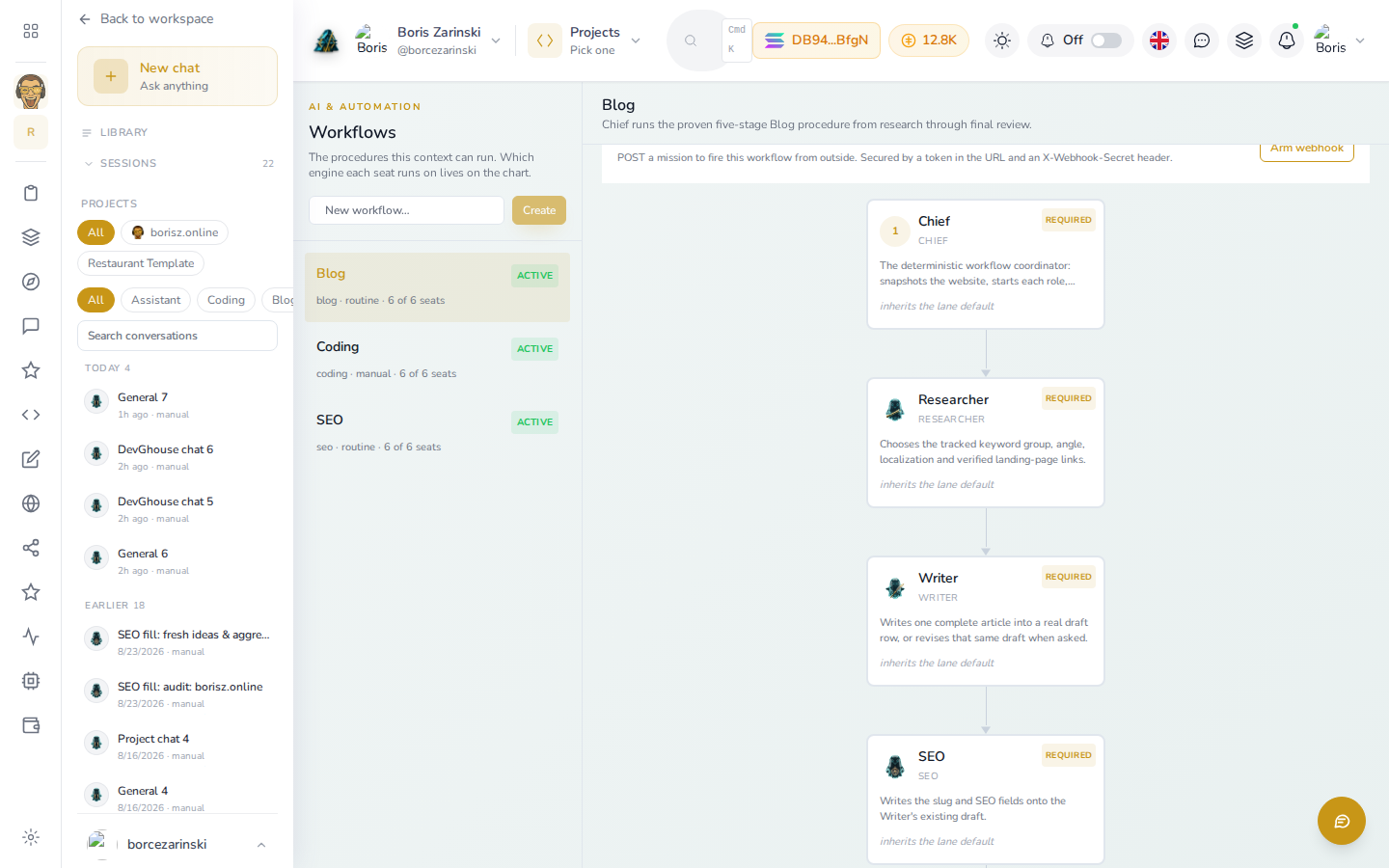
- Open Workflows under AI & Automation in your workspace, or go to
/ai/workflows. - The left panel lists every chart your workspace has (here, Blog, Coding and SEO), whether it's currently active, and how many of its seats are filled in, DevGhouse's own Blog chart ships with all 6 of 6 filled.
- Scroll the right-hand chart to read each seat in order: Chief coordinates the run, Researcher picks the angle, Writer drafts it, SEO and Media finish the post, and Reviewer returns the final verdict. Each card names its engine,
inherits the lane defaultunless you override it. - DevGhouse starts you off with a Blog chart ready to use: pick Choose a Blog to point it at one of your blogs, with the target pages, schedule, and publishing mode already known.
2. Fire one for a one-off job
Most workflows are meant to be pointed to by an automation (see Setting up an automation, the Run a workflow option), so the whole chart runs on a schedule without you asking each time. For a one-off job right now, describe the mission in the Workflow copilot panel, or use its New chat button, then confirm before it spends any credits, a workflow run bills per seat that actually runs.
3. Reshape a chart
Use the copilot box at the bottom of a workflow's page to describe a change in plain language, for example "reshape Blog: change every seat to Sonnet, arm the webhook." The copilot only reshapes the chart, seats, models, the codebase it's pointed at, the webhook, it never fires a run on its own.
A note on the Coding workflow
Alongside Blog, your workspace also has a Coding chart. That one is for a connected code repository (a website's own codebase, for a developer or technical team), spawning a real branch and a cast of build-and-review seats against it. If you don't manage code directly, you'll likely never need to open it, the Blog chart and your other automations cover the everyday content and website jobs.