
Connecting your own AI
By default, every chat and automation runs on DevGhouse's own built-in engine, billed from your credits. If you already pay for Claude, Codex, or Kimi, you can connect that subscription instead, so it runs on your own plan.
What you can do
| Feature | What it does |
|---|---|
| Connect a subscription | Link your Claude, Codex, or Kimi account so runs use your own plan. |
| Preferred default | Choose which engine answers your chats and automations when you don't pick one specifically. |
| Chat and routine model | Pick the exact model your default engine uses. |
| Readiness and billing | See at a glance whether you're ready to run, and what a run actually costs. |
1. Open AI settings
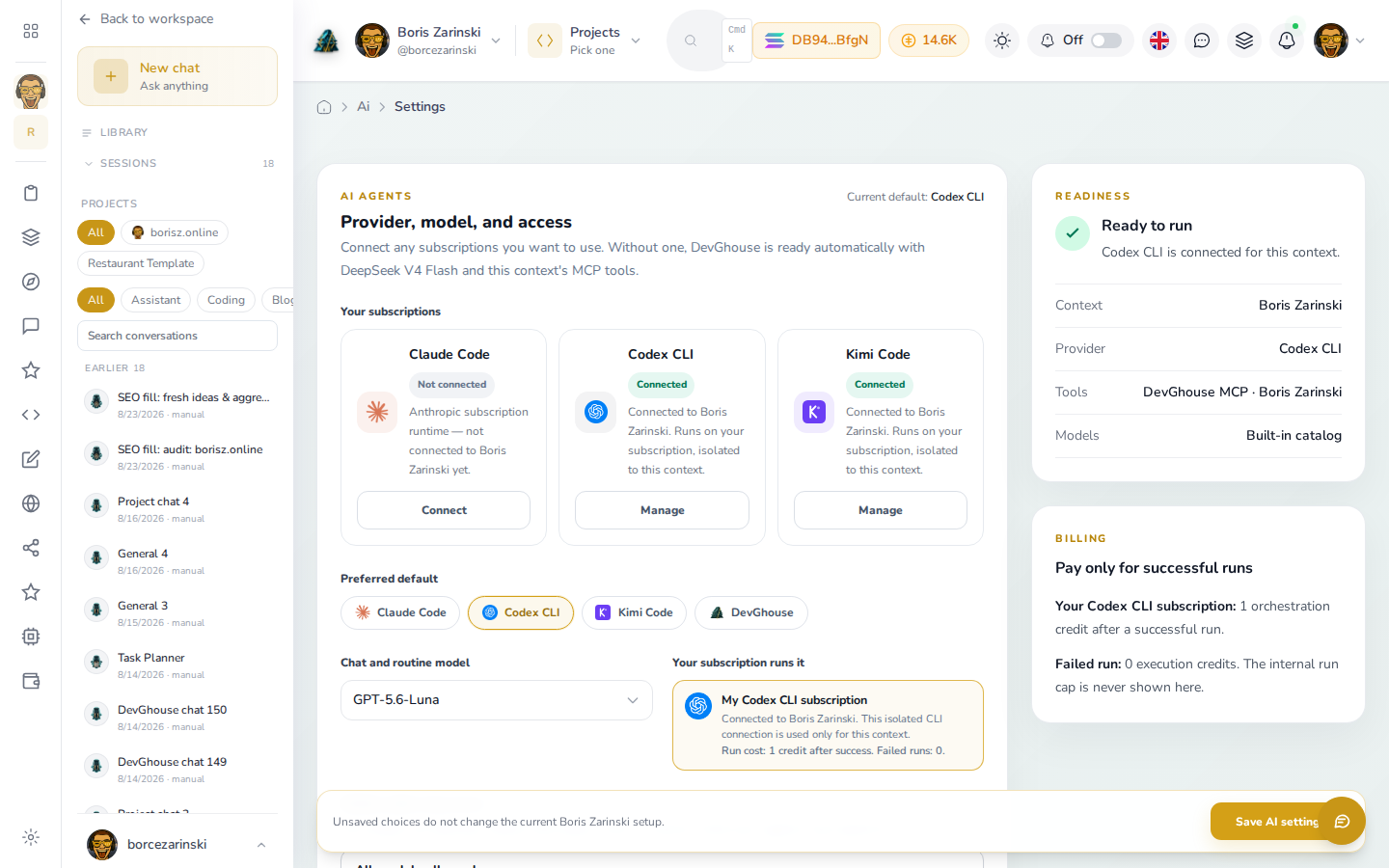
- Open AI settings under Settings, or go to
/ai/environment. - Without connecting anything, DevGhouse is ready to run automatically on its own built-in engine and this context's tools, included in your credits.
- To use your own subscription instead, select Connect (or Manage, if already connected) on the Claude Code, Codex CLI, or Kimi Code card, and follow the prompt.
2. Pick your defaults
- Under Preferred default, choose which engine answers when a chat or automation doesn't specify one itself.
- Under Chat and routine model, pick the exact model that engine uses.
- Select Save AI settings.
3. Check readiness and cost
The Readiness panel confirms whether you're set up to run right now, the context, the provider, the tools available, and which models are on offer. The Billing panel spells out what a run actually costs: with your own subscription connected, a successful run costs a flat 1 orchestration credit and a failed run costs nothing, the internal usage of your own subscription isn't shown or capped here.
Every automation is separately scoped to your workspace and its context: connecting your own subscription here changes how a run is billed, never who owns the account it's acting on.