
Browsing courses
The catalog
- Go to courses.devghouse.com and scroll to, or click Browse courses to jump to, the Course catalog section.
- Type in the search box to filter by title or description.
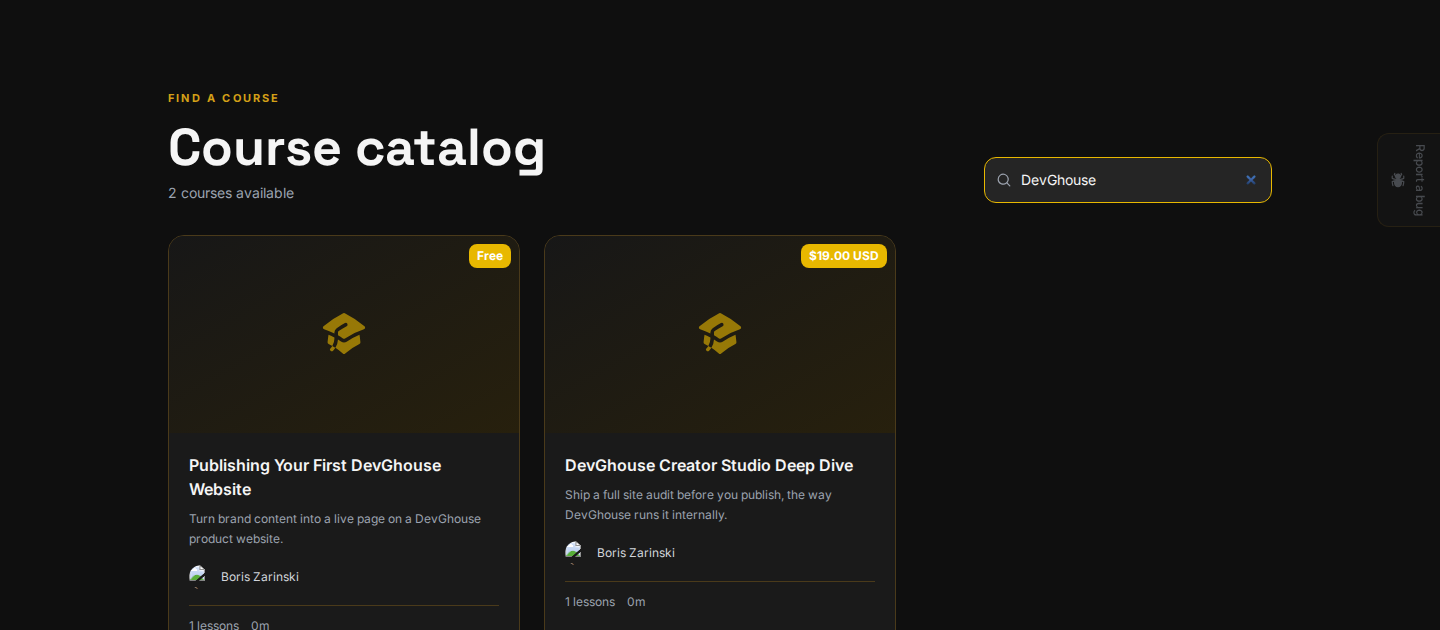
Each card shows its thumbnail, price (or Free), title, instructor, and lesson count. A search with no matches says so plainly rather than guessing at a bug; Courses is in beta and the catalog is still filling up. Click a card to open the course.
You do not need an account to browse. Signing in only matters once you want to enroll.
A course's page
Opening a course from the catalog takes you to its own page at /courses/:slug. This is everything you need to decide whether to enroll, before you spend anything:
- The title, description, language, level, total length, and lesson count
- A trailer video, if the instructor added one, or the course thumbnail
- What you'll learn, a short list of outcomes
- Course Content, the full curriculum broken into sections; click a section to expand its lessons. Lessons marked Preview play for free even before you enroll; the rest show a lock icon until you own the course
- Any listed requirements
- The full description
- The Instructor section, with their name, profile link, student count, and rating
- Student Reviews, if the course has any, with the average rating
The price and enroll button sit in a card on the right, and stay the same as you scroll. See Enrolling and paying for what happens when you click it.
Instructor profiles
Click an instructor's name on a course page to open their profile. If they published the course under a personal account, you land on their individual profile; if a team published it, you land on that team's workspace page instead, showing everything that team has published together.