Watching and progress
Opening the player
Click Start Learning on a course you own, or a lesson in My Learning, to open the built-in player at /learn/:slug. If you followed a link to a lesson you have not enrolled in yet, you see a locked preview with the price and an enroll button instead of the video.
Resuming a lesson
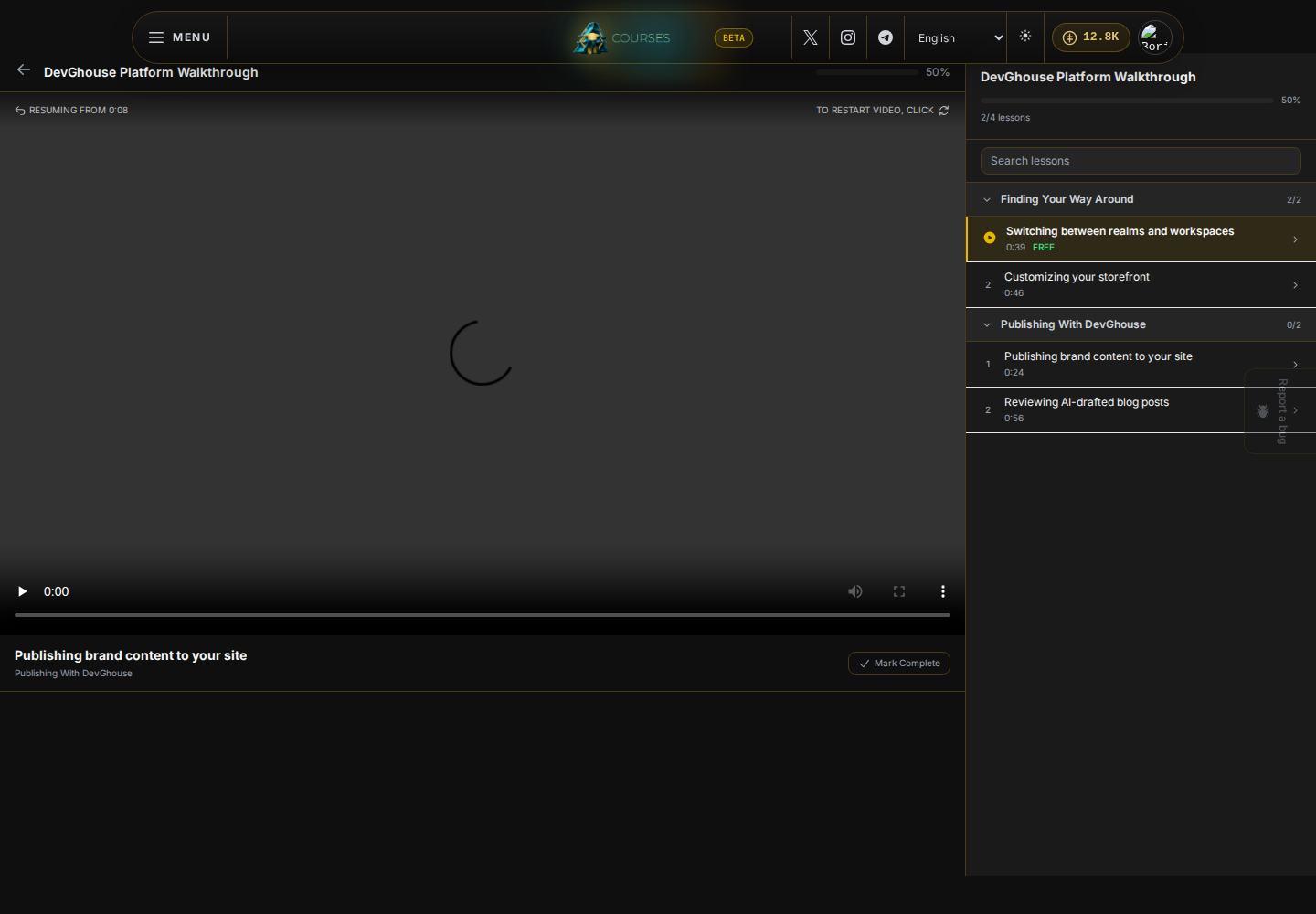
The player remembers your playback position automatically. Leave a lesson at any point and come back later, from any device you sign in on, and it picks up within a few seconds of where you stopped. A small Resuming from time label appears briefly when it jumps you back.
If the instructor added subtitles to a lesson, they load automatically and you can toggle them from the video's own controls.
Moving through the course
The sidebar next to the player lists every section and lesson in the course, with a checkmark next to any lesson you have already completed. Click any unlocked lesson in the sidebar to jump to it, or use the built-in next lesson control to move forward in order.
Marking a lesson complete
Each lesson has a Mark Complete button above the player. Click it once you have finished a lesson; it turns into a green Completed state. Your overall course progress, shown as a percentage, is based on how many lessons you have marked complete.
Downloading your certificate
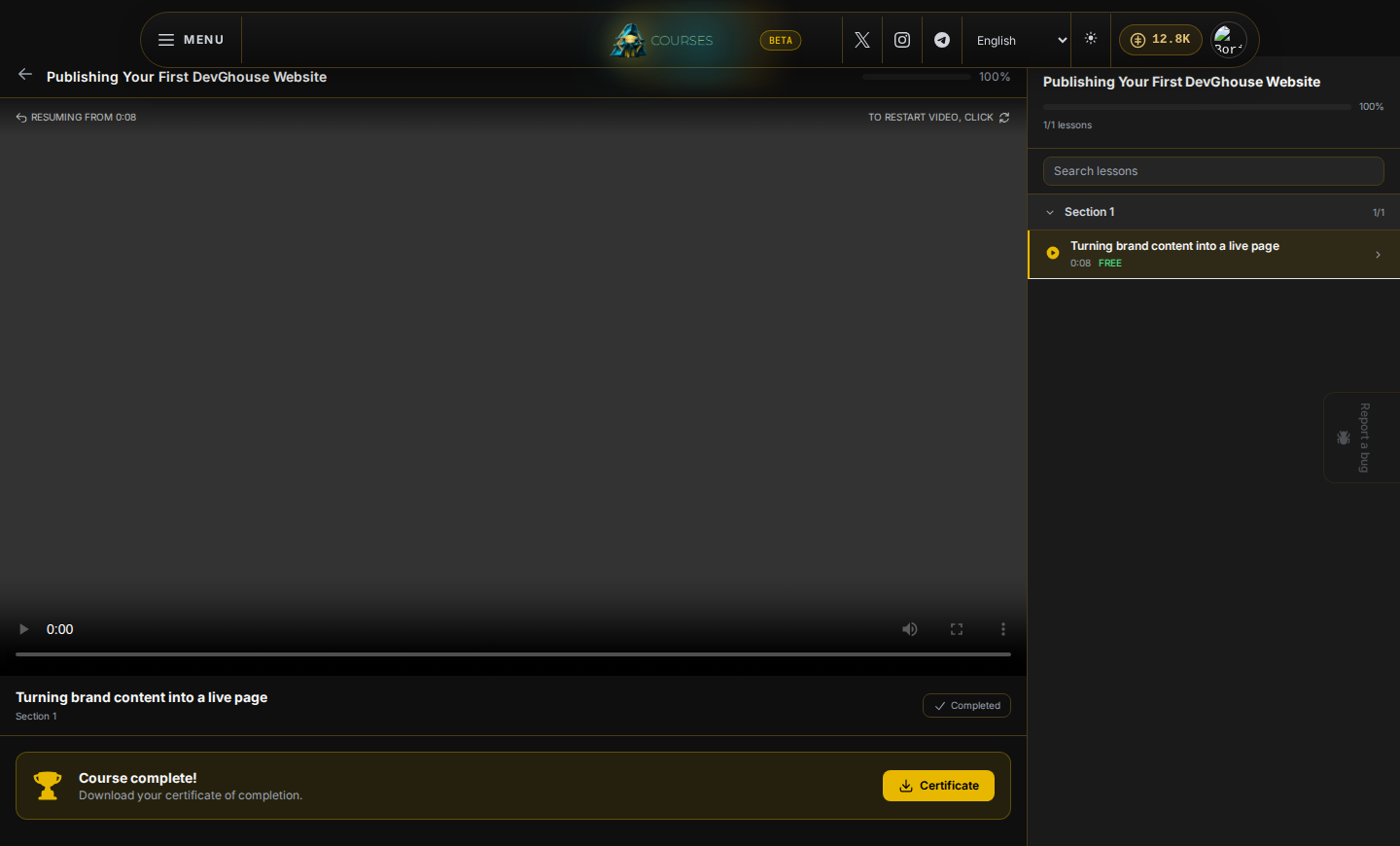
Once every lesson in a course is marked complete, a Course complete! banner appears with a Certificate button. Click it to download a certificate of completion for that course.