
Browsing coins
The coins list
- Click Coins in the top navigation, or go to
/coins. - Use the search box to find a coin by name, ticker or contract address, and the All / Solana / Base filter to narrow by chain. Selecting Solana here filters the grid to only Solana coins:
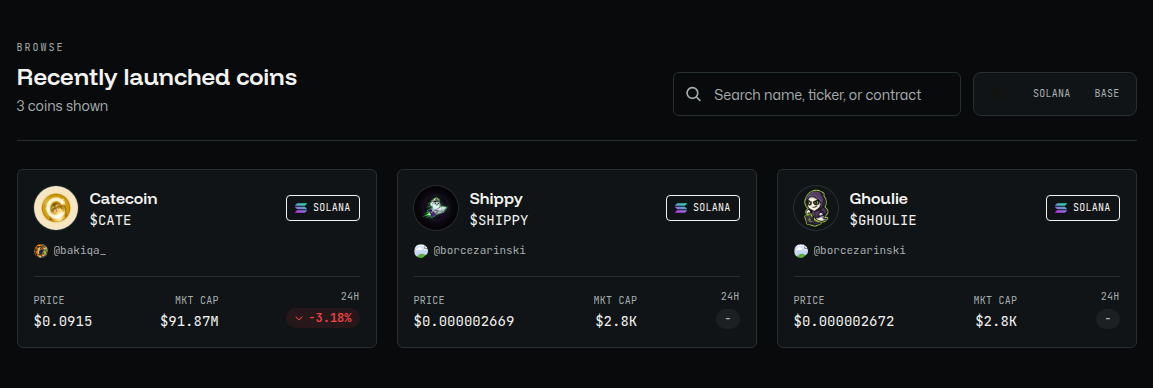
Every card shows the coin's name, ticker, chain and logo. Nothing here needs an account; you can browse signed out.
A coin's page
Click any coin to open its own page. This is what a launch actually publishes, and it is the same page you would send someone to see the project.
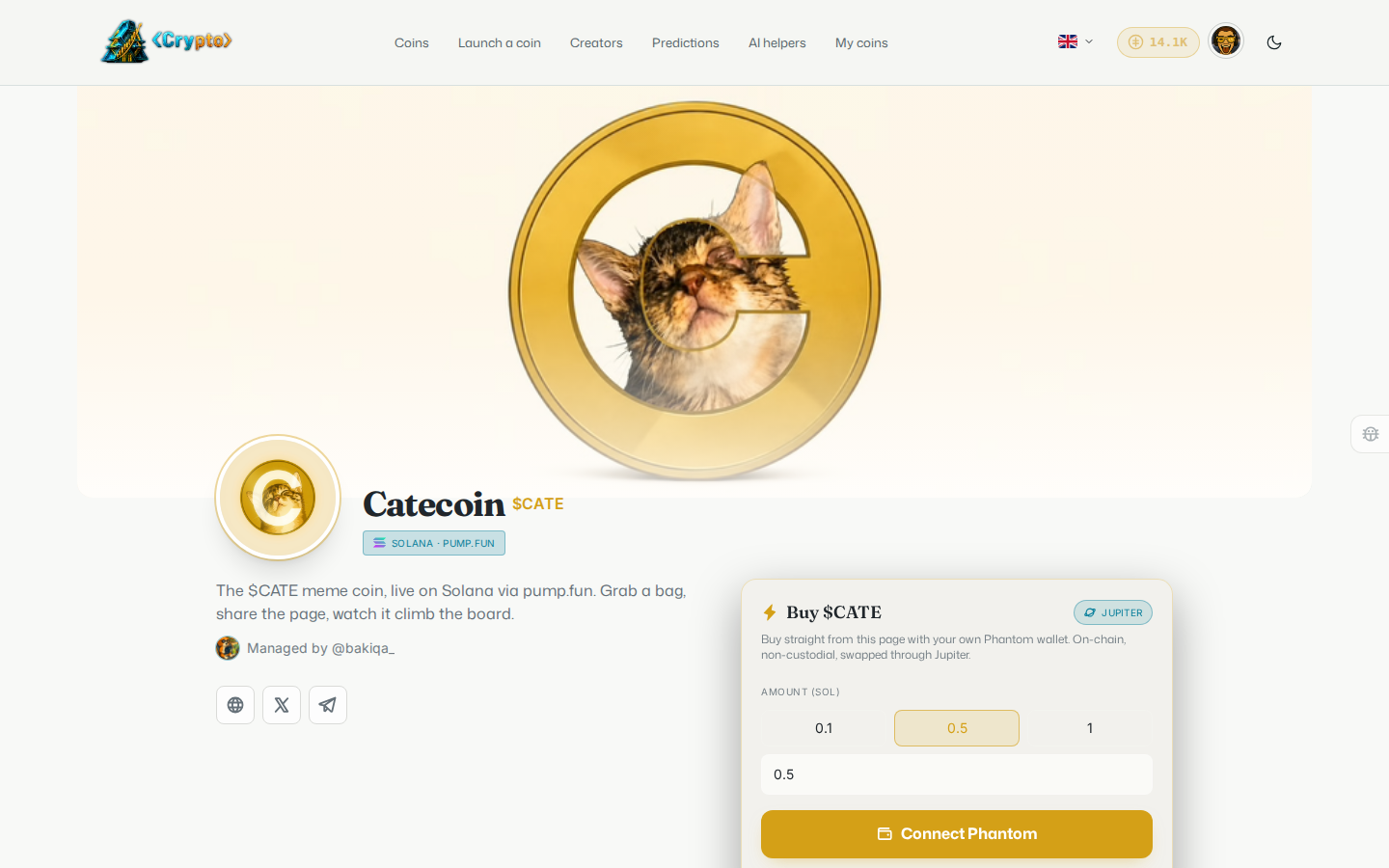
A coin page can include, depending on what its owner has published:
- The coin's name, ticker, chain, description and social links
- A live market snapshot and an embedded price chart
- Project updates, a media gallery, and a transparency panel (contract address, creator, launch venue)
- A Buy panel to purchase the coin directly
Buying a coin
The Buy panel on a coin's page works with your own wallet, not your DevGhouse credits:
- Pick a preset SOL amount (0.1, 0.5 or 1) or type your own.
- Click Connect Phantom and approve the connection in your Phantom wallet extension.
- Confirm the swap in Phantom. It routes through Jupiter and settles on-chain.
You can also click the Jupiter link on the panel to buy through Jupiter's own site instead, using any wallet you like. Either way, this spends real SOL from your own wallet; it is separate from your DevGhouse credit balance, and DevGhouse never holds your funds for this.
Creators and realms
Every coin's page links to who launched it. Click a creator's name to see their profile at /creators/:username, a directory of every coin they have deployed. If a coin was launched inside a shared team workspace instead of a personal account, it links to that team's realm page at /realms/:slug instead, showing every coin that team has launched together.