
Build a video on your own track
Already have a song, whether it's a YouTube link or your own audio file? This mode maps a video to its lyrics without writing or changing the song itself.
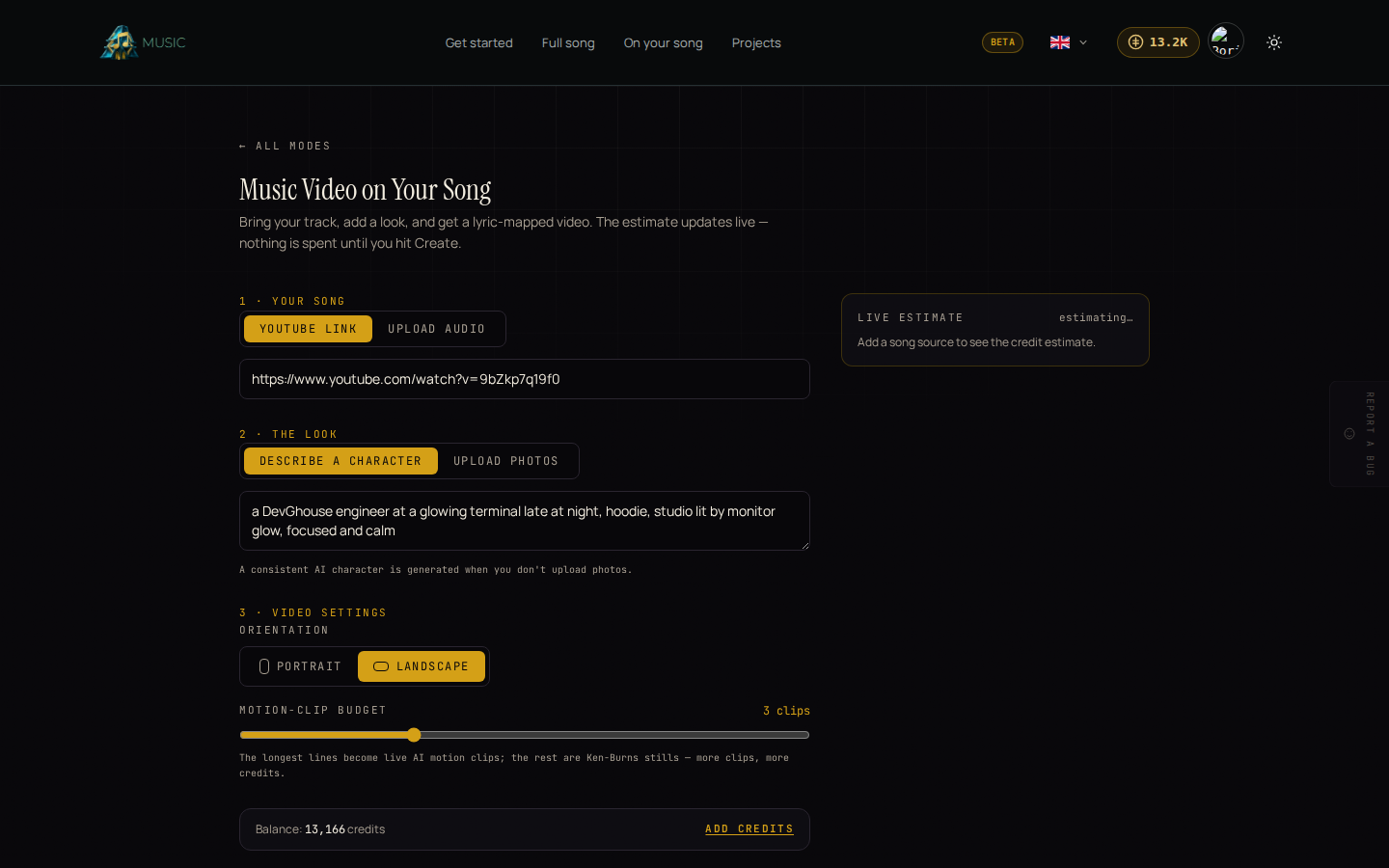
Build the video
- From the Music home page, open Build a video on your own track under "Choose your starting point."
- Under 1 · Your song, choose YouTube link and paste the video's URL, or choose Upload audio and pick a file from your device.
- Under 2 · The look, either Describe a character in words (for example, "a young producer in a neon-lit studio, gold chain, moody"), or Upload photos of a real person or character, up to 10 images. Leave both blank and an AI character is generated for you.
- Under 3 · Video settings, pick Portrait or Landscape, and set the Motion-clip budget. The longest lines in the song become real motion clips; the rest are Ken-Burns stills over an image. More clips costs more credits.
- Watch the Live estimate panel on the right. It updates a moment after you change the song source, the look, or the motion budget, and shows the total credits plus a breakdown: shots, motion seconds, motion clips, scene edits, and (if you don't have a character image) the character cost. The estimate can occasionally fail to load, especially right after pasting a link or finishing an upload. If you see an error instead of a number, wait a moment and try again; if it still won't load, try a different YouTube link or re-upload the audio file.
- When you're happy with the estimate, click Create the video.
Nothing is spent while you're filling in the form or watching the estimate change. Credits are only deducted once you click Create.
What happens after you click Create
You're taken straight to the project's page to watch it render through its stages. See Your projects for what that page shows.