
Your projects
Every song and video you make in Music lands here, in one library, whichever mode you used to make it.
Find a project
- Click See my projects on the Music home page, or open the menu and go to
/app/projects. - Each card shows its status: Pending, Rendering, Ready, or Failed.
- Click a card to open that project.
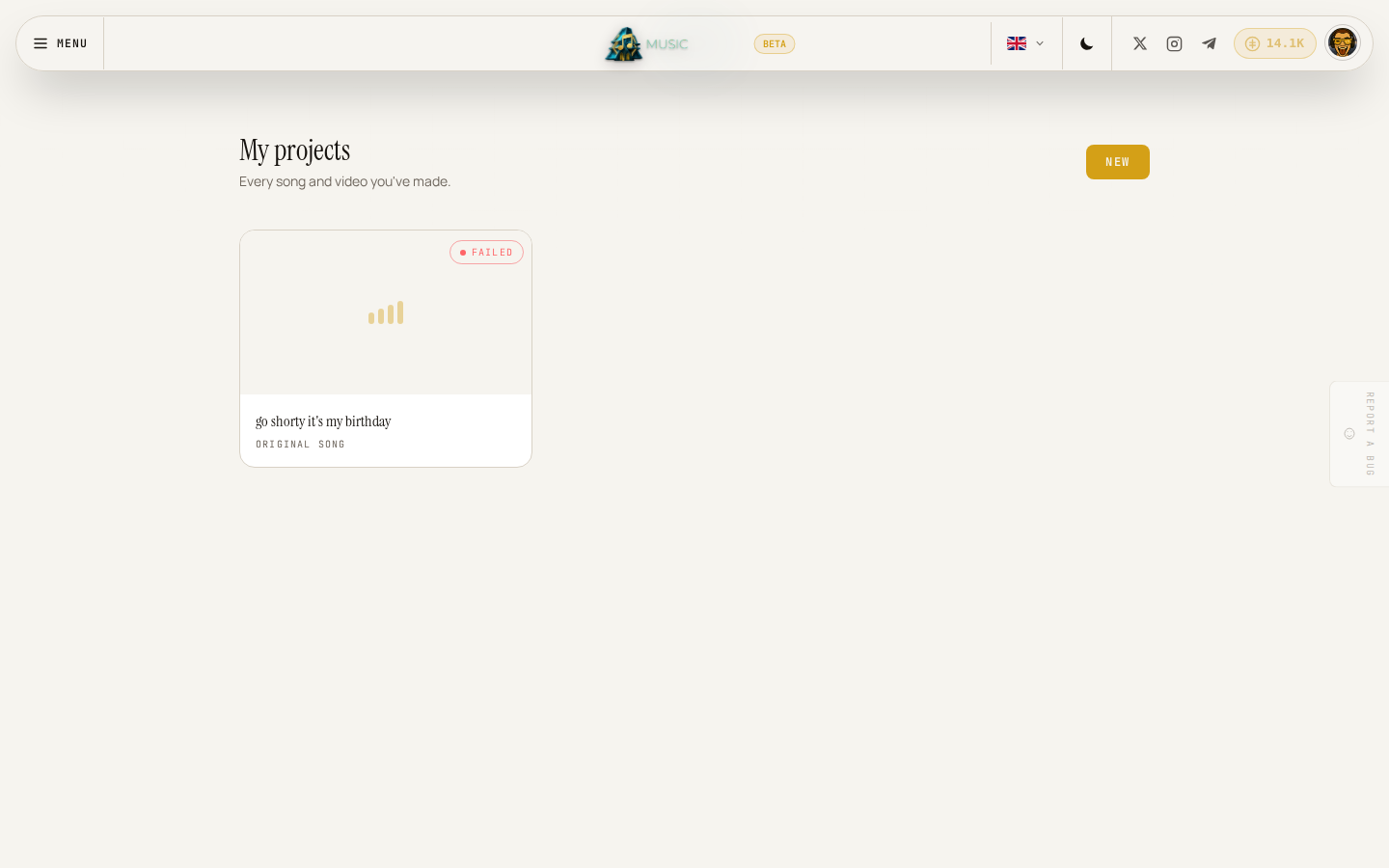
A brand-new account starts with an empty list and a Pick a mode link back to the home page.
Follow a video through its stages
While a video is rendering, its project page shows a progress rail with five stages: Transcribe, Art direction, Character, Scenes & motion, and Stitch. Each stage lights up as it starts and checks off as it finishes, and the page checks for updates on its own, so you can leave it open and come back.
A finished standalone song shows a player and a Make a music video button, so you don't have to start over in another mode if you decide you want a video after all.
Play, download, and share a finished video
Once a video reaches Ready, its page shows the player directly, plus:
- Download saves the finished file to your device.
- The Public / Private switch controls whether the video can be seen by people outside your account. Videos start Private.
When something doesn't finish
If a render fails partway through, the project's page explains what happened in plain terms and confirms your credits for the unfinished part were refunded.
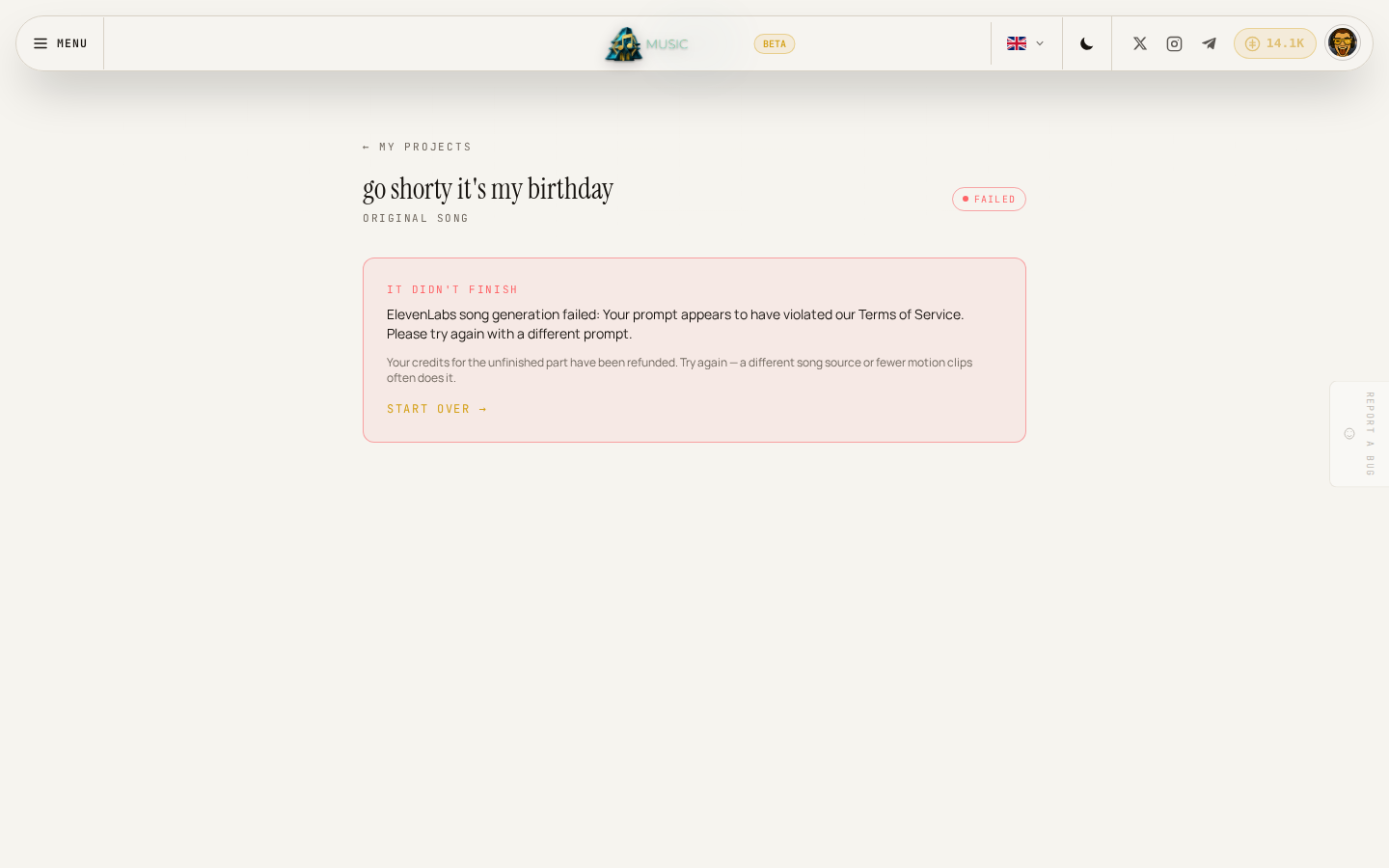
Click Start over to try again, most often with a different song source or a lower motion-clip budget. See Common problems for the specific messages people run into most.