
Getting started
Music uses your regular DevGhouse account. If you already have one, sign in and go straight to music.devghouse.com. If you don't, create an account first, then come back.
Sign in
- Go to music.devghouse.com and click Start a song or See my projects.
- If you're signed out, you're taken to a sign-in screen. Click Create an account if you're new, or sign in with your username or email and password.
- You're returned straight to where you were headed in Music.
Take the 3-step quick start
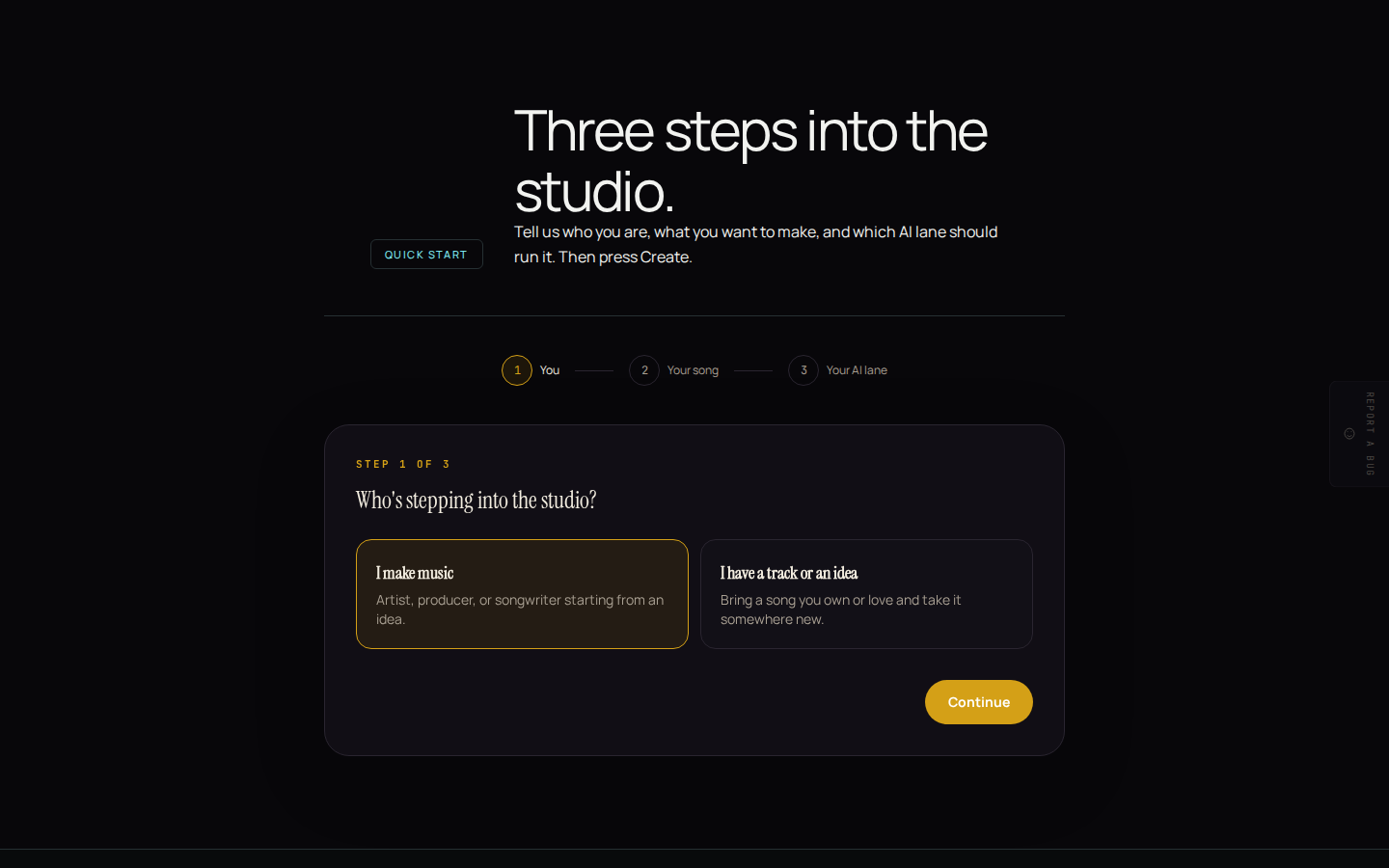
New to Music? The quick start is the fastest way to see what fits you, without committing to anything yet.
- Open the menu (top left) and click Get started, or go to
music.devghouse.com/onboarding. - Step 1 – You: pick whichever describes you, "I make music" or "I have a track or an idea." This just picks a sensible default for step 2.
- Step 2 – Your song: choose what you want to make: a brand-new song and video, a video on your own track, or a reimagined version of a song.
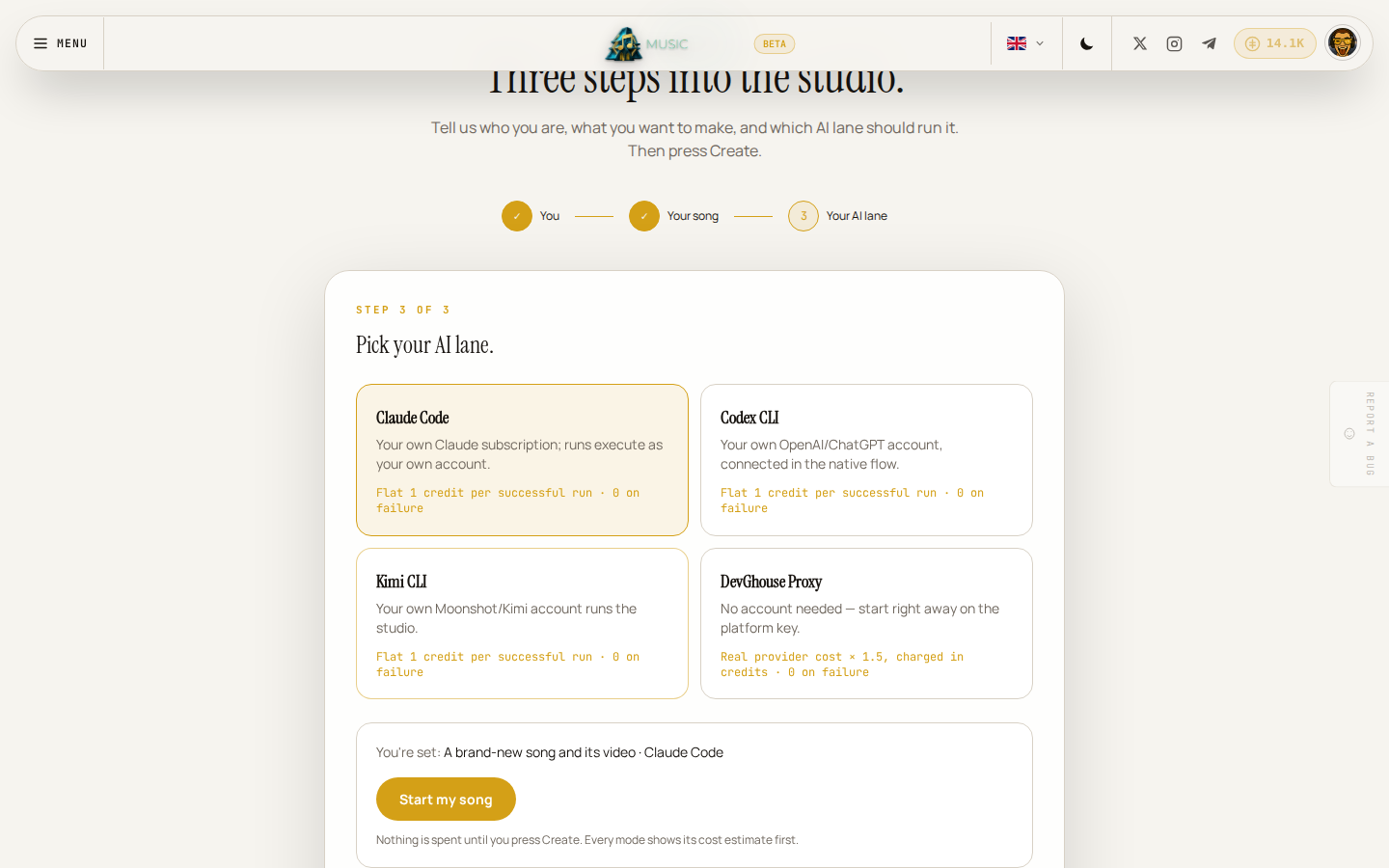
- Step 3 – Your AI lane: pick which AI account should run the work. This step is a preview of a platform-wide option; see Credits and your own AI account for what it actually changes today.
- Review the summary and click the button at the bottom to jump straight into that mode's form, ready to fill in.
You can skip the quick start entirely and open any mode directly; nothing about it is required.
Find your way around the header
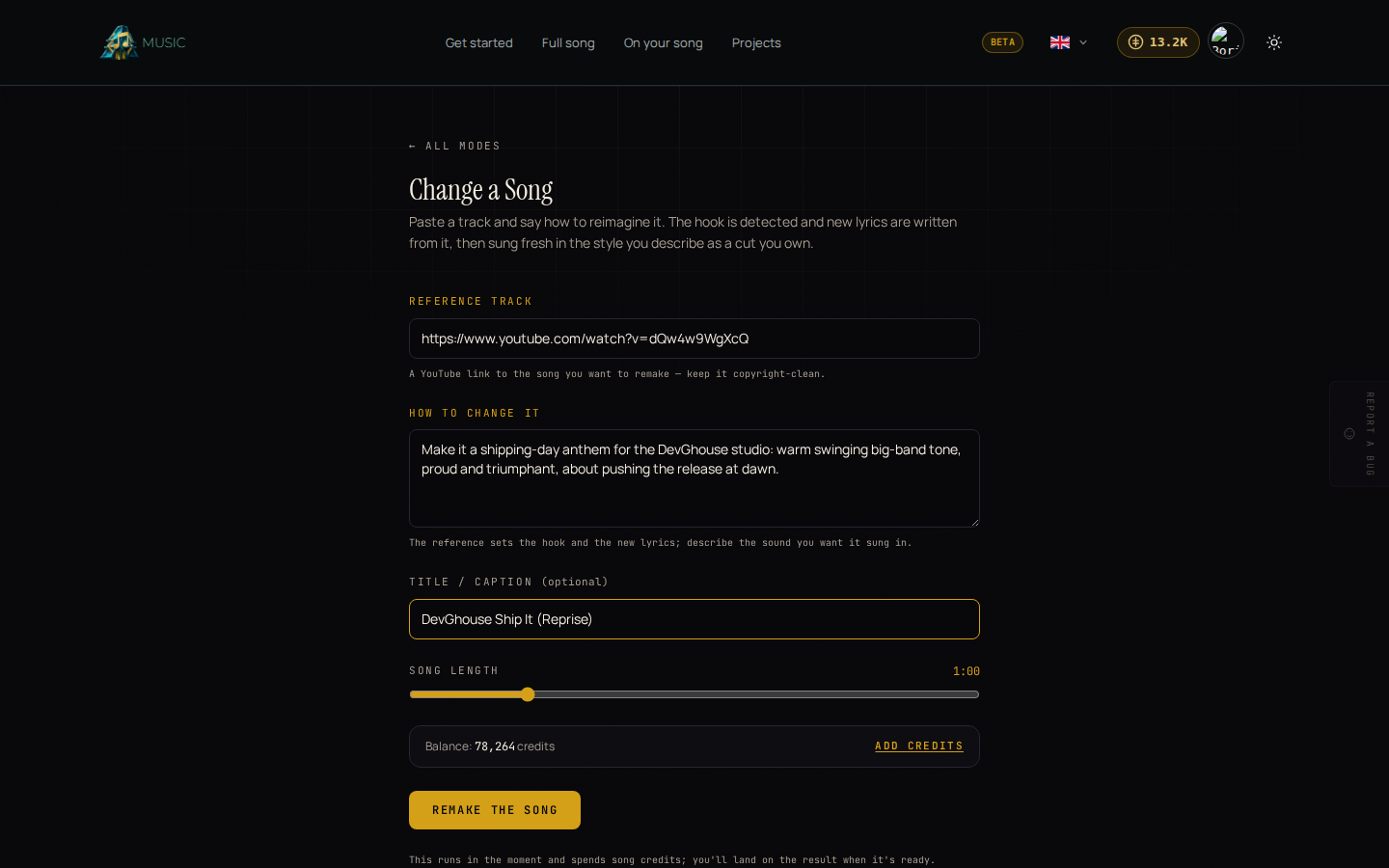
Every Music page shares the same header, visible on every real screen you work in, for example the Change a Song form below.
- The menu button (top left) jumps to any section of the site: what you can make, how it works, pricing, and the docs.
- The theme toggle (the sun or moon icon) switches between dark and light.
- The credits pill shows your current balance and opens Buy credits when you click it.
- Your avatar (top right) opens your account menu: switching workspace, your credit wallet, account settings, and signing out.
What happens next
Once you're signed in, three things are ready:
- Write a song from scratch, Build a video on your own track, and Reimagine a song are all one click away from the home page.
- Your projects starts empty and fills up with everything you make.
- Your credit balance shows in the header everywhere in Music, so you always know what you have before you start something.