
Brand and content
Open a site from app.devghouse.com/websites. The Essentials section below lives under SEO in the left sidebar, and Brand Content lives under Assets. FAQs, Testimonials, Team and Languages do not have a sidebar link yet (see the note further down), so this guide shows the direct address for each.
Essentials: your site's title and description
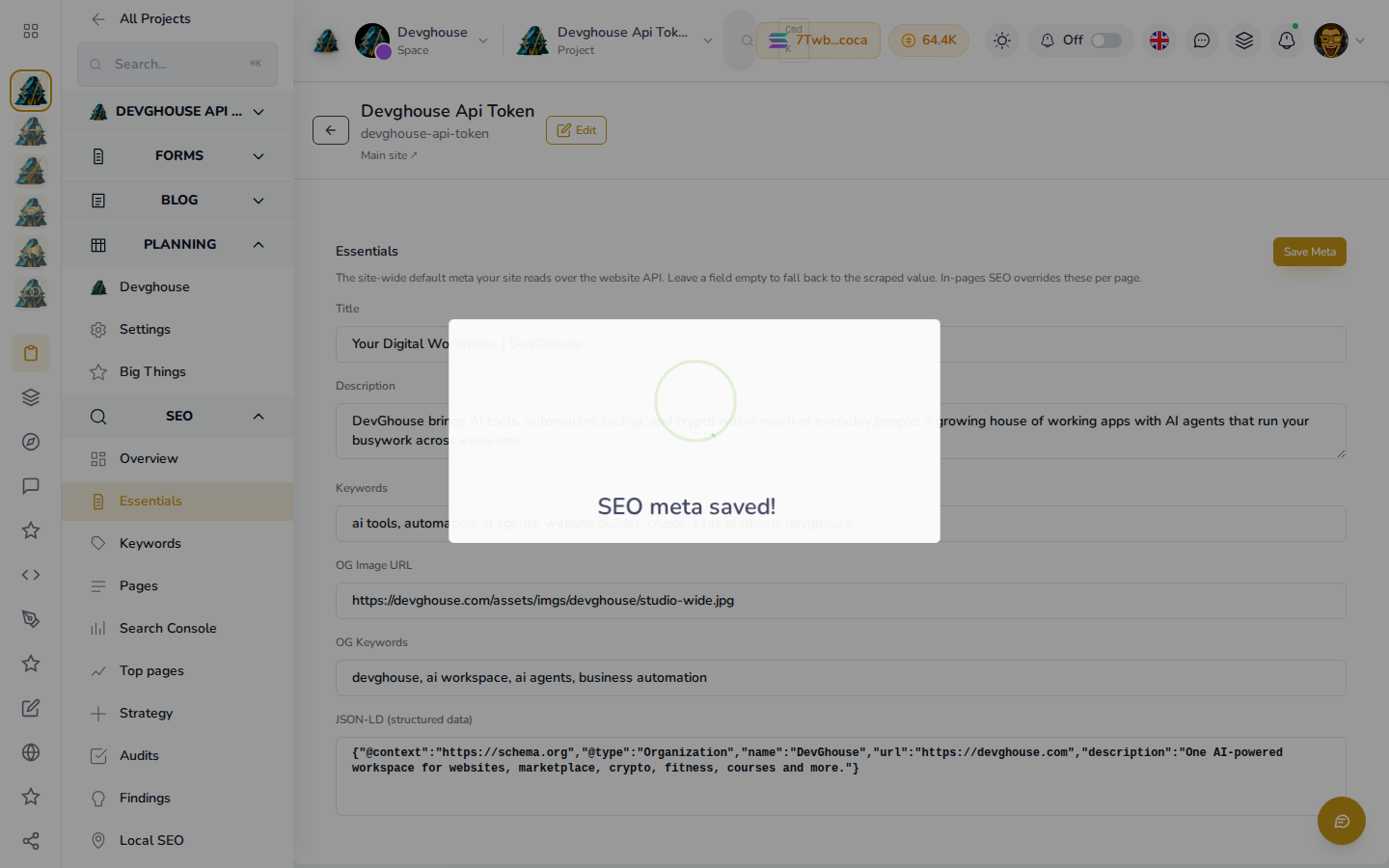
This is the title and description search engines and social previews show for your site by default. Open SEO > Essentials. The example above is DevGhouse's own main site, right after clicking Save.
- Title: what shows as your page's name in a browser tab and in search results.
- Description: the sentence or two that shows under your title in search results.
- Keywords: a comma separated list, mostly useful for your own records. Most search engines no longer use this field directly.
- OG Image URL: the picture shown when your site is shared as a link on social media.
- OG Keywords and JSON-LD: further social-preview and structured-data fields, same idea as Keywords and Title above.
- Click Save Meta. A "SEO meta saved" confirmation appears over the form.
Leave a field empty to fall back to whatever was already on your page. If you also set specific titles for individual pages (in the In-page SEO tab), those take priority over the site-wide ones you set here.
Brand: logo, favicon and hero image
Open Assets > Brand Content. Upload a file or paste a link to an existing image for each role: favicon, logo, and the large hero image shown on your homepage. If your site supports a light and dark theme, turn on This site has a light & dark theme to set a matching pair for each.
These images are served live from your website's own address, so a change here goes out immediately with nothing to rebuild or redeploy on your end.
FAQs and testimonials
These pages exist and work, but there is currently no sidebar link to either one. Type the address directly: replace 91 with your own site's ID in https://app.devghouse.com/websites/91/faqs or https://app.devghouse.com/websites/91/testimonials (you can see your site's ID in its own address bar once you have it open). Both work the same way: a Default set that shows on every site you own, and an extra set specific to just this one.
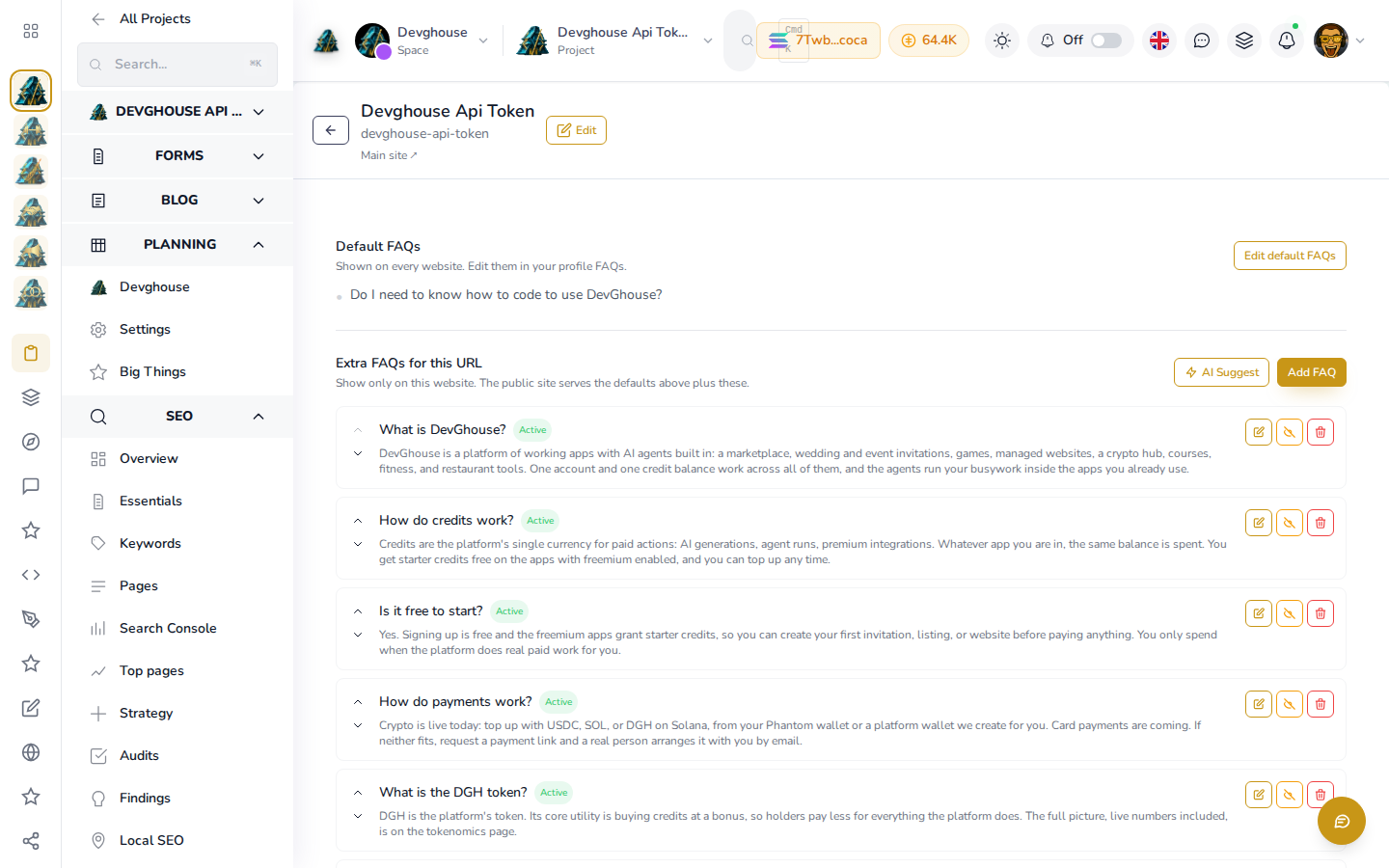
The example above is DevGhouse's own main site: one Default FAQ (shown on every site you own, edited from Edit default FAQs, which opens your realm's own FAQ manager) and several extra FAQs specific to this URL alone.
- Click Add FAQ (or Add testimonial).
- Fill in the question and answer (or the person's name, their role, company, and what they said, with a star rating).
- Save. The new item appears in the extra list for this site right away, expanded so you can read the full answer.
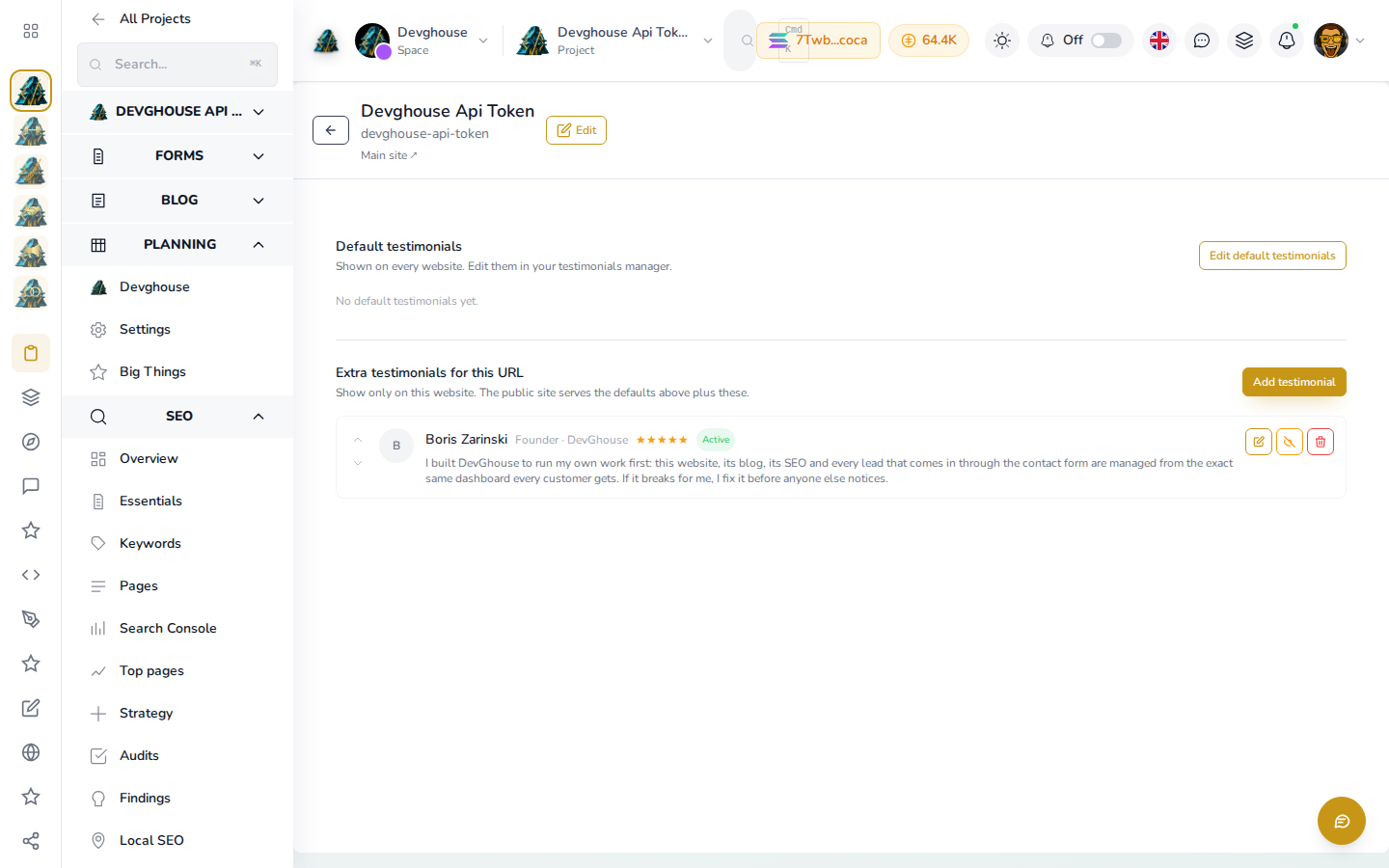
Use the up and down arrows to reorder items, the eye icon to hide one without deleting it, and the trash icon to remove it for good.
If you would rather not type the address by hand, ask your assistant instead: it can list, add, update and reorder both with custom_website_faqs_list / custom_website_faqs_create / custom_website_faqs_update / custom_website_faqs_reorder and the matching custom_website_testimonials_* tools.
Team
Same situation as FAQs and testimonials: the page works but has no sidebar link yet. Open https://app.devghouse.com/websites/91/team directly (with your own site's ID), under the same Default plus extras pattern. Add a name, title, short bio and photo for each person you want shown on this site. If someone is already a member of your workspace, you can link their profile instead of typing their details by hand, so their live name and photo stay in sync automatically.
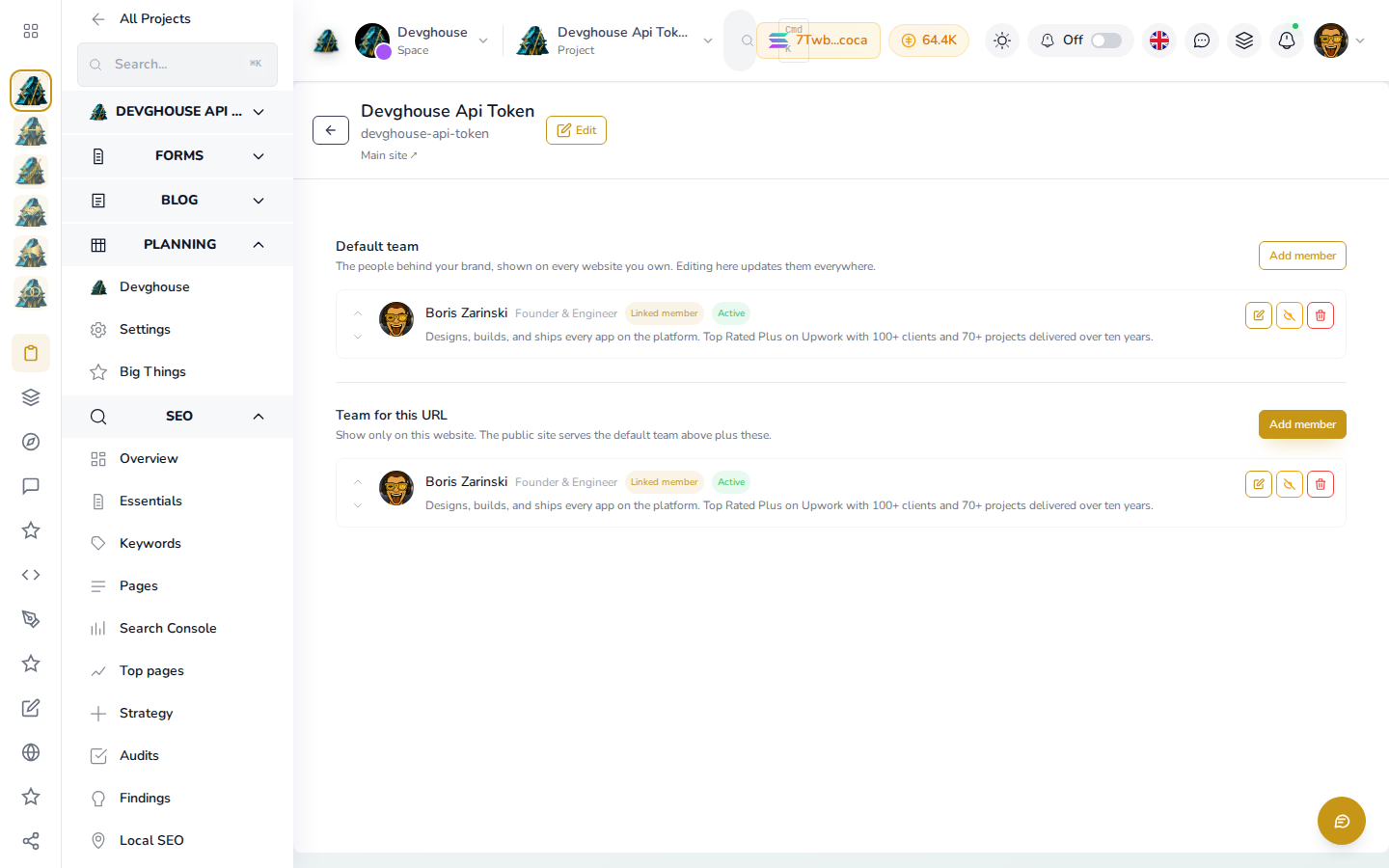
The example above links Boris Zarinski, DevGhouse's real founder, as both a default team member (shown on every site) and one specific to this URL, with his name, role, bio and photo pulled live from his profile.
Your assistant can do this too, with custom_website_team_members_list / _create / _update / _reorder.
Languages
This page also has no sidebar link yet. Open https://app.devghouse.com/websites/91/languages directly (with your own site's ID). Your site's original content is the base language; add a language code (for example es for Spanish or fr for French) to serve a translated version alongside it.
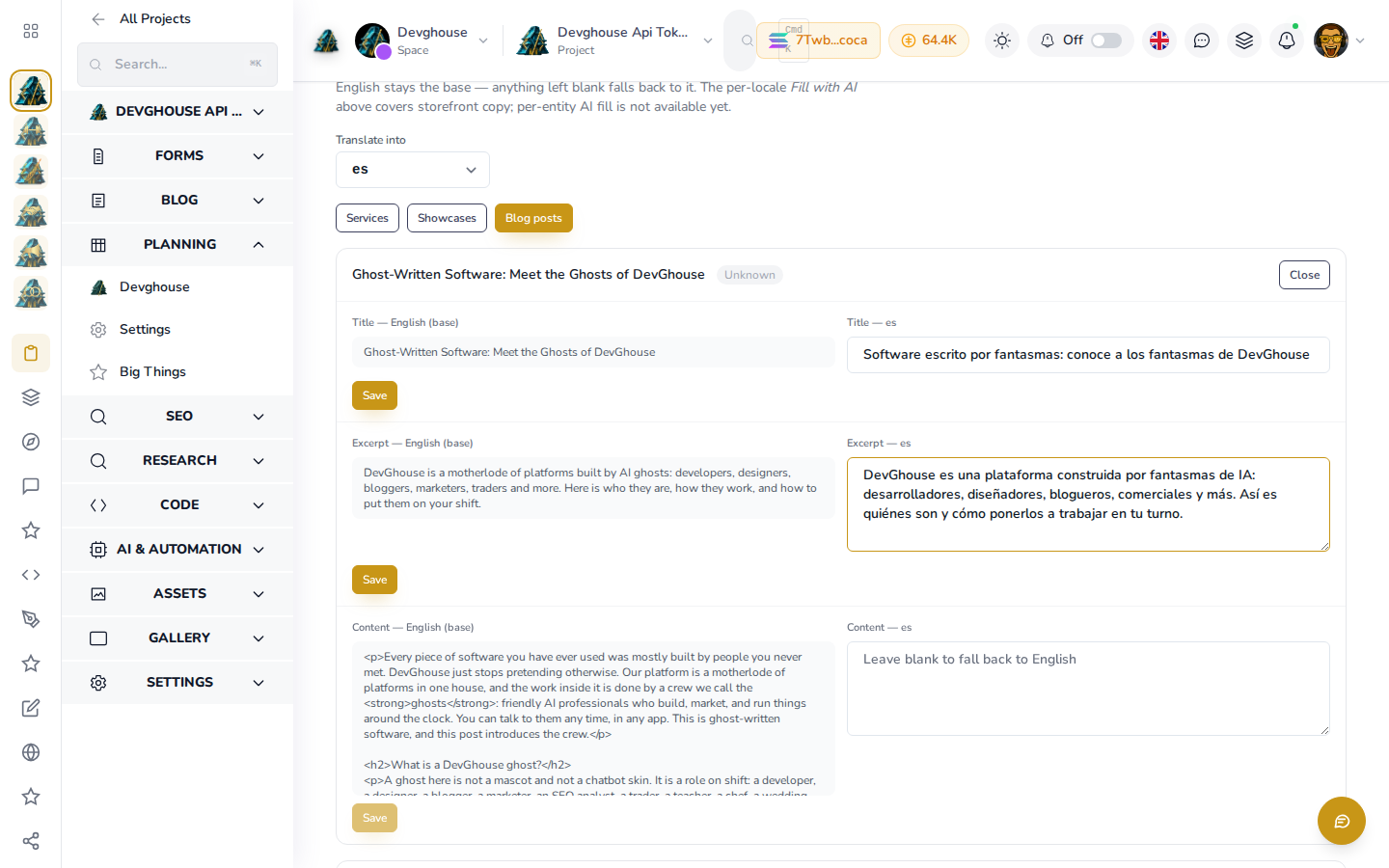
Once a language is added, you can have it drafted automatically with Fill with AI or write the translation yourself, field by field. The top of the screen holds your storefront copy and per-page SEO, translated per route; further down, Entity translations lets you translate one service, showcase or blog post at a time, English shown as the base beside the field you are filling in. Visitors see your original content in any language you have not translated yet, so nothing on your live site ever shows blank.
A note on these missing sidebar links
FAQs, Testimonials, Team and Languages are real, working pages, confirmed by opening each one directly. What is missing is a way to click to them from the sidebar you actually see on a site's dashboard: the Content group described in older material does not exist, and the Assets and SEO groups do not list these four anywhere either. This is a gap in the app itself, not in this guide, and it is out of this guide's hands to fix. If you use these features often, bookmark the direct address for each, or ask your assistant to make the change for you using the tools listed above.