
Layers and artwork
Layers
A panel's background art is only the base. The Layers tab lets you stack more on top of it: an extra image, a character, a shape, a caption box, or an effect.
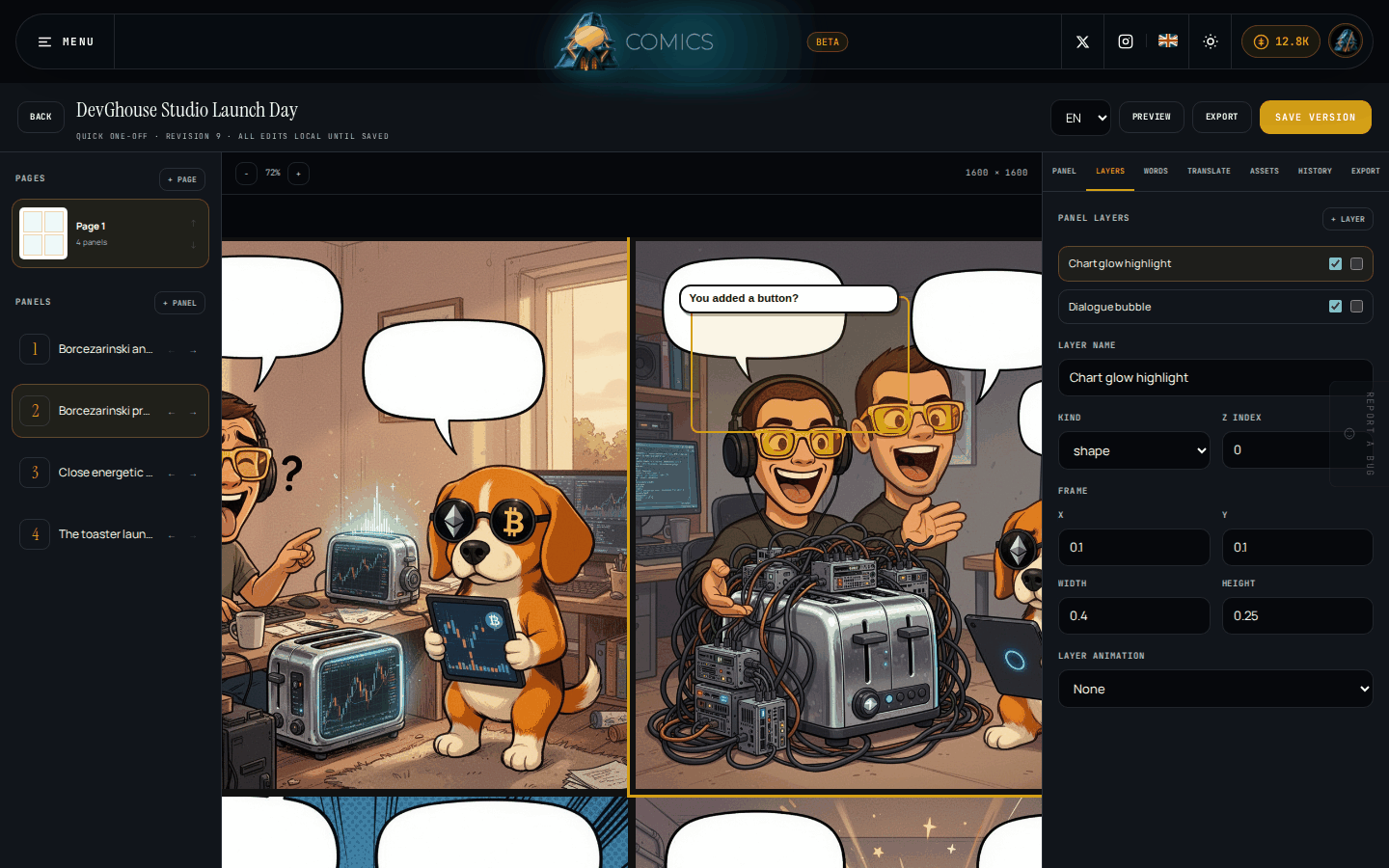
- With a panel selected, open the Layers tab and click + Layer.
- Give it a name, pick its Kind (image, character, speech bubble, caption, shape, or effect), and set its Z index to control what's on top.
- Set its Frame, the same x/y/width/height fractions used for panels, to position and size it.
- Tick or untick the two boxes next to a layer in the list to show or hide it, and to lock it against further edits.
Speech bubbles you add from the Words tab (see Words and translations) also show up here as layers automatically.
Project assets
The Assets tab lists every image, audio clip, video, font, or document the AI has generated for this project, or that you've uploaded yourself.
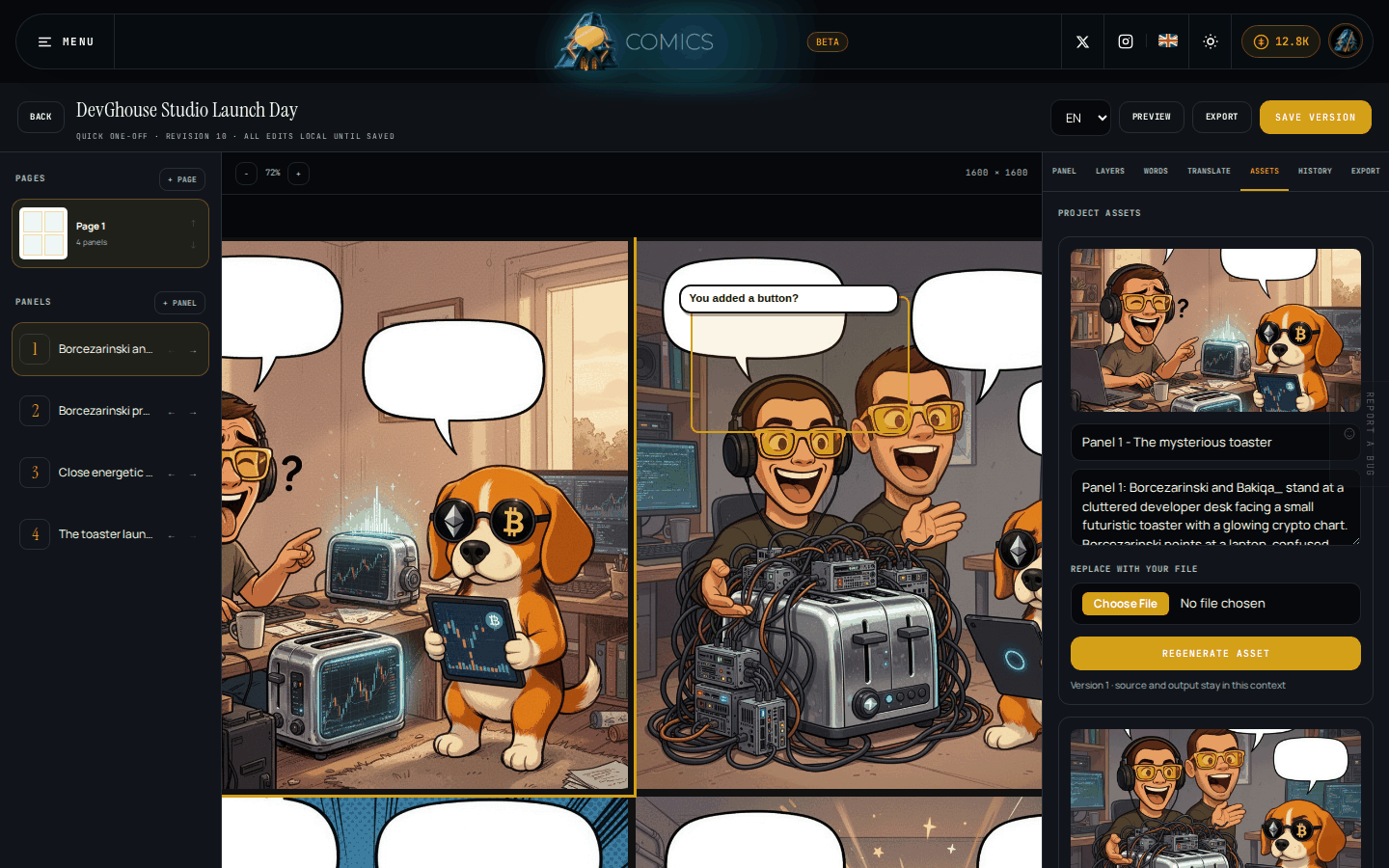
Until you generate a panel's art for the first time, this tab stays empty. Once an asset exists, each one shows:
- A preview and a name and prompt you can edit.
- Replace with your file: upload your own image, audio, or other file to use instead of the generated one. This doesn't use any AI generation, so it costs nothing.
- Regenerate asset: ask the AI to make a new version from the current prompt. Like panel generation, this only charges credits if it succeeds.
Every replacement or regeneration keeps the asset's earlier versions and its prompt history, so you can always tell what changed and why.
What's next
Words and translations covers dialogue, captions, and adding other languages to a panel.