
The editor
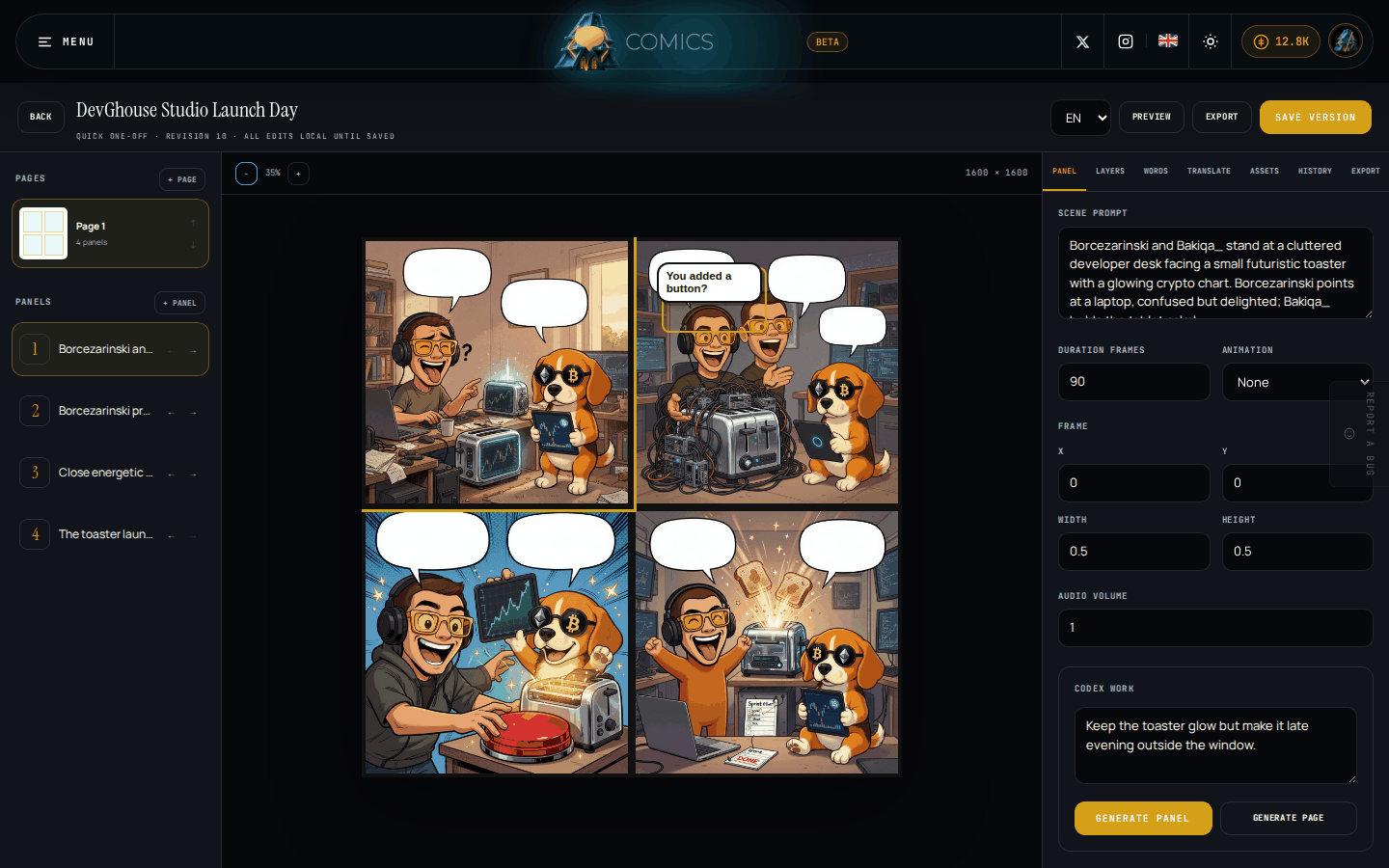
Every comic opens into the same editor, whatever size you picked. It has three columns: pages and panels on the left, the page itself in the middle, and an inspector with everything you can edit on the right.
Move around
- Pages, top left, lists every page in order. Click one to open it on the canvas. The up and down arrows on each row reorder pages; + Page adds a new one (with one empty panel already on it).
- Panels, below Pages, lists the panels on the page you have open, each named from its scene prompt. Click one to select it; the left and right arrows reorder panels on the page. + Panel adds another.
- The canvas in the middle shows the selected page at actual proportions, with each panel's art and any dialogue bubbles rendered in place. Click any panel there to select it too. Use - and + above the canvas to zoom, for example to fit a multi-panel page in view.
Edit a panel
With a panel selected, the Panel tab on the right shows:
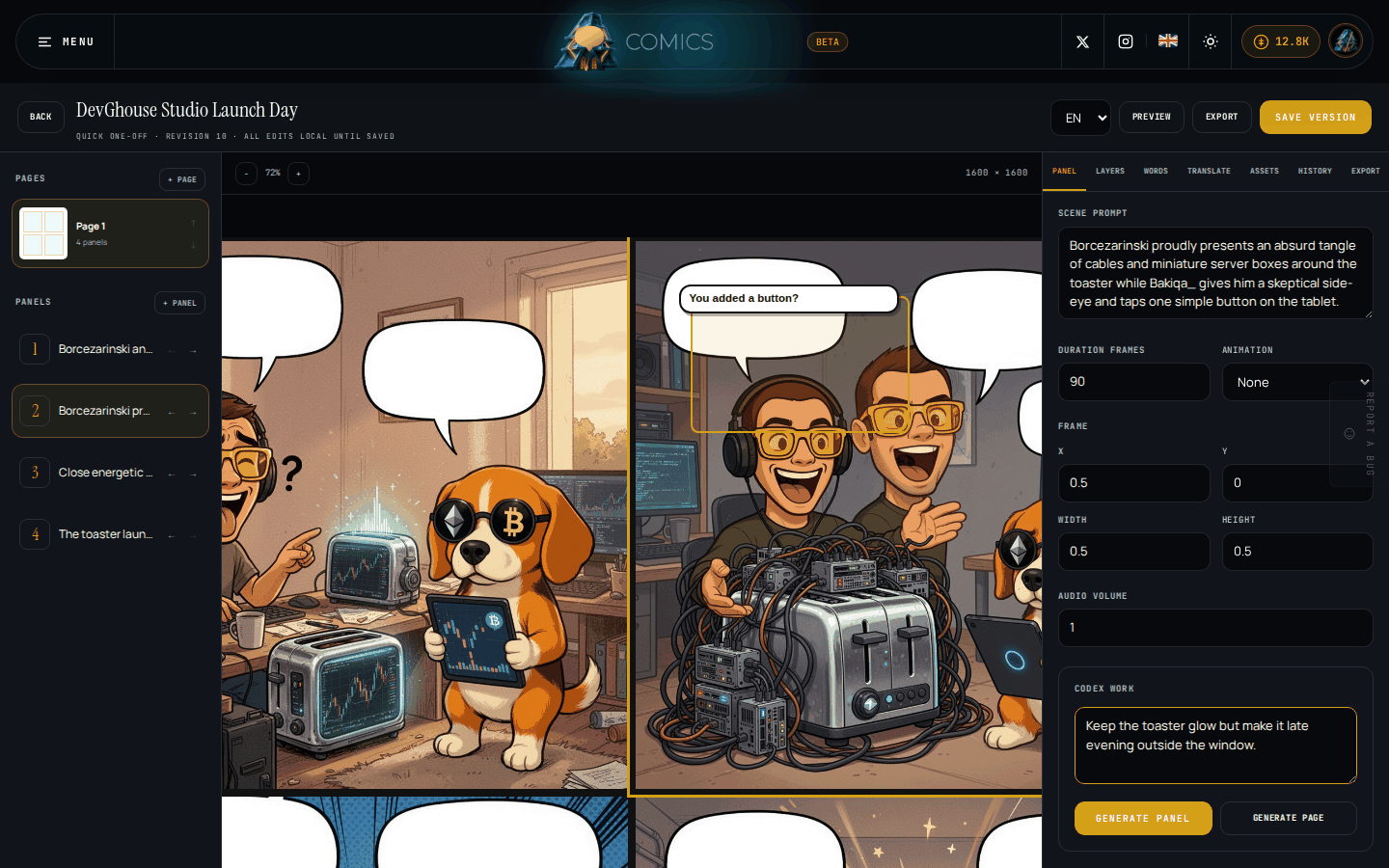
- Scene prompt: what the panel should show, in plain words. This is what the AI reads when it generates or regenerates the art.
- Duration frames and Animation (pan, zoom in, zoom out): only matter if you export motion or preview it.
- Frame: the panel's position and size on the page, as a fraction from 0 to 1.
- Audio volume: for panels that carry sound.
Generate or redo the art
At the bottom of the Panel tab, the Codex work box lets you ask for art:
- Optionally add extra directions in the text box, for example "make it night instead of day."
- Click Generate panel for just this panel, or Generate page to regenerate every panel on the page at once.
- A strip appears under the toolbar while it runs, naming the model and effort level. You can keep editing other parts of the project while it works.
- When it finishes, a toast tells you it succeeded and what it cost, or that it failed and cost nothing. A successful run replaces the panel's background art; a failed one leaves the panel as it was.
Only one generation, translation, or asset regeneration can run at a time per project.
Save your changes
Everything you type is only kept in your browser until you save. Click Save version in the top right whenever you want it written back. The bar under the title always shows whether you have unsaved edits.
If someone else (or another tab) saved a newer version first, saving here reloads that newer version instead of overwriting it, and lets you know.
What's next
- Layers and artwork for adding extra images, shapes, and effects on top of a panel, and for replacing or regenerating any single asset.
- Words and translations for dialogue, captions, and other languages.