
Words and translations
Dialogue and captions
The Words tab holds every line of text on the selected panel: dialogue, captions, thoughts, and sound effects.
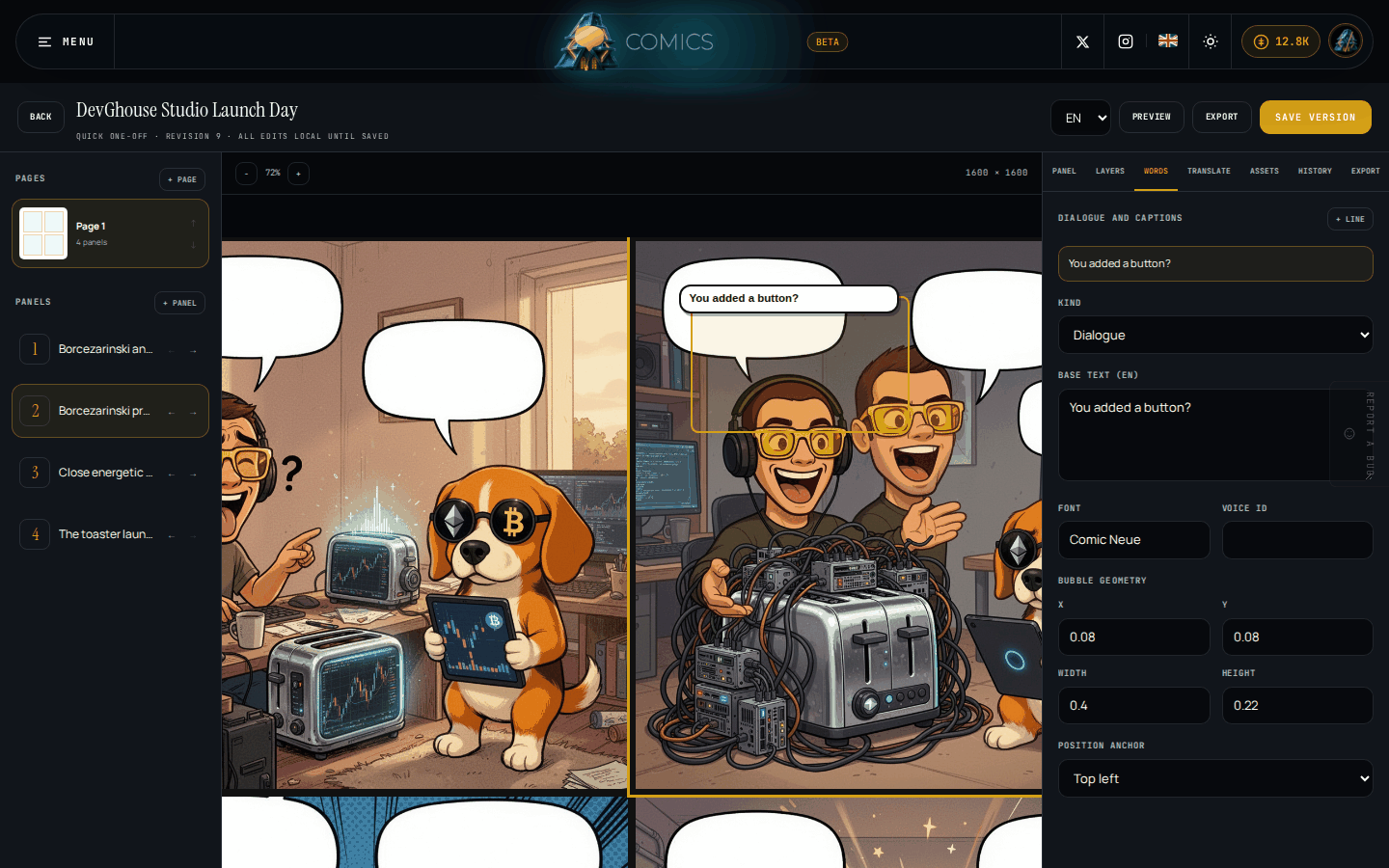
- Click + Line to add one, or pick an existing line from the list.
- Choose its Kind: dialogue, caption, thought, or sound effect.
- Type the Base text, in the project's default language.
- Set the Font and, if you're adding narration, a Voice ID.
- Bubble geometry (x, y, width, height) and Position anchor control exactly where the bubble sits on the panel.
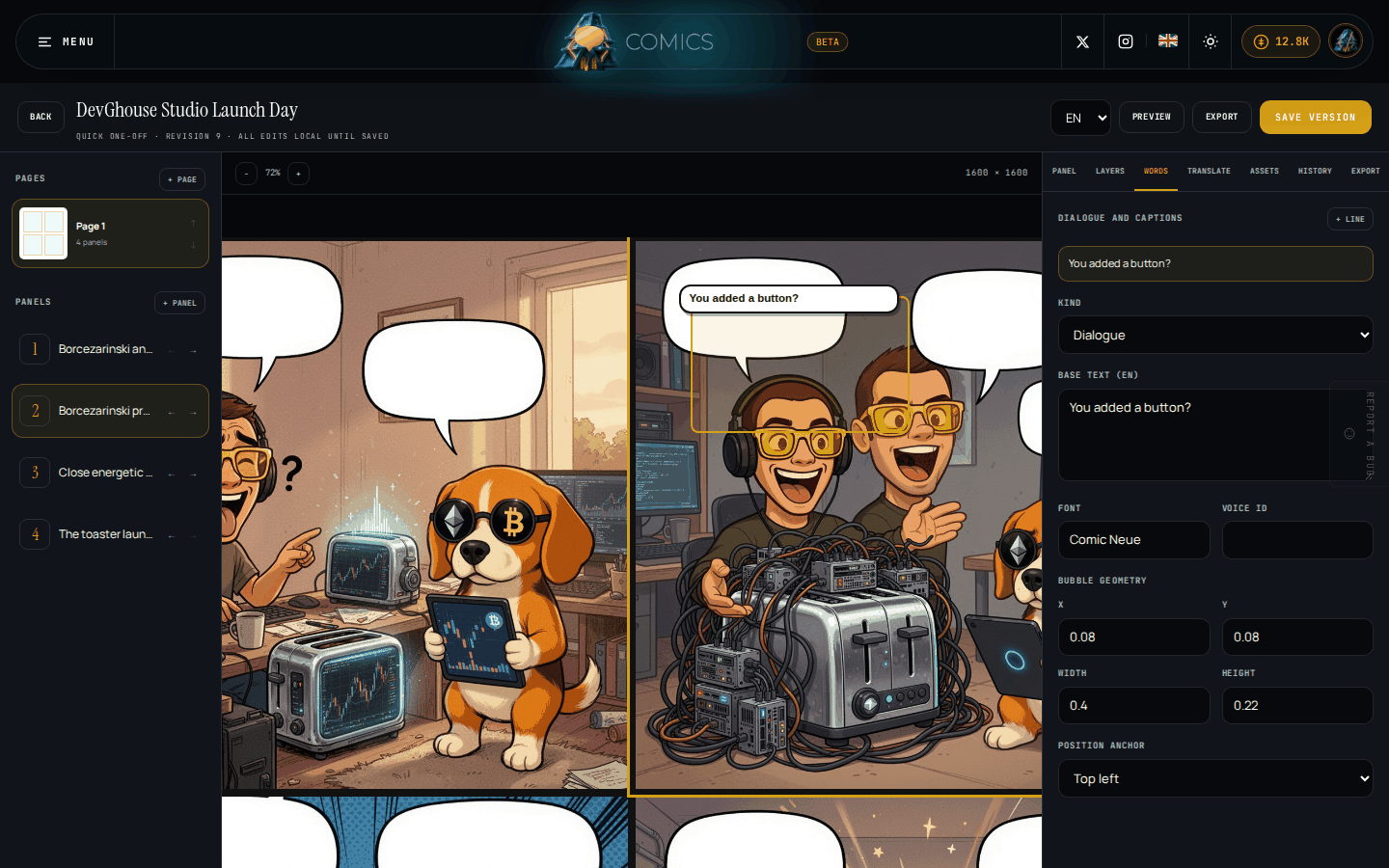
New lines appear on the canvas right away as a speech bubble, so you can see how the text sits over the art.
Translations
The Translate tab adds another language to the currently selected line, without touching the original.
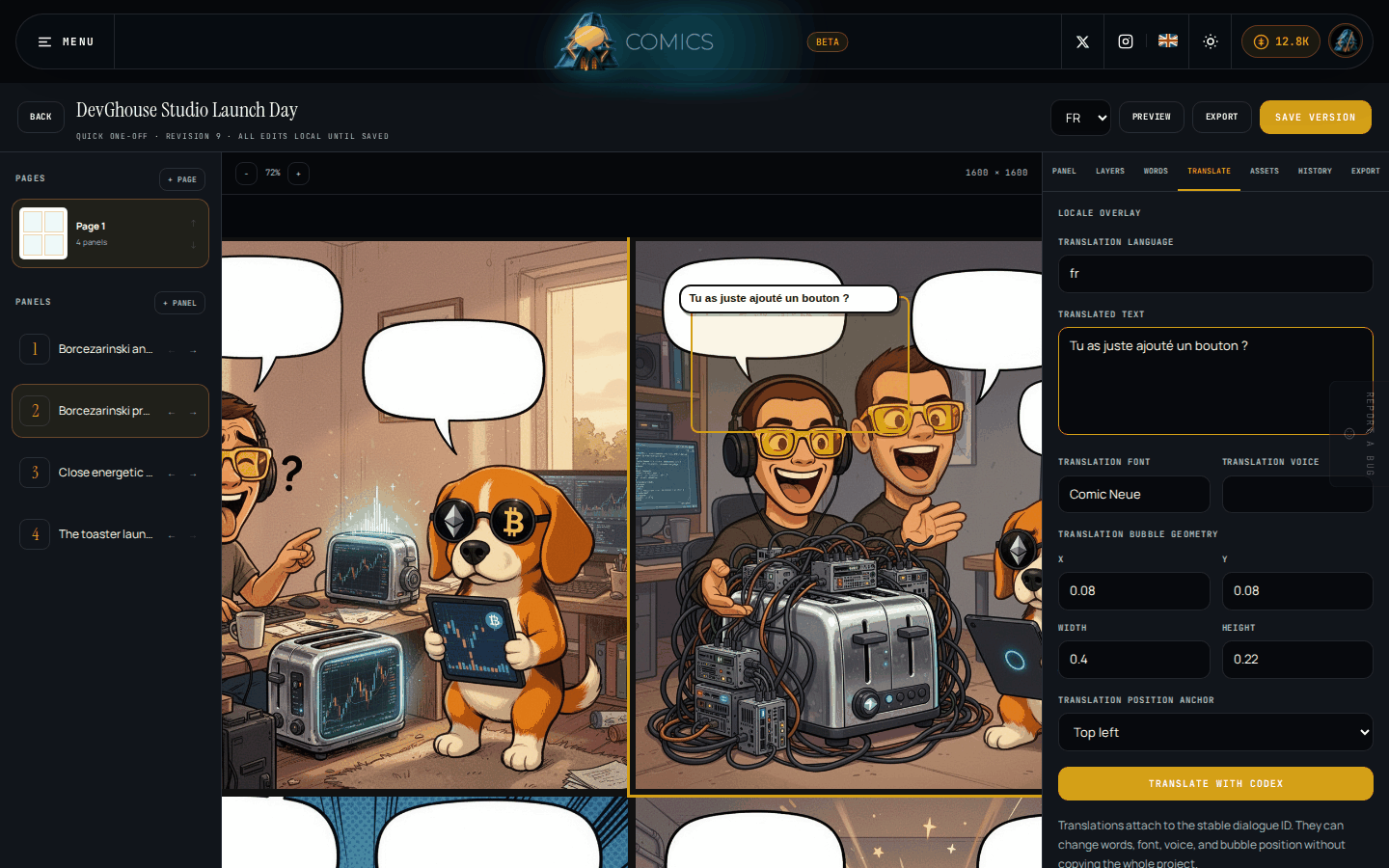
- Select the dialogue line you want translated, then open Translate.
- Type the language code you want (for example
frfor French,mkfor Macedonian). - Either type the translated text yourself, or click Translate with Codex to have the AI translate it. As with generation, this only charges credits if it succeeds.
- A translation can have its own font, voice, and bubble position, independent of the original line, so a longer translated sentence can get a bigger bubble without moving the English one.
Once a line has one or more translations, the language picker at the top of the editor toolbar lets you preview the whole page in any of them. Exporting also lets you choose which language to export.
What's next
Versions, preview, and export covers saving, restoring an earlier version, previewing motion, and exporting your finished pages.