
Developer Tools
If you write code, the Coding module connects DevGhouse to GitHub and Vercel so you (or an assistant working on your behalf) can read a file, commit a fix, and ship it, without leaving DevGhouse.
Open the Coding dashboard
- From your workspace home, turn on the Coding module if it is not on already (under Modules → Manage modules).
- Click the Coding tile.
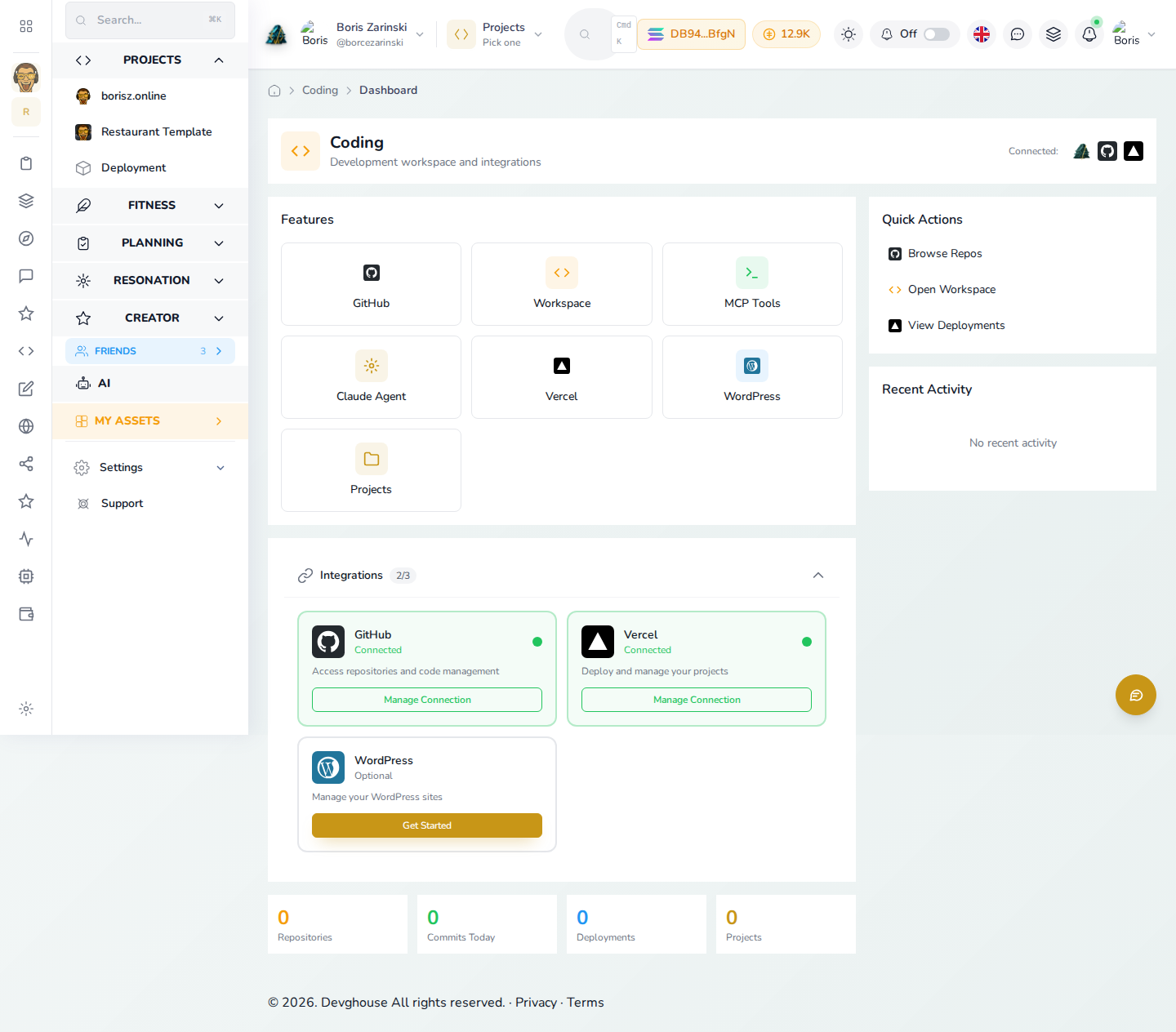
The dashboard shows GitHub, Vercel, and a few other features as tiles, and an Integrations panel at the bottom listing what is connected.
Connect GitHub
- On the Coding dashboard, find GitHub under Integrations and click Manage Connection (it reads Connect if you have not connected it yet).
- Sign in to GitHub and approve access.
- Once connected, click the GitHub tile to browse your repositories, pick a branch, open a file, edit it, and commit, right from DevGhouse.
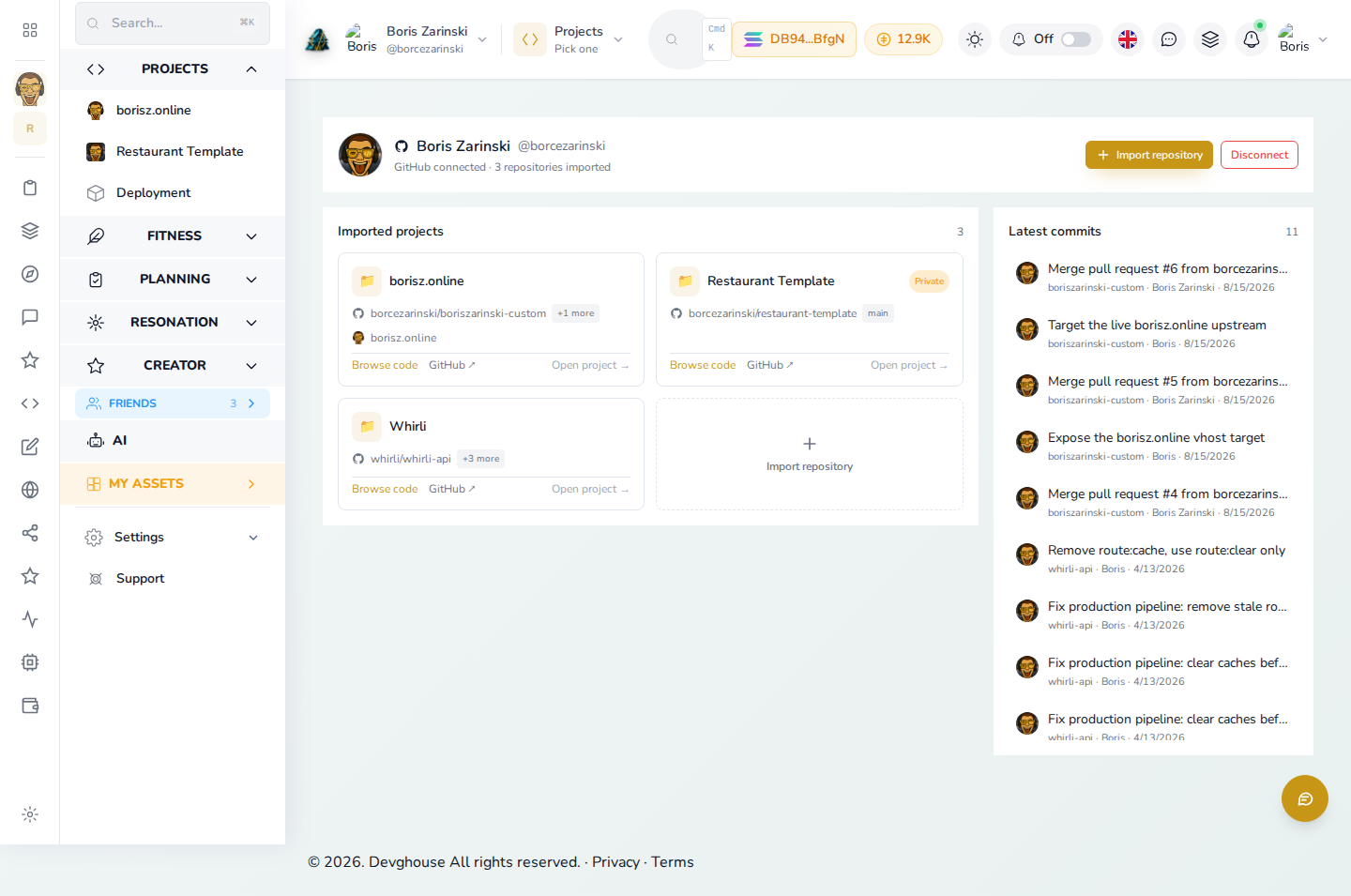
With GitHub connected, you can also open issues and pull requests, review workflow runs, and manage collaborators, without switching to github.com.
Connect Vercel
- On the Coding dashboard, find Vercel under Integrations and click Manage Connection (or Connect).
- Sign in to Vercel and approve access.
- Click the Vercel tile to see your projects and deployments, trigger a new deployment, or check a deployment's build logs.
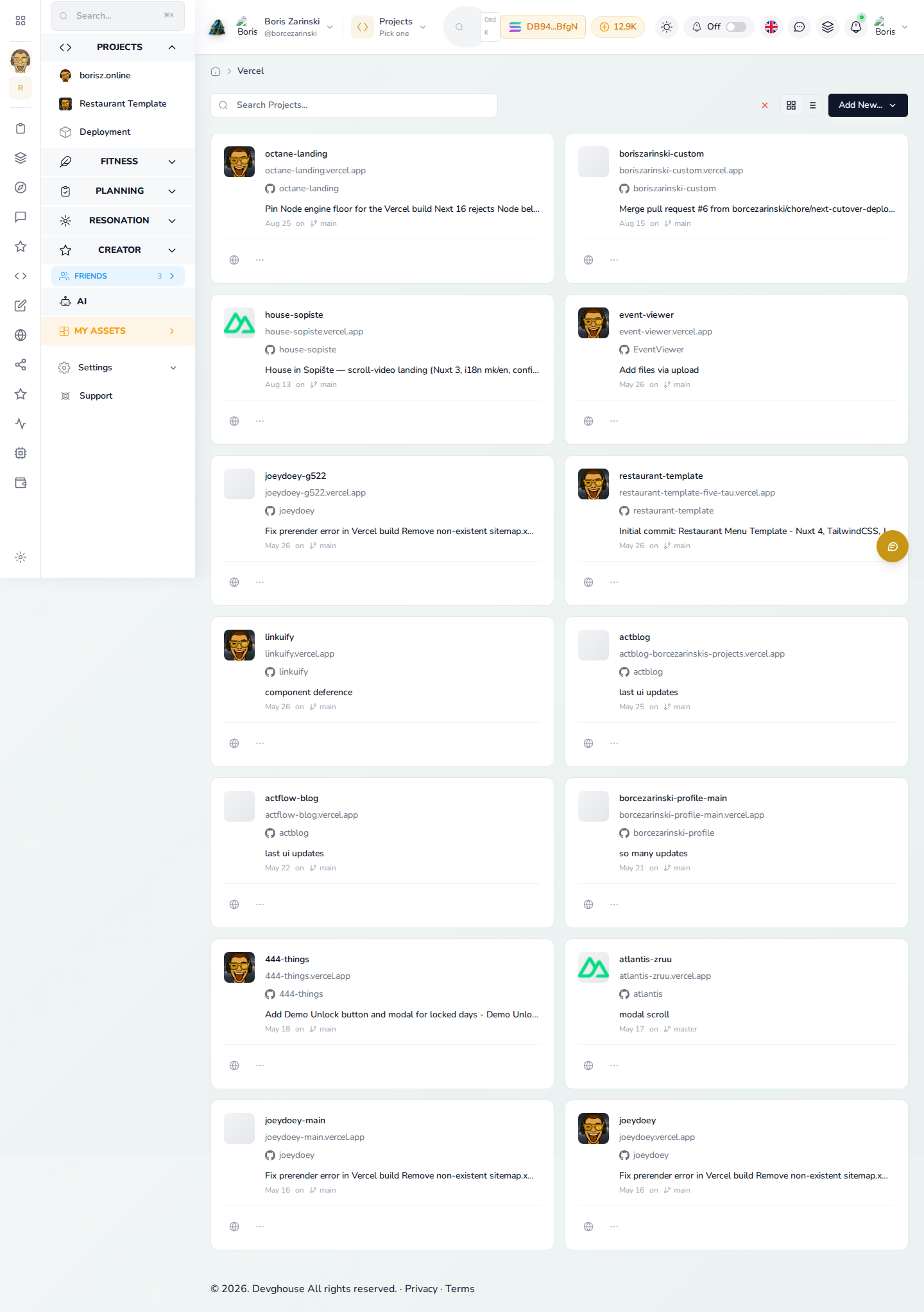
For agents and routines
Once GitHub and Vercel are connected, an assistant with your MCP Server connected can work the same surface: list repositories with github_list_repositories, read a file with github_get_file_content, commit a change with github_create_or_update_file, open an issue with github_create_issue, and check a build with vercel_get_deployment_logs. Ask it to "read the pricing page in the client-storefront repo and fix the typo" and it can do the whole round trip: read, edit, commit.