
Managing Your Connections
Every connection you make, whether it is a third-party service or an AI assistant through MCP, can be turned off or reset the same way you turned it on.
Disconnect a service
- Open the connection's page (for example, Planning → Integrations → Todoist, or Communication → Integrations → Gmail).
- Click Disconnect in the top right, or under Settings on that page.
Disconnecting stops DevGhouse and any assistant from reaching that service again until you reconnect it. It does not delete anything in the service itself, and it does not delete anything DevGhouse already pulled in (a task already synced to Todoist stays put, for example).
Regenerate your MCP token
If you think your MCP token may have leaked, or you are replacing a device or tool that had it, regenerate it right away.
- Click your account picture in the top right corner, then MCP Token.
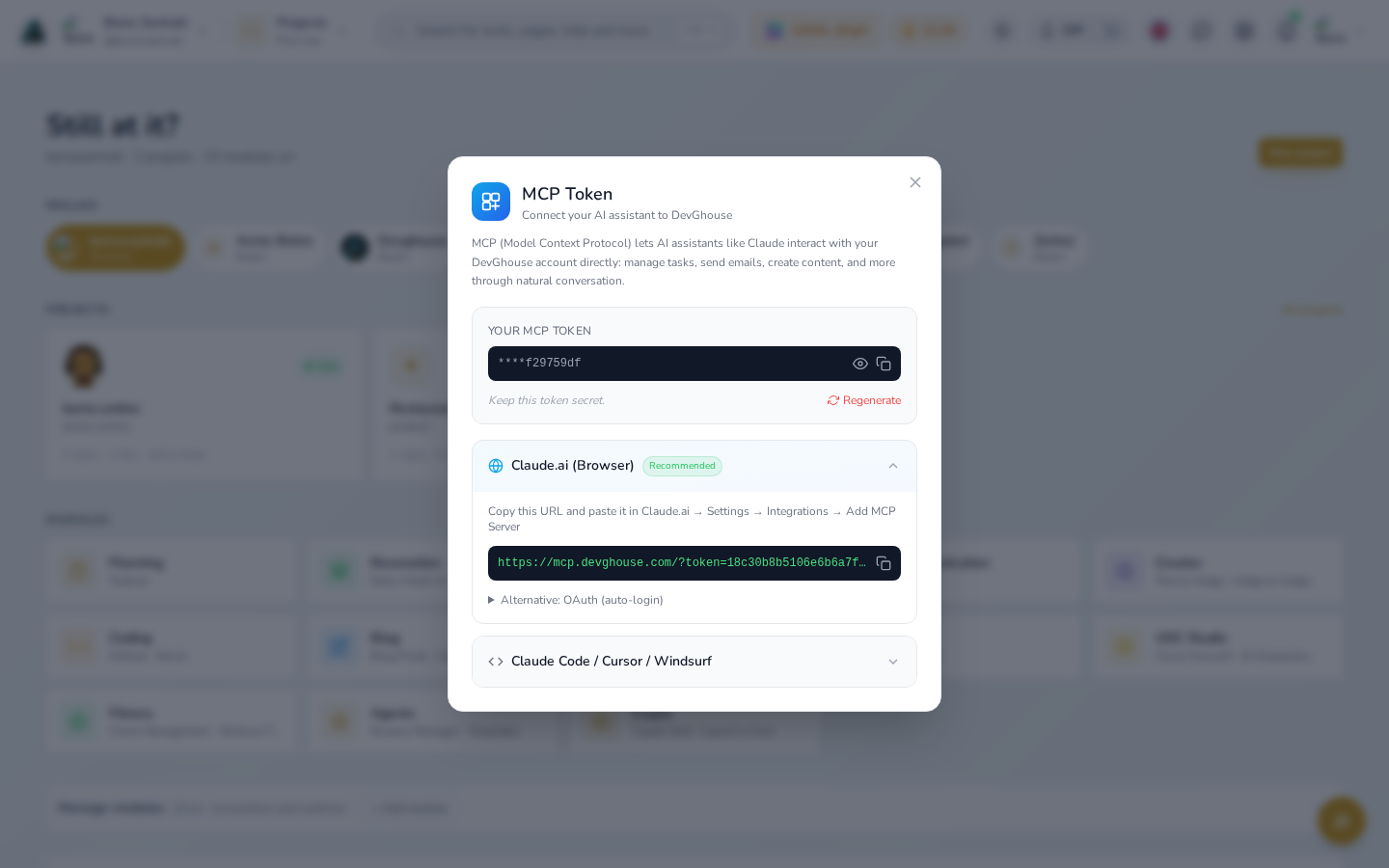
- Click Regenerate.
- Confirm. The old token stops working immediately.
- Update every place that used the old token, your Claude.ai integration,
.mcp.json, or any terminal command, with the new one shown.
Sharing a connection with someone else
A few connections (Todoist and others reached through a module's Integrations panel) have a Share button. This lets a teammate use your connection with their own agents and tools, without you handing over your login or your DevGhouse password. Look for Sharing on the connection's own page, and manage who has access from there.
Common problems
"Not connected" after I just connected it. Refresh the page. Some connection pages only pick up a brand-new connection on their next load.
A page is stuck on a loading spinner and never finishes. Try opening it again from inside the app (click the module tile, then the connection, rather than typing the address directly or refreshing on it). If it is still stuck after a minute, it is worth reporting.
My assistant says a tool "is not available." That usually means one of two things: the module the tool belongs to is off for the account or workspace you are in, or the service itself is not connected there. Turn on the module from your workspace home, connect the service on its own page, and try again.
I disconnected the wrong thing. Reconnecting takes the same steps as connecting for the first time; nothing is lost by disconnecting and reconnecting a service.
I'm not sure which workspace a connection belongs to. Connections are personal to the account or workspace you made them in. Use the context switcher in the top bar to check which one you are currently in before connecting or disconnecting anything.