
Tasks and Notes
The Planning module is DevGhouse's task and project view. Rather than asking you to keep a second list, it can connect to Todoist, Trello, or Notion, so the tasks, boards, or pages you already use show up in your workspace, and an assistant can update them for you.
Connect Todoist
- From your workspace home, turn on the Planning module if it is not on already.
- Click the Planning tile, then open Integrations and choose Todoist.
- Click Connect with Todoist for the one-click sign-in, or click Use API Key & Token instead and paste a token from Todoist Settings → Integrations → Developer.
- Once connected, the page shows your Todoist account, your task and project counts, and a Sharing option if you want a teammate to use your connection with their own agents.
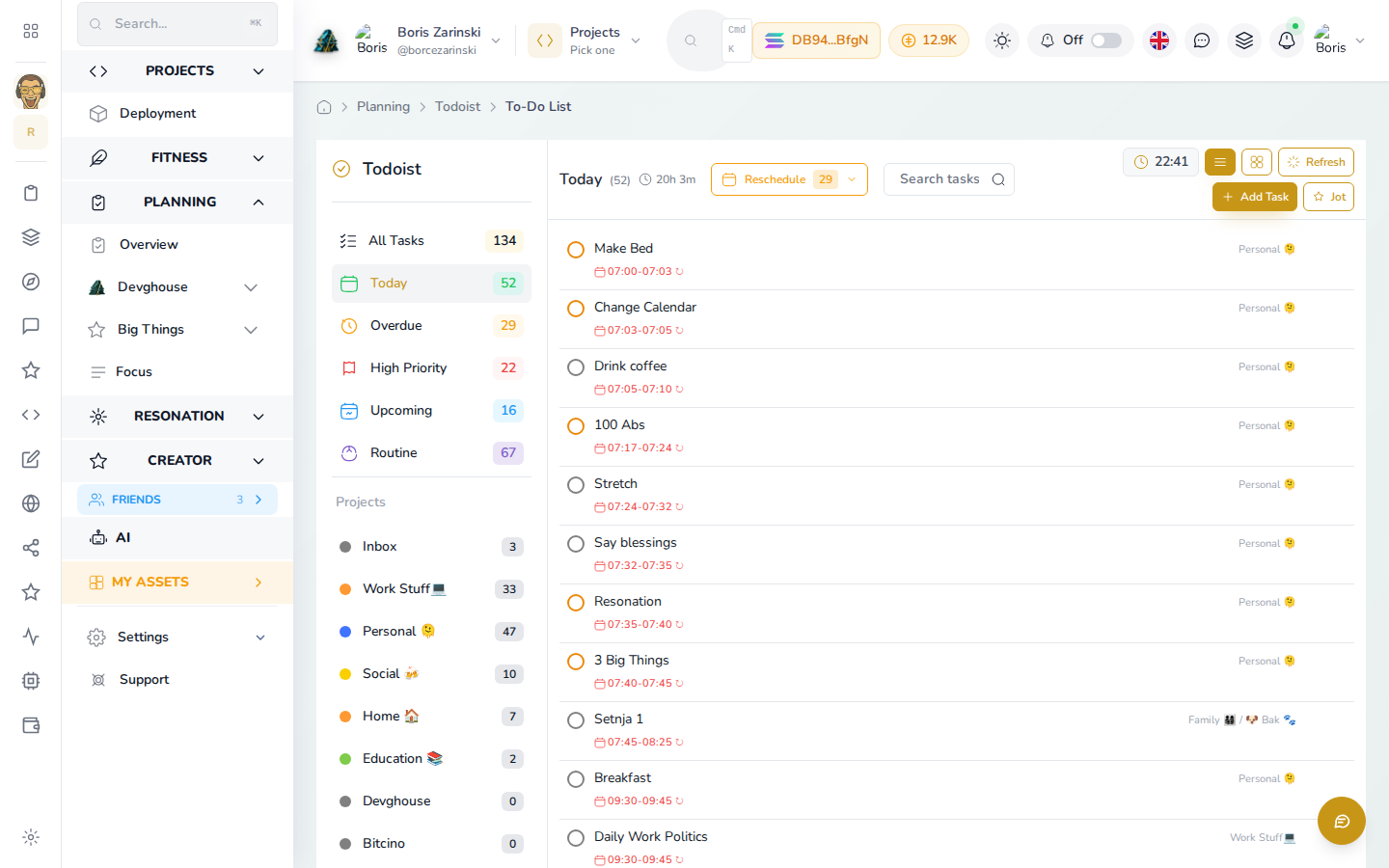
- Open the Todoist feature from Planning to work your real projects and tasks synced straight from Todoist.
Connect Trello
- From Planning → Integrations, choose Trello.
- Click Connect with Trello, or click Or use API Key & Token instead if you would rather paste credentials directly: paste your API Key and API Token into the fields shown.
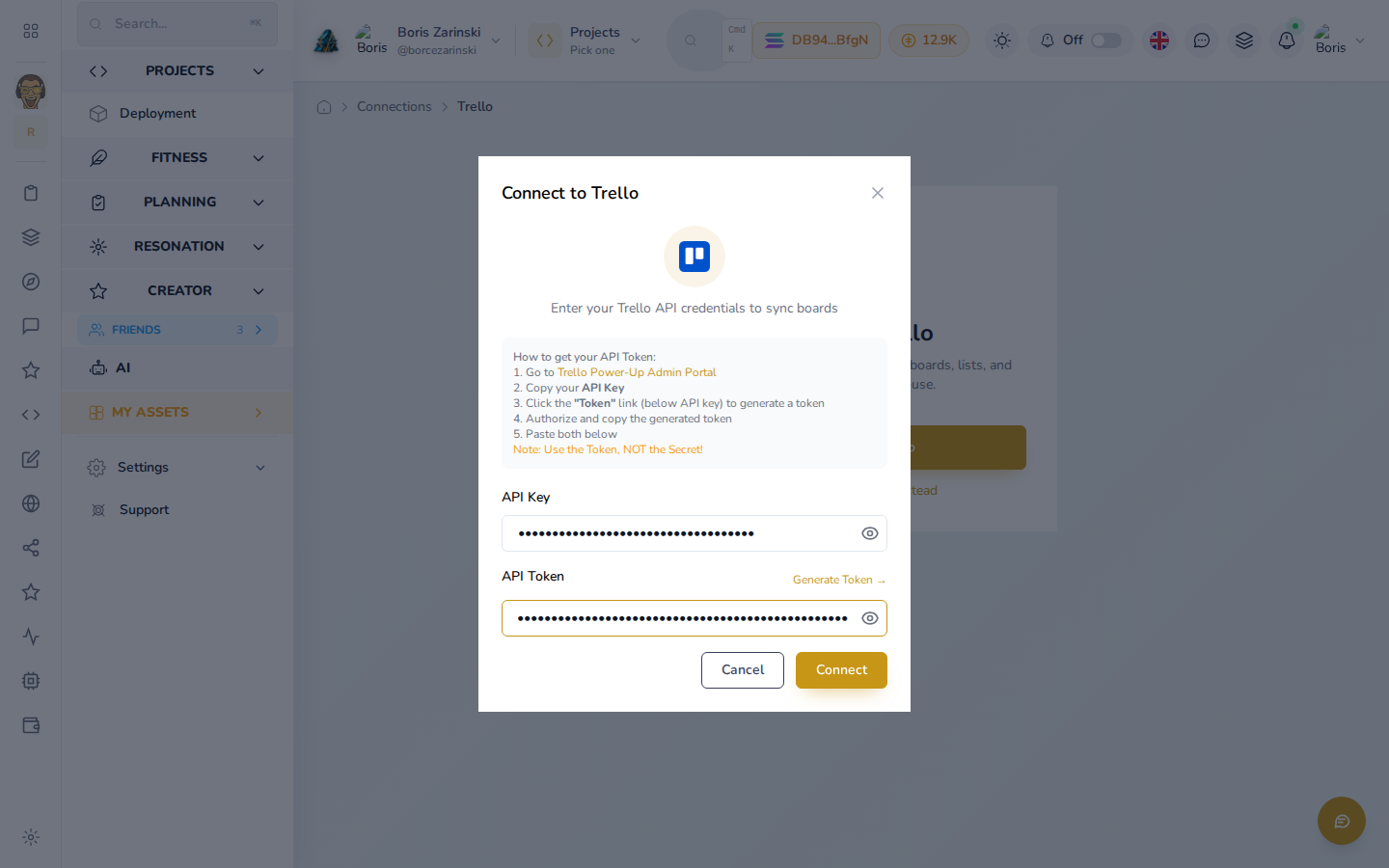
- Click Connect, approving access when Trello asks. Once connected, you can browse your boards, lists, and cards from DevGhouse, and add comments or checklist items without opening Trello.
Connect Notion
- From Planning → Integrations, choose Notion.
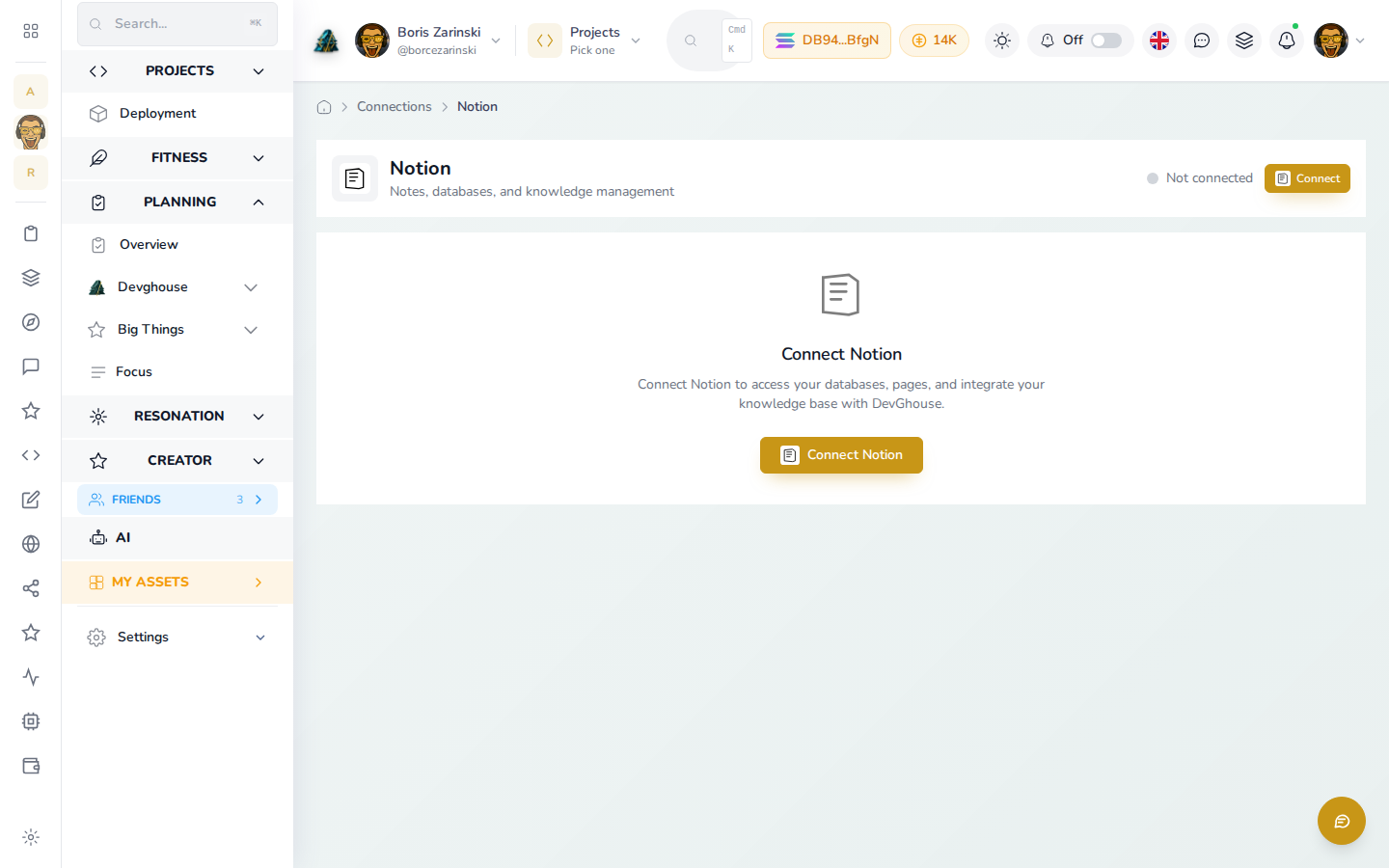
- Click Connect with Notion and pick which pages or databases to share with DevGhouse when Notion asks. Notion only shares what you explicitly select on that screen, nothing more.
- Once connected, DevGhouse can search your shared pages, read and query your databases, and create or update pages in them.
For agents and routines
Once a connection is live, an assistant with your MCP Server connected can work through it directly: todoist_create_task and todoist_list_projects for Todoist, trello_create_card and trello_add_comment for Trello, notion_query_database and notion_create_page for Notion. A request like "add a task for tomorrow to follow up with DevGhouse" lands in whichever of these you have connected, without you opening any of them yourself.