
Telegram
Telegram connects to DevGhouse two different ways, and it is worth knowing which one you want. Connecting your own Telegram account lets DevGhouse read and send your chats. Connecting a bot (one you create yourself, in a few taps) lets that bot manage messages and auto-respond. A Telegram operator bot goes one step further: message it from your phone, and it can open an agent session for you, anywhere you are.
Connect your Telegram account
- From your workspace home, turn on the Communication module if it is not on already.
- Click the Communication tile, then open Integrations and choose Telegram.
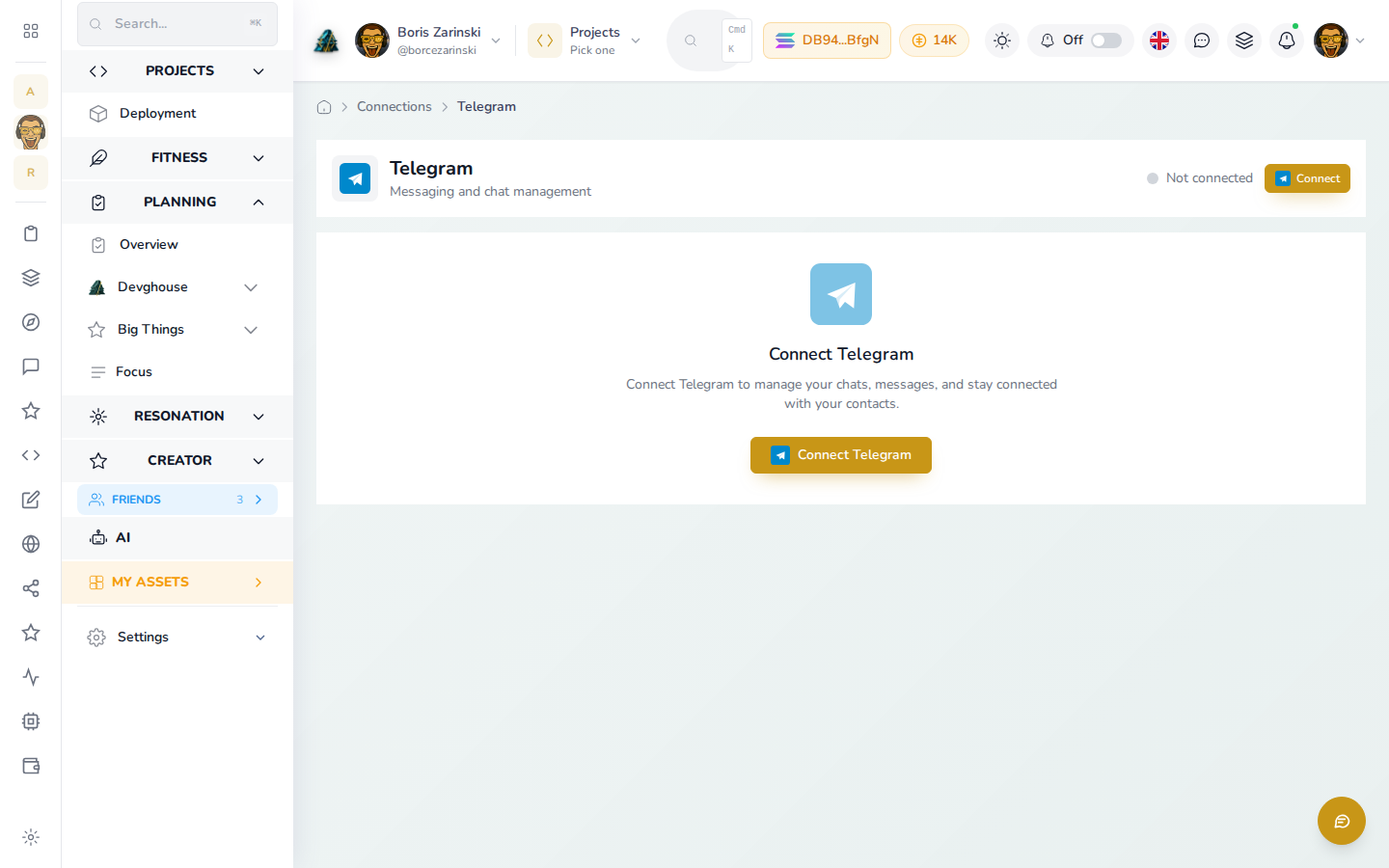
- Click Connect Telegram and follow the prompts to link your account.
- Once connected, your chats and messages are readable from DevGhouse, and an assistant can send on your behalf when you ask it to.
Connect a Telegram bot
A bot is separate from your personal account. It is useful when you want DevGhouse to manage messages and auto-responses under its own identity, not yours.
- From Communication → Chat, choose Telegram bot, then click Add Bot.
- In Telegram, message @BotFather and send
/newbotto create a bot if you do not have one yet. BotFather hands you a token. - Paste that token into the Bot Token field.
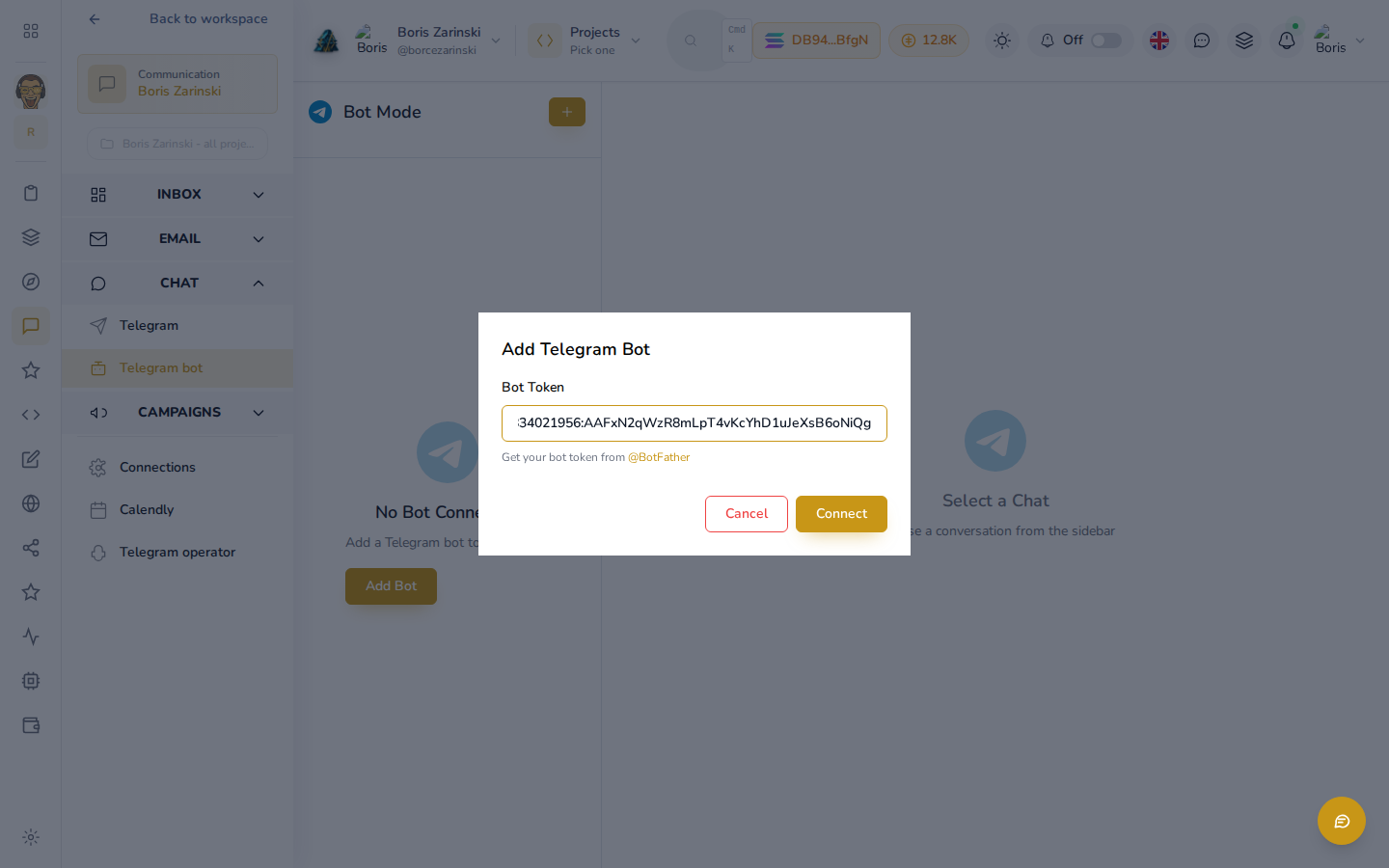
- Click Connect. Once connected, the bot can read incoming messages and send replies through DevGhouse.
Set up your Telegram operator
This turns a bot you own into your own remote control: message it, and it opens an agent session on your behalf, so you can check in on your workspace from your phone without opening the app.
- Go to Settings → Telegram operator.
- In Telegram, message @BotFather and send
/newbotto create a bot (a different one from the bot connection above, if you want them separate). - Copy the token BotFather hands you and paste it into the field on this page.
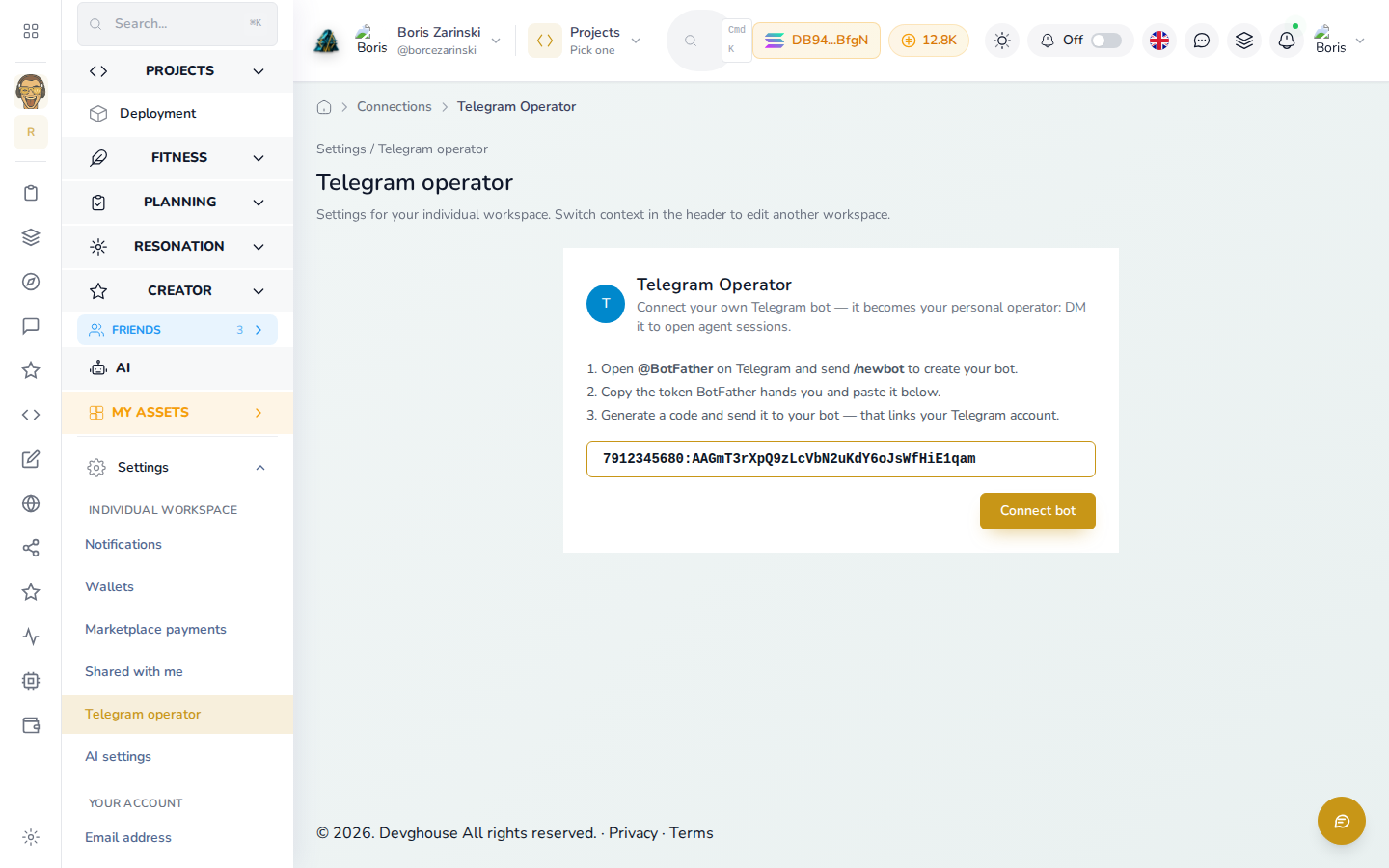
- Click Connect bot. DevGhouse generates a short code.
- Send that code to your new bot in Telegram to finish linking your Telegram account to it.
Once linked, DM your operator bot any time to open an agent session, right from Telegram.
For agents and routines
With Telegram connected, an assistant using your MCP Server can read your chats with telegram_get_messages and send with telegram_send_message. With a bot connected, it uses telegram_bot_get_messages and telegram_bot_send_message instead, scoped to that bot. The operator flow itself is handled by telegram_message_operator, which is how a message you send your operator bot turns into an agent run.