
Credits and your account
Your account menu
Click your avatar in the top right, on any Predictions page, to open your account menu.
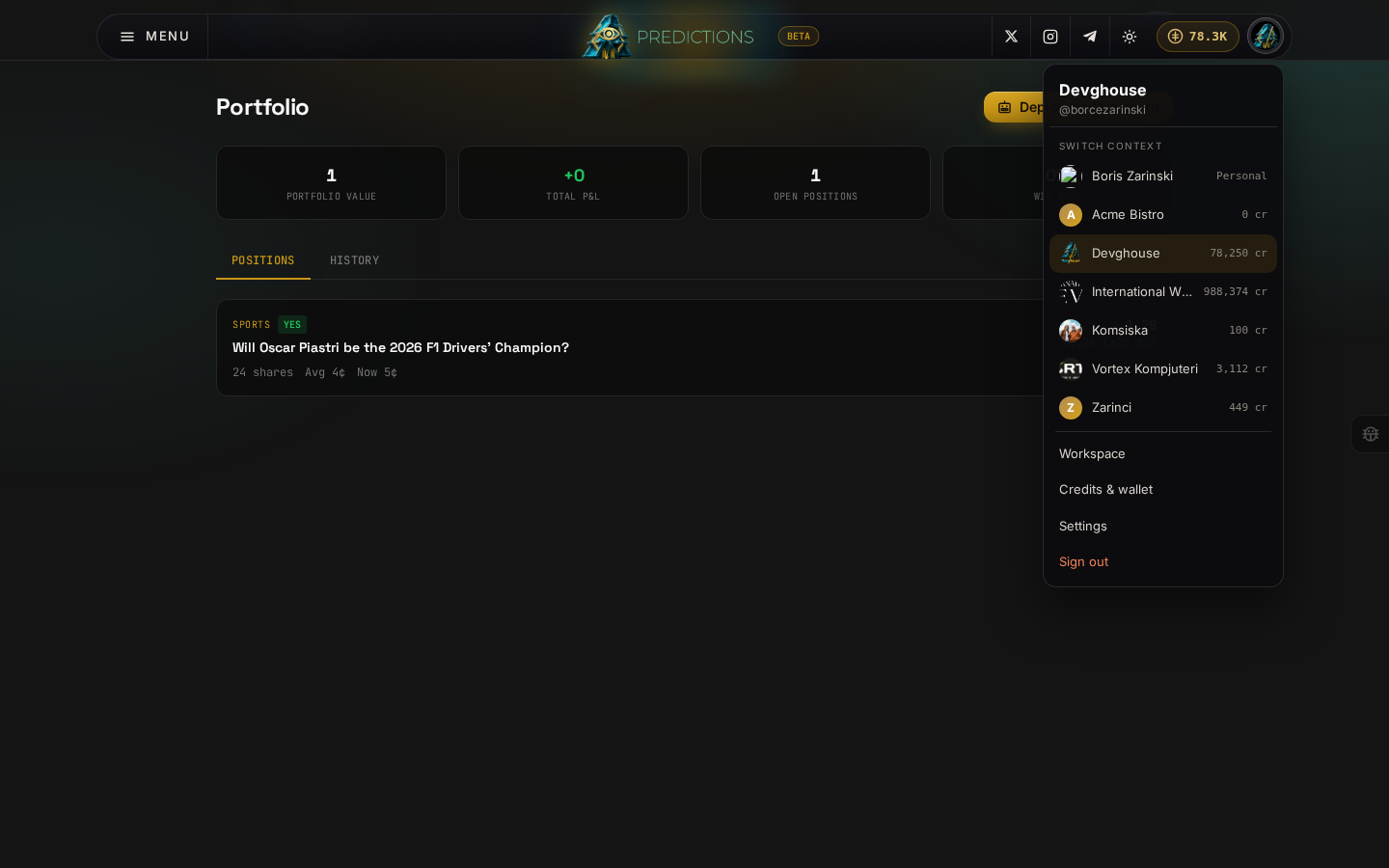
From there you can:
- Switch context, between your personal account and any team workspace you belong to. Trading, positions, and the credit balance you see all belong to whichever one is selected, so check this before you trade if you are part of more than one.
- Workspace, a shortcut into your main DevGhouse dashboard at app.devghouse.com.
- Credits & wallet, where you check your balance in detail and top up.
- Settings, your account settings, also on app.devghouse.com.
- Sign out.
Credits: checking and topping up
Every trade, market you create, and AI research run on Predictions spends from the same credit balance shown in the header everywhere on DevGhouse.
- Click your credit balance in the top bar (it shows a rounded figure, such as 14K), or open Credits & wallet from your account menu.
- This takes you to
app.devghouse.com/credits, where your exact current balance, a Buy Credits button, and a log of recent usage across every DevGhouse product, not only Predictions, live.
The trade panel also links directly to this page: if you try to trade for more than your balance, the Top up credits link next to the warning takes you straight there.
Credits are shared across the whole platform: $1 buys 100 credits, and the balance you top up here is the same one you would spend on Marketplace, the workspace, or any other DevGhouse product.