
The plan and the budget
Plan, in the sidebar, is where the actual itinerary lives. It lays out one section per day of your trip, empty at first, waiting for you to fill it in. Click Add to the plan and a dialog opens over the day you're building out.
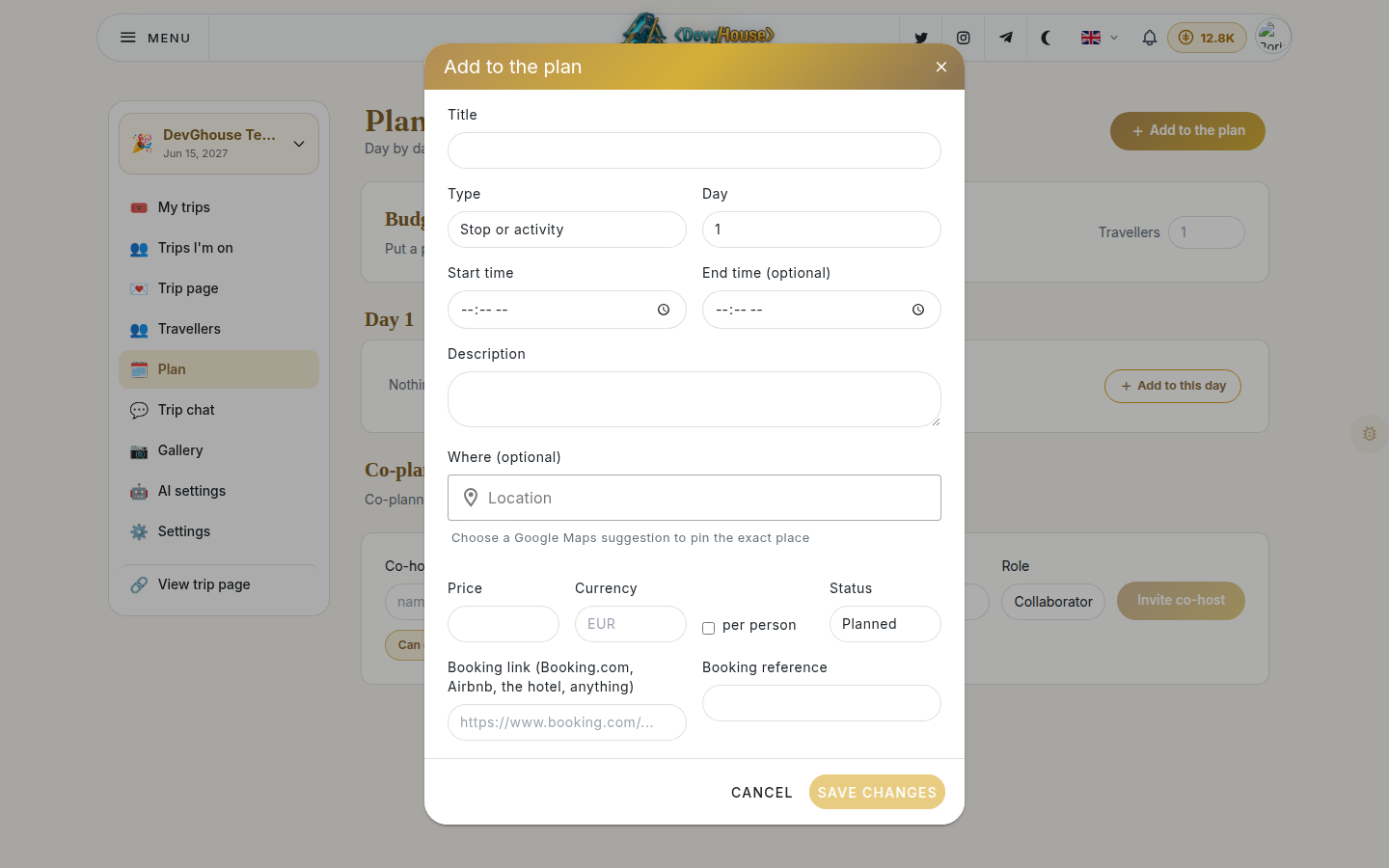
Adding a travel leg
A leg is how you get from one place to another: a flight, a drive, a train, whatever applies.
- Click Add to the plan.
- Give it a title, like "Flight to Lisbon."
- Set the type to Travel leg, and pick how you're travelling (plane, drive, train, bus, or ferry).
- Set the day and the start time.
- Search for the origin and the destination; pick real places from the suggestions so the map and the links below actually work.
- Add a price if you know it, and pick a currency.
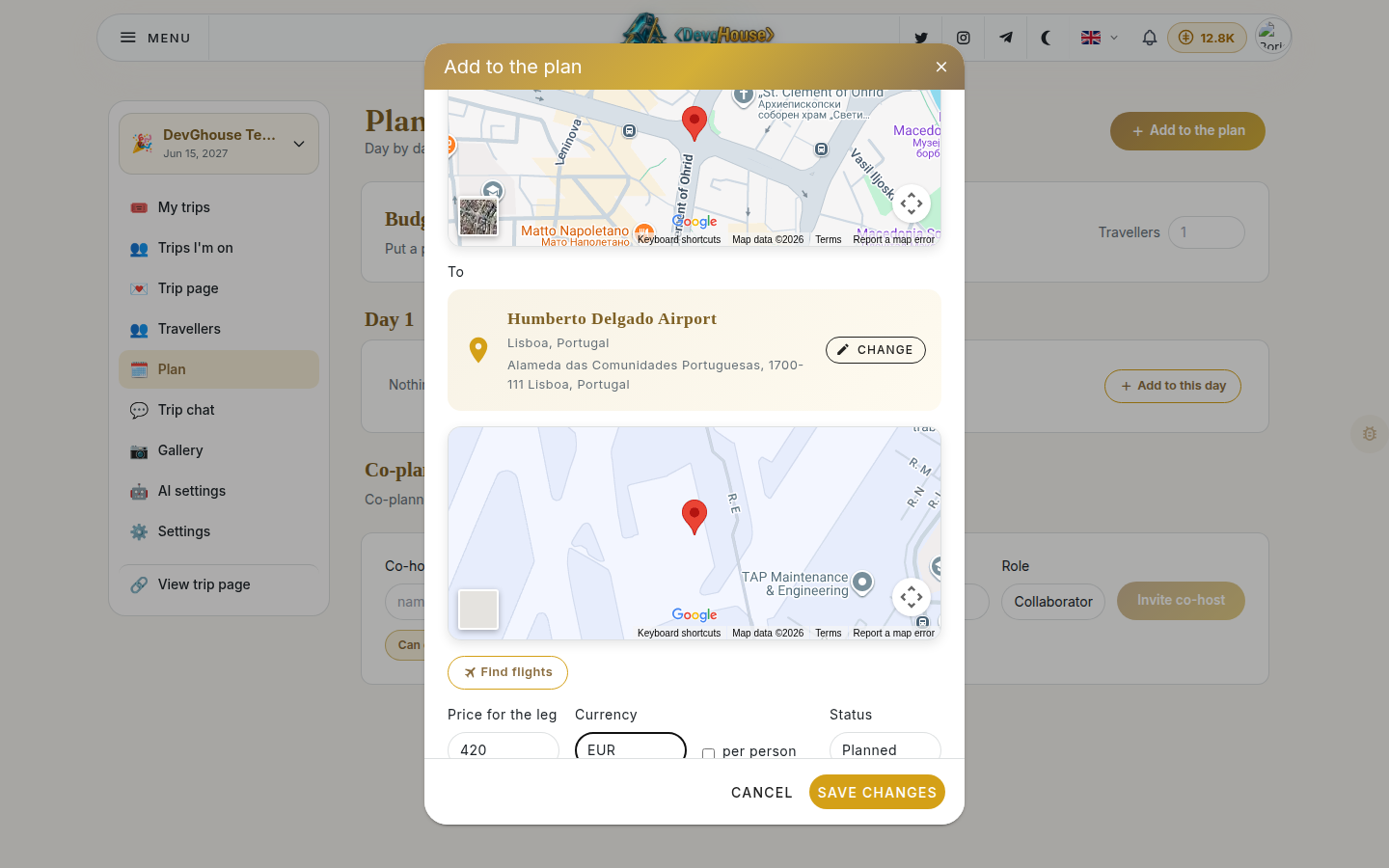
For a plane leg, you'll see a Find flights link that opens a flight search prefilled with your route and date. Save the leg and it appears on the day you picked.
Adding a stay
A stay works the same way, with a couple of extra fields for how many nights it covers.
- Click Add to the plan again.
- Set the type to Stay.
- Set the check-in day and the check-out day.
- Search for the hotel or the area you're staying in.
- Add the price. If it's a per-person rate rather than a total for the room, tick per person.
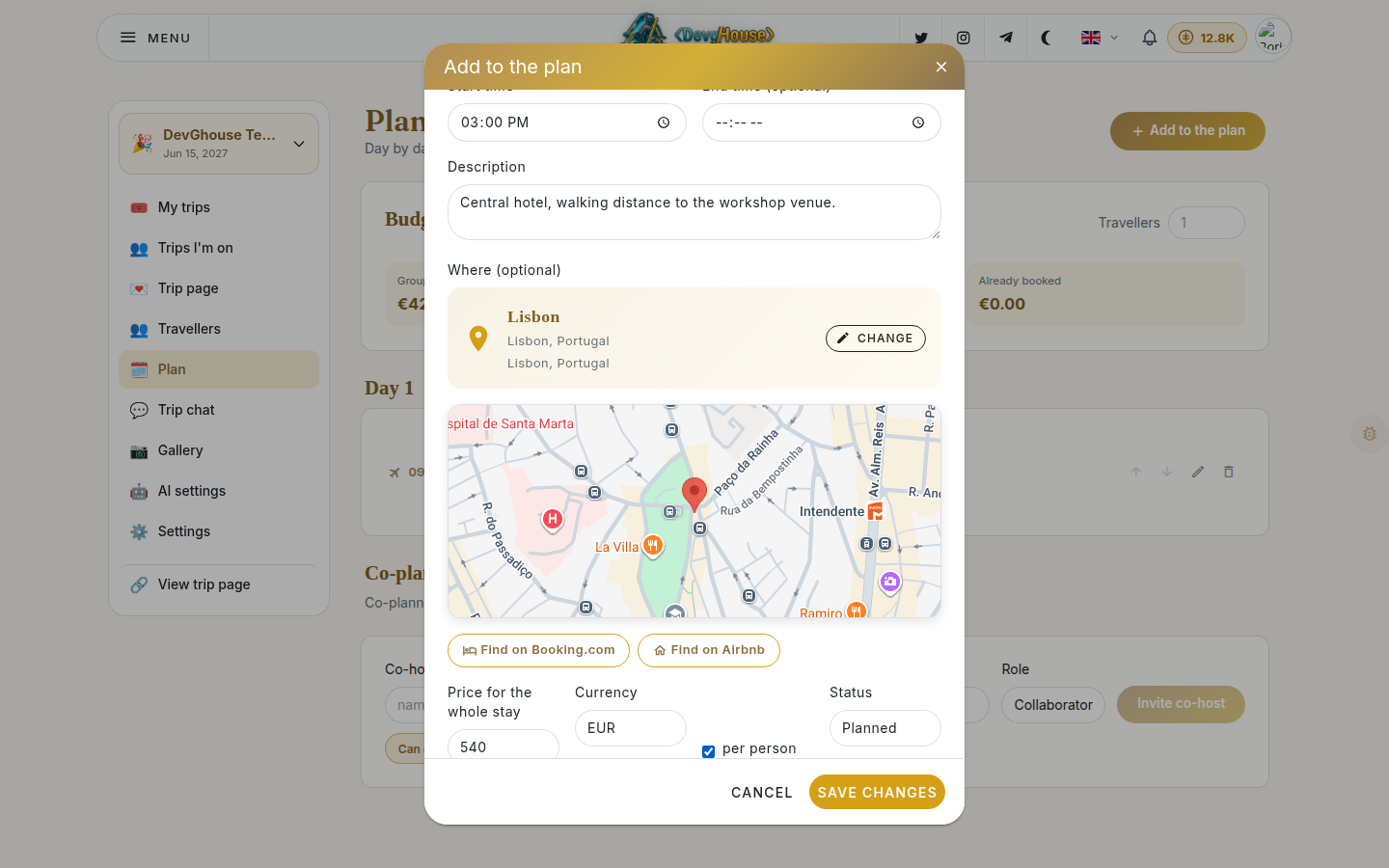
Two links, Find on Booking.com and Find on Airbnb, open a search prefilled with your destination, your dates, and how many travellers you have. Trips doesn't book anything for you; once you've picked a real place on one of those sites, come back and paste its link into the stay so everyone can find it again.
The budget
Every priced item you add, leg or stay, feeds straight into the budget box at the top of the Plan page: the group total, the amount per traveller, and how much of that is already booked.
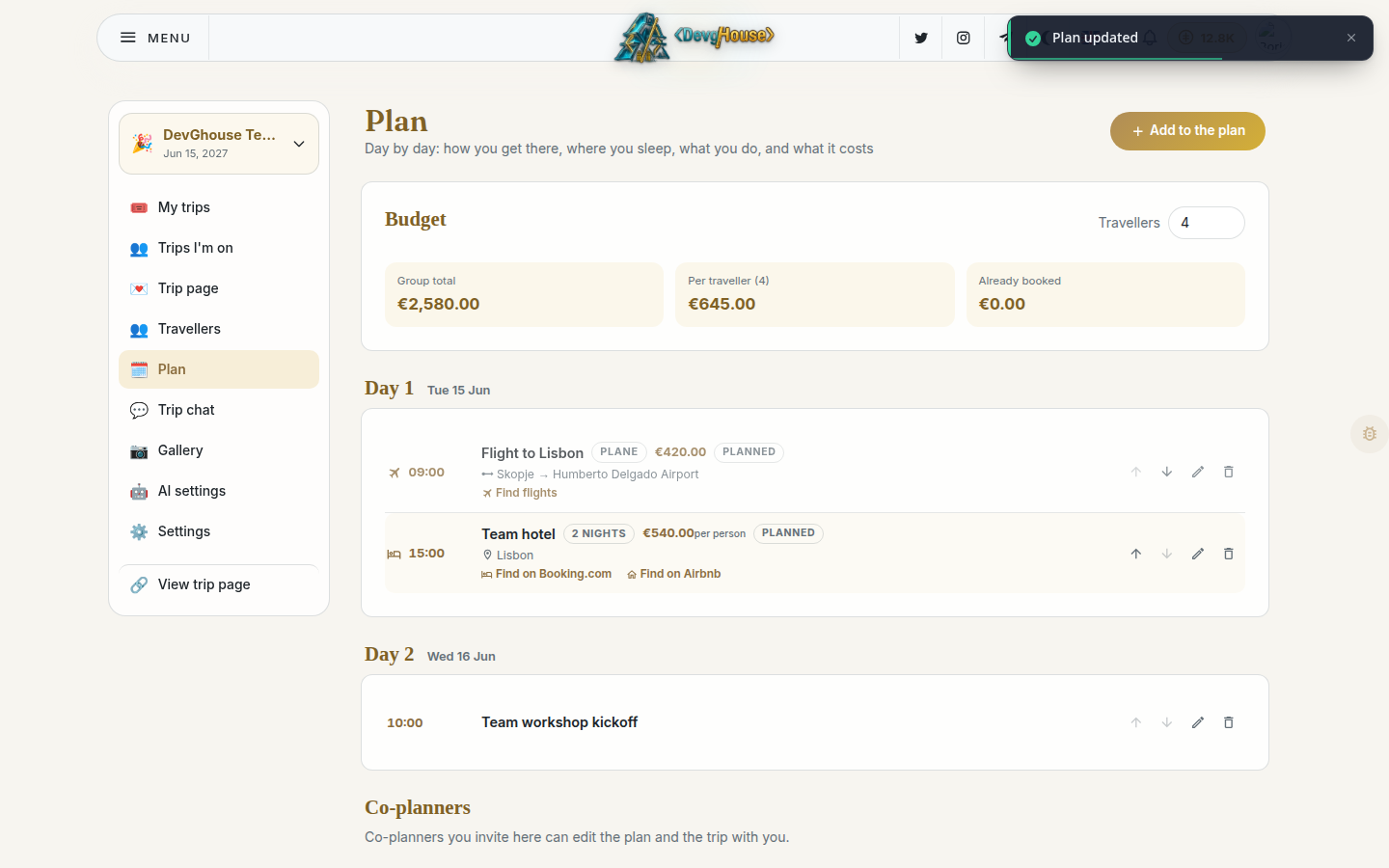
By default the budget assumes just you. Once travellers start accepting, it splits automatically across everyone who's confirmed; while the group is still forming, you can override the traveller count yourself in the field next to Travellers, and the group total and per-traveller cost update right away.
Editing and reordering
Every item in the plan has small controls on the right: move it up or down within its day, edit it, or delete it. Nothing you add is locked in; change the price, the status, or the date any time before or after you book.