
Seating charts
Turn it on
Seating charts is one of the Advanced tools, switched off for every new wedding. Turn it on first:
- Open Settings from your dashboard.
- Scroll to Advanced tools and switch on Seating tables.
- It now appears under More tools in your sidebar, labeled Seating tables.
Open Seating tables from More tools to plan where everyone sits.
Two ways to view your floor plan
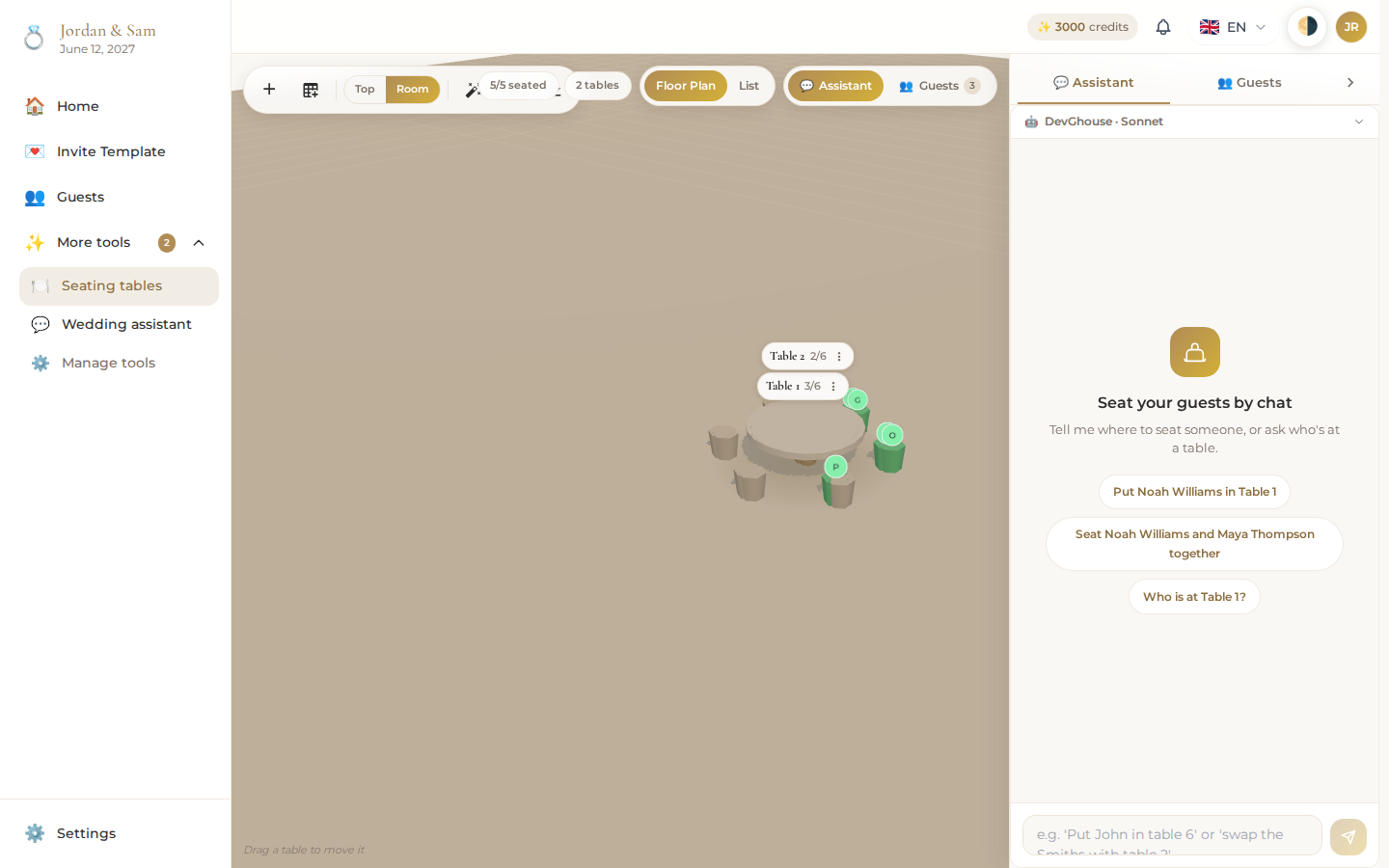
A toggle at the top switches between two views of the same seating plan:
- Floor Plan – a 3D room you can add tables to, drag into position, and rotate around. Good for picturing the room as a whole.
- List – a straightforward scrollable list of your tables, easier to work through on a phone or when you just need to assign seats quickly.
A stats chip near the toggle always shows how many guests are seated out of your total, and how many tables you've set up.
Add and arrange tables
From the floor plan, add a table and place it wherever you like in the room; give it a name and a seat count. Click a table to select it, then assign guests to its open seats.
Edit or delete a table
In the list view, click the ⋮ menu on any table to Edit its name and seat count, or Delete it. The floor plan offers the same two actions on a selected table. Deleting a table unseats its guests; it doesn't remove them from your guest list.
Assign guests
A drawer on the side of the screen lists everyone who isn't seated yet. Drag a guest from that list onto a table, or use the equivalent action in the list view. Assigned guests move out of the unassigned pool automatically, and a badge on the drawer's guest tab always shows how many are left to seat.
Get seating help from the assistant
The same drawer has a second tab, Assistant, with a chat you can use to ask for help with seating, for example asking it to keep a particular group together or to balance table sizes. It's the same wedding assistant described in Wedding assistant, scoped to this one job.
Export your plan
Once you're happy with the layout, an export action on the floor plan produces a plan you can save or hand to your venue.