
AI assistant
Every event has an AI assistant that can help you plan, and you can reach it two ways.
The built-in assistant
Mention @devghouse in Guest chat or use the AI Chat tab in the invite builder to ask for help in plain words, for example "suggest where a 20-minute break fits in the schedule" or "make the invite feel more casual." It reads your event's real details (schedule, guest count, settings) and can act on them directly, right there in the app. This needs nothing to set up.
Connect your own AI tool
Already use Claude Desktop, Claude Code, Cursor, Codex or another MCP-compatible tool for your own work? You can hand it a private key that lets it help plan this one event specifically, without touching your account or any other event.
Open AI settings in the sidebar.
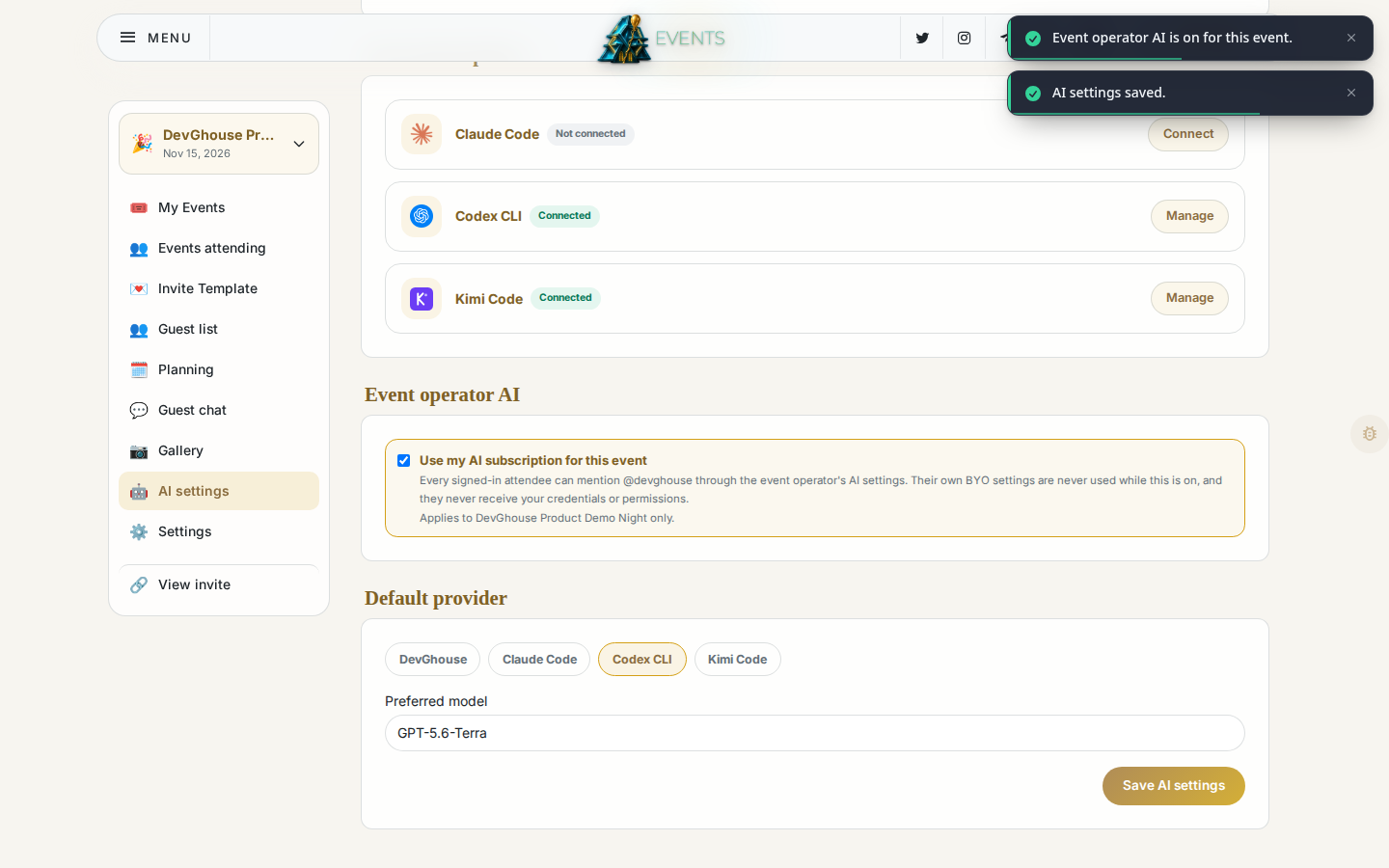
Who runs the AI
- DevGhouse metered: works immediately, no setup. Runs are billed in credits from your balance.
- My own subscription: runs on a Claude, Codex or Kimi subscription you connect yourself, at a flat 1 credit per successful run (nothing if it fails).
Get a connection key
Scroll down to Connect your own AI assistant.
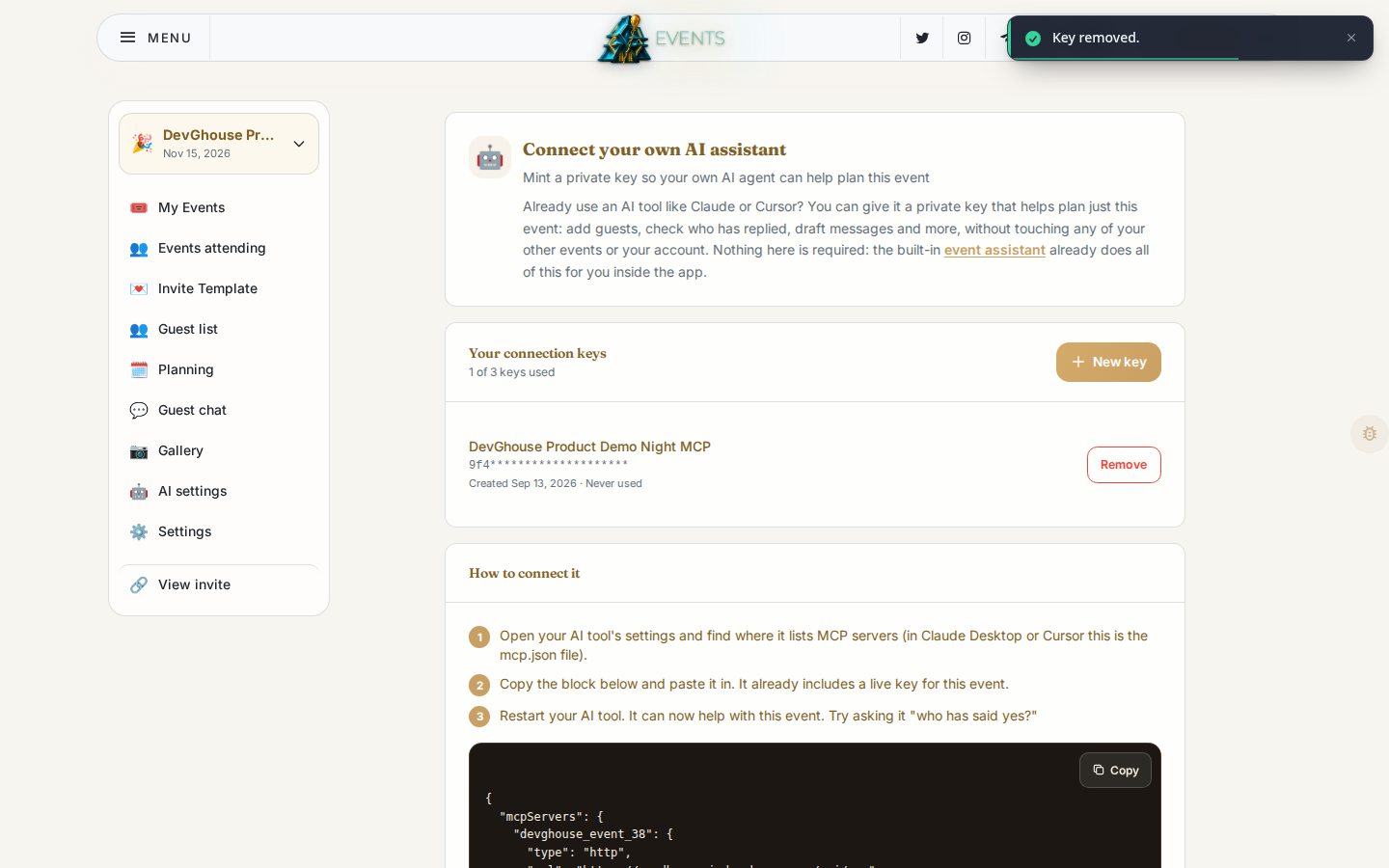
- Click New key (you can hold up to 3 at a time).
- Open your AI tool's own settings where it lists MCP servers: in Claude Desktop or Cursor this is the
mcp.jsonfile. - Copy the block shown on this page and paste it in; it already includes your new key.
- Restart your AI tool. Try asking it something like "who has said yes?"
A key minted here only ever sees and changes this one event, never your account and never your other events. That makes it safe to hand to a co-planner's own assistant, or to a separate AI tool you don't fully trust with everything else.
Lost track of a key or want to cut off access? Click Remove next to it any time; the tool holding that key stops working immediately.