
Getting started
Sign up
Go to events.devghouse.com and click Create your event. A form opens right there on the page, no separate site to visit first.
- Click Create your event on the homepage.
- Fill in your name, email and a password, or use the GitHub, Google or X button instead.
- Agree to the terms and click Create Account.
Already have an account? Click Sign In in the top right instead.
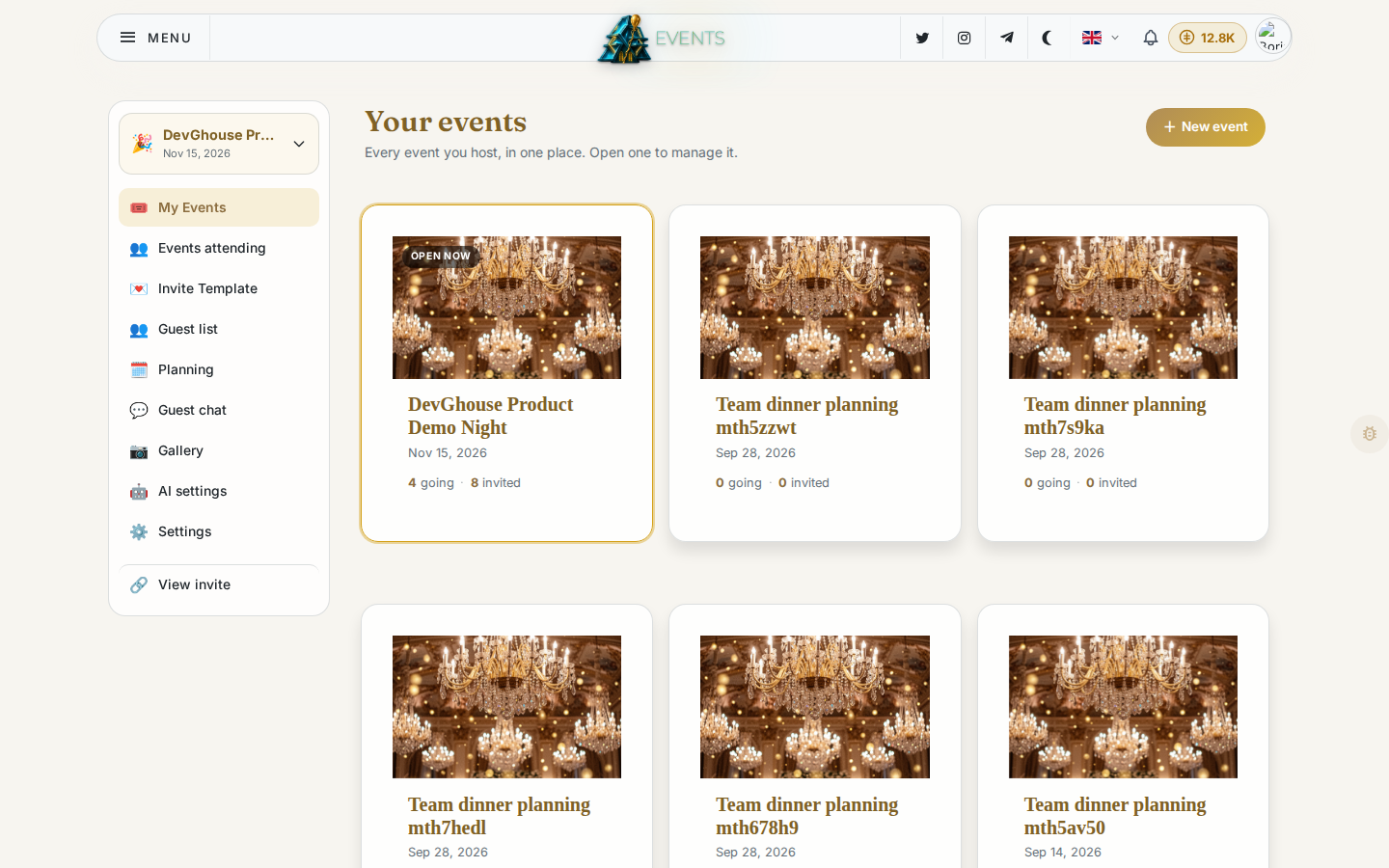
Once you're signed in, you land on My Events, with your name, avatar and credit balance in the header:
Verify your email
Right after you sign up, Events sends a 6-digit code to your email address and asks you to enter it before you can open your dashboard. This step is mandatory: check your inbox (and spam folder) for the code. If it doesn't arrive, the verification screen has a Resend code option after a short cooldown.
You can still read the public pages (the homepage, pricing, blog) before you verify, but creating or opening an event needs a confirmed email.
Create your first event
Once you're verified, you land on Create an event, a three-step wizard.
Step 1: Event
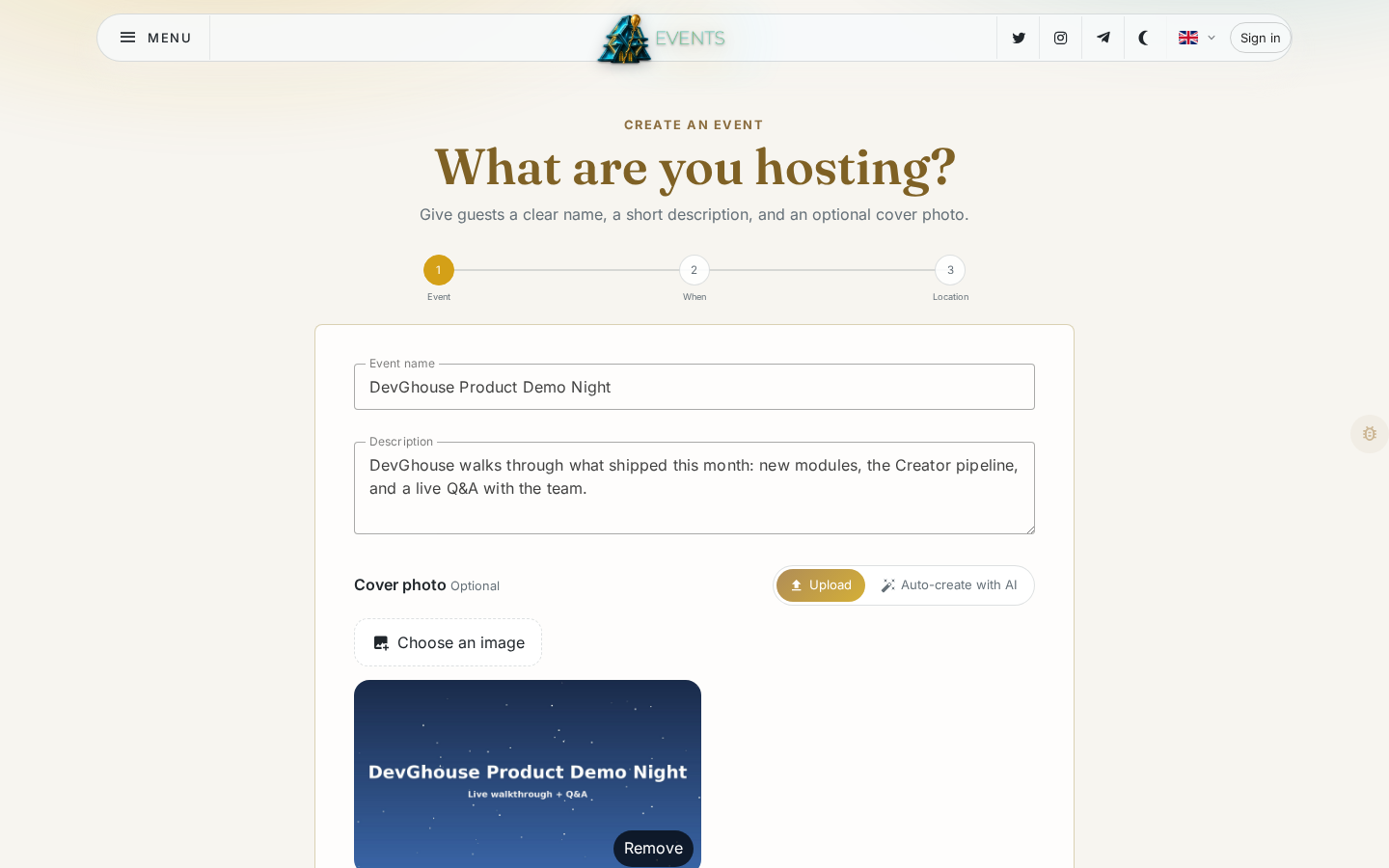
Give it a name and, if you like, a short description. You can add a cover photo now (upload your own, or let AI design one from your event's details once it's created) or skip this and add it later.
Step 2: When
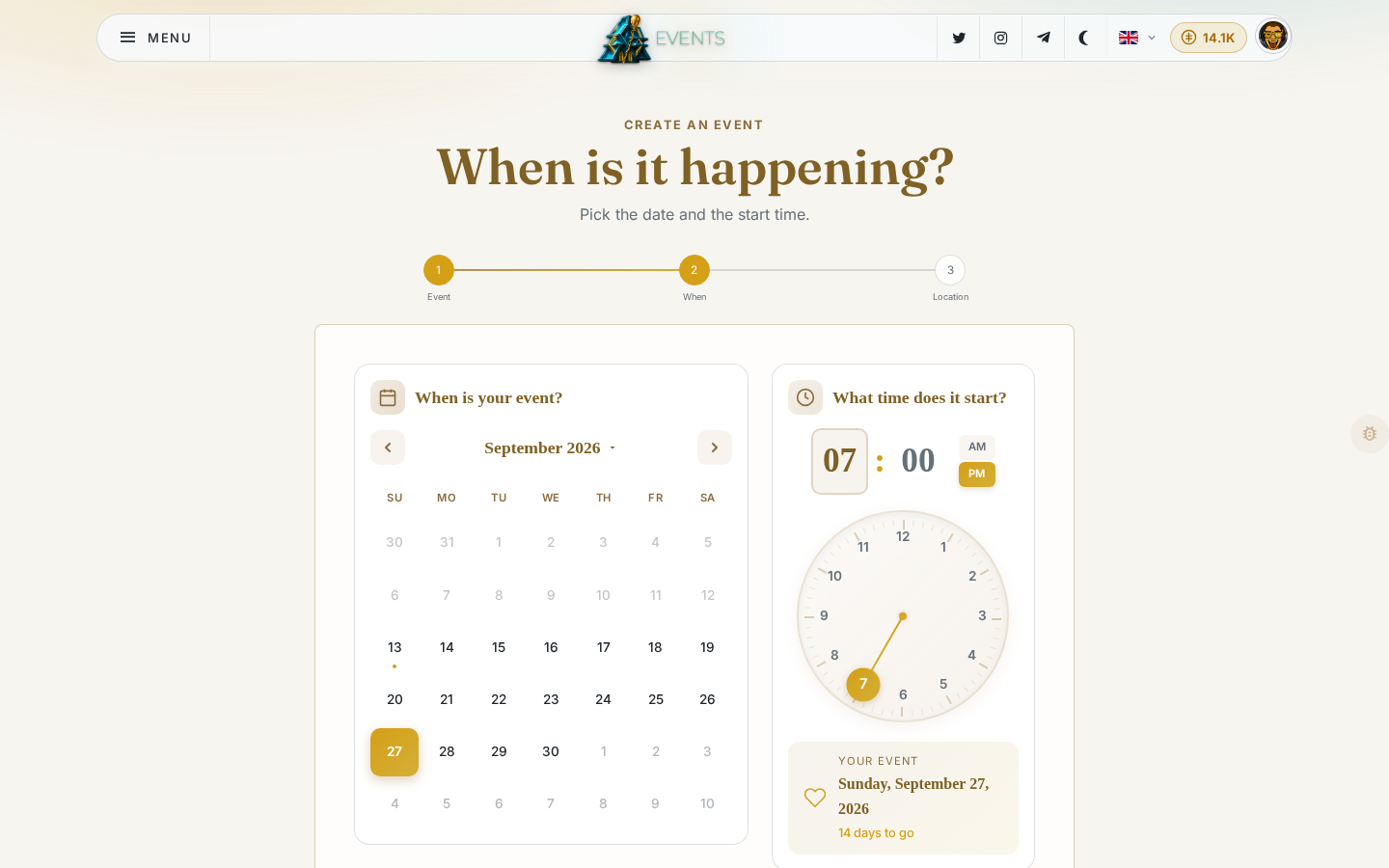
Pick the date on the calendar and the start time on the clock. Both are required before you can continue.
Step 3: Location
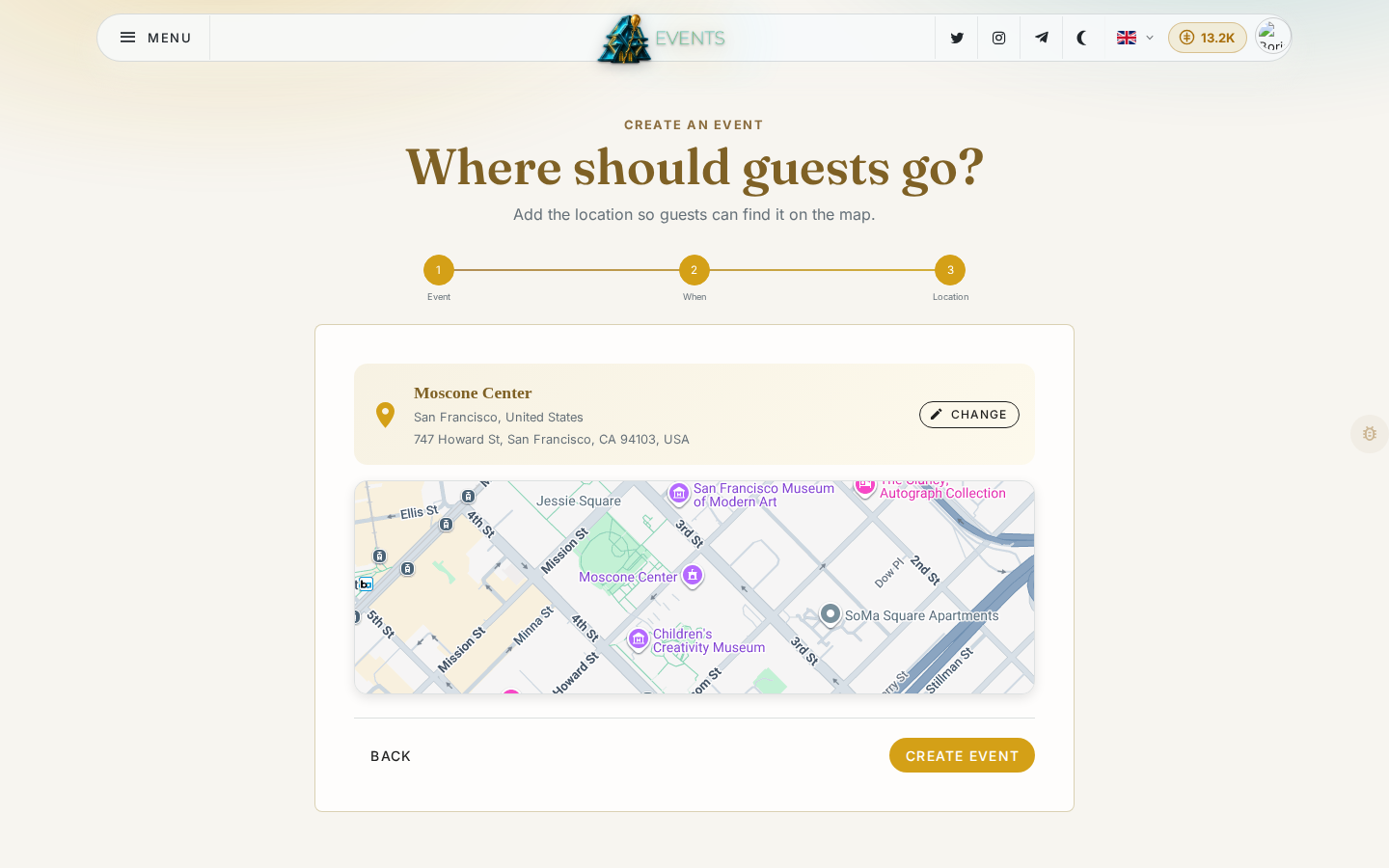
Start typing an address or place name and choose one of the suggestions from the map search. Once confirmed, click Create Event.
That's it: your event is live. You land in your dashboard with the new event already selected, ready for you to design the invite and add guests.
Your events
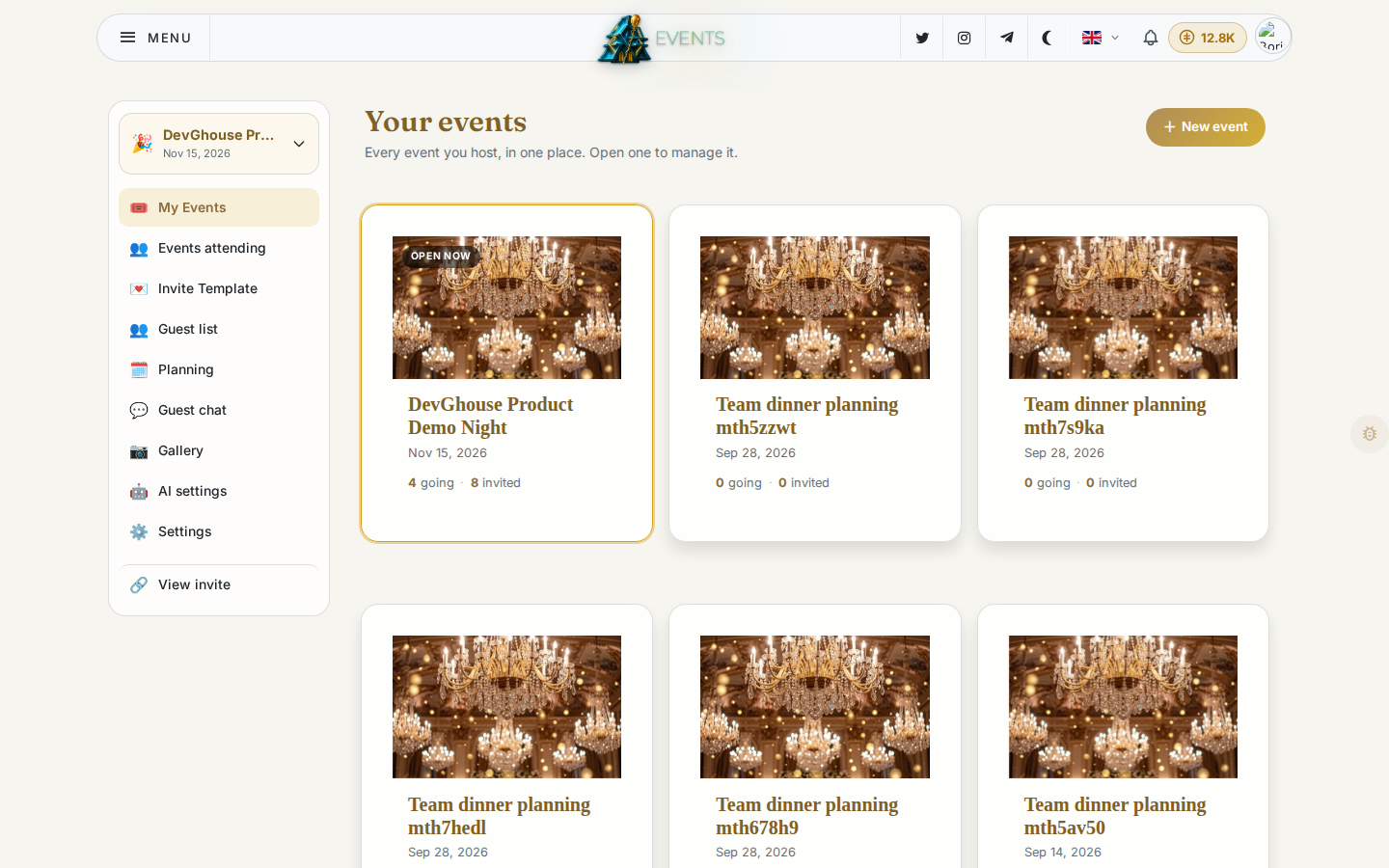
Every event you host shows up under My Events in the sidebar. Click a card to switch to that event; every other screen (Planning, Guest list, Settings and the rest) always acts on whichever event is currently selected, shown at the top of the sidebar.
If you're helping run someone else's event as a co-planner, that shows up separately under Events attending, not under My Events.