
Photo gallery
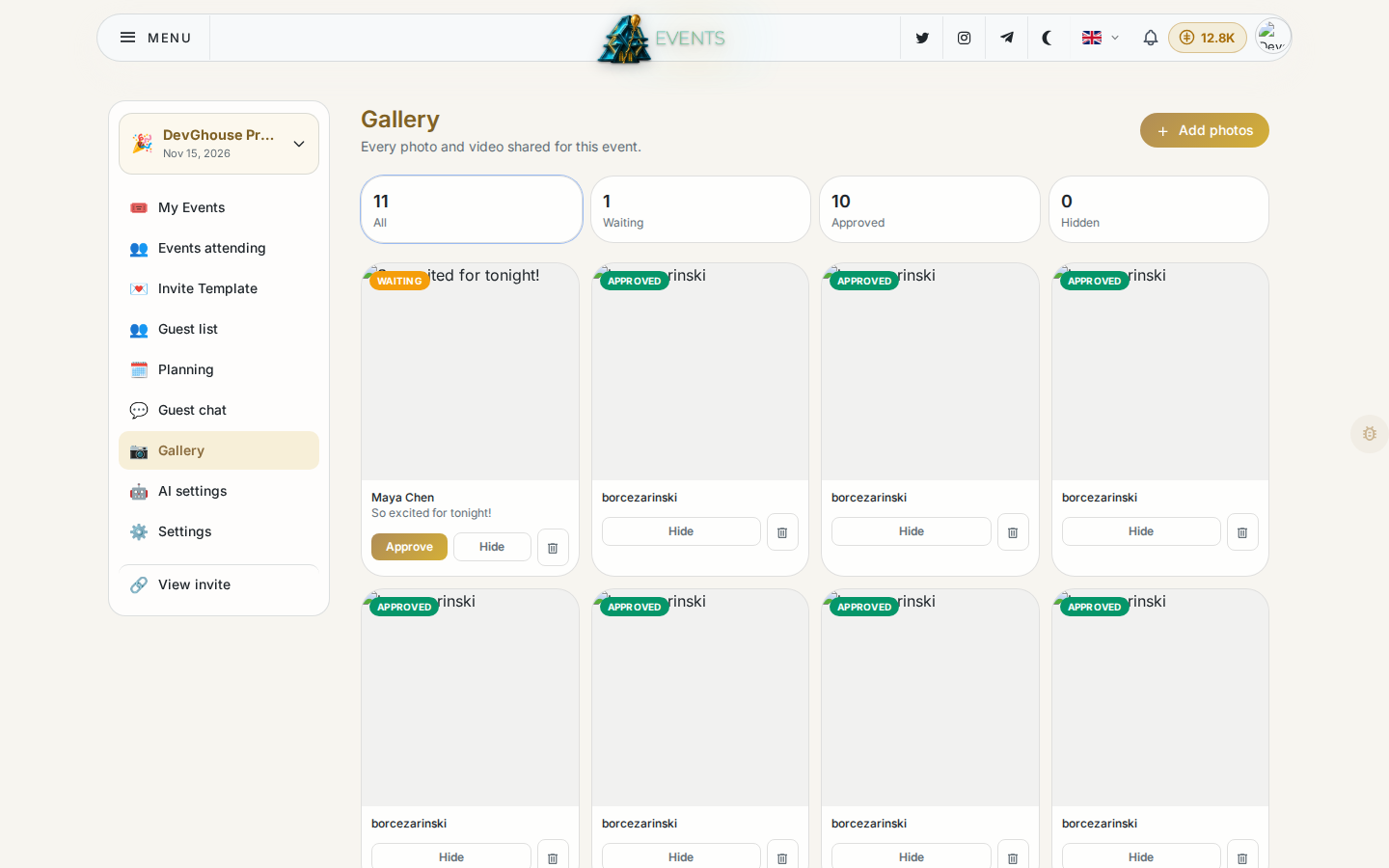
Open Gallery in the sidebar to manage the shared photo album for your event.
The shared album is off by default. Turn it on from Open Settings (or the Gallery section of Settings) and it appears on your invite for guests to add to.
How it works
- All / Waiting / Approved / Hidden: the four states a photo or video can be in.
- Add photos: upload some yourself to seed the album before guests start adding their own.
- Require approval: a second switch in Settings, only usable while the album itself is on. When it's on, anything a guest uploads sits in Waiting until you approve or hide it; when it's off, guest uploads publish immediately.
Typical setup
- Turn on the shared album in Settings.
- Decide whether you want to review uploads first (turn on approval) or let anything through immediately (leave approval off).
- Optionally add a few photos yourself so the album isn't empty when guests arrive.
Guests add photos and videos straight from your invite page once the album is on; nothing extra to send them.