
Designing your invite
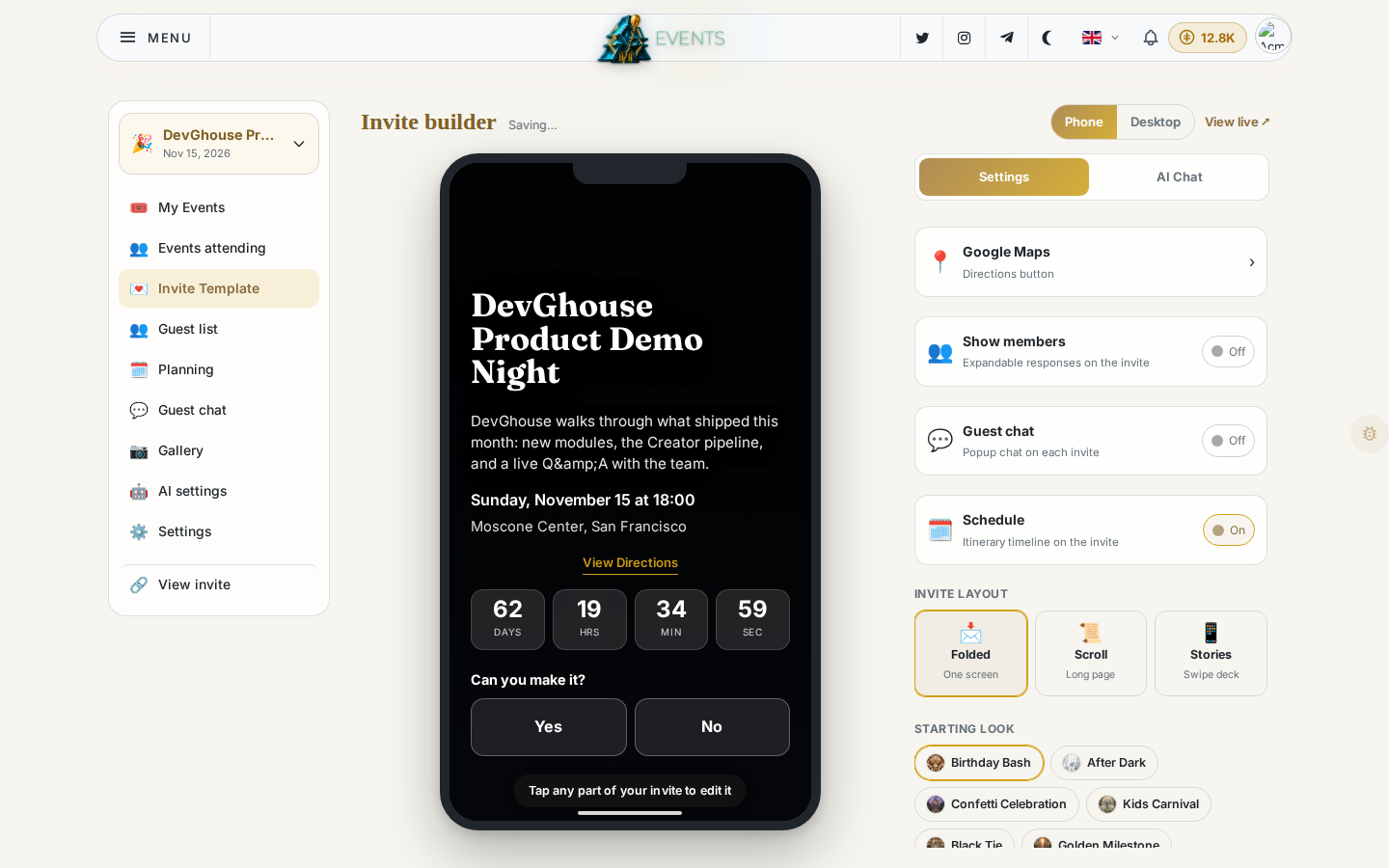
Open Invite Template in the sidebar (the page itself is titled Invite builder) to design the page guests see when they open your link.
How it's laid out
- Left: a live preview of your invite, switchable between Phone and Desktop.
- Right: two tabs, Settings (the section list below) and AI Chat, where you can describe what you want changed in plain words and let the assistant adjust it for you.
- View live ↗: opens your actual public invite page in a new tab, exactly as a guest sees it.
Sections
Your invite is built from sections you can turn on or off and reorder with the up and down arrows next to each one:
- Hero: the cover image or video that opens the invite.
- Countdown: a live days-to-go timer.
- Event details: date, time, location and the map. Choose whether the map shows as a full embedded Google Map or just a Directions button, from the Google Maps shortcut further down the settings list.
- Schedule: a day-by-day itinerary for guests, built from your Planning page. Off by default.
- RSVP: the Yes/No (or Yes/Maybe/No) buttons.
- Photo gallery: a shared album guests can add to. Needs configuring (see Photo gallery).
- Music: a soundtrack that plays on your invite. Needs configuring.
Click any section's name to jump to editing it; use Add a section below the list to bring back one you turned off.
More on your invite
Below the section list, a few more entries let you round out the invite. Shareables, opened below, is one of them:
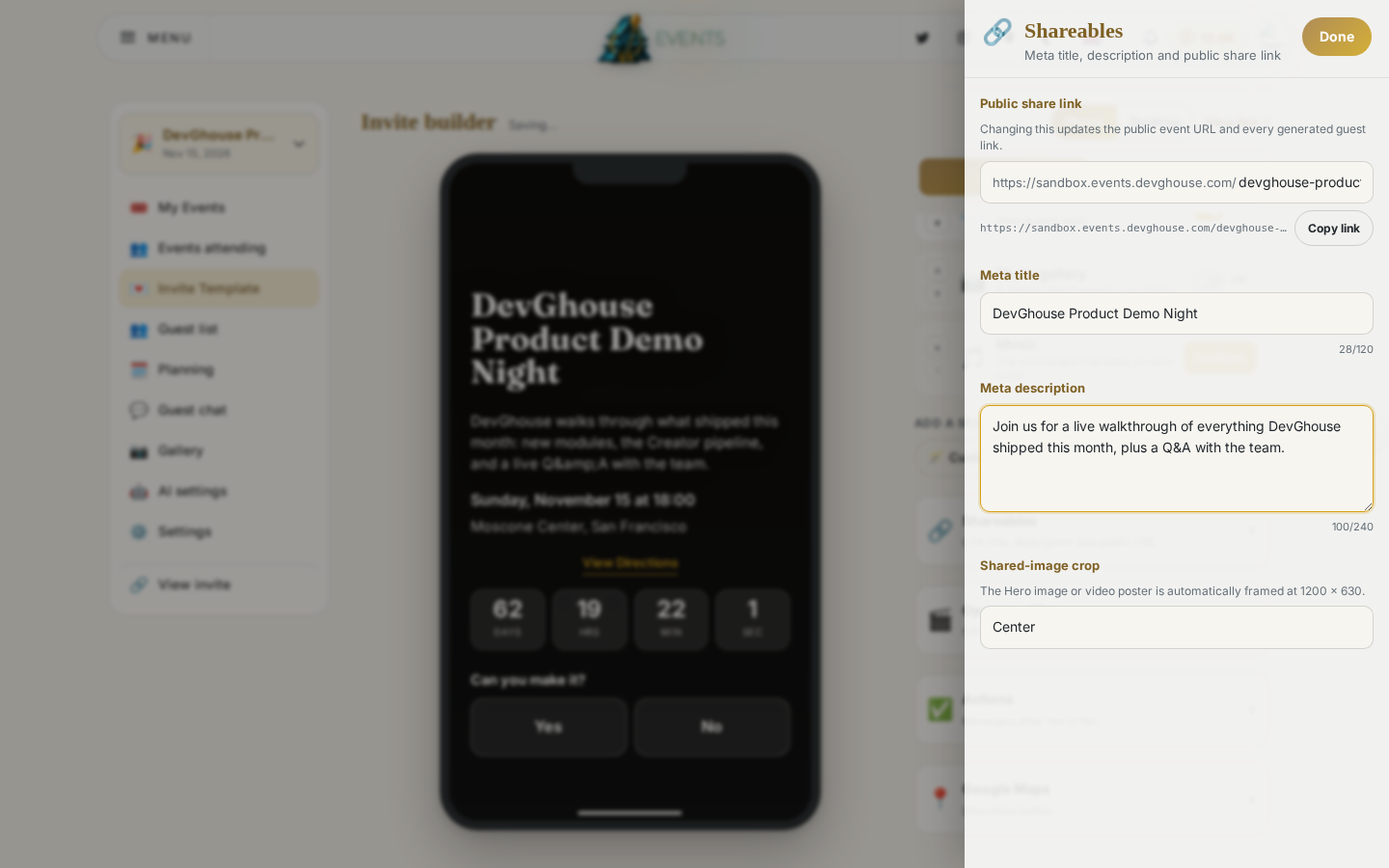
- Shareables: the title, description and image people see when your invite link is shared on social media or in a chat app, plus the public link itself. You can change the link's last part here too, which also updates every guest's personal invite link.
- Opening video: a full-screen video guests watch once before the invite fades in. Off by default; turn it on and paste a video URL, pull one from your archive, or generate one with AI.
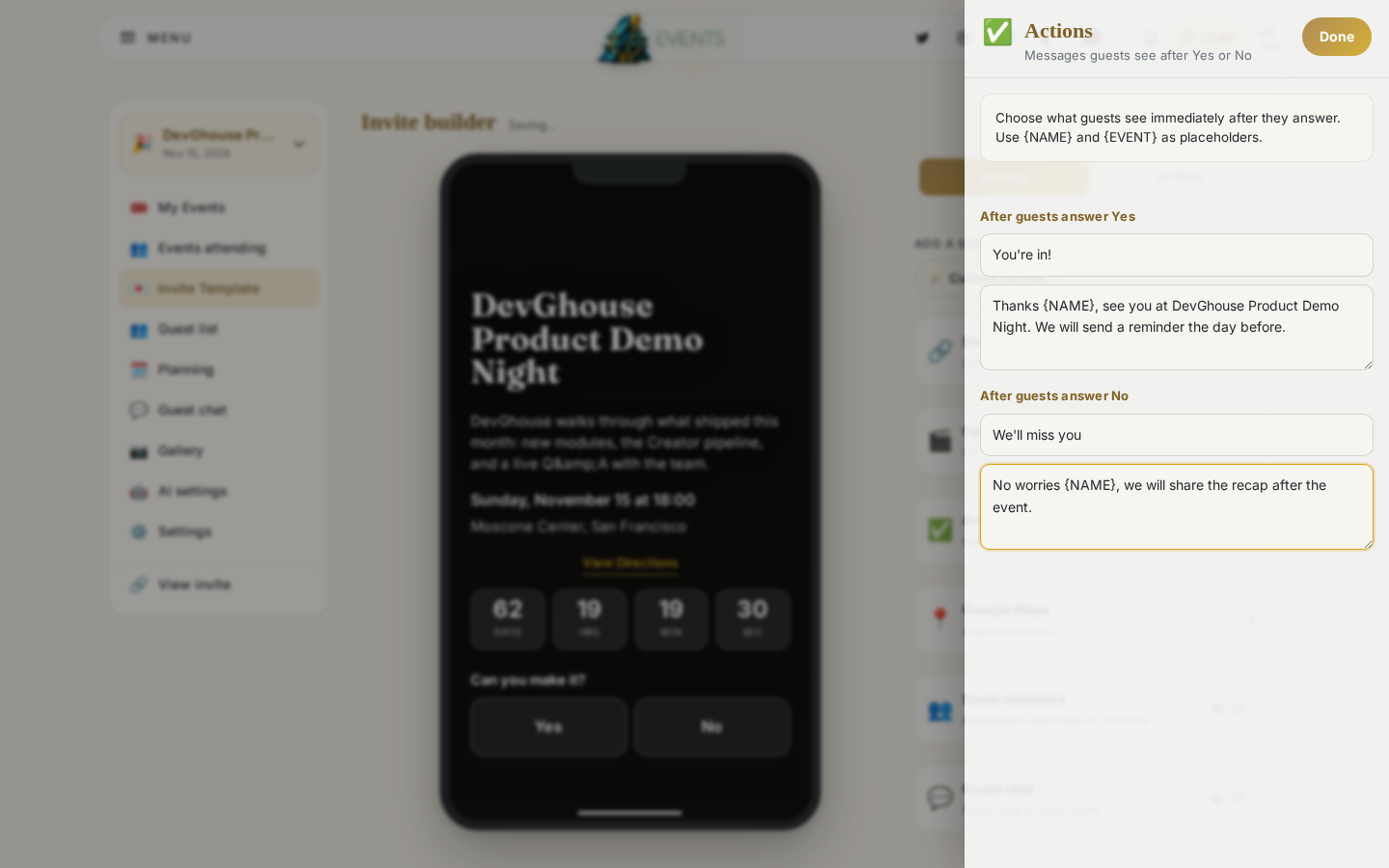
- Actions: the confirmation message a guest sees right after answering. Set separate titles and messages for Yes and No, using
{NAME}and{EVENT}as placeholders that fill in automatically.
- Show members: the same setting as Show members under Settings, a shortcut so you can turn it on without leaving the builder. When it's on, guests see everyone else's reply as avatar rows on the invite.
What a guest sees
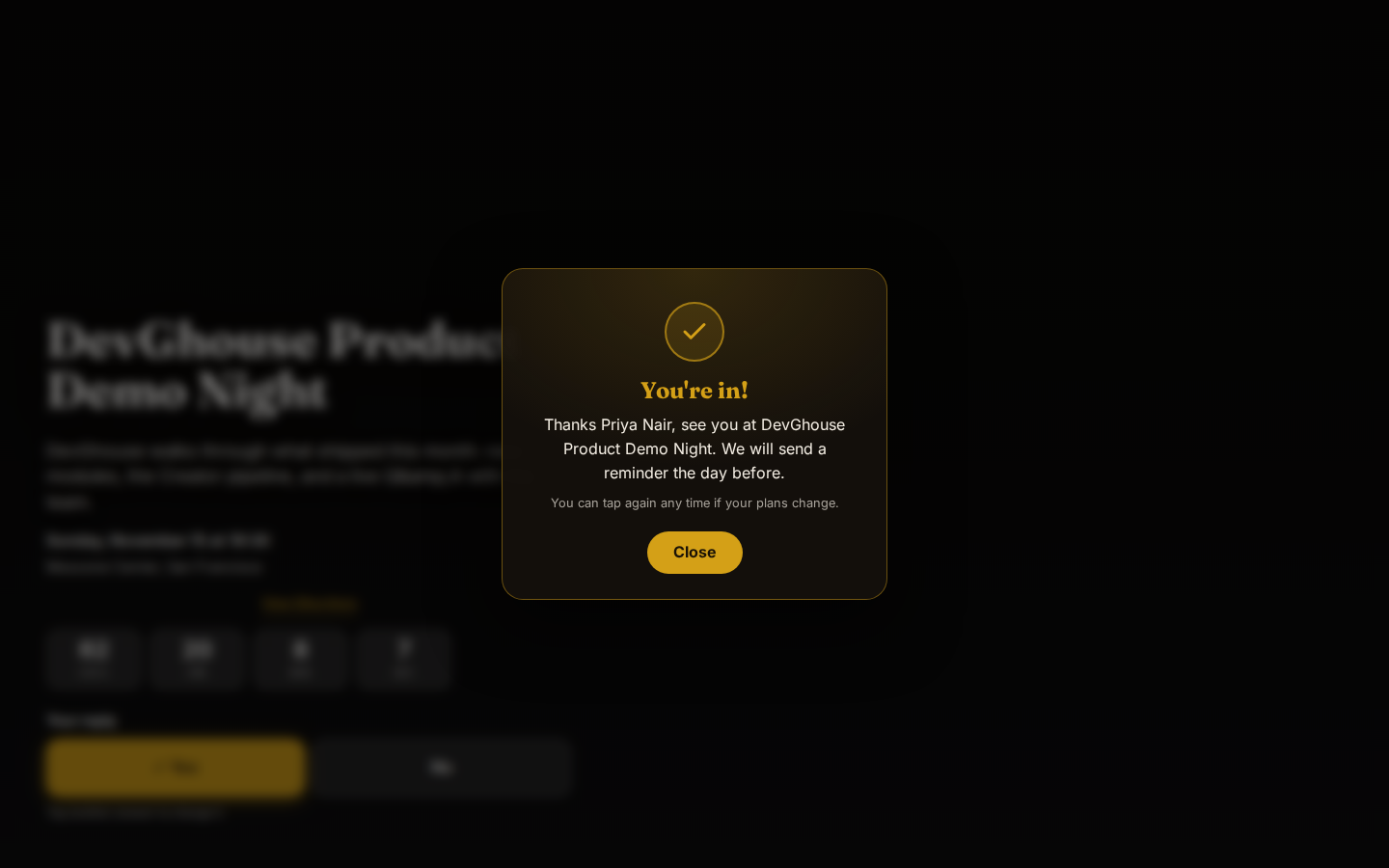
This is the page behind your invite link: the countdown, the date and location, a View Directions link, and the Yes / No RSVP buttons. Anyone with the link can open it and reply, whether or not they have a DevGhouse account. Answer once and the confirmation message you set in Actions shows immediately, like the guest above just saw after tapping Yes.
Sharing it
Every guest you add on the Guest list page gets their own personal invite link automatically. If you'd rather share one link with a group (a team, a class, a big family), turn on the join link instead: see Settings.