
Orders
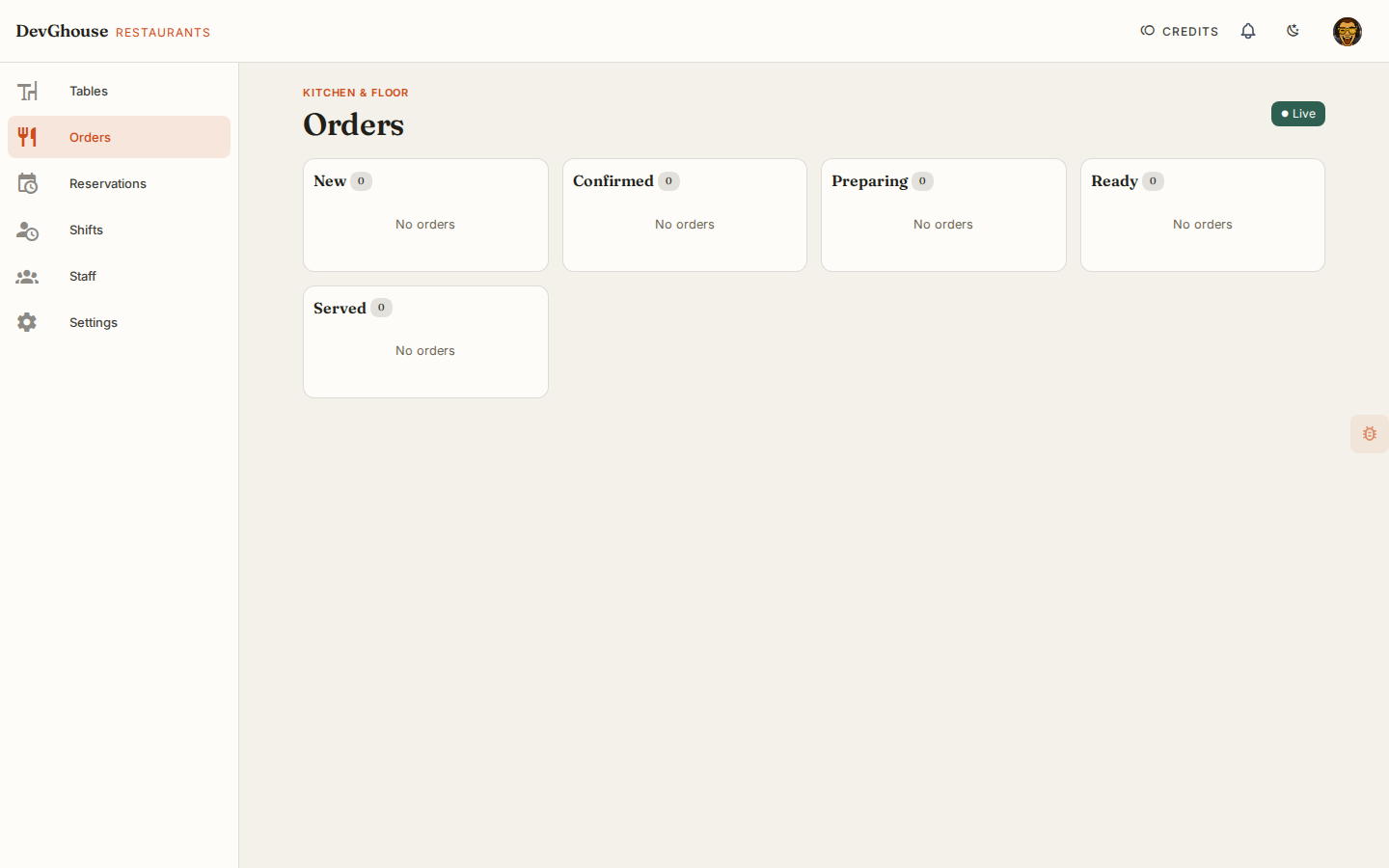
Orders is your kitchen-and-floor board: every order for the day, sorted into columns by status, updating live for everyone on shift.
Where orders come from
Orders arrive from guests scanning a table's QR code and ordering from your public menu, once Table ordering enabled is switched on in Settings. Each new order lands in the New column automatically; staff don't type orders in by hand.
Move an order along
Every order card shows the table, the guest's name if they gave one, how long ago it came in, what was ordered, and the total.
- Click Mark Confirmed on a New order to acknowledge it.
- Keep clicking the button on each card as it moves through Preparing, Ready, and Served. The button always names the next step.
- Click Cancel on a card at any point before it's served if an order needs to be pulled.
The Live chip in the top right confirms your board is receiving updates in real time; if it says Connecting…, orders are still loading or your connection is catching up.
Turning ordering on
If every column looks unavailable rather than empty, table ordering likely isn't switched on yet for your restaurant. A manager can turn it on from Settings → Ordering & reservations.