
Reservations
Reservations is your host stand for the day: every booking a guest has made, in time order, with the actions you need to move each one along.
Where reservations come from
Reservations are meant to arrive from your public booking site once Reservations enabled is switched on in Settings, each with the guest's name, phone number, party size, and requested time. That public booking site is still being built, so for now your list only fills up with bookings support adds on your behalf from a phone or walk-in call. Note those down the way you do today, and check back here as the public site rolls out.
Working a booking
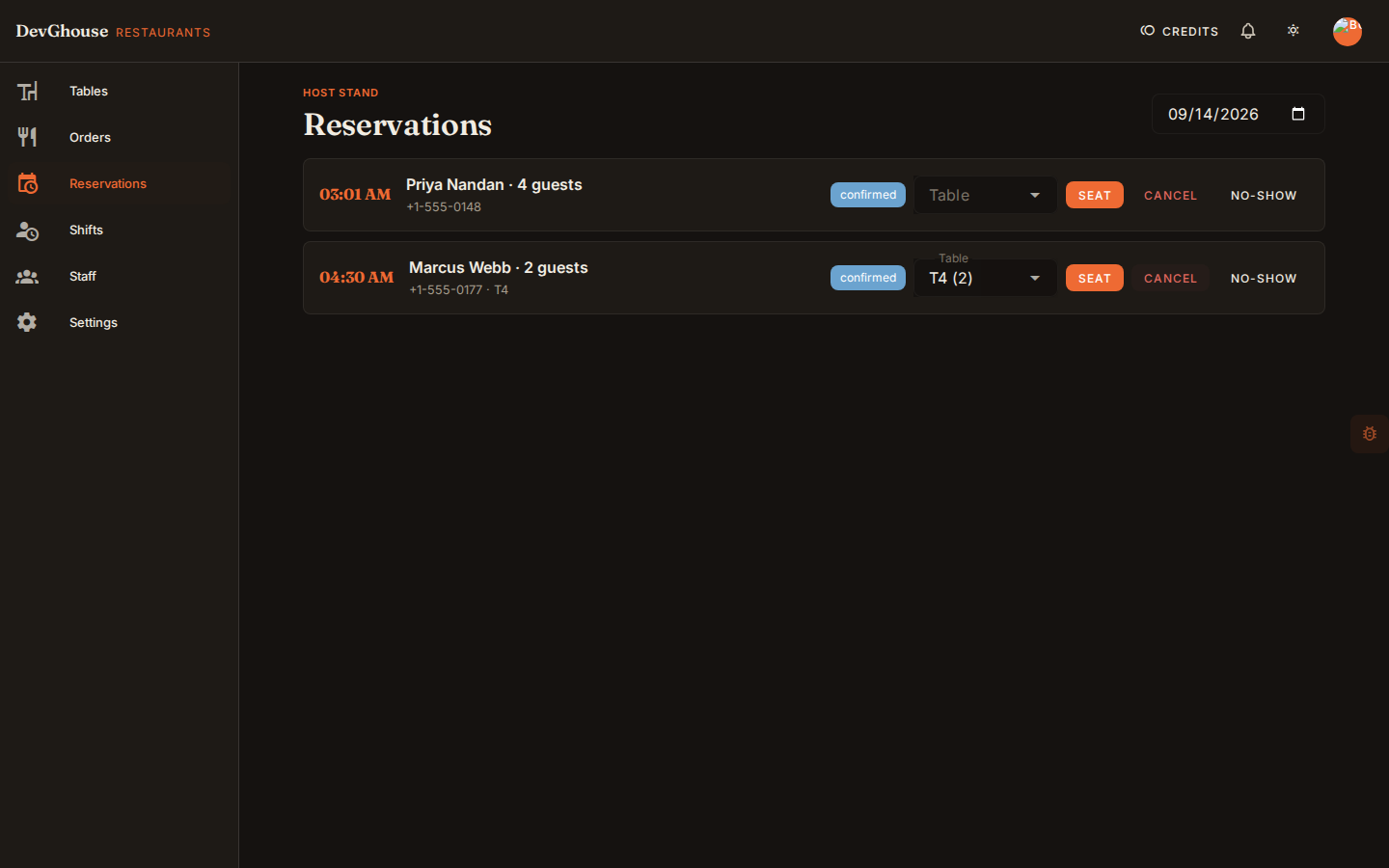
Pick any date with the picker in the top right to see that day's list. Each row shows the time, guest, party size, and phone number, with a status chip: pending, confirmed, seated, cancelled, or no-show.
- Confirm a pending booking once you've checked it against your floor. Pick a free table from the dropdown first if you already know where you'll seat them, the way Marcus Webb's booking above was confirmed straight onto T4.
- Once confirmed, pick a table from the dropdown of free tables if you haven't already, then click Seat when the guests arrive. Seating a reservation marks its table occupied on your floor plan; confirming one onto a table marks it reserved.
- Cancel works on a pending or confirmed booking.
- No-show marks a confirmed booking whose guests never arrived.
Turning reservations on
If a day you expect bookings on shows nothing, check that Reservations enabled is switched on in Settings → Ordering & reservations, and confirm your Max party size covers the group sizes you take.