
Autopilot
Autopilot writes blog posts for you on a schedule: it picks a topic, researches it, writes a full post in your voice, and either saves it as a draft or publishes it, without you opening the editor. It belongs to a website's blog, so you need a website connected before you can turn it on.
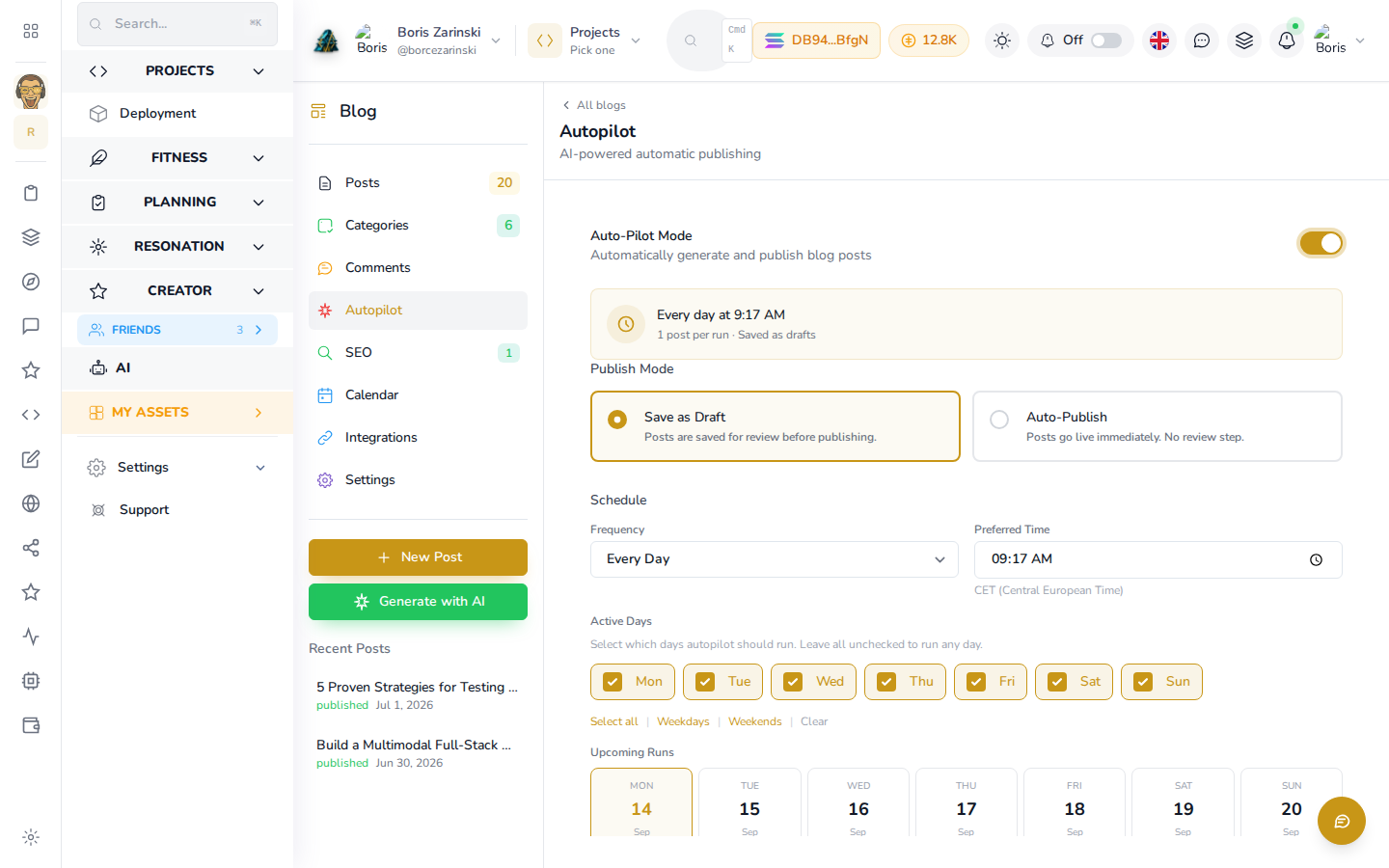
Turning it on
- Open the website's blog and click Autopilot in the left panel.
- Switch Auto-Pilot Mode on.
- Set the options below (covered next), then click Save Settings.
Where it gets its topics
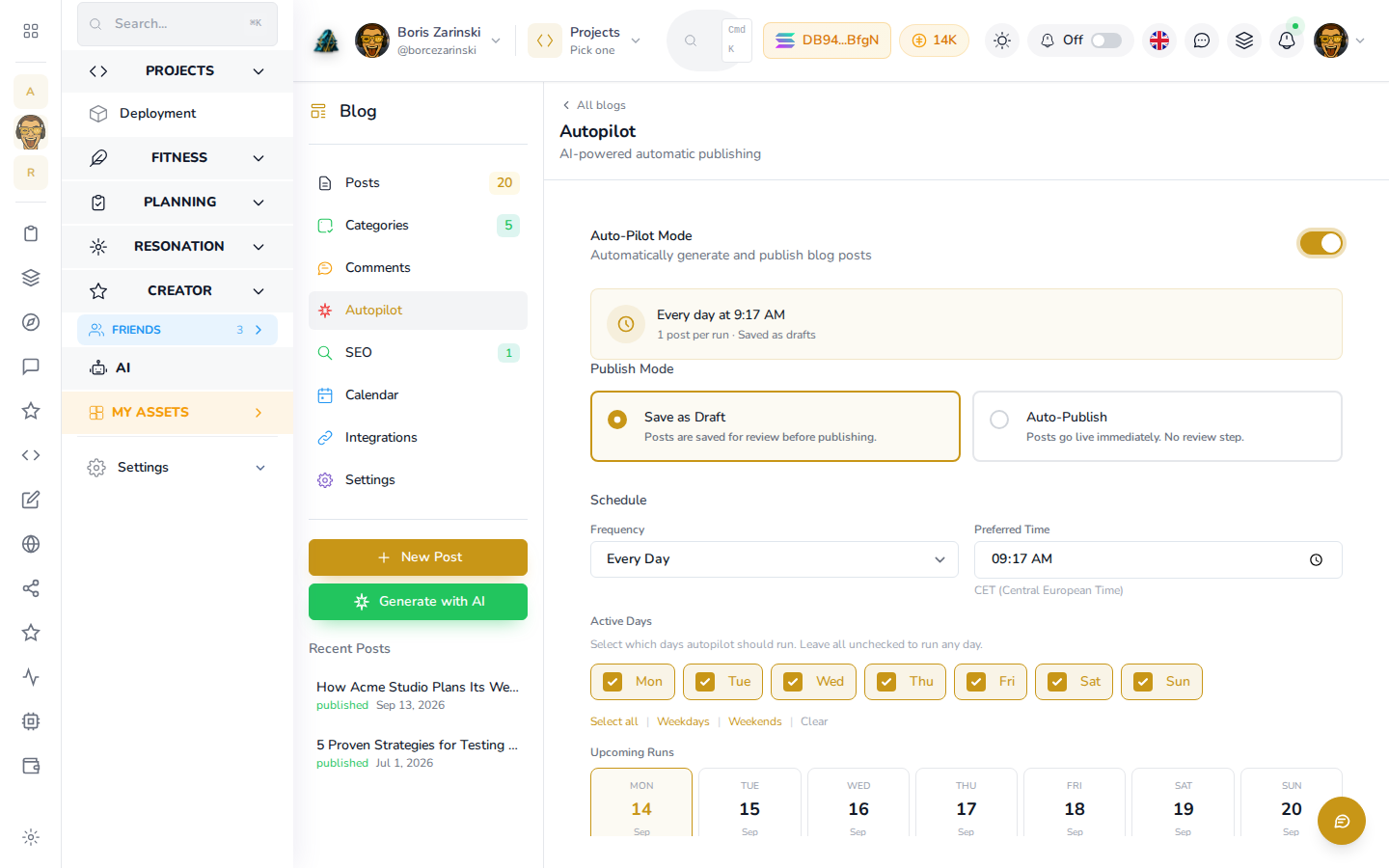
Autopilot does not ask you to type in topics. It picks its own, automatically, based on your blog's Categories and your profile. If your blog has no categories yet, a banner on this screen says so and links you straight to Categories. Add a few categories there to steer what autopilot writes about; see Categories.
Setting the schedule and voice
Once Auto-Pilot Mode is on, the rest of the screen fills in:
- Publish Mode: Save as Draft holds each generated post for your review, Auto-Publish puts it live immediately with no review step.
- Schedule: a Frequency (from twice a day to weekly) and a Preferred Time.
- Active Days: pick which days of the week autopilot is allowed to run, or leave them all checked to run any day. Upcoming Runs below shows the next seven scheduled dates and times.
- Sync to Twitter: if Auto-Publish is on and you have connected X (Twitter), a switch here tweets a thread automatically for every post autopilot publishes.
Click Save Settings when you are done.
The AI model, image provider, post format and read-time target autopilot writes with come from the same AI pipeline defaults every AI-written post on this blog uses. See Settings for that screen. Finer voice and keyword tuning is available to an assistant through blog_update_settings; see Working with agents.
Credits, status and running it on demand
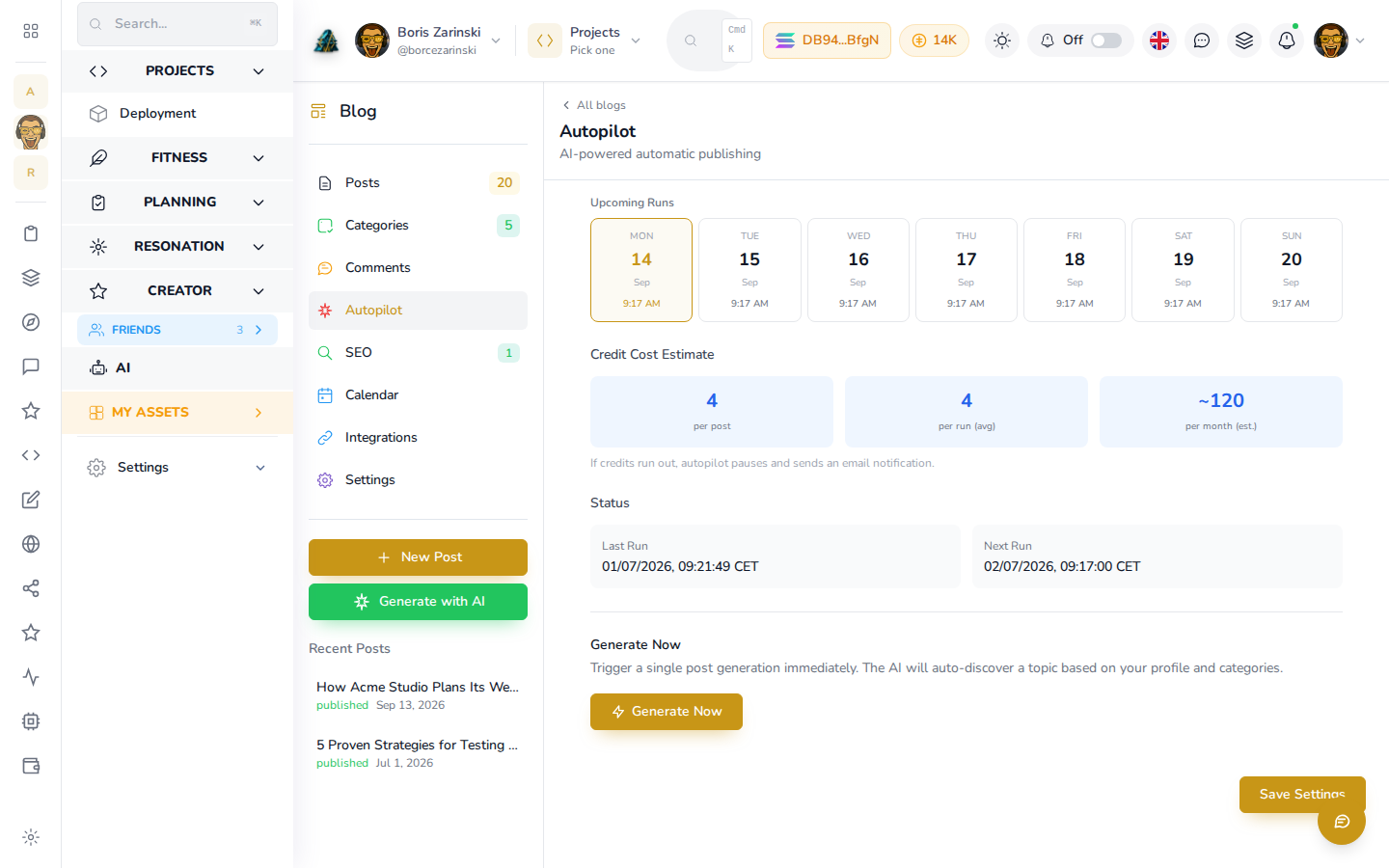
Further down the same screen:
- Credit Cost Estimate shows the credits per post, per run, and an estimate for the month, so you know what a schedule costs before you commit to it. If credits run out, autopilot pauses itself and emails you.
- Status shows the last time autopilot ran and when it is due to run next.
- Generate Now triggers a single post generation immediately, without waiting for the schedule. Click it any time you want a post right away; it costs the same credits as a scheduled run.
An assistant connected through MCP can trigger the same on-demand run with blog_run_autopilot, and read or change the schedule with blog_get_autopilot_settings / blog_update_autopilot_settings.
Where the posts go
Autopilot-written posts land in the same list as anything you write by hand: open the website's blog and look under Posts, or find them by date on the Calendar. If autopilot is set to draft mode, review them before publishing, just like your own drafts.