
Getting started
Finding Blog
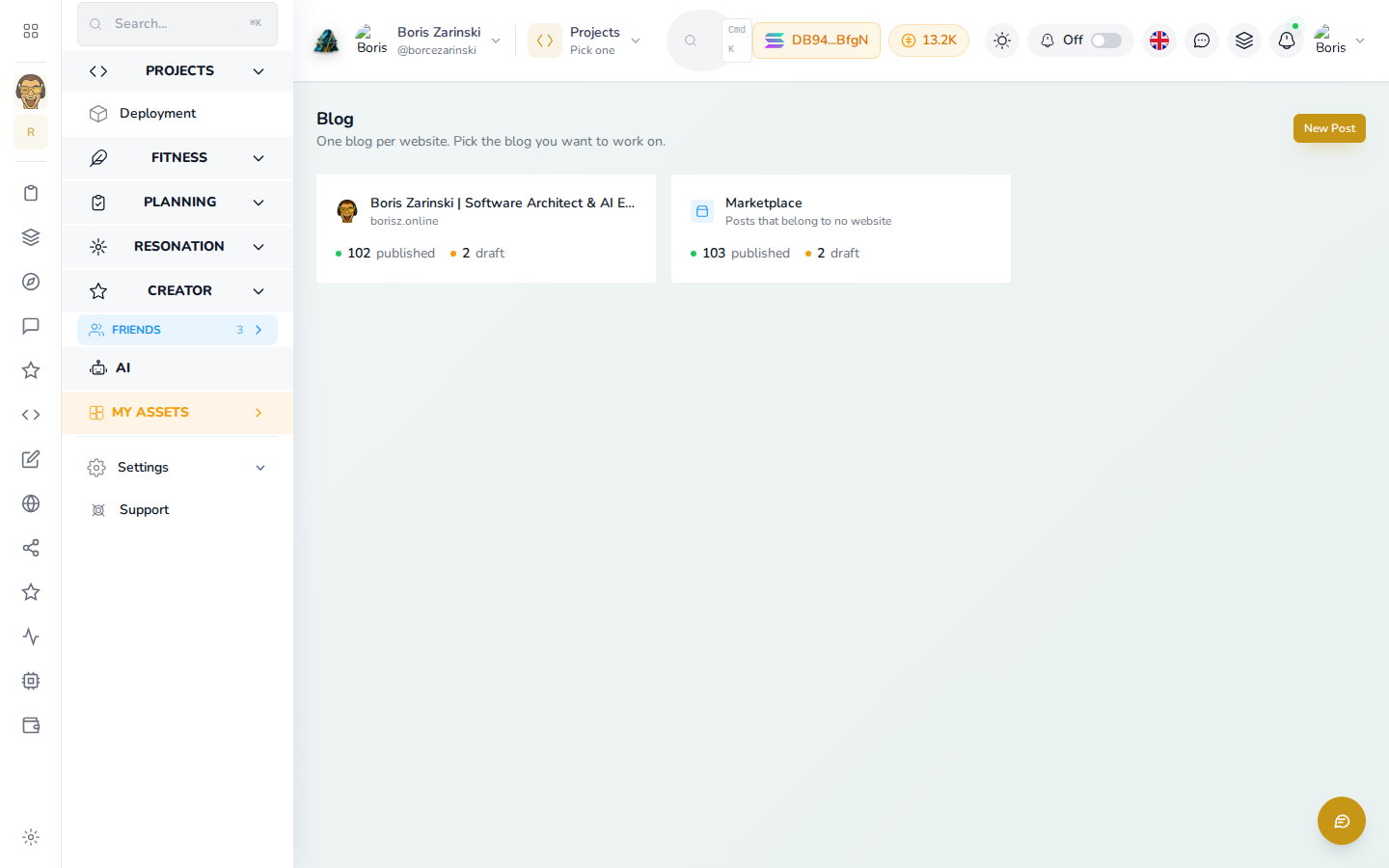
Blog does not have its own top-level entry in the left-hand menu. To open it:
- Sign in at app.devghouse.com.
- Go directly to app.devghouse.com/blog.
- You will see one card for each website you have connected, plus a Marketplace card for posts with no website. Each card shows how many posts are published and how many are still drafts.
- Bookmark this page. It is the fastest way back in.
If your account has the Marketplace module turned on, there is also a menu route: open the Marketplace section of the left-hand sidebar and click Blog there.
Writing your first post
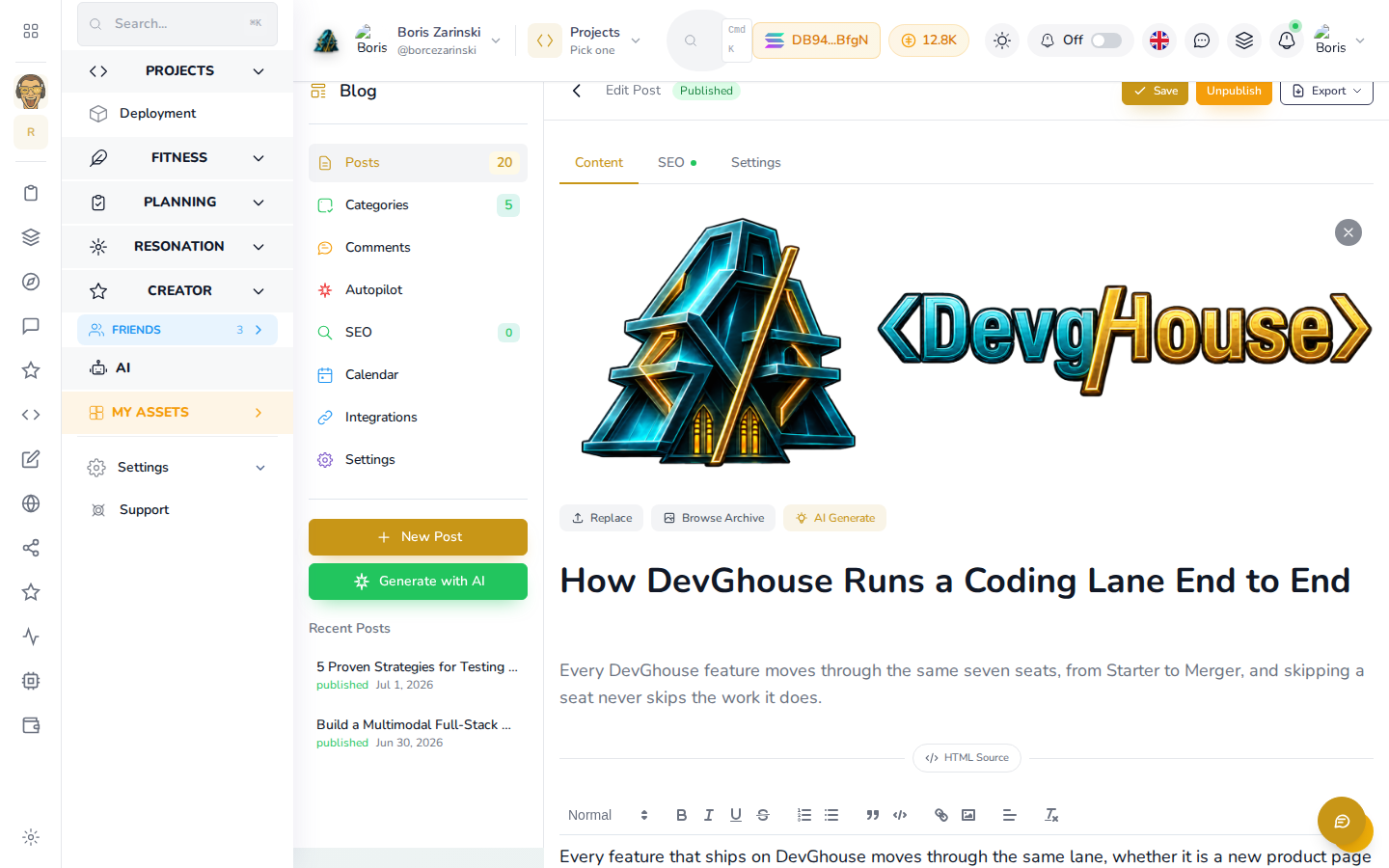
- From the Blog screen, click New Post (top right of any card's blog, or the button in the left panel once you are inside a blog).
- Type a title. Keep it short and specific: "How DevGhouse Plans Its Week" tells a reader more than "Update".
- Click into the body and write. The toolbar above it gives you bold, italic, headings, lists, quotes, links and images.
- Add a one- or two-sentence excerpt if you want a preview line to show on the blog's homepage. This is optional.
Choosing a home and saving
Every post needs a home before it can be saved: a website's own blog, or Marketplace if you do not have a website. Open the Settings tab of the editor, and under Home, pick one.
Until a home is picked, the Save button reads Choose a home instead of Save. That is not an error: it is telling you the one thing left to do. Pick a home, and the button switches to Save.
Click Save. Your post is now a draft: saved, but not visible to anyone else yet. See Writing and publishing a post for the full editor tour, including SEO details and the Publish button.