
Needs a reply
The Needs a reply screen is the heart of Communication. Instead of opening Gmail, then Outlook, then Telegram, you check one screen that already knows which messages need a reply, a follow-up, or nothing at all.
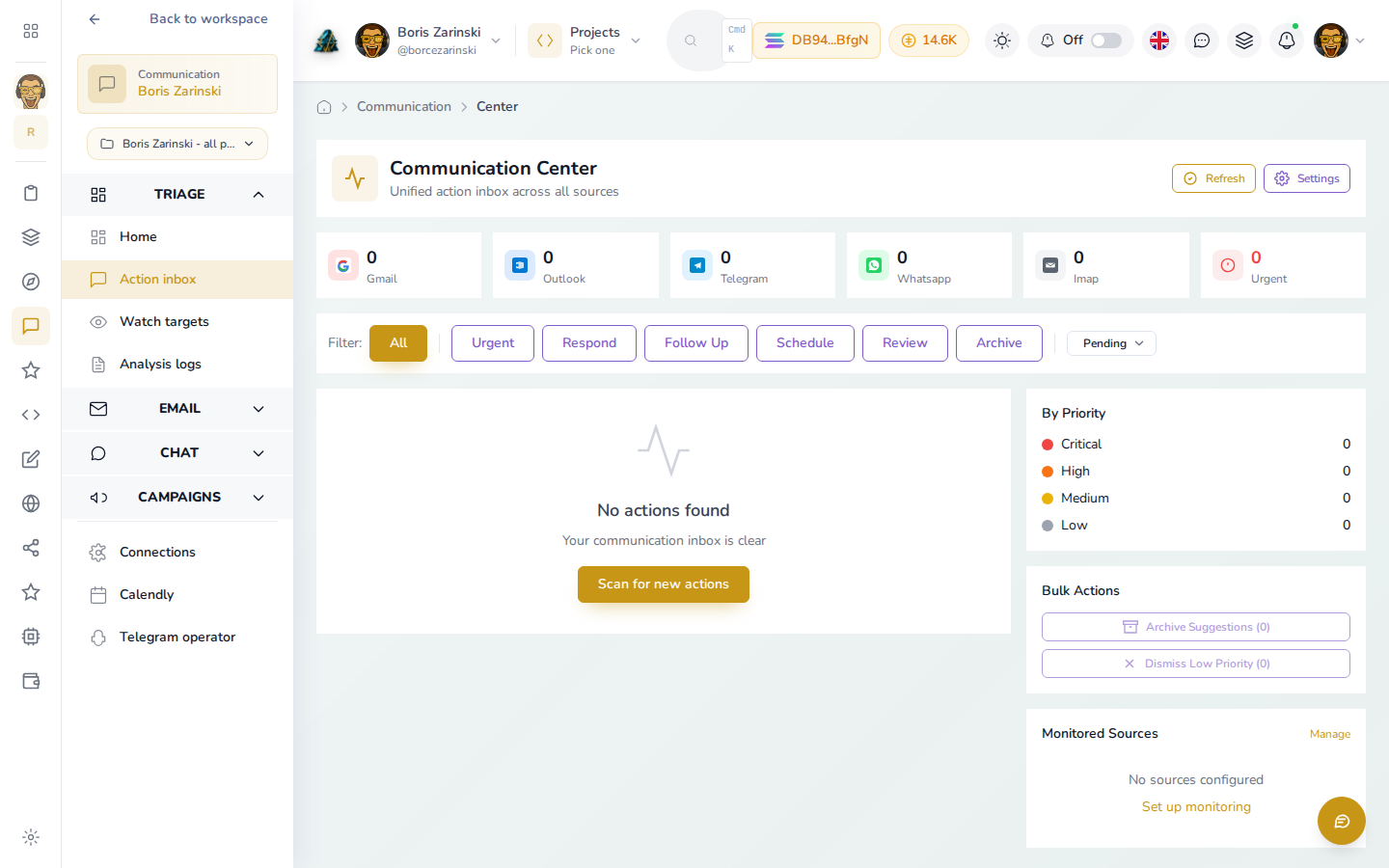
A brand new workspace starts here: no accounts scanned yet, nothing waiting. Once you connect a source and run a scan, this same screen fills in with real items.
Note: if you click Needs a reply in the sidebar from another Communication page and the screen comes up blank (just the sidebar, no counters or filters), refresh the page once. That's a known issue we're fixing; opening Needs a reply from a fresh page load isn't affected.
How to read the screen
- The row of counters across the top shows how many pending items come from each source: Gmail, Outlook, Telegram, WhatsApp, IMAP, plus a separate Urgent count.
- The filter chips (Urgent, Respond, Follow Up, Schedule, Review, Archive) narrow the list to one category. All shows everything.
- By Priority on the right breaks pending items into Critical, High, Medium and Low.
- Monitored Sources shows which mailboxes and chats are actually being watched right now, with a link to set that up if none are.
Work through your inbox
- Click Refresh in the top right, or Scan for new actions, to pull in anything new since the last check.
- Open an item to read the original message alongside a suggested reply.
- From there you can:
- Send the suggested reply as is, or edit it first.
- Archive it if it doesn't need a response.
- Dismiss it so it never comes back.
- Snooze it to resurface later (in an hour, tomorrow, or a time you pick).
- Create a task instead of replying, when the message is really a piece of work rather than something to answer.
- Use Bulk Actions in the sidebar to archive or dismiss several low-priority items at once instead of one at a time.
Where the items come from
Nothing shows up here on its own. An item appears after:
- You add the thread, sender or chat as a followed conversation, which scans it on a schedule, or
- You click Scan all or Refresh to check everything you've already told Communication to watch.
If your inbox is empty here but you know you have unread mail, check Settings to confirm the source is connected and monitoring is turned on.