
Calendly and Telegram operator
At the bottom of the Communication sidebar, under Connections, you'll see Telegram operator, and once you've connected Calendly (see below), a Calendly link joins it there too. Neither one is part of Needs a reply, followed conversations, or anything else this guide has covered so far. Here's what each one actually does.
Calendly
Calendly connects a scheduling account so people can book time with you. Once connected, a Book a Call button appears on your public profile's contact section, and your scheduling link is shown so you can share it directly.
Connecting Calendly for the first time happens outside Communication. The Calendly link only appears in Communication's sidebar after you've already connected the account, so there's nothing to click here on your first visit. Instead:
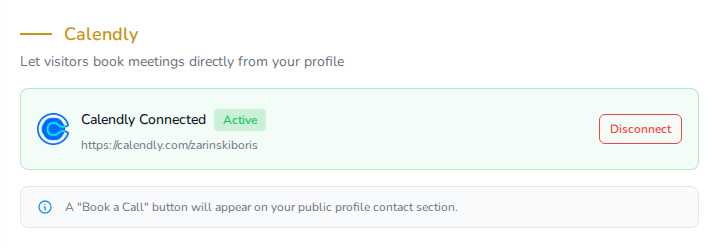
- Go to Marketplace > My Public Page, then open the Settings tab.
- Find the Calendly panel and click Connect.
- Sign in to Calendly and approve the connection.
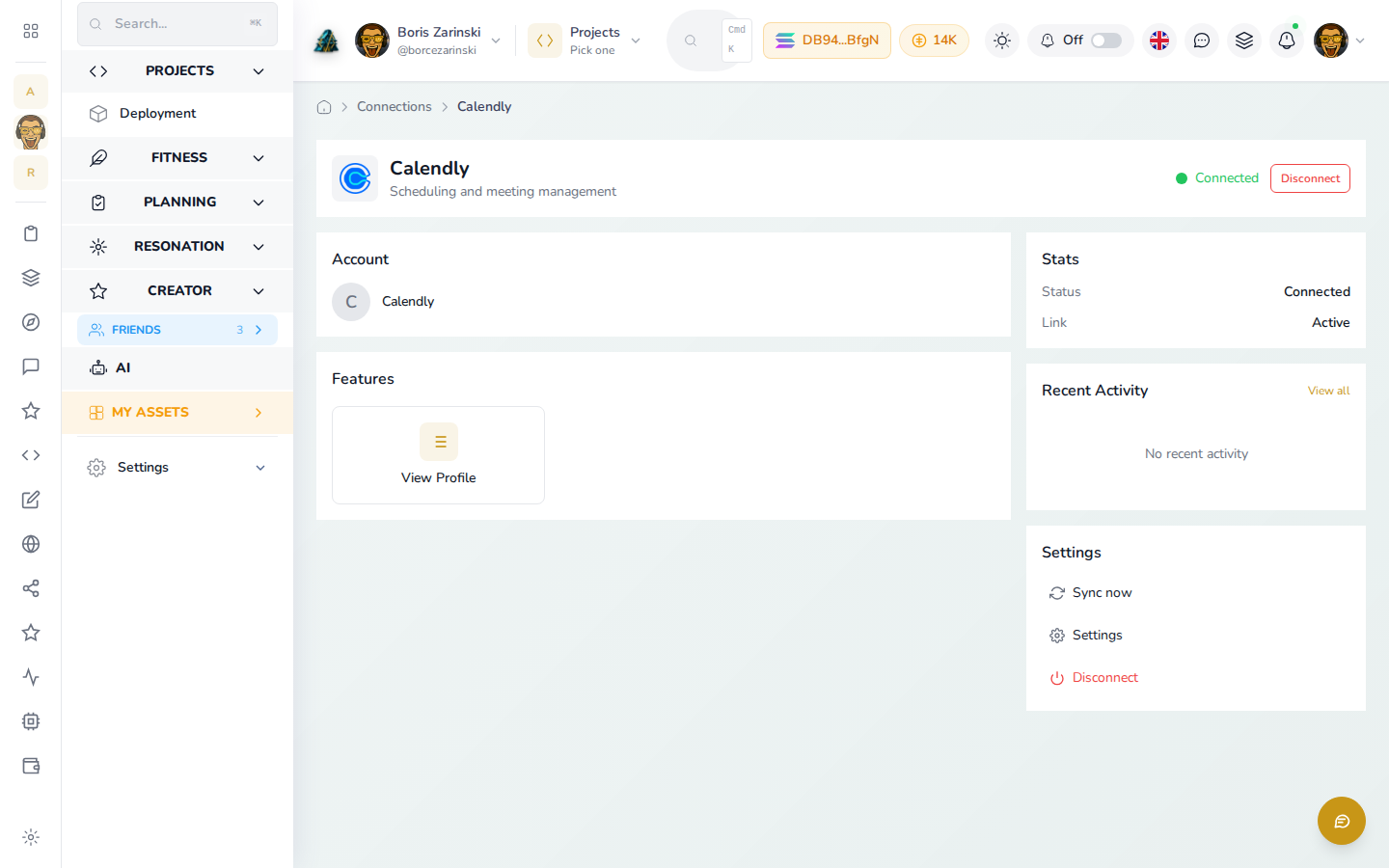
Once it's connected, a Calendly link appears at the bottom of Communication's sidebar (Connections > Calendly), and opening it shows your workspace's normal sidebar, the same one you see everywhere else, not a layout specific to Communication. From this page you can:
- Copy your scheduling link to share anywhere.
- See and cancel a booked meeting if a conflict comes up. Creating a new event type, booking a slot, or rescheduling one isn't available from your workspace; do that in Calendly itself.
- Disconnect the account, from the same Calendly panel under Marketplace > My Public Page > Settings where you connected it.
Telegram operator
Telegram operator turns your own Telegram bot into a personal assistant: message it, and it opens an AI agent session for you, right from your phone. This is separate from the Telegram and Telegram bot pages under Communication's own Chat section, which are about reading and replying to conversations, not opening agent sessions.
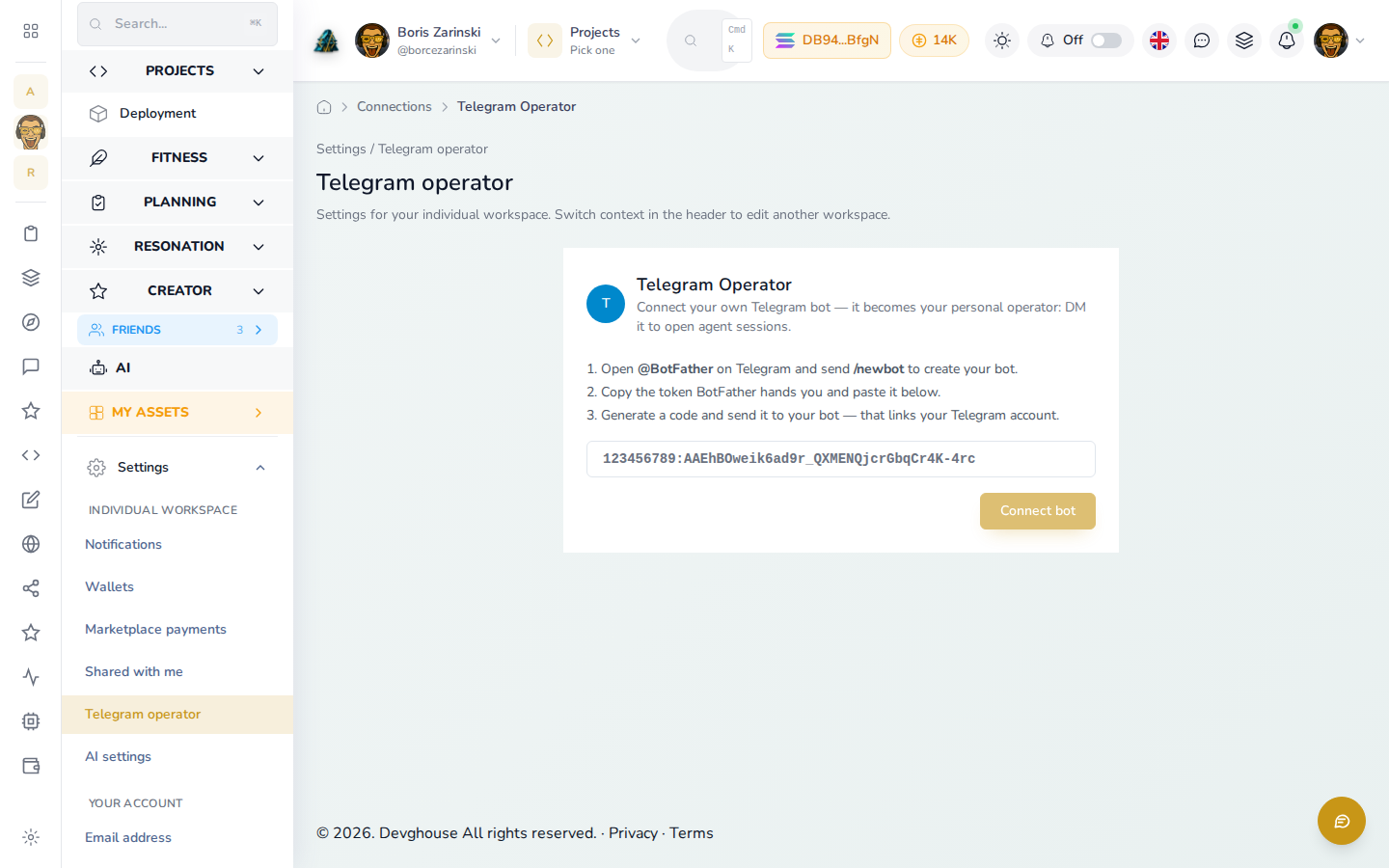
- Open @BotFather on Telegram and send
/newbotto create a bot (Telegram walks you through naming it). - Copy the token BotFather gives you and paste it in.
- Click Generate link code, then send the code to your new bot on Telegram. The bot confirms the link the moment the code arrives.
- From then on, DM your bot with something like "kimi" or "claude sonnet" followed by what you want done, and an agent session opens and messages you back on Telegram. Send
/clearto close a conversation and start fresh.
This page belongs to your workspace's general Settings, not Communication specifically; it's linked from here because it's another way messages tie into your workspace. Once connected, a routine or an agent session you're running can message you back through it with telegram_message_operator, useful for a routine that wants to flag something to you the moment it happens, rather than waiting for you to check in.