
Campaigns
Campaigns is a section in the Communication sidebar, below Email and Chat. It only appears once you've connected Gmail or Outlook, since sending a newsletter needs a real mailbox behind it. It covers two separate things: newsletters (your own subscriber lists, sent from your own mailbox) and Google Ads (search campaigns, either imported from a CSV export or managed live).
Newsletters
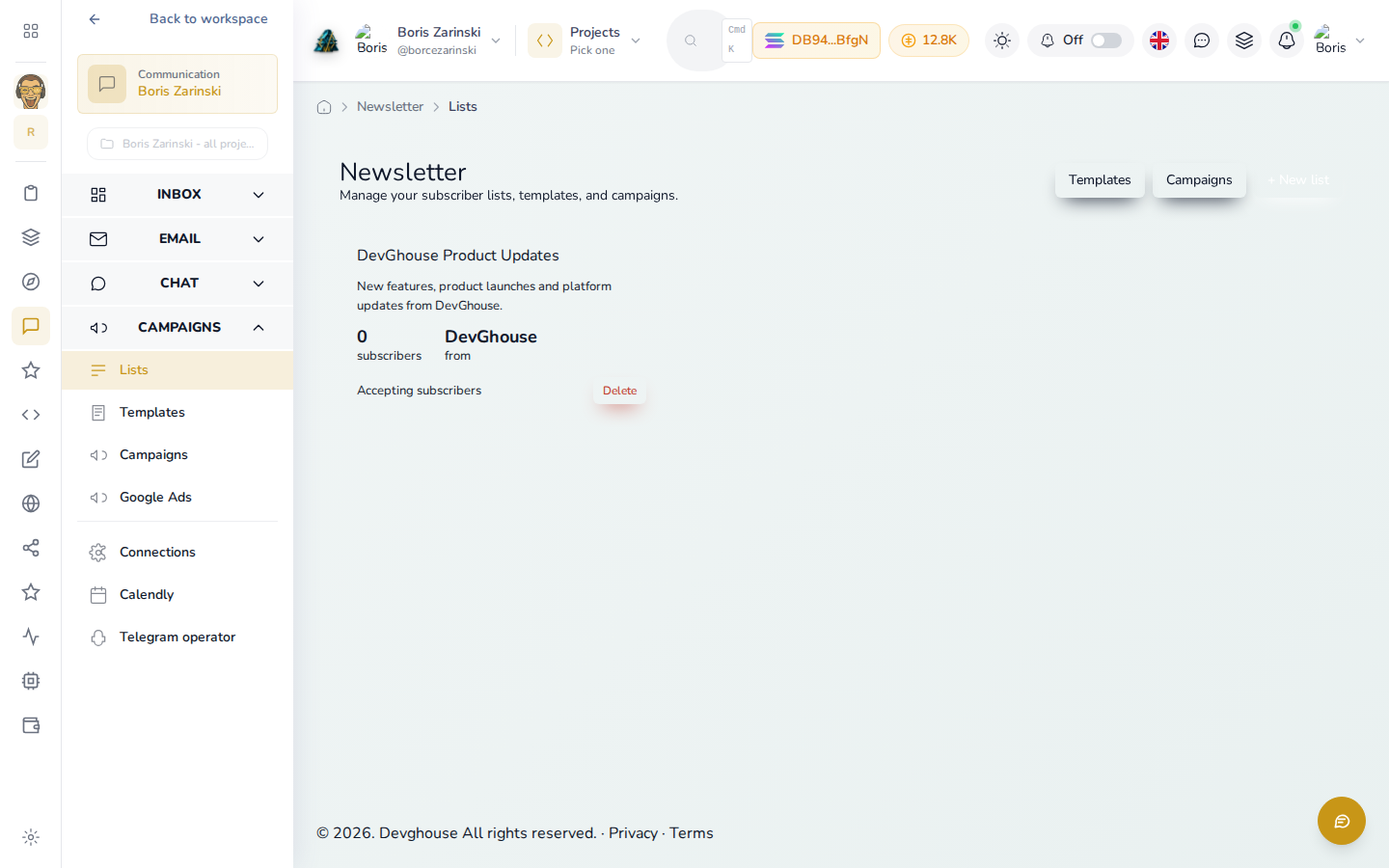
Build a list
- Open Campaigns > Lists, then click + New list.
- Give it a name (shown to subscribers), a "from" name (what shows in their inbox), and an optional description.
- Save. The list gets its own page with tabs for Subscribers, Settings, Embed & Share, and Campaigns.
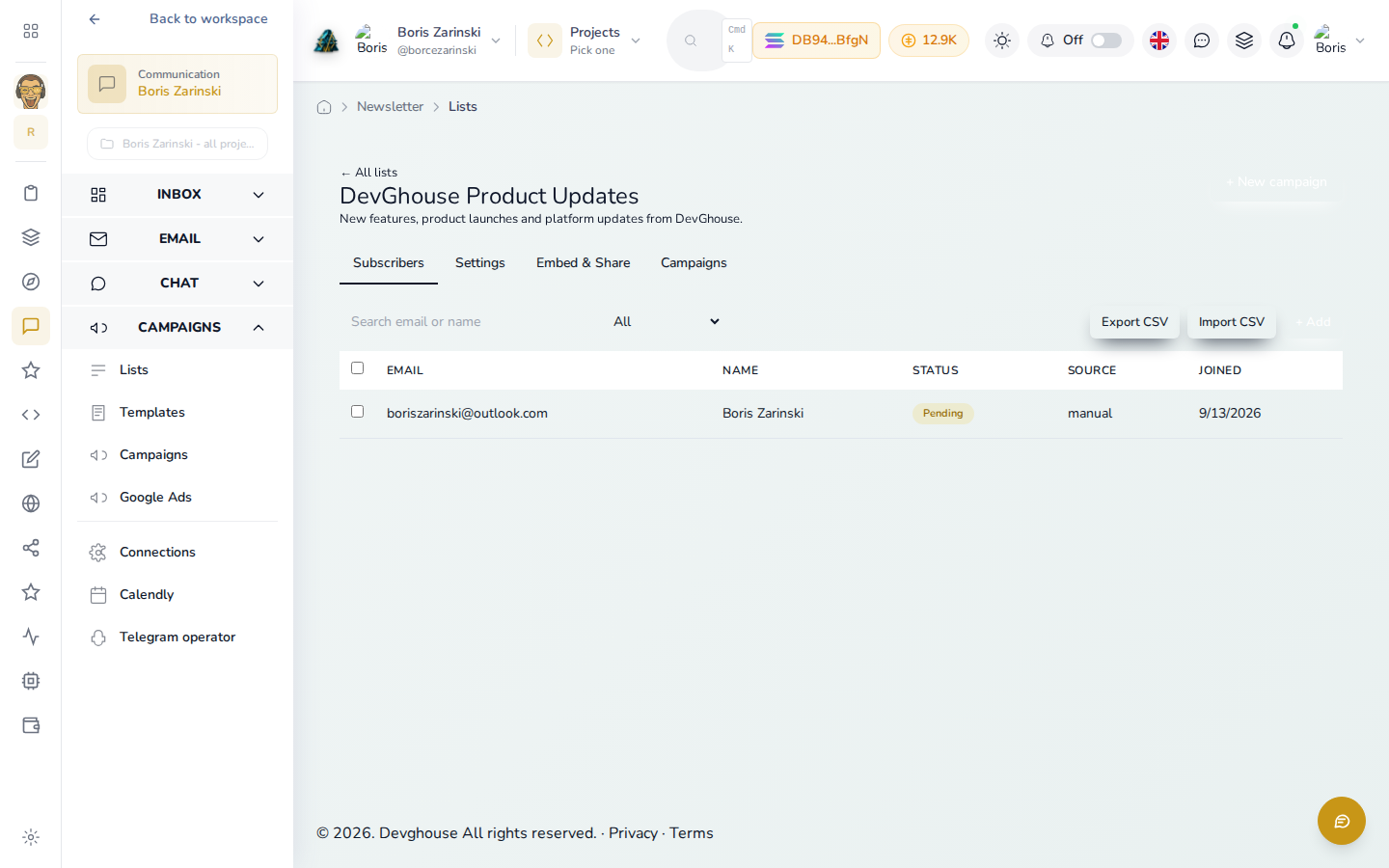
- Add subscribers one at a time with + Add (fill in their email and, optionally, a name), or Import CSV for a batch. Embed & Share gives you a public sign-up page and an embeddable form for your own site.
- By default a new subscriber is Pending until they confirm by email (double opt-in), exactly as shown above. You can turn this off in the list's Settings tab if you'd rather add people directly as confirmed.
Design and send a campaign
- Open Campaigns > Campaigns, then click + New campaign.
- Pick the list to send to, and optionally a saved template to start from.
- Write a subject and a preheader (the preview text shown next to the subject in an inbox), then build the email with blocks: header, heading, paragraph, image, button, divider, spacer, footer.
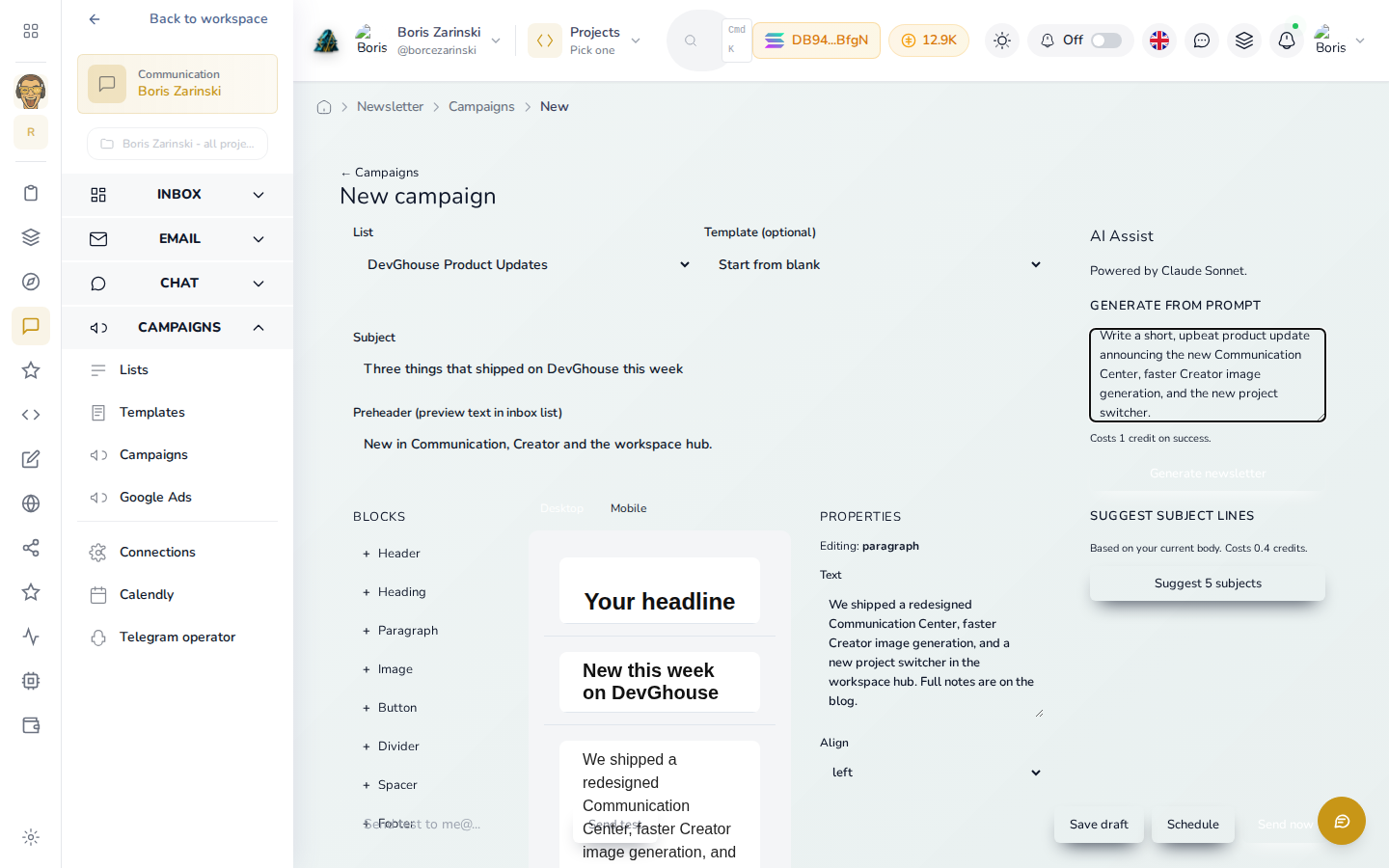
- Don't want to write it yourself? Use AI Assist: describe what the email should say (as typed into the prompt box above) and it drafts a subject, preheader and full body for you (costs 1 credit). Suggest 5 subjects rewrites just the subject line off your current body (costs 0.4 credits).
- Send test mails the draft to yourself first. Save draft keeps it without sending. Send now sends it immediately to every confirmed subscriber on the list; there's no way to edit it once sending has started.
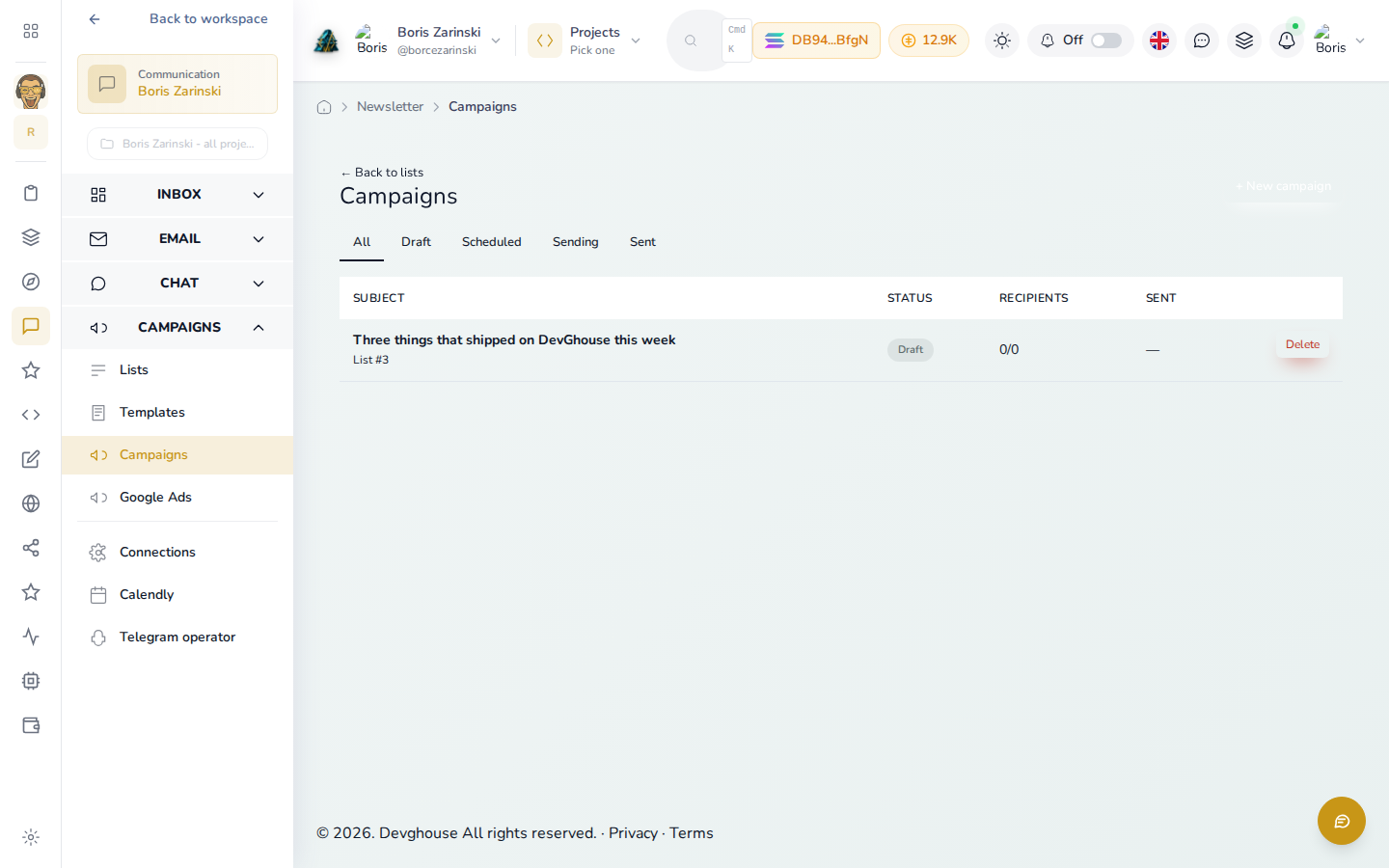
If Send now tells you no mailbox is connected, go back to Getting started and connect Gmail or Outlook first: a campaign sends through your own connected mailbox, not a shared one.
Templates
Campaigns > Templates holds reusable designs you can start a new campaign from, so you're not rebuilding your header and footer every time. Create one from scratch, from an AI prompt, or by pasting existing HTML.
Google Ads
Campaigns > Google Ads opens a separate screen (Marketing) for two different things:
- Imported campaigns: if you've exported a Google Ads account as CSV, import it under a website's own marketing workspace, and the numbers (cost, campaign type, conversions) show up here across every website in your workspace. This needs no live Google Ads connection.
- A live, connected Google Ads account: click Connect Account to manage real campaigns, view performance analytics, and build a new search campaign from a keyword shortlist. A campaign built this way is always created paused; nothing spends until you review it and turn it on yourself.
Google Ads is its own area of your workspace (it has its own sidebar, separate from Communication's), so this page is a starting point rather than the full picture. It's linked from here because building an audience with a newsletter and reaching one with paid search are both part of getting the word out.
Run it with an AI assistant
A connected assistant can build the list, draft the copy and send the campaign for you, using the same tools this page describes: newsletter_list_create and newsletter_list_list, newsletter_subscriber_add and newsletter_subscriber_list, newsletter_template_create and newsletter_template_list, newsletter_campaign_create and newsletter_campaign_list, newsletter_campaign_send_now, and newsletter_ai_generate to write the copy itself. For Google Ads: google_ads_status, google_ads_campaigns, google_ads_campaign_metrics, google_ads_create_campaign_from_keywords (always paused), google_ads_enable_campaign and google_ads_pause_campaign. See Run it with an agent for how this fits alongside the rest of Communication.