Telegram and Telegram bots
Communication supports two different kinds of Telegram connection, and they solve different problems.
Your personal Telegram account
Connect your own Telegram account to read and reply to chats from inside your workspace, the same way the mailbox pages work for email.
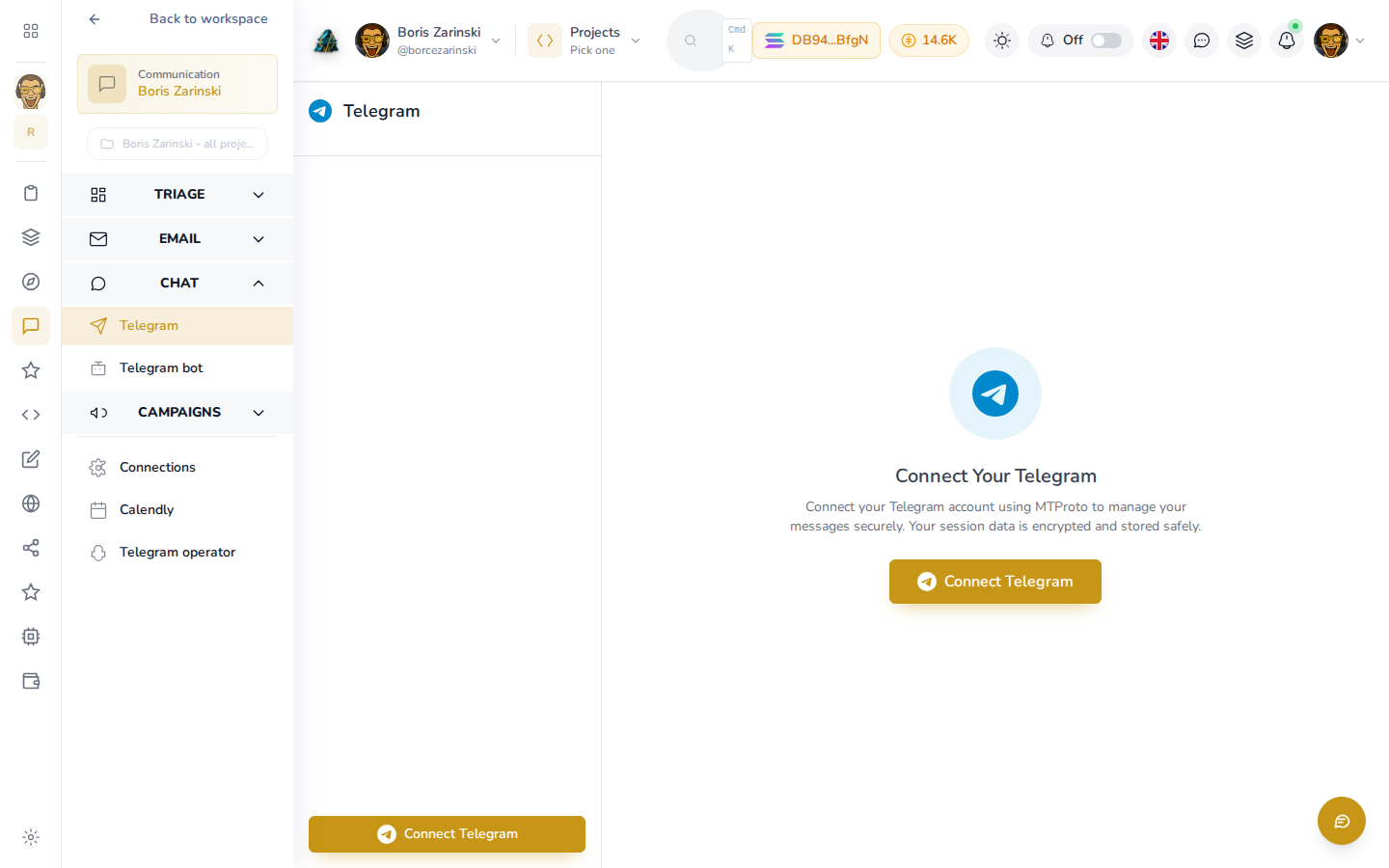
- Open Chat > Telegram in the sidebar.
- Click Connect Telegram and follow the prompts. Your session is encrypted and stored safely.
- Once connected, your conversations list on the left, and opening one shows the full chat on the right, the same way it does in Telegram itself.
You can also add a Telegram chat as a followed conversation, so it gets scanned and drafted replies prepared the same way an email thread does.
Telegram bots
If you run a storefront or support line through a Telegram bot, connect that separately under Chat > Telegram bot. A bot connection lets you read the chats people have started with your bot and reply from your workspace, which is useful for answering customers without a person watching the bot around the clock.
- Open Chat > Telegram bot.
- Enter the bot token from Telegram's BotFather.
- Once connected, chats the bot has been added to show up the same way a personal Telegram chat does.
Managing the connection
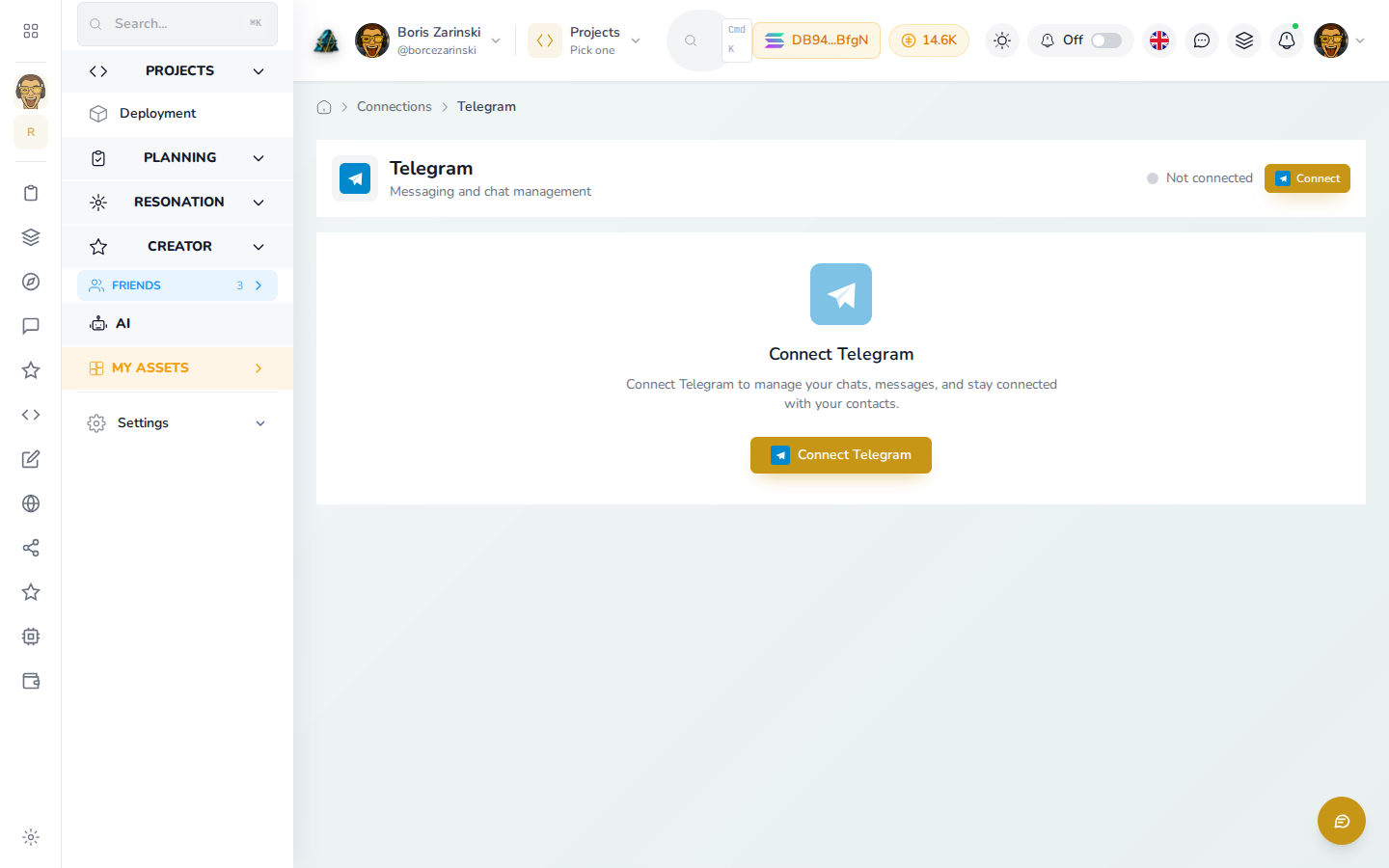
Open Connections > Telegram to see the connection's status and disconnect it if you need to.
WhatsApp: coming soon
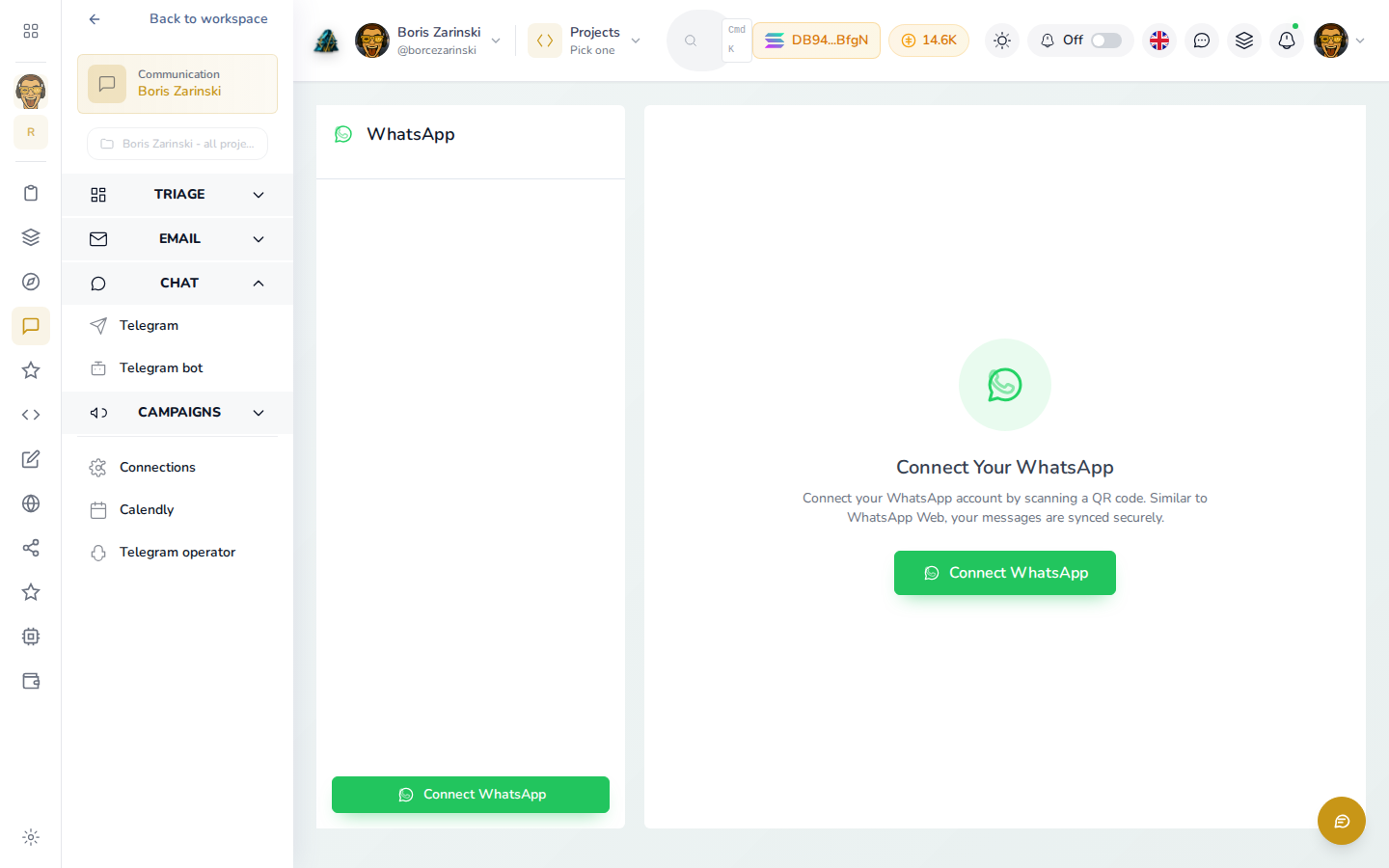
WhatsApp shows up as a connection option with a QR code sign-in screen, but it isn't wired up to Communication's Needs a reply or followed conversations yet. Treat it as a preview of what's coming, not something to rely on today.