
Gmail, Outlook and IMAP
Once a mailbox is connected, you can work it directly from your workspace instead of switching to Gmail or Outlook in another tab.
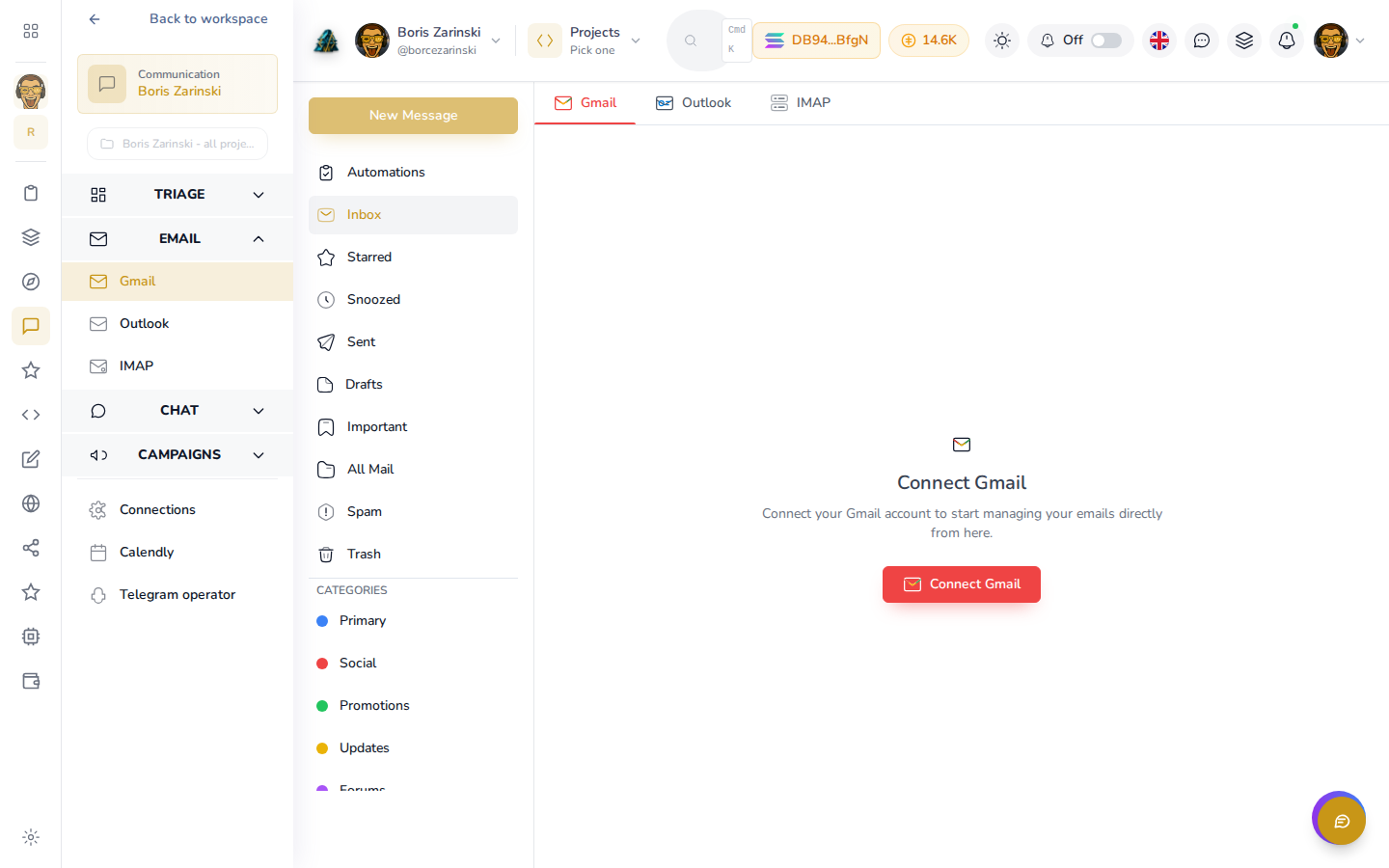
Each provider gets its own tab (Gmail, Outlook, IMAP) under Email in the sidebar, with the same layout: a folder list on the left (Inbox, Starred, Snoozed, Sent, Drafts, and more), and messages on the right.
Everyday tasks
- Open Email > Gmail (or Outlook, or IMAP) in the sidebar.
- Browse folders the same way you would in the provider's own app: Inbox, Sent, Drafts, Trash, and any labels or categories you already use.
- Click a message to read it.
- Use New Message to start a new email.
What each provider supports
The three mailboxes aren't identical. A few differences worth knowing:
- Reply inside the same thread is available for Outlook. For Gmail and IMAP, replying sends a new message rather than continuing the existing thread.
- Attachments (viewing and downloading) only work for Outlook today.
- Forwarding a message isn't available yet for any provider.
- Gmail organizes mail with labels rather than folders, so moving a message into a folder isn't available for Gmail; archiving, starring or trashing cover the same need.
- Focused inbox (Outlook's way of separating important mail from the rest) can be adjusted per sender from Outlook only.
Disconnecting
Open the provider's connection page (Connections in the sidebar, then the provider) and click Disconnect. This stops Communication from reading that mailbox; it doesn't delete anything from your actual Gmail, Outlook or IMAP account.