
Getting started
Communication does nothing until you connect at least one account. You can connect as many or as few as you use: Gmail, Outlook, an IMAP mailbox, and Telegram are all independent, and nothing is required.
Connect Gmail
- Open Communication from your workspace's sidebar, or go to
/communication/dashboard. - Under Connections, find the Gmail card and click Get Started.
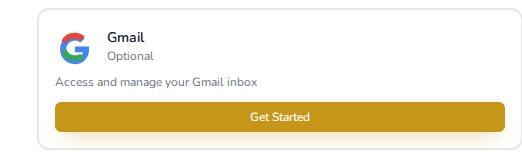
- Get Started takes you straight to Google's own sign-in screen, no page in between. Sign in with the Google account you want to connect and approve access.
- You're back in your workspace, and Gmail now shows as connected.
Connect Outlook
- From the same Connections area, click Get Started on the Outlook card.
- Sign in with your Microsoft work or personal account and approve access.
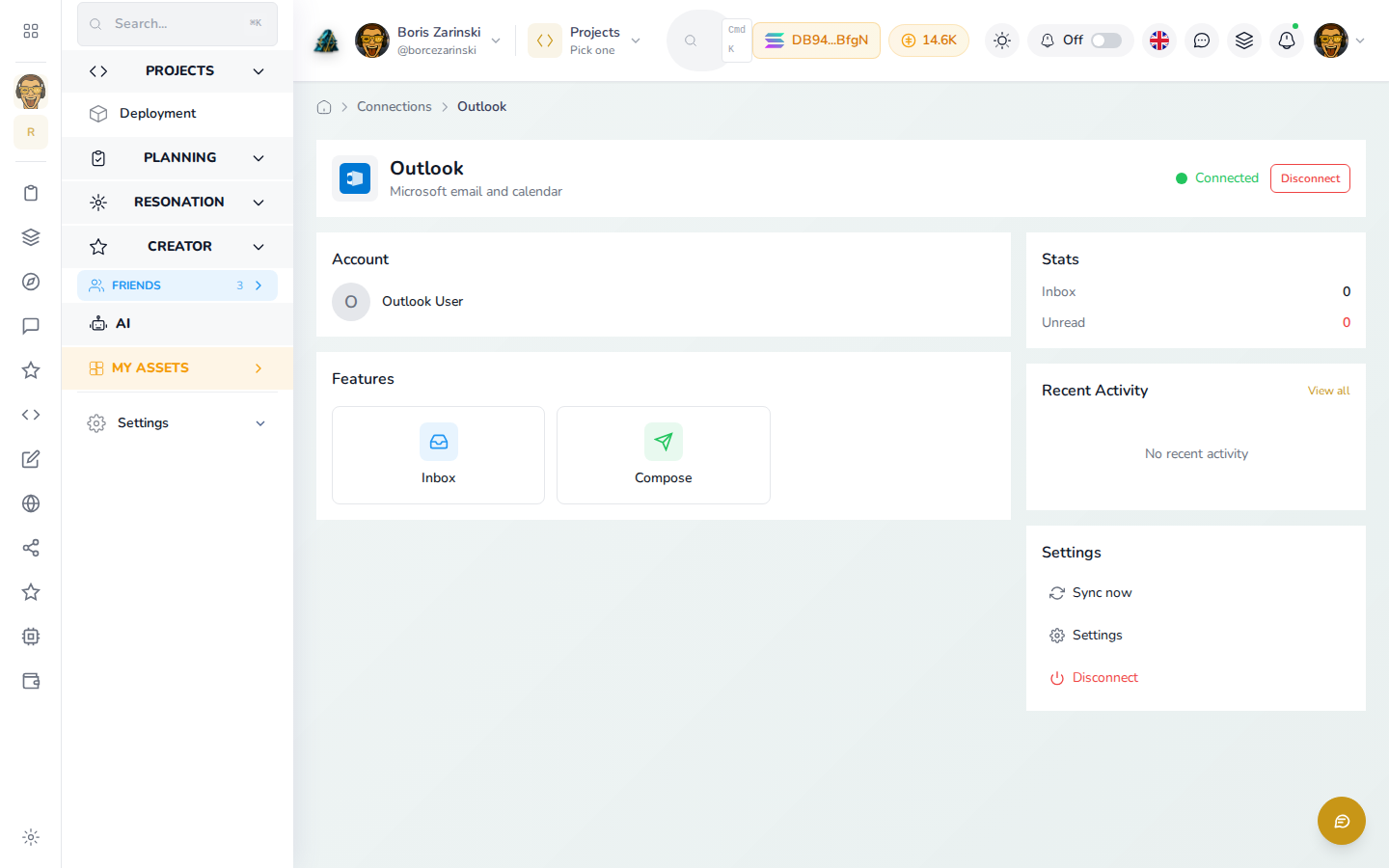
- Once connected, the Outlook page shows your account, an Inbox and Compose shortcut, and a Sync now button if you ever want to refresh manually.
Connect Telegram
- Click Get Started on the Telegram card, or open Chat > Telegram in the sidebar.
- Follow the prompts to link your Telegram account. Your session is encrypted and stored safely, the same way logging into Telegram Web works.
- Once connected, your chats appear inside the Telegram page in your workspace.
Connect an IMAP mailbox
If your email runs through a small hosting provider rather than Gmail or Outlook, use IMAP instead:
- Open Email > IMAP in the sidebar.
- Enter your mailbox's host, port, username and password.
- Save the connection. Your inbox now reads the same way Gmail and Outlook do.
What happens next
Once at least one account is connected, three things become available:
- Needs a reply starts showing anything that source has that needs a reply, once you scan it.
- You can add a followed conversation so a specific thread, sender or chat gets checked automatically and gets a drafted reply ready for you.
- The mailbox and chat pages let you read, search and reply directly.
Nothing is scanned or monitored automatically the moment you connect. You choose what gets watched in Settings.