
Followed conversations and drafted replies
This is the part of Communication that does the most work for you. Instead of scanning your whole inbox, you pick exactly the conversations that matter and let it check them on a schedule, one thread, sender, or chat at a time. In the app this feature is labeled Fixer.
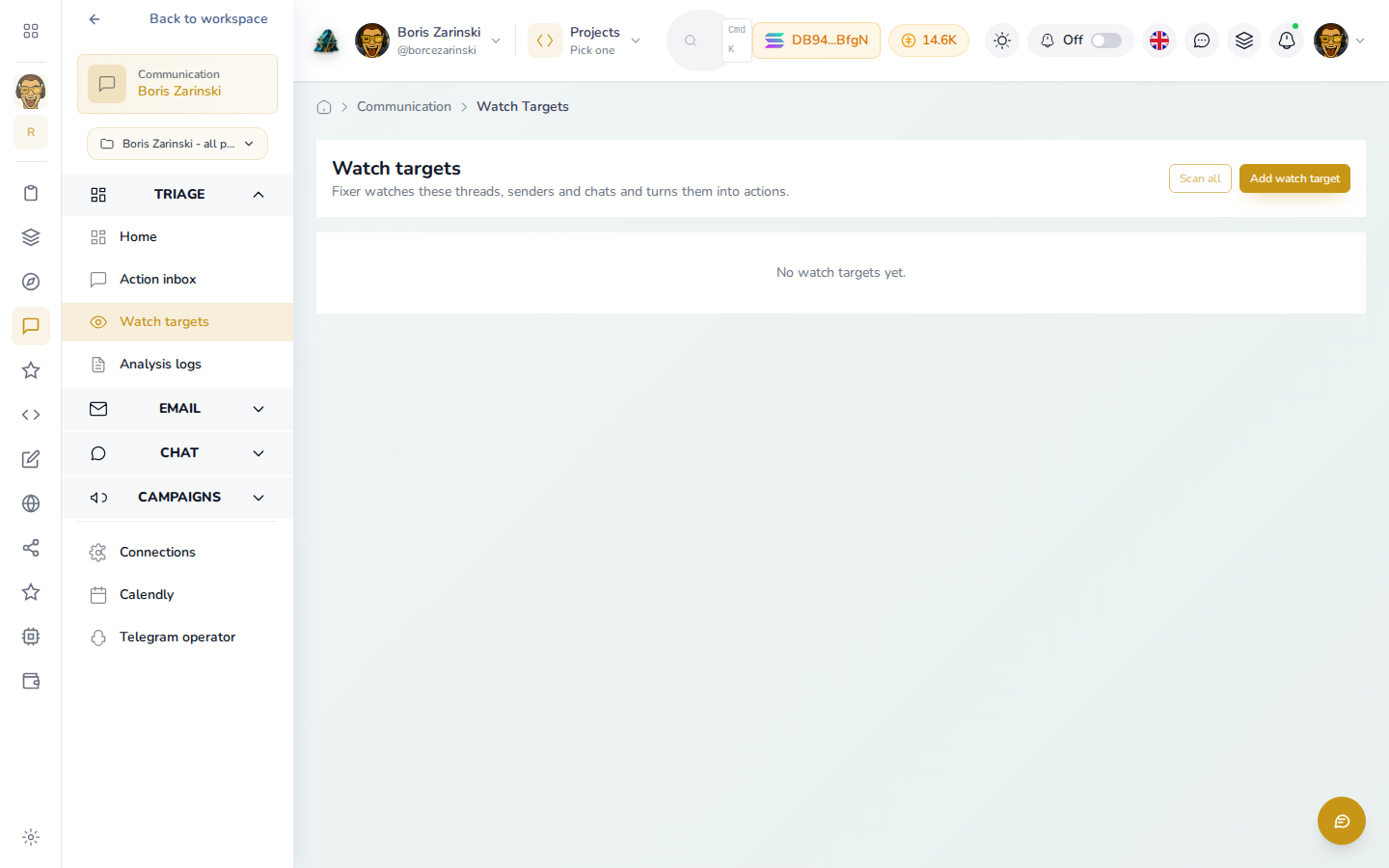
A conversation you follow never gets a reply sent without you seeing it first. Scanning only prepares a draft; sending is always a separate, deliberate step.
Follow a conversation
- Open Followed conversations in the Communication sidebar.
- Click Follow a conversation.
- Pick a connected account. Only sources you've already connected show up here.
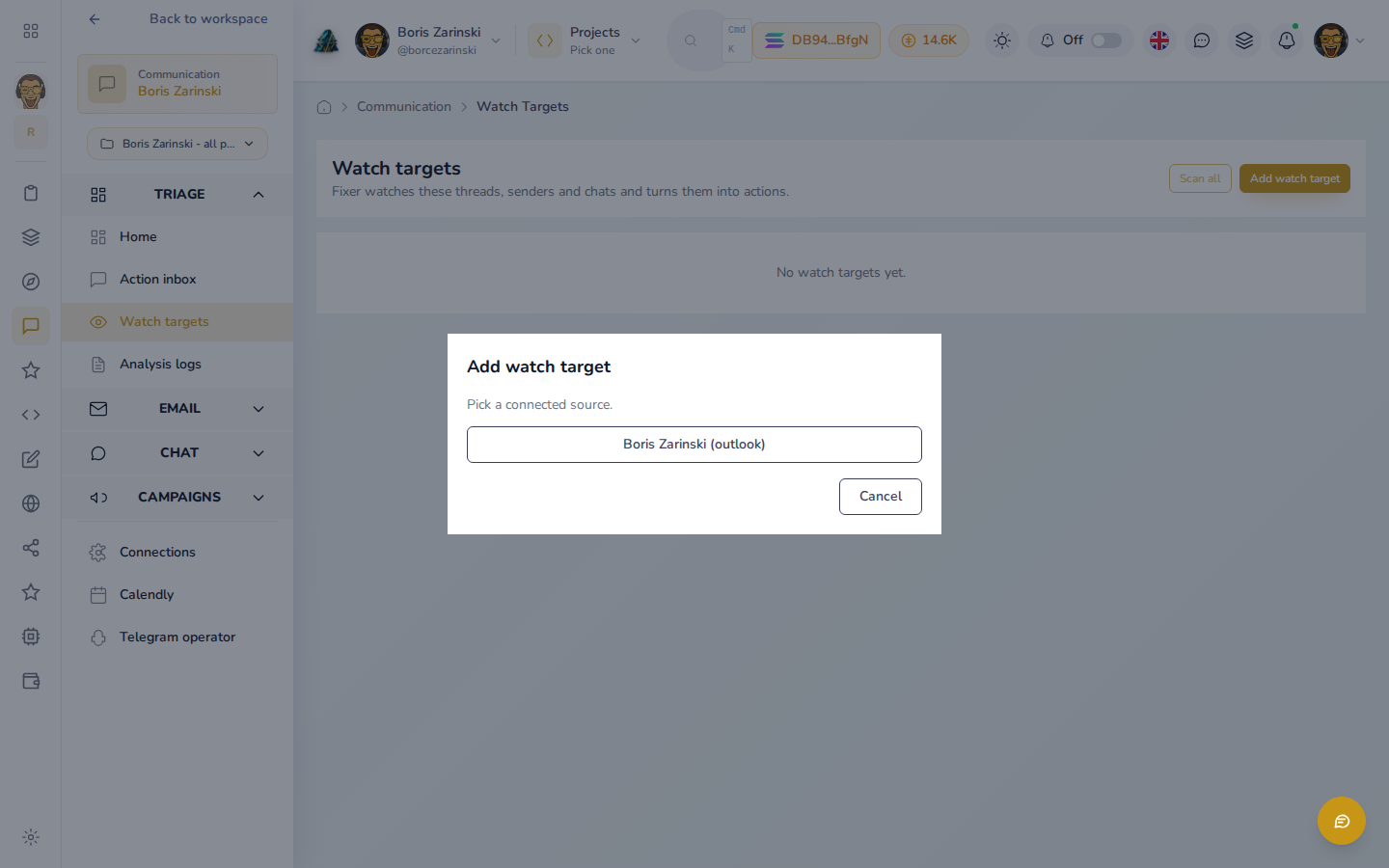
- Search for the thread, sender or chat you want to watch, then select it.
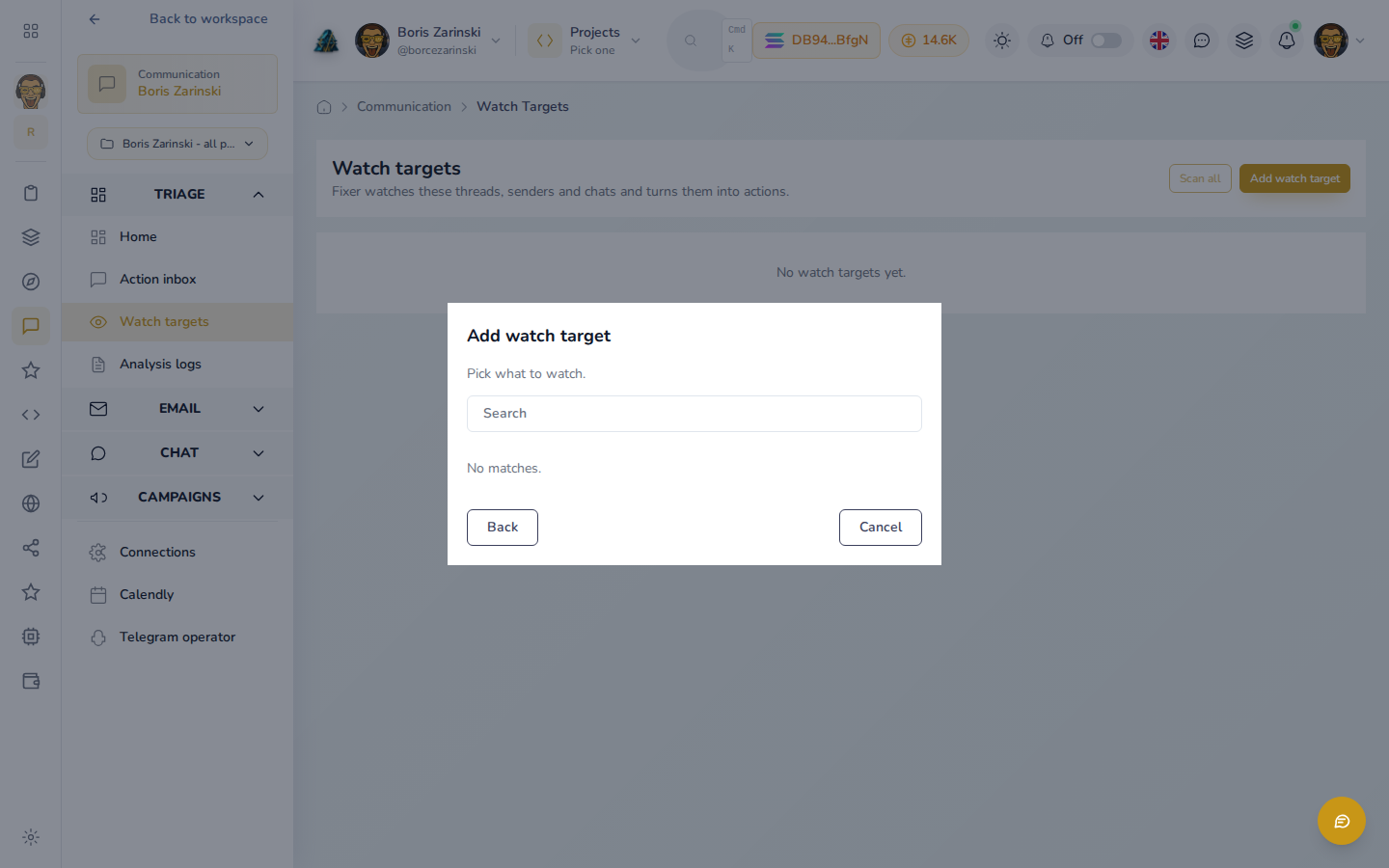
If nothing shows up here, the account you picked doesn't have any messages yet, or nothing matches your search. Try a broader search term, or come back once a message has landed in that account. - Give it a name you'll recognize, and set how often it should be checked (from every 15 minutes up to once a week).
- Save. The conversation now appears in your list, with columns for its cadence, how many items are pending, and when it last and next ran.
Scan and review
- Click Scan all to check every followed conversation right away, instead of waiting for its schedule.
- New items from a scan land in Needs a reply, each with a suggested reply already drafted.
- Open one, edit the draft if it needs a tweak, and either send it or turn it into a task instead.
Manage followed conversations
From the followed conversations table you can rename one, change its cadence, pause it (turn off Active), or remove it entirely. Removing a followed conversation stops future scans; anything it already found stays in your history.
A note on scope
If you have a project open, this page only shows followed conversations filed under that project. A link on the empty state lets you see every followed conversation across your workspace instead.